
How to extract pdf page from a PDF: Quick Guide
Discover how to extract pdf page from a PDF with free tools online and offline. A practical, secure guide for efficient document management.
Have you ever been stuck with a massive PDF, but you only need a single page from it? Knowing how to extract a PDF page is a surprisingly useful skill for modern finance and admin tasks. It turns a clunky report into a sharp, shareable document, which is vital for streamlining workflows, especially when preparing invoices or receipts for platforms like Mintline. It's not just about tidying up; it’s about working faster and keeping sensitive information secure.
Why You Need to Extract Pages from a PDF
Needing to pull just one page out of a larger document is a common headache. It’s all about clarity and efficiency. Why send a huge, multi-page file when you can give someone—or an automated system—exactly what they need? It saves time and cuts down on confusion.
This becomes absolutely critical when you're handling sensitive information. For example, you wouldn't upload your entire year's financial history when a system like Mintline only needs the specific invoice that matches a transaction. Being able to isolate that single page is your first line of defense in protecting your private data and ensuring accuracy.
Common Real-World Scenarios
The need for this skill pops up everywhere. Just think about these everyday situations where grabbing a single page is not just handy, but essential:
- Financial Reporting: You need to claim expenses, so you pull a single invoice from a 50-page monthly supplier report.
- Legal Documents: A colleague needs to see a specific clause on page 12 of a contract. Sending the whole 100-page agreement is both a security risk and a pain to navigate.
- Client Communication: You can keep stakeholders in the loop by sharing just the project summary page from a detailed progress report, without drowning them in data.
- Loan Applications: It's standard practice to isolate one specific bank statement or payslip from a large digital file for verification purposes.
Preparing Documents for Mintline
When you’re using platforms like Mintline that connect bank transactions to receipts and invoices, getting your documents ready is key. Uploading a clean, single-page PDF with only the relevant receipt makes the whole process faster and far more accurate.
By extracting the exact page you need, you streamline how automated systems read your data. This drastically reduces the chance of errors and helps AI tools quickly match the right transaction to its proof of purchase.
This simple prep work turns a tedious admin task into a smooth, automated workflow. Instead of uploading a cluttered, multi-page statement and hoping the system finds the right line item, you're providing a clear, focused document. This direct approach helps tools like Mintline do their job properly, saving you a huge amount of time and effort when you’re reconciling your finances.
In the end, learning how to extract a PDF page is a fundamental skill for anyone who wants to keep their digital records organised and secure.
Choosing the Right Method for Your PDF Task
Not all tools for pulling pages out of a PDF are built the same. The best one for you comes down to your specific task. It’s all about balancing convenience, security, and how many documents you need to process.
So, let's figure this out. Ask yourself a couple of things first. Are you working with sensitive bank statements for Mintline? Or are you just trying to snag a single page from a public report you found online? The answer immediately points you in the right direction—either towards a secure offline app or a quick online service.
Comparing Your Options
When it comes to extracting pages from a PDF, you’ve basically got four main paths you can take. Each has its own good and bad points.
- Built-in Viewers: Think of apps like Preview on a Mac or even the PDF viewer in your web browser. They're perfect for a quick, one-off job on a file that isn't sensitive.
- Online Services: These web-based tools are incredibly convenient. You just drag and drop your file, click the pages you want, and download your new, smaller PDF.
- Desktop Software: This is where the serious work gets done. Dedicated applications give you the most power and, most importantly, keep all your files safely on your own computer. For privacy, this is the gold standard.
- Programmatic Libraries: If you're a developer or just comfortable with the command line, scripting libraries open up a world of automation for handling PDFs in bulk.
Many online tools focus on a simple, visual workflow. You'll often see something like this, where it's easy to see exactly what you're doing.
The thumbnail layout makes it a breeze to spot the page you need, click on it, and pull it out into its own file.
To help you weigh your options, here’s a quick breakdown of how these methods stack up against each other.
Comparison of PDF Page Extraction Methods
| Method | Best For | Pros | Cons |
|---|---|---|---|
| Built-in Viewers | Quick, one-off tasks with non-sensitive files. | Free and already installed; very easy to use. | Very limited features; may not handle complex PDFs well. |
| Online Services | Convenience and speed for non-confidential documents. | No installation needed; accessible from anywhere. | Major security/privacy risk; requires an internet connection. |
| Desktop Software | Sensitive documents, frequent use, and batch processing. | High security (offline); advanced features; reliable. | Often requires purchase/subscription; can have a learning curve. |
| Programmatic | Developers and tech-savvy users needing automation. | Extremely powerful for bulk tasks; customisable workflows. | Requires coding knowledge; steep learning curve for non-devs. |
Ultimately, this table shows there's no single "best" method—it's all about matching the tool to the task at hand.
Security Versus Speed
The biggest trade-off you’ll face is often security. When you’re dealing with bank statements, invoices, or signed contracts, uploading them to a random website is a risky move. Even if a service claims to delete your files right away, they still leave your computer for a moment.
For any document with personal or financial data, a desktop application is always the safest bet. The whole process stays local on your machine, so your sensitive information never even touches the internet.
On the other hand, if you're just grabbing a recipe from an online cookbook or a slide from a public presentation, the speed of an online tool is tough to beat. No software to install, and you're done in seconds. If you're looking to move beyond the basics, you can explore some of the top Adobe PDF alternative tools that offer a great balance of features and security.
Finally, think about your own comfort level with technology. While anyone can use a browser tool, dedicated desktop software might take a little getting used to. Choosing wisely means aligning the tool with your task's needs, especially when you need clean, secure pages ready for a platform like Mintline.
A Guide to Using Free Online PDF Tools
Sometimes you just need to grab a single page from a PDF without the fuss of installing new software. This is where online tools really shine. They work right in your web browser, turning what could be a fiddly task into a simple drag-and-drop affair. It’s the go-to solution for non-sensitive documents when you’re short on time.
Think about it: you've just been sent a 30-page weekly company report, but the only thing you need to forward is the project update on page 17. Instead of sending the whole cumbersome file, an online tool lets you pluck out that single page in less than a minute. It keeps your communication sharp and makes life a lot easier for whoever you're sending it to.
How These Tools Typically Work
Most online PDF splitters follow a pretty standard, user-friendly script. You start by uploading your document to the site. From there, the tool usually shows you thumbnail previews of every single page, often laid out in a neat grid. It's completely visual—you just click to select the page or pages you want to pull out.
Once you’ve made your picks, you hit a button to start the extraction. The service does the heavy lifting on its servers and then gives you a download link for your new, streamlined PDF. The whole process is designed to be intuitive. If this is a task you do often, you might find our guide to free PDF splitting tools helpful for exploring more options.
This flowchart can help you decide in seconds if an online tool is the right choice for your task, based on what kind of data you're handling and how comfortable you are with different tech.
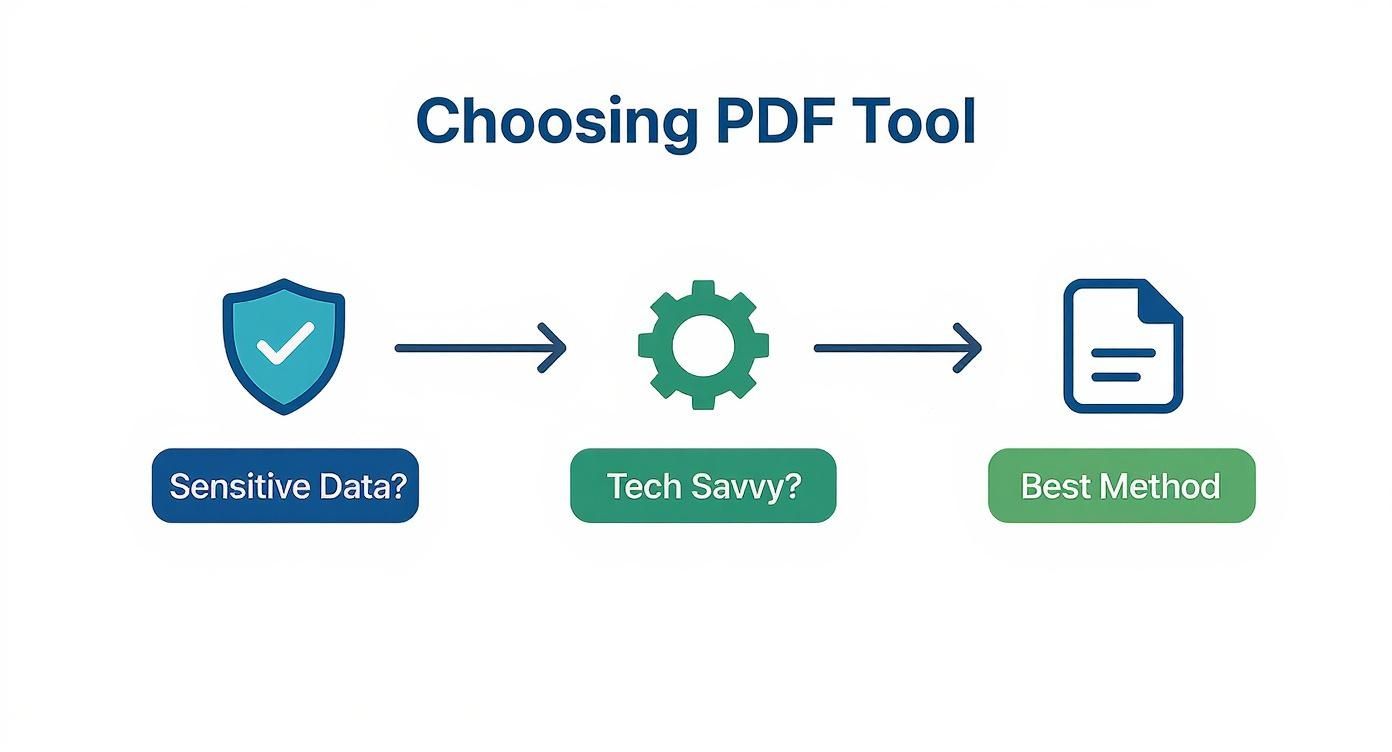
The main takeaway here is clear: the sensitivity of your document is the first and most important thing to consider. It immediately points you toward either a secure offline app or a quick online service.
Navigating Privacy and Security Concerns
The elephant in the room with online tools is always security. When is it actually safe to upload your documents? As handy as these services are, you're still sending your file to a third-party server, which opens the door to potential risks for confidential information.
I've developed a personal checklist that I run through before using any online PDF service for the first time. It's just a few quick checks to gauge whether I can trust it.
- Look for HTTPS: First thing I check is the URL. Does it start with
https://? That 's' means your connection is encrypted, which protects your file while it's being uploaded. - Scan the Privacy Policy: I know, nobody likes reading them. But take 30 seconds to find their policy and look for how they handle your files. A good service will be upfront about how long they keep your data—many reputable ones delete it automatically within an hour.
- Keep Sensitive Docs Offline: This is the golden rule. Never upload anything with personal ID numbers, financial data like bank statements for Mintline, or private client details. The convenience just isn't worth the risk.
By following these simple rules, you can use online tools with confidence for everyday, non-sensitive jobs. But for anything confidential, the security you get from an offline desktop application is always the better, safer bet.
In the end, online tools offer a brilliant combination of speed and simplicity. They're a fantastic choice for public reports, articles, or any document that’s free of private data. As long as you understand their limits and do a quick security check, you can make them a valuable part of your document management toolkit.
For Secure Offline Extraction, Desktop Software Is King
If security is a top priority or you're constantly wrangling PDFs, nothing beats a dedicated desktop application. Working offline means your documents stay on your machine, period. They're never uploaded to a third-party server, which is why this is the go-to method for professionals, especially when handling financial records for platforms like Mintline.
The biggest win here is total privacy. When you use a desktop app, your sensitive files—bank statements, contracts, internal reports—never leave the safety of your own computer. This completely sidesteps the risk of data breaches on external servers. Plus, no internet connection is needed, so you can extract a PDF page wherever you are.
A Great Free Option: PDFsam Basic
For a powerful, reliable, and completely free tool, I often recommend PDFsam Basic. It’s an open-source workhorse that does more than just extract pages; you can also merge, rotate, and split PDFs in all sorts of ways. It hits that sweet spot of being feature-rich without a steep learning curve.
Here's a quick look at the main dashboard, which neatly organises all its tools.
The layout is refreshingly simple. Each function is its own module, so you can jump straight to what you need without digging through confusing menus.
Once it's installed, you’re ready to go. The entire process happens right on your device. Let's walk through how to use its "Split" function to pull out the exact pages you need.
Different Ways to Extract Pages Offline
PDFsam Basic gives you a few different ways to split a document, which is handy because not every task is the same. You're not just stuck pulling out one page at a time; you can tackle more complex jobs with just a couple of clicks.
Here are a few real-world examples:
- Extracting a single page: Need to grab just one specific invoice? Simply type the page number (e.g., "5") into the split settings.
- Isolating a specific range: If you need to pull out a single chapter from a user manual or a particular section from a long report, you can define a page range like "12-18".
- Splitting by bookmarks: This is a lifesaver for well-structured documents. You can automatically split the PDF at every top-level bookmark, instantly creating separate files for each section.
- Splitting every 'N' pages: Got a massive 100-page document? You can easily break it down into more manageable chunks, like ten 10-page files.
The real advantage of desktop software is the sheer control and flexibility it offers. You can fine-tune output settings, create custom file naming patterns, and even batch-process a folder full of files at once, which saves a huge amount of time on repetitive work.
These offline tools are also critical when you're preparing documents that need to be machine-readable. For example, if you're using Mintline with scanned receipts, it's essential that the extracted page keeps its text layer intact. Desktop apps generally handle scanned documents more reliably, and you can dive deeper into how Optical Character Recognition (OCR) transforms PDFs into useful data in our detailed guide. This ensures that when your extracted page is uploaded, the platform can read and analyse the information accurately.
Getting Your Extracted Pages Ready for Mintline
Simply knowing how to extract a PDF page is only half the battle. The real goal is to prepare that document for your financial tools. For a platform like Mintline, a clean, single-page document is crucial for accurately matching a transaction to its invoice or receipt. When you upload just the page you need, you remove all the noise and help the system get it right the first time.
Before I upload anything to Mintline, I always give the extracted page a quick once-over. It’s a simple quality check that catches most problems before they cause any headaches.
Your Final Pre-Upload Checklist
Taking a few seconds to check your newly created file can save you a world of trouble later. This isn't just about making sure you grabbed the right page; it's about optimising it for the automated systems that will process it.
Here are the three things I always look for:
- Is it the right page? It sounds obvious, but you’d be surprised how easy it is to pull page 5 when you meant page 6. Double-check that the page you isolated is the one you actually need.
- Can you select the text? Open the new PDF and try to click and drag your cursor over some of the words. If you can highlight the text, you're good to go. If not, the PDF is a flat image, which is much harder for software to read. This is a critical step for ensuring Mintline can process the data.
- What’s the file size? A single-page PDF should be pretty small, almost always under 1 MB. If the file size seems unusually large, it might be bloated with hidden data that could slow down your upload.
A clean, text-selectable PDF is the bedrock of efficient financial automation. By confirming these details, you provide platforms like Mintline with high-quality data, which directly translates to faster, more accurate transaction matching.
Smart File Naming and Organisation
With the page verified, the last step is to give it a sensible name. A good naming convention is what separates a chaotic downloads folder from a searchable, organised archive. It's a small habit, but one that pays off massively, especially when you need to find something months later.
I’ve found that a simple format like ‘ClientName_InvoiceNumber_Date.pdf’ works wonders. It tells you exactly what’s inside without ever needing to open the file. For instance, ‘InnovateCorp_INV-1056_2024-05-28.pdf’ is infinitely more helpful than a generic name like ‘scan_002.pdf’.
Once you've got a system down, keeping everything in order becomes second nature. For more ideas on this, check out these tips on how to organize research papers for peak efficiency—the principles are the same and can make a huge difference to your workflow.
Answering Your Top Questions About Extracting PDF Pages
When it comes to pulling a single page out of a PDF, a couple of questions pop up time and time again, especially around security and quality. Let's clear those up so you can pick the right tool for the job.
Can I Extract Pages From a Password-Protected PDF?
Yes, you can, but there’s a catch: you absolutely must know the password. Any legitimate tool, whether it's an online service or a desktop app, will require you to enter the document's password before it can even peek at the contents, let alone extract anything.
There's no magic button to bypass proper encryption. If you’ve got the key, you’re good to go.
Will Extracting a Page Ruin the Quality?
This is a common worry, but you can put it to rest. The quality will be perfectly preserved.
Extracting a page isn't like saving a JPEG over and over again. Instead, the tool makes a direct copy of all the data for that specific page—the text, the images, the layout—and simply places it into a new, separate file. The resolution and clarity will be identical to the original.
What's the Safest Way to Handle Bank Statements for Mintline?
This is a big one, especially when you're dealing with sensitive financial information. You've downloaded your bank statement and now you need to extract just one page to upload for reconciliation. Should you use that handy online tool?
For any document containing sensitive financial or personal data, the safest approach is always to use an offline desktop application. This keeps the file on your computer from start to finish, giving you the best possible security and privacy.
While most reputable online services use secure connections and promise to delete your files after processing, your document is temporarily uploaded to a third-party server. For things like bank statements, tax forms, or contracts, keeping the entire process local is just smart practice. It completely removes that small but present risk, ensuring your data stays under your control when preparing files for Mintline.
Ready to stop chasing receipts and automate your financial records? With Mintline, you can automatically link every bank transaction to its corresponding document, turning hours of monthly admin into just a few minutes. Get started with Mintline for free.