
A Smarter Converter PDF for Excel Your Bookkeeping Needs
Tired of manual data entry? Discover how a modern converter PDF for Excel transforms messy bank statements and receipts into clean, audit-ready spreadsheets.
The idea of a simple PDF to Excel converter sounds great, but for anyone handling financial documents, the reality is often a huge disappointment. Accountants and bookkeepers know this pain all too well. A standard conversion tool can create more problems than it solves, leaving you with a chaotic mess of jumbled data that takes hours to fix. That's why we built Mintline—to solve this exact problem.
Why Basic PDF to Excel Converters Fail Accountants

Let's be honest: that ‘click-and-convert’ dream rarely works out for finance professionals in the Netherlands. The fundamental issue is that generic converters don't understand the complex, structured nature of financial documents. They look at a bank statement and see it as just another PDF, which is where things immediately start to go wrong.
This lack of financial intelligence is precisely why so many conversions spit out frustrating, error-filled spreadsheets. What should be a time-saver quickly devolves into a manual data-entry nightmare. Mintline was created to bridge this gap, offering an intelligent solution built for finance.
The Chaos of Misaligned Data
One of the most common headaches is dealing with misaligned columns and scrambled tables. A standard converter often can't tell the difference between descriptions, dates, and amounts, so it just mashes them together into single, useless cells. This is especially true for bank statements, which often have intricate layouts that completely confuse basic software.
If this particular problem sounds familiar, you're not alone. We take a closer look at this specific challenge in our guide on finding the right bank statement converter.
The result? You get an Excel sheet that bears no resemblance to the original PDF, forcing you to painstakingly cut, paste, and reorganise everything by hand. A task that was supposed to take seconds ends up eating a huge chunk of your day.
Unreadable Scans and Lost Information
Scanned receipts and image-based PDFs are another major hurdle. Most standard converters don't have the sophisticated Optical Character Recognition (OCR) needed to accurately pull text from an image. This usually leads to a few predictable outcomes:
- Garbled Text: Key details like vendor names or transaction amounts turn into a string of nonsensical characters.
- Incomplete Data: Entire lines or even whole sections might be skipped, leaving massive gaps in your financial records.
- Compromised Integrity: When data is lost or misinterpreted, the integrity of your bookkeeping is immediately at risk.
The real cost of a bad conversion isn't just the wasted time. It's the critical errors that can compromise financial audits and throw off business decisions. For us at Mintline, accuracy isn't a "nice-to-have"—it's everything.
This problem is a familiar story in the Dutch financial sector. For years, accountants dealing with complex Rabobank statements would spend hours manually re-keying data. Now, modern AI-powered OCR tools like Mintline have completely changed this workflow. They've cut conversion times from hours down to minutes with near-perfect accuracy, helping firms meet the stringent standards set by the Kamer van Koophandel.
Choosing the Right PDF to Excel Conversion Tool
Not all conversion tools are created equal, and when you’re dealing with sensitive financial data, this couldn't be more true. Picking the right converter pdf for excel will make or break your workflow, directly impacting your efficiency, accuracy, and sanity. The options generally fall into three camps, and for a busy bookkeeper, the trade-offs are significant.
Making the right choice from the start is crucial. It's the difference between saving hours and creating a mountain of frustrating rework. Let’s break down the landscape, from the most basic approach to tools like Mintline, which are built for professionals.
The Manual Data Entry Grind
The first method isn't really a tool—it's just good old-fashioned manual data entry. Copying and pasting line by line from a PDF into Excel gives you absolute control over the final spreadsheet. You can guarantee every number and every detail lands exactly where it should.
But that level of control comes at a steep price. Manual entry is incredibly time-consuming, ripe for human error, and just doesn't scale. Sure, for a single, simple receipt, it might be fine. But try that with a 12-page bank statement or a whole month's worth of invoices, and you’re looking at burnout and costly mistakes.
Free Online Converters: The Quick-Fix Trap
Next up are the free online tools that promise instant, magic conversions. They’re tempting, we get it. For a quick, one-off task with a perfectly formatted, text-based PDF, they might just work. The appeal is the speed and the zero cost.
The problem is, their reliability nosedives the moment they encounter a real-world financial document. These free tools often fail spectacularly when dealing with:
- Scanned Documents: Most lack the Optical Character Recognition (OCR) needed to pull text from an image, leaving you with a garbled mess.
- Complex Layouts: Ever tried to convert a Dutch bank statement with its multiple columns and intricate formatting? These basic tools get completely confused, spitting out jumbled, unusable data.
- Data Security: Uploading sensitive financial information to a free, unknown web service is a major security risk you just shouldn't take.
The real issue with free tools is they can't grasp context. They see text and shapes, not financial transactions. For any serious accounting work, that lack of intelligence is a complete non-starter.
Professional OCR Platforms: The Right Choice for the Job
This brings us to professional-grade OCR platforms like Mintline. Our solution is designed from the ground up to handle the specific complexities of financial documents. We use advanced AI and machine learning to do more than just convert—we interpret.
Mintline understands that a column of numbers represents transactions, it recognises different date formats, and it intelligently separates vendor names from item descriptions. Our technology can handle the messiest layouts, delivering clean, structured, and audit-ready data straight into your accounting software.
While it's an investment, the return in time saved and accuracy gained is enormous. If you want to get into the technical details, you can learn more about how to convert a PDF document to text using modern technology. For any serious financial workflow, a specialised OCR solution is really the only way to go.
Getting Your Financial PDFs into Shape
Getting a clean, usable Excel file from a PDF isn't about finding the magic "convert" button. It’s about having a solid process. With Mintline, much of this process is automated, but understanding the principles helps you get the most out of any tool.
Let's walk through how you can turn those tricky financial PDFs—bank statements, receipts, you name it—into perfectly organised data, every single time.
Tidy Up Your PDFs Before You Convert
The old saying "garbage in, garbage out" has never been more true. The quality of your starting PDF has a massive impact on the final result. Taking a few moments to prep your documents can save you hours of headaches later on. While Mintline's AI can correct many issues automatically, starting with a good source file is always best practice.
Before you upload your files, give them a quick once-over:
- Look at the Scan Quality: Is it clear? Are there weird shadows or smudges? A blurry or skewed scan will confuse even the best software. Aim for a crisp 300 DPI (dots per inch)—that’s the gold standard for reliable text recognition.
- Fix the Orientation: It sounds obvious, but make sure every page is right-side up. A sideways document is a recipe for disaster and one of the easiest errors to prevent.
- Ditch the Extra Pages: Get rid of any blank pages, cover sheets, or promotional fluff. This helps the converter focus only on the important data you need.
These small checks make a huge difference, especially when you're dealing with less-than-perfect scanned receipts or statements.
Choosing the Right Tool for the Job
With a clean PDF in hand, you're ready to convert. This is where a professional OCR (Optical Character Recognition) tool like Mintline really shines. Basic converters often just dump text into cells, but our platform understands the structure of a financial document.
Think about a typical bank statement. You need a tool with intelligent table detection—something that knows a date goes in one column, a description in another, and a transaction amount in a third. If you want to get into the nitty-gritty of this, we have a whole guide on how to extract tables from a PDF.
This image shows the journey from tedious manual data entry to the efficiency of a smart, AI-driven process.
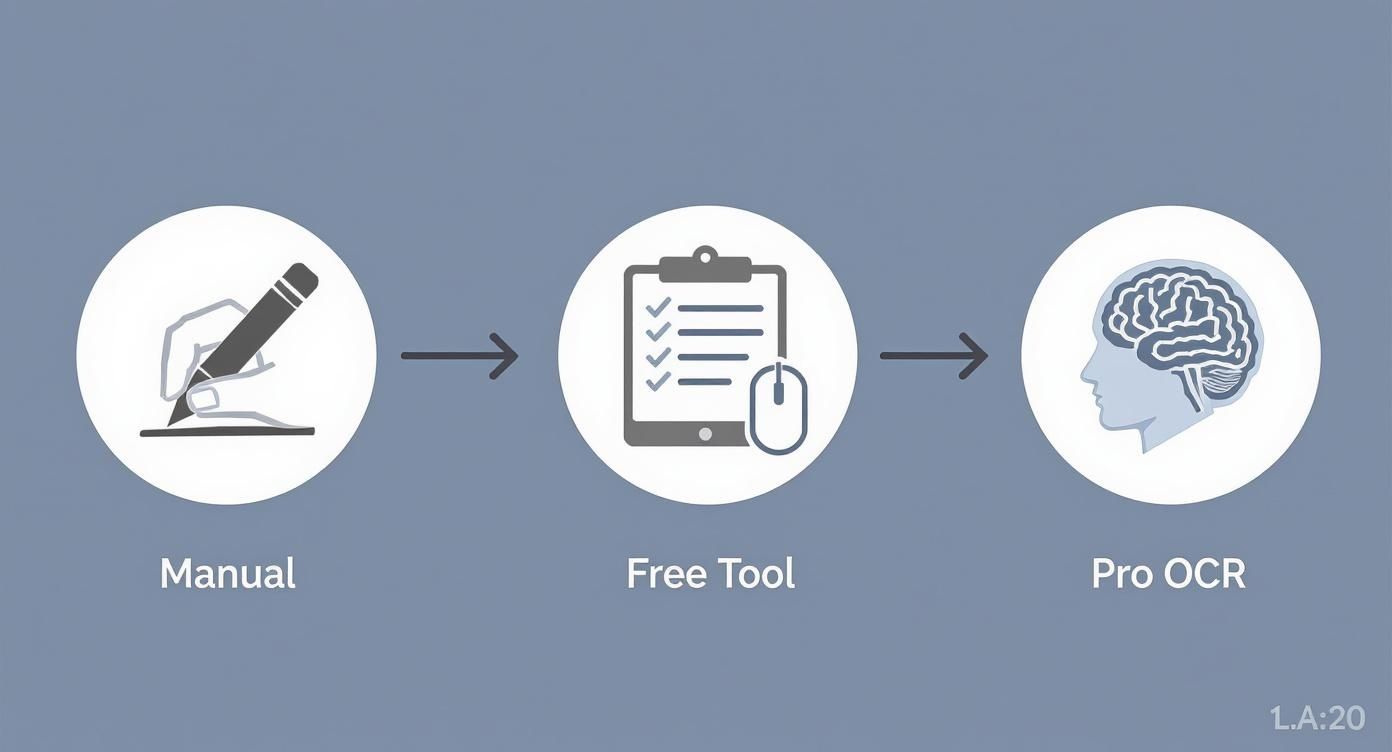
As you can see, moving up the chain from manual work to a specialised tool doesn't just save time; it dramatically improves the quality and reliability of your data.
This isn’t just about making bookkeeping easier. In the Netherlands, this kind of accuracy is critical for national economic reporting. The Dutch Central Bureau of Statistics (CBS), for example, uses Excel to process huge datasets for international trade—sometimes with over 200,000 records in a single file. Getting data from PDFs into those templates accurately is non-negotiable for large-scale compliance.
The goal isn't just to move data from one format to another. It's to preserve the data's structure, context, and integrity so it's immediately useful for analysis, reporting, or auditing. That's the core philosophy behind Mintline.
A good tool will also handle the annoying stuff, like merged cells that throw off your columns or date formats that are all over the place. Platforms like Mintline use AI to automatically spot and standardise these inconsistencies, which means you can finally stop wasting time on manual clean-up.
Validating Your Data After Conversion
Getting your data into an Excel spreadsheet feels like a big win, but the job isn’t complete until you’ve confirmed the data is actually correct. For anyone in accounting or bookkeeping, this validation step is absolutely non-negotiable. While Mintline has built-in checks, understanding how to verify data is a crucial skill. It's your last line of defence against errors that could throw your financial records into chaos.
Think of it this way: the conversion process is like getting a first draft down. The validation is the proofreading that makes it reliable. Skipping this check can create a real mess later on.
Your Post-Conversion Checklist
A quick, systematic check can make all the difference. You don't need to pore over every single cell with a magnifying glass. Instead, a targeted review will catch the most common conversion glitches and give you real confidence in your data.
Here’s a straightforward checklist to run through after every conversion:
- Cross-Reference Totals: This is the fastest way to spot a major problem. Compare the total credits, debits, or the final balance in your new Excel sheet with the summary figures on the original PDF. If they don't line up, you know something’s off.
- Spot-Check Random Entries: Pick five to ten random lines from the spreadsheet and find those exact transactions back on the PDF. Check everything—the date, the description, and the amount. This simple trick catches subtle OCR mistakes that the totals check would easily miss.
- Scan for Obvious Errors: Give the whole sheet a quick visual once-over. You're looking for strange characters, dates that are formatted as text, or numbers stuck to the left side of the cell. That last one is a dead giveaway that Excel thinks it's text, not a value you can calculate.
Quick Data Cleanup Techniques
Once you've flagged any issues, a couple of simple Excel tricks can get things cleaned up in no time. Taking a moment to standardise your data now makes it perfect for import or analysis.
Excel's "Find and Replace" tool (Ctrl + H) is fantastic for fixing recurring text errors or making vendor names consistent. And for those pesky numbers that have been formatted as text? The =VALUE() function is your best friend. It instantly converts a text string that looks like a number into a proper number you can use in formulas.
The point of validation isn't just to hunt for errors—it's to build a clean, reliable dataset. A few minutes of checking saves you from wasting hours of work down the road and ensures your financial records are built on a rock-solid foundation.
This final quality control check is what turns a basic data export into a genuinely useful, audit-ready document. It’s the professional discipline that ensures the time you saved using a converter pdf for excel isn't squandered by fixing easily preventable mistakes.
How Mintline Finetunes Your Bookkeeping Workflow

We've walked through the manual grind of prepping, converting, and cleaning up financial documents. Now, let’s talk about how to put that entire process on autopilot. Mintline isn't just another converter pdf for excel; it's a complete automation system built from the ground up for financial data.
Instead of working through a tedious checklist, Mintline handles the entire journey for you. From tidying up your initial documents to the final data checks, our platform does the heavy lifting. What was once a multi-step manual chore becomes a single, smooth action.
Unmatched Accuracy for Dutch Documents
Here’s where most conversion tools fall short: they don't understand local context. This is precisely where Mintline shines. We've trained our AI on a massive, specific dataset of Dutch financial documents. Think bank statements from every major bank in the Netherlands and countless receipts from local businesses.
This specialised training gives Mintline a home-field advantage. It recognises the unique layouts, specific terminology, and formatting quirks you see every day in Dutch documents. The result? A level of accuracy that generic, one-size-fits-all converters simply can't deliver.
This focus is more important than ever. With digital reporting requirements in the Netherlands increasingly demanding structured formats like Excel, the need for precise conversion has skyrocketed. In fact, many service providers have seen over 60% of their clients switch from manual data entry to automated PDF-to-Excel workflows just to keep up. You can read more about this shift toward digital compliance in Dutch business over at Arcrole.com.
Automating the Entire Workflow, Not Just One Step
Mintline goes far beyond just converting files by automating the most time-consuming parts of the job. We built the platform to manage the complete process, freeing you up to analyse the numbers instead of just typing them in.
Here’s a glimpse of how Mintline makes it happen:
- Automated Preprocessing: Forget about manually rotating crooked scans or fixing poor-quality images. Mintline's AI automatically preps and cleans your documents for the best possible OCR results.
- Intelligent Conversion: The platform doesn't just pull out text; it understands it. It intelligently pinpoints tables, correctly separates columns, and interprets financial data in its proper context.
- Built-in Validation: Mintline automatically cross-references data points and flags anything that looks off, taking care of the crucial validation checks that ensure your records are trustworthy.
The real game-changer is Mintline's ability to process hundreds of documents at once. You can upload entire folders of bank statements and receipts, and the platform sorts, converts, and organises everything for you automatically.
Ultimately, this deep level of automation means every export is perfectly structured and audit-ready from the get-go. Mintline directly reinforces why accurate bookkeeping is crucial, making sure every conversion strengthens the integrity of your financial records. And with easy integrations into major accounting software, you can finally close the loop and eliminate manual work for good.
Answering Your Top PDF to Excel Questions
Even with the best game plan, you're bound to run into a few tricky situations when converting financial documents. As the creators of a professional converter pdf for excel, we've heard every question in the book.
Let's walk through some of the most common ones. Getting these answers straight can save you a ton of headaches and frustrating trial-and-error down the line.
Can a Converter Really Handle My Scanned Bank Statements Accurately?
Yes, but this is where you see the massive difference between a basic free tool and a professional one. Your average free converter will likely choke on a scanned document because it can't actually read the text; it just sees an image. It lacks something called Optical Character Recognition (OCR).
A specialised tool like Mintline is built on advanced OCR technology that's been specifically trained to recognise the unique layouts, fonts, and table structures of financial documents, even from less-than-perfect scans.
For the best results, though, you still want to give the software a fighting chance. Make sure your scans are as clear, straight, and well-lit as possible. While Mintline's AI is great at correcting minor skews or shadows, a clean source document will always give you the cleanest, most reliable data.
What’s the Best File Format for Bookkeeping Exports?
This really comes down to your next step in the process. For most bookkeeping tasks, a structured format like Excel (.xlsx) or CSV is your best bet.
We find Excel is perfect for that initial review and cleanup stage. It keeps all the formatting, lets you use formulas, and makes it incredibly easy to scan and spot-check the numbers before they go anywhere near your accounting software.
On the other hand, a CSV (Comma-Separated Values) file is the universal language of data import. It’s a simple, no-fuss format that virtually every accounting platform can understand. Mintline gives you both options, so you have the flexibility to either dig into the data in Excel first or just push it straight into your books with a CSV file.
Our rule of thumb: If you need to review, analyse, or manipulate the data, go with Excel. If you're confident and just want to import it directly into your accounting software, CSV is the quickest and most reliable route.
How Do I Deal with Those Annoying Multi-Page Tables?
Ah, the classic headache. Long bank or credit card statements with tables that stretch across multiple pages are the Achilles' heel of most free converters. They just can't see the big picture and end up splitting your data into separate, useless chunks.
This is another area where a more sophisticated tool shines. Mintline's smart OCR platform is designed to recognise repeating headers and footers across pages. It understands that the table on page two is a continuation of the one on page one and intelligently stitches it all back together into a single, continuous spreadsheet.
When you run a multi-page statement through Mintline, for example, the platform automatically detects and merges these tables for you. No more painstaking manual copy-and-pasting. It’s a massive time-saver and cuts out a huge potential for human error.
Ready to stop wasting hours on manual data entry and fixing messy spreadsheets? Let Mintline automate your entire financial workflow, from PDF conversion to audit-ready exports. Experience the power of AI-driven accuracy and see how much time you can reclaim. Discover Mintline today.