
How to Extract Tables from a PDF with Mintline's Automation
Learn to extract tables pdf with the right tools and steps to automate your workflow.
Extracting tables from a PDF boils down to two main approaches: you can either manually copy and paste the data, or you can use automated software like Mintline to convert the PDF into a structured format like Excel or CSV. While manual methods might seem quick for a one-off task, they are incredibly slow and riddled with errors. Automated tools, on the other hand, deliver the speed and accuracy that modern finance and operations teams need, especially when dealing with complex or even scanned documents.
Why You're Wasting Time Copying PDF Tables
Let's be real for a moment. Manually copying and pasting tables from PDFs is a frustrating and fundamentally broken process. It feels like trying to fit a square peg in a round hole, and there's a good reason for that. PDFs were never built for easy data transfer; they were designed to look the same everywhere, whether on a screen or a printed page.
This design choice is precisely why highlighting a table and pasting it into Excel or a CSV file often results in a complete mess—jumbled formatting, weirdly merged cells, and critical data errors.
For anyone working in finance or operations, this isn't just a minor annoyance; it's a daily grind. Just think of the hours you've spent wrestling with supplier invoices, trying to untangle numbers from dense financial reports, or reformatting data from bank statements. Every single manual tweak you make is another chance for something to go wrong.
This manual struggle isn't just slow—it actively introduces risk into your workflows. A misplaced decimal point or a skipped row can have serious consequences, leading to flawed financial analysis or even compliance headaches down the road.
The Shift Away from Unstructured Data
The limitations of PDFs are becoming so widely recognised that even governmental bodies are ditching them for data dissemination. Take Statistics Netherlands (CBS), for example. Until 2021, they published key macroeconomic data, including the National Accounts tables, primarily in PDF format.
From 2022 onwards, they stopped. The CBS switched exclusively to Excel downloads to make the data directly machine-readable and cut out the error-prone process of manual PDF extraction. You can see the shift to more accessible formats on the official CBS portal and how much more user-friendly the data has become.
Understanding these inherent limitations is the first step. It clarifies why automated solutions like Mintline are no longer a luxury but a core requirement for any business that values accuracy, efficiency, and the sanity of its team.
The Real Cost of Manual Extraction
The hidden costs of sticking with manual methods are bigger than you think. It's not just about wasted hours; it's about the lost opportunities and the operational risks you're taking on.
- Decreased Productivity: Time spent fixing janky formatting is time you could have spent on high-value analysis or strategic planning.
- Increased Error Rates: Manual data entry is notoriously unreliable. Even the most detail-oriented person makes small mistakes that can snowball.
- Scalability Issues: A process that works for five invoices a month completely falls apart when you're dealing with five hundred.
This is exactly the problem that platforms like Mintline are built to solve. By automating the entire workflow—from finding tables in PDF bank statements to extracting and matching transactions—we eliminate that manual friction. This frees up your team to focus on verifying data, not wrestling with it. It transforms hours of tedious admin into just minutes of oversight.
Is Your PDF Native or Scanned? Here’s How to Tell
Before you even think about which tool to use, you need to figure out what kind of PDF you’re dealing with. This is the single most important first step, and getting it wrong means you’ll waste hours trying to fit a square peg in a round hole.
PDFs essentially come in two flavours: native (or text-based) and scanned. A native PDF is born digital, created from something like Word or an accounting system. All its text is real, selectable text. A scanned PDF, on the other hand, is just a picture—a flat image of a paper document.
The Easiest Way to Check: The Click-and-Drag Test
You don’t need any special software for this quick diagnosis. Just open your PDF and try to highlight some text inside a table with your mouse.
- If you can select individual words or sentences, congratulations. You've got a native PDF. The data is already there, just waiting to be pulled out. This is the ideal scenario.
- If your cursor just draws a blue box over a whole section, like you’re selecting an image, you're looking at a scanned PDF. The text is part of the image, so you can't just copy and paste it.
This simple test tells you everything you need to know. For a native PDF, you can use data scraping tools directly. For a scanned one, you absolutely need Optical Character Recognition (OCR) to make the text readable first.
When you're faced with a scanned document, the game changes. You need an OCR engine to analyse the image, recognise the shapes of letters and numbers, and convert them back into actual text. It’s a powerful process that turns a static picture into useful data. If you’re stuck with scanned files, it’s worth understanding the basics of how to scan text from an image because that’s the technology doing all the heavy lifting.
At Mintline, we built our platform to handle this automatically. When you upload a document like a bank statement, our system instantly determines if it's native or scanned. From there, it automatically deploys the right method—either direct extraction or our advanced OCR—to get the data out accurately without you having to do a thing.
A Practical Toolkit for PDF Table Extraction
Once you’ve figured out what kind of PDF you're dealing with, it's time to pick your tool. The best way to extract tables from a PDF really comes down to your needs, how comfortable you are with technology, and the size of your project. There's a solution for everyone, from a non-developer needing a quick one-off result to a programmer building a fully automated system.
For those who don't mind getting their hands dirty with code, Python is the clear winner, with some seriously powerful open-source libraries. For everyone else, there are plenty of user-friendly apps and online converters that offer a more direct route, though they often come with a few trade-offs.
Code-Based Extraction for Developers
If you’re willing to write a bit of code, you unlock a massive amount of flexibility and control. Python libraries are pretty much the industry standard here.
- Tabula-py: This is a straightforward wrapper for Tabula, a well-known open-source tool. It’s fantastic for native PDFs where the tables are cleanly defined and is a great starting point for beginners.
- Camelot: A more powerful library that gives you much finer control over the extraction process. I've found that Camelot often pulls through where Tabula might struggle, especially with tables that have merged cells or other quirky layouts.
These libraries are brilliant for custom scripts and tasks you need to run repeatedly. But, they have a major blind spot: scanned documents. They simply don't have built-in Optical Character Recognition (OCR), so they can't "read" images.
This is where things get more interesting. Here in the Netherlands, deep learning and advanced toolkits are evolving fast to solve this exact problem. A major development is the integration of multiple open-source models into unified platforms that combine table recognition with OCR. This dramatically improves accuracy on all kinds of PDFs and is a huge leap forward from older tools that only worked on digital-born documents. You can dive into the full research on these advanced PDF toolkits to see just how far the technology has come.
User-Friendly Tools for Non-Developers
If coding isn’t your thing, don’t worry. Several applications can get the job done with just a few clicks.
- Adobe Acrobat Pro: The classic PDF editor has a reliable "Export PDF" function that can turn tables into Excel or CSV files. It works well for simple, well-structured native PDFs, but I've seen it produce some messy results with more complex layouts.
- Online Converters: A quick search turns up dozens of websites offering free PDF table extraction. While they’re handy for a one-time job, you have to be careful. Uploading sensitive financial documents to a random website is a big security risk, and the quality of the output can be a real gamble.
The flowchart below neatly sums up the first decision you need to make.
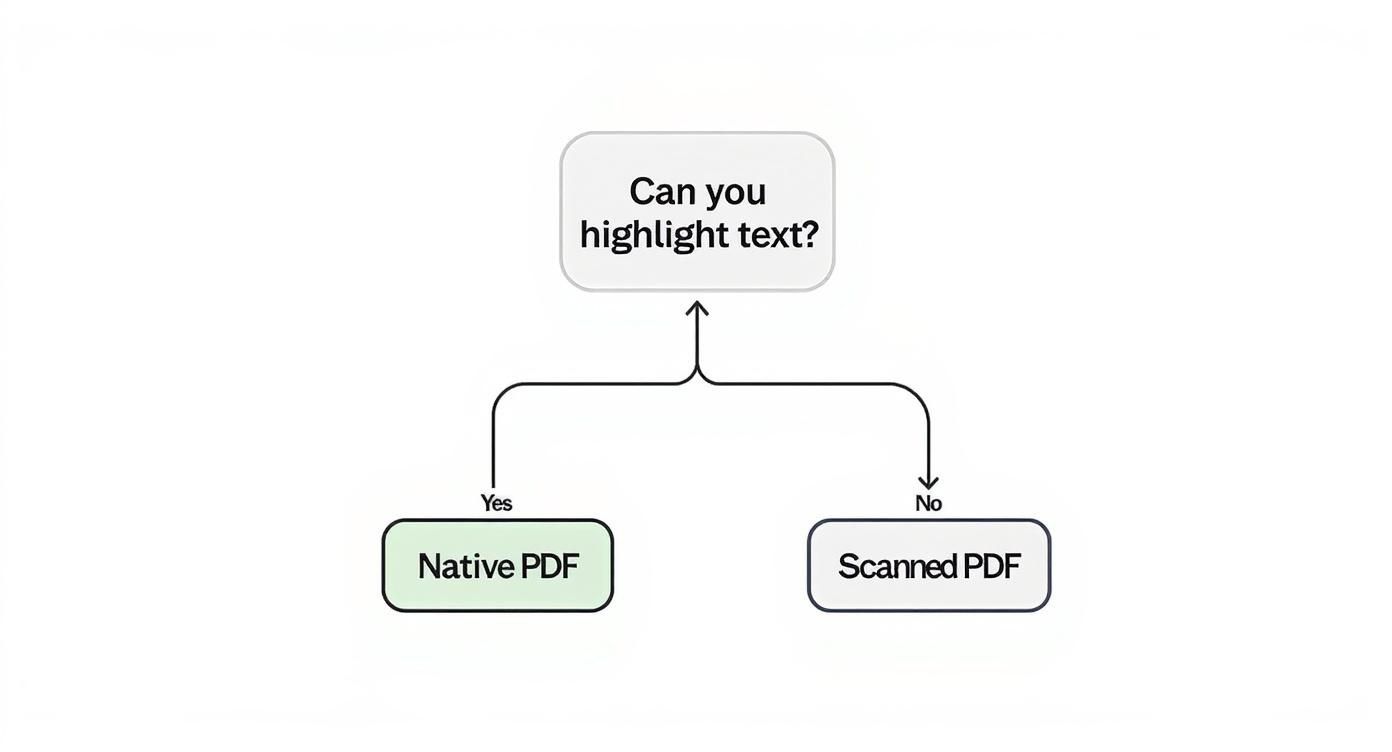
As you can see, being able to highlight the text is the dead giveaway. It immediately tells you which path to take. While these tools focus on the "how," it's also useful to understand the broader concepts of data extraction. You'll find some interesting parallels in the strategies for building a robust text extractor from website content.
Comparison of PDF Table Extraction Tools
To help you decide, here’s a quick rundown of the most popular tools and what they're best suited for.
| Tool | Best For | Technical Skill | Handles Scanned PDFs (OCR) |
|---|---|---|---|
| Tabula-py | Simple tables in native PDFs, quick scripts | Basic Python | No |
| Camelot | Complex tables with merged cells, fine-tuning | Intermediate Python | No |
| Adobe Acrobat Pro | Quick, one-off extractions for non-coders | None | Limited (built-in OCR) |
| Online Converters | Non-sensitive, simple PDFs | None | Varies (often unreliable) |
This table should give you a clear idea of where to start based on your specific document and skill set.
The biggest problem with all manual tools, whether they’re code-based or have a nice user interface, is that they just don't scale. They're great for solving a problem once, but they can’t handle a steady stream of documents like invoices or bank statements without someone constantly babysitting the process.
This is the point where you outgrow individual tools and need a proper platform. When you upload a document to Mintline, you don't even have to think about whether it's native or scanned. Our system automatically figures out the PDF type, uses the right technology (including advanced OCR), and pulls the transaction data. You never have to choose a tool or write a single line of code. It's an automated workflow built for exactly these kinds of high-volume, repetitive tasks.
Of course, sometimes you need more than just the tables. If you need to grab everything, check out our guide on how to extract text from a PDF. In the end, picking the right tool is all about matching its strengths to your real-world challenge.
Cleaning Up the Mess After Extraction
Pulling the raw data out when you extract tables from a PDF is a huge first step, but let's be honest—it’s rarely the last. The output you get from most tools is often messy, inconsistent, and nowhere near ready for your accounting software or analysis spreadsheets. This is where the real work begins: the data cleaning phase, where you turn a jumble of text into a pristine, usable dataset.
Think of it like this: the extraction tool gets the ingredients out of the cupboard, but you still need to chop the onions and peel the carrots before you can actually start cooking. You’ll almost always run into frustrating issues that need a bit of manual correction or some clever scripting to fix.
Common Data Cleaning Headaches
After working with countless financial documents, we've seen the same classic problems pop up time and time again.
- Merged or Split Cells: You know that header that spans three columns in the PDF? Your extraction tool might just cram it into a single cell, completely wrecking your column alignment. On the flip side, a single line of text might get awkwardly split across multiple cells.
- Tables Split Across Pages: Long tables that continue onto the next page are a nightmare for many tools. They often get treated as two entirely separate tables, which means you're left to piece them back together and make sure the headers from page one carry over correctly.
- Inconsistent Formatting: Dates are the absolute worst for this. One statement uses "DD-MM-YYYY," the next uses "MM/DD/YY," and another prefers "Month Day, Year." If you don't standardise them, trying to sort or filter by date is a lost cause. The same problem plagues currency symbols and number formatting.
The hard truth is that raw extracted data is almost never ready to use straight away. You should always budget time for tidying up before that data can deliver any real value. This post-processing step is what separates a decent dataset from a great one.
Practical Techniques for Tidying Your Data
So, how do you actually tackle this mess? If you’re comfortable with a bit of code, libraries like Pandas in Python are incredibly powerful. But honestly, you can get a lot done with the advanced features already built into Excel.
Let’s walk through a real-world example. Imagine you’ve just extracted a table from a supplier invoice. The "Item Description" column is a disaster—some cells have the product name and its code mashed together, while others have them separated.
In Excel, you could use the "Text to Columns" feature to quickly split those combined cells using a delimiter like a hyphen or a space. For more stubborn cases, you might need to whip up a formula using LEFT, RIGHT, and FIND functions to carefully isolate the bits of text you need.
With Pandas, you can build a more robust and repeatable solution. After loading your CSV, you could use string manipulation methods to neatly split the messy column into two new ones. A single line of code like df[['Product', 'Code']] = df['Item Description'].str.split('-', expand=True) can do the job perfectly. This is a game-changer because you can reuse the same script for future invoices from that supplier.
From Manual Fixes to an Automated Workflow
While these hands-on techniques are great for one-off cleaning tasks, they expose a bigger problem: they still rely on you. Cleaning one table is manageable, but cleaning fifty every week? That's a massive time sink and a recipe for human error. This is exactly where standalone extraction tools start to show their limitations.
This is why platforms like Mintline exist. We designed our platform to solve this exact problem by building the cleaning and standardisation logic right into the extraction workflow. Mintline doesn't just pull the data; it intelligently parses, formats, and validates it on the fly.
- It automatically recognises and standardises different date formats.
- It correctly splits transaction details, amounts, and vendors into the proper columns.
- It can handle layouts from different banks and suppliers without needing a custom-built rule for each one.
This approach transforms a tedious, multi-step process into a single, automated action. Instead of your team wrestling with messy CSV files, they get clean, structured data ready for direct import into your accounting systems. That's hours of mind-numbing work saved, every single week.
Moving Beyond Tools to Full Automation with Mintline
The tools and scripts we've covered are fantastic for grabbing a table from a PDF here and there. But what happens when your business is dealing with a daily flood of invoices, bank statements, and receipts? Suddenly, that one-off task becomes a serious bottleneck. This is where you have to think bigger than just tools and start looking at true automation. It's the leap from manual intervention to a smooth, end-to-end workflow.
Instead of constantly switching hats—using one tool for OCR, another for extraction, and then wrestling with a spreadsheet for cleanup—a platform like Mintline does all the heavy lifting in one go. For any business drowning in paperwork, this is a massive relief. You stop worrying about the how of data extraction and start focusing on what that data can actually do for your business.
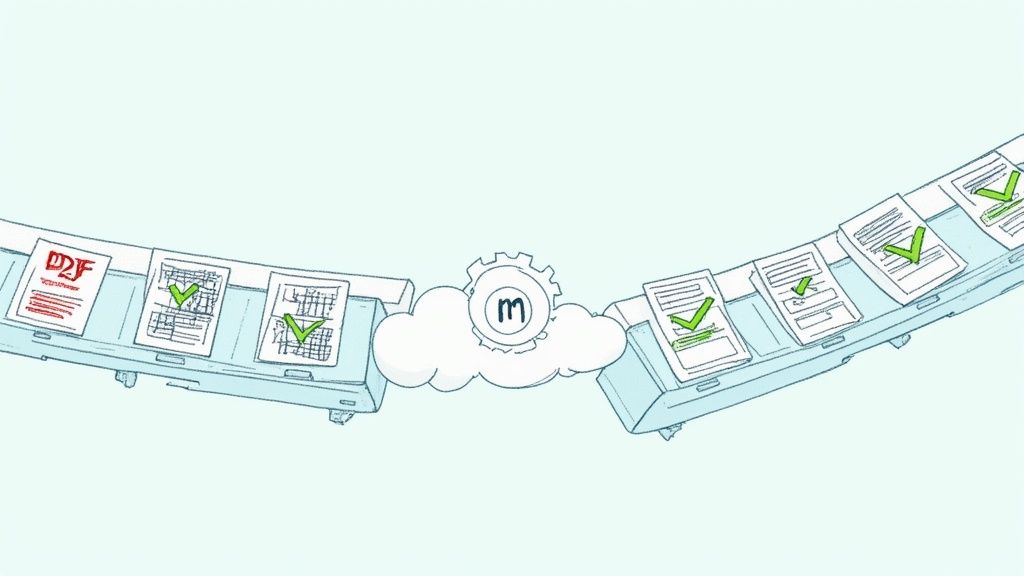
This idea of a hands-off document pipeline is exactly what you see above. Files go in one end, and clean, usable data comes out the other, all without you having to step in. The real win here isn't just saving a few minutes; it's about drastically cutting down on manual data entry, getting accuracy rates that humans can't match, and feeding verified data directly into your accounting system.
The Power of an Integrated System
An integrated platform doesn't just swap out a single tool; it completely replaces a messy, fragmented process. That consolidation is incredibly powerful. We're seeing this play out in various sectors. For example, in the Netherlands, some municipal departments have seen huge efficiency boosts by automating their data extraction. Think of a local transport authority that gets weekly PDF reports on traffic counts. Setting up an automated workflow means they've completely cut out the tedious manual entry, which in turn reduces errors and speeds up their analysis.
The exact same logic applies to financial documents. Instead of exporting a CSV from a PDF, cleaning it up by hand, and then uploading it, a platform like Mintline automates the entire sequence:
- It knows the document type: It can tell a bank statement from an invoice or a receipt instantly.
- It extracts and cleans the data: Advanced OCR and smart parsing pull the table data, then it gets standardised into a consistent format.
- It matches and verifies: The system can intelligently connect transactions to their source documents.
- It integrates seamlessly: Finally, it pushes that clean, matched data straight into your accounting software.
The whole point is to achieve a "zero-touch" process for the vast majority of your documents. Your team's job shifts from being data entry clerks to strategic reviewers who only need to look at the rare exceptions.
This kind of smart automation is the core of what's known as intelligent document processing, a topic we cover in more detail in our guide. Taking it a step further, the clean table data you extract can even be fed into other systems, like AI contract review software, to automate risk analysis in your legal or procurement processes. It's the logical next step for any modern finance team that's ready to finally leave manual work behind.
Got Questions About Pulling Tables from PDFs?
If you've ever tried to get data out of a PDF, you know it can be a real headache. It’s one of those tasks that seems like it should be simple but rarely is. You’re not alone—a lot of questions pop up when people start digging into this.
We've walked through the different tools and the cleanup involved, but let's get into the nitty-gritty and answer some of the most common questions we hear at Mintline.
What’s the Best Free Tool for Extracting PDF Tables?
For your standard, text-based PDFs, a great starting point is Tabula. It's an open-source gem with a straightforward visual interface. You just draw a box around the table you want, and it pulls the data out into a CSV. For quick, one-off jobs, it's brilliant.
If you're comfortable with a bit of code, Python libraries like Camelot or pdfplumber are fantastic free options. They offer a ton more control, which is a lifesaver when you’re dealing with tricky or inconsistent layouts.
But what about scanned PDFs? That’s where free tools often fall short. You'll need something with Optical Character Recognition (OCR), and getting free OCR tools set up and tuned for accurate results is often a significant technical hurdle.
Can I Really Extract a Table from a Scanned PDF Without Wrecking the Formatting?
Honestly? Probably not. Preserving the original formatting perfectly from a scanned document is incredibly tough. Think about it: OCR is essentially looking at a picture and trying to guess what the text and structure are.
The final quality really hinges on things like:
- How clear the original scan is.
- The table's design—are there merged cells or grid lines that are barely visible?
- The typeface used in the document.
Modern OCR is remarkably good at recognising characters, but it's still interpreting a flat image. The subtle cues of a well-formatted table are easily lost. This is why a platform like Mintline focuses on extracting clean data, not just copying pixels.
Expect to get the data right, not the design. Recreating the original look and feel is usually a lost cause, so plan on doing some tidying up after the extraction.
How Can I Automate Data Extraction for Hundreds of PDF Invoices?
When you're staring down a mountain of invoices or bank statements, manual tools just won't cut it. Trying to process them one by one is a recipe for bottlenecks and costly mistakes. This is where you need to stop thinking about one-off extractions and start thinking about a proper workflow.
For this kind of volume, a dedicated automation platform is the only practical way forward. A tool like Mintline is built specifically for this.
Instead of a series of manual steps, our platform handles everything. We use AI to find the tables, run advanced OCR when needed, automatically clean up and structure the data, and then push it straight into your accounting software. You’re not just saving time; you’re building a more reliable and error-proof process that can turn hours of tedious work into a job that takes just a few minutes.
Ready to stop wrestling with PDFs and automate your financial document workflow? Mintline uses AI to automatically extract data from bank statements and receipts, matching every transaction with its source document. Discover how you can close your books faster and with greater accuracy.