
How to Scan Text From Image With High Accuracy
Learn how to scan text from image using OCR. This guide provides actionable tips for accuracy, troubleshooting, and using tools like Mintline for bookkeeping.
When you need to scan text from an image, you’re using a technology called Optical Character Recognition, or OCR. This is the process of converting a picture of text—whether it's on a receipt, a contract, or a whiteboard—into editable, searchable data. For businesses, this is the key to unlocking valuable information trapped in static images and automating critical workflows.
Unlocking Information Trapped in Images
Ever found yourself manually typing text from a photo? It could be key figures from a scanned invoice, contact details from a business card, or notes from a presentation slide. It's a slow, error-prone process that consumes valuable time.
The problem is simple: your computer sees an image as a collection of pixels, not as letters and numbers. This is where the ability to scan text from an image becomes a game-changer, acting as the bridge between a static picture and usable digital data. At Mintline, we've built our entire platform around this principle to solve one of the most tedious tasks in business: expense management.
The Magic Behind the Scan
The engine driving this process is Optical Character Recognition (OCR). Think of OCR as a digital translator. It analyzes an image, identifies the shapes of characters, and converts them into text you can copy, paste, and use in your accounting software or spreadsheets.
Modern OCR, especially the kind we use at Mintline, goes beyond simple character conversion. It understands document structure, preserving layouts like columns and tables. If you're curious about the mechanics, our guide on how OCR technology works with scanners explains the details.
The real-world benefits are immediate and incredibly practical for any business handling invoices, receipts, and financial documents:
- Find Anything, Instantly: Once digitized, your documents are fully searchable. Imagine finding a specific invoice from a folder of hundreds just by typing a keyword.
- Edit with Ease: Spotted a mistake in a scanned document? OCR gives you an editable version, saving you from retyping everything from scratch.
- Improve Accessibility: Digitized text can be read aloud by screen readers, making printed materials accessible to individuals with visual impairments.
At its heart, scanning text from an image is about turning static, locked-in information into a dynamic and useful asset. You’re not just taking a picture of data; you’re creating actual data.
This capability is the foundation for powerful business automation. At Mintline, we use highly specialized OCR to do much more than just read receipts. Our system is trained to intelligently find and extract key financial details—like the vendor, date, and total amount—and then automatically match that receipt to the corresponding transaction in your bank feed. What was once a manual bookkeeping chore becomes a seamless, automated workflow.
A Realistic Workflow for Extracting Text From Images
Getting accurate, usable text from a picture requires a reliable process. It’s not just about pointing your phone and snapping a photo. To get clean data, you need to give the OCR software the best possible image to work with from the start.
This simple flow chart gives you a bird's-eye view of how OCR technology takes a static document and turns it into something you can actually edit and use.
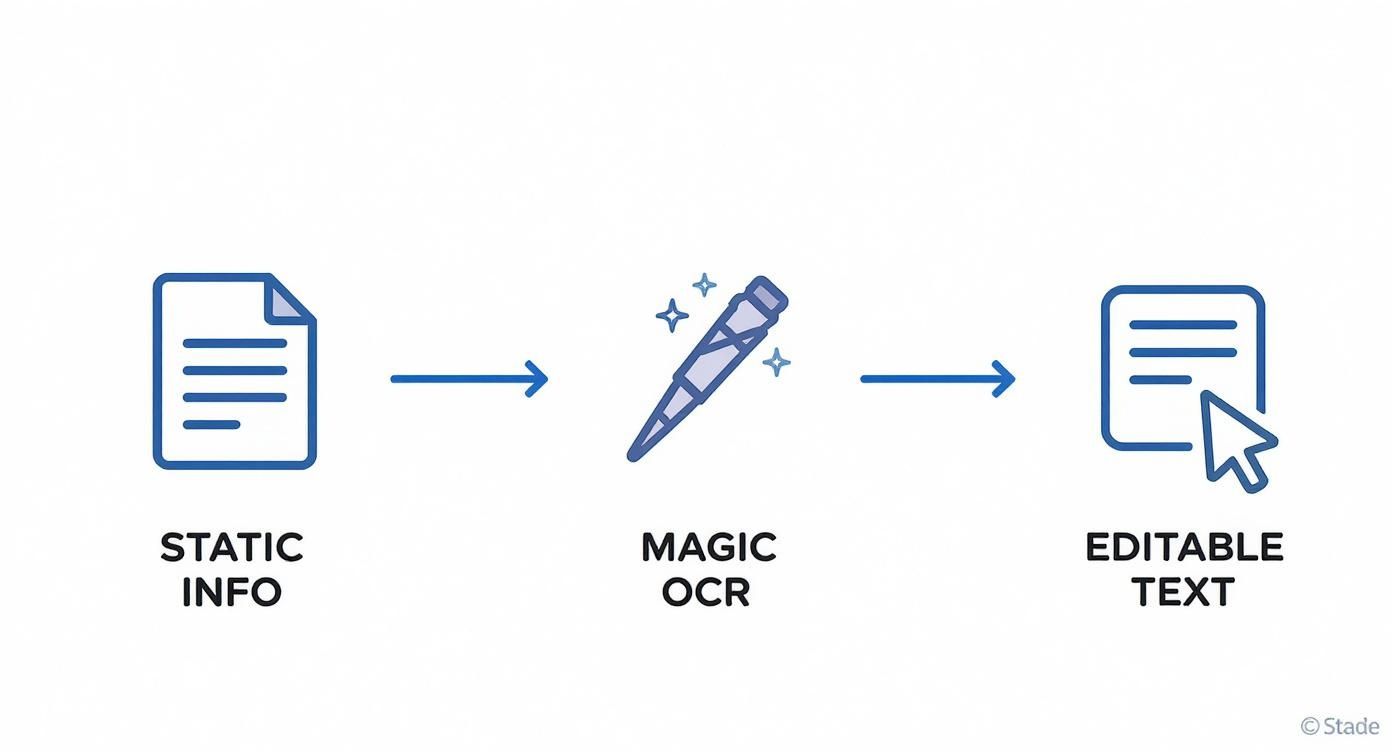
As you can see, the journey begins with static information. The OCR acts as the engine, transforming it into dynamic, editable content that’s ready for whatever you need it for.
Start With a High-Quality Capture
The journey to accurately scan text from an image begins with the photo itself. A blurry, poorly lit image is a recipe for errors.
Focus on these key elements for a great capture:
- Lighting is Crucial: Aim for bright, even light to eliminate shadows that can obscure characters. Natural light is ideal, but if you're indoors, just be careful not to cast your own shadow over the document.
- Keep it Steady: A shaky hand causes motion blur, the enemy of accurate scans. Rest your elbows on a table to stabilize your phone or camera.
- Find the Right Angle: Position your camera lens directly above the document, ensuring the page is flat. Taking a picture from an angle distorts the letters and confuses the software.
Prepare the Image for Scanning
A little prep work on the image can dramatically improve your results. This step is about removing digital "noise" so the OCR tool can focus only on the text.
First, crop the image to remove distracting backgrounds like your desk or hands. This isolates the text and prevents the software from trying to interpret irrelevant shapes.
Next, adjust the image contrast. Increasing it slightly can make the text appear sharper and darker against the background, creating a clearer distinction for the OCR to process. Most basic photo editing apps have a simple tool for this.
Choose the Right OCR Tool
With a clean image, it's time to choose your tool. Not all OCR services are created equal, and the best one depends on your specific needs, especially when dealing with sensitive financial data.
Here’s a quick breakdown of the options:
| Tool Type | Pros | Cons |
|---|---|---|
| Mobile Apps | Convenient for on-the-go scanning; often simple to use. | May have ads, upload limits, or data privacy concerns. |
| Online Services | Accessible from any browser for occasional scans. | Privacy is a major issue; not recommended for sensitive documents. |
| Integrated Platforms | Built for specific tasks (like Mintline for receipts) and highly accurate for that purpose. | Less effective for general-purpose text extraction outside their specialization. |
For anything containing financial or personal information, a dedicated platform like Mintline is a far safer and more accurate choice than a free online converter. If you work with various document types, our guide on how to OCR a PDF document offers additional helpful advice.
Review and Export Your Text
The final step is proofreading. No OCR tool is 100% perfect, so always give the extracted text a quick review to catch common mistakes. Look for characters that often get confused, like '5' mistaken for 'S', or '1' swapped with 'l'.
Once you've made any necessary corrections, you can export the text. You now have fully editable and searchable data, ready for your accounting software or other applications. This is a core part of improving workflow efficiency with AI, as you've turned a static image into a valuable digital asset.
Pro Tips for Boosting Your Scan Accuracy
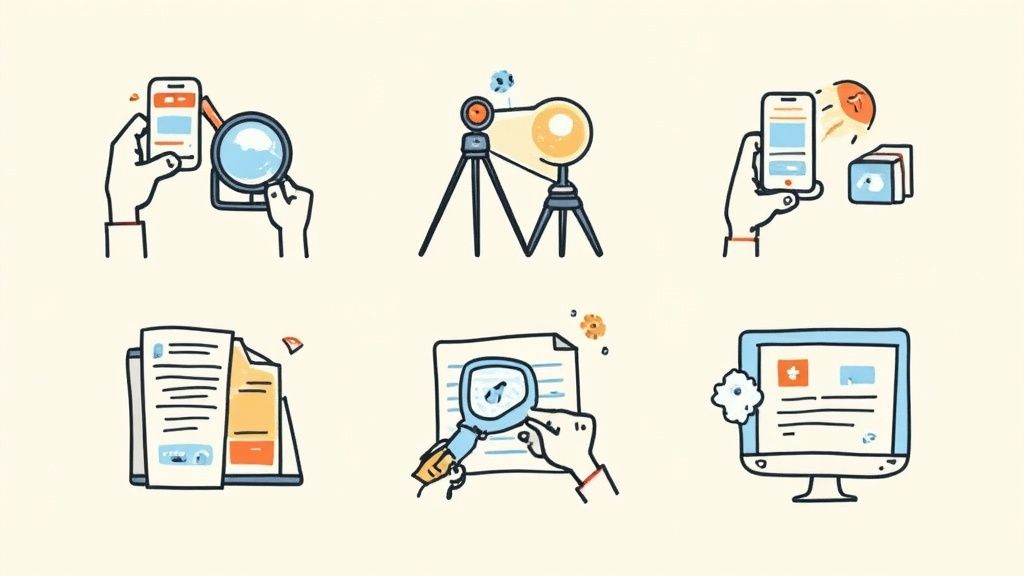
Getting a basic scan is one thing; achieving consistently accurate results is another. The difference between a clean output and a jumbled mess often comes down to small adjustments. These practical tips will help you scan text from image files with confidence.
You don't need an expensive scanner. A steady hand and good lighting will almost always outperform a high-end camera in a poorly lit room.
Optimise Your Source Document
Before you even take the picture, prepare the physical document. OCR performs best with clean, simple layouts.
- Flatten Creases: Smooth out any folds or wrinkles. The shadows and distortions they create can easily confuse the software.
- Handle Glossy Surfaces: When scanning something shiny like a magazine page or laminated card, watch for glare. Tilt the document slightly so light doesn't reflect directly into the lens.
- Isolate Complex Layouts: For documents with multiple columns, text boxes, and images, it's often better to scan sections individually to prevent the OCR from getting confused.
Taking an extra minute for this prep gives the software the clearest possible view of the characters it needs to recognize.
The goal is simple: remove as much ambiguity as possible for the OCR engine. Every shadow, crease, or smudge is a potential point of failure.
This focus on quality input is why automation is delivering real results. Businesses adopting specialized OCR report significant efficiency gains, freeing up teams to focus on more strategic work instead of manual data entry.
Choose a Specialist Over a Generalist
General-purpose OCR tools are designed to read almost anything, but they lack the training to understand the unique structure of specific documents. This is where a specialized tool like Mintline truly shines.
Our platform doesn't just perform a generic scan text from image command. Mintline's OCR is specifically trained on millions of receipts and invoices.
What does that mean for you?
- It understands context: It knows exactly where to find the vendor name, date, VAT number, and total amount.
- It anticipates common formats: It recognizes the typical layouts of receipts from major retailers, restaurants, and suppliers.
- It corrects for specific errors: Our system is fine-tuned to handle the unique fonts and printing quirks common on thermal receipt paper.
This specialization leads to far higher accuracy for financial documents. In the same way, if you frequently work with PDFs, learning how to properly extract text from a PDF is crucial. Using the right tool for the job is the most effective way to get clean, reliable results every time.
Troubleshooting Common OCR Scanning Errors
Even the best OCR tools struggle with poor-quality images. When you encounter errors, the solution is almost always to improve the original picture rather than trying to fix the garbled output.
Misread characters, jumbled formatting, and missing text are frustrating. A simple shadow can turn an ‘8’ into a ‘3’, and glare on a glossy receipt can make words disappear. The good news is that these common problems have straightforward solutions. This isn’t about blaming the software; it’s about giving it a clean image to analyze.
When your OCR output is messy, it's not failing—it's signaling that it needs a better quality image. Your first move should always be to go back to the source.
To make troubleshooting easier, here's a quick reference guide covering the most common problems you'll encounter when you scan text from an image, what’s likely causing them, and how to fix them.
Fixing Common OCR Scanning Errors
This table acts as a quick reference guide to help you identify and fix frequent issues you might encounter when scanning text from an image.
| Common Problem | Likely Cause | How to Fix It |
|---|---|---|
| Characters are misread (e.g., 'S' becomes '5', 'I' becomes '1') | The image resolution is too low, or there's motion blur from a shaky hand, making character shapes ambiguous. | Use a resolution of at least 300 DPI. Hold your phone steady with both hands or rest your elbows on a table for a stable shot. |
| Formatting is jumbled or text blocks are mixed up | A complex layout with multiple columns or text boxes is confusing the OCR's reading order. | Crop the image to focus on one column or text block at a time. This gives the software a simple, linear path to follow. |
| Entire words or lines of text are missing | Shadows from overhead lights or your own hand are obscuring parts of the text. Glare on glossy paper can also make text invisible. | Find a spot with even, natural light. If scanning a glossy document, tilt it at a slight angle away from the light source to eliminate reflection. |
By keeping these fixes in mind, you can dramatically improve your OCR results and save hours on manual corrections. This is especially true for automating financial workflows.
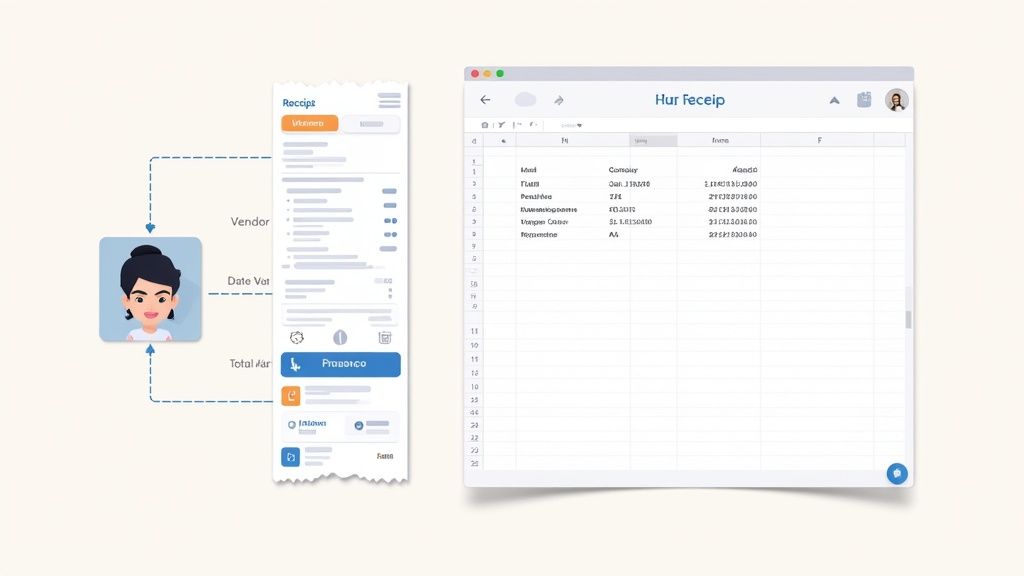
Manually typing receipt data is a tedious task where a single typo can throw off your financial records. Mintline's specialized OCR is built to eliminate this exact problem.
From a Quick Photo to a Perfect Financial Record
We designed the Mintline workflow to be effortless. You snap a photo of a receipt, and our automation takes over. Our OCR engine instantly analyzes the image, hunting for specific pieces of financial information.
Trained on millions of documents, our AI knows what to look for and how to interpret it, pinpointing critical details like:
- Vendor or supplier name
- Transaction date
- Final amount paid
- VAT or other tax details
This targeted approach ensures high accuracy. The system knows the difference between a subtotal and a final total and correctly interprets various date formats. Once extracted, the data is structured and used to automatically create a financial record, with the receipt image attached for a clean, audit-ready trail.
The real magic of Mintline's OCR isn't just that it reads text; it's that it understands the meaning of that text. This is what turns a picture of a receipt into a perfectly categorized financial transaction, saving you hours and preventing costly errors.
This level of automation is becoming essential for modern businesses looking to streamline operations and reduce compliance headaches.
Beyond Extraction: The Power of Intelligent Matching
Mintline takes automation a step further. After extracting receipt data, our platform automatically matches it to the corresponding transaction from your bank feed. By comparing the vendor, date, and amount, it finds the perfect match and closes the loop on your expense tracking. For many businesses, using one of the best receipt scanning apps is the first step toward this level of automation, and specialized OCR is the engine that powers them.
This is how specialized OCR transforms a tedious chore into a seamless workflow, keeping your finances organized and giving you back time to focus on your business.
Got Questions About Scanning Text?
Even with a solid process, a few questions often come up. Here are straightforward answers to the most common ones to help you get better results.
How Well Does OCR Handle Handwriting?
It's a mixed bag. Modern AI-powered OCR has improved, but results depend heavily on the clarity of the handwriting. Neatly printed letters on a clean background will likely yield good results. However, cursive or messy notes are still a major challenge for most general-purpose scanning tools. Reliable accuracy for handwriting requires a specialized AI trained on thousands of samples.
Are Online OCR Tools Safe for My Private Documents?
For anything sensitive, the short answer is no. Many free online tools have vague privacy policies. When you upload a document, you could be granting them the right to store, use, or share your data.
For any file containing personal, financial, or confidential business information, you must use a secure, reputable service. Platforms like Mintline are designed with security at their core. The alternative is to use offline software that processes everything locally on your computer.
It's not worth risking your private information on a random server you don't control.
What's the Best Image Format to Use for OCR?
For the best accuracy, use a lossless image format like PNG or TIFF. These formats preserve all the original image data without compression.
JPGs, on the other hand, use compression that can create small distortions ("artifacts") around the text, which can lead to OCR errors. For optimal results, a high-resolution image of at least 300 DPI (dots per inch) saved as a PNG is the gold standard.
Ready to stop manually entering receipt data and start automating your bookkeeping? With Mintline, you can turn hours of tedious work into a few simple clicks. Discover how Mintline can transform your financial workflow.