
Your Guide to OCR for Scanners in the Netherlands
Unlock business efficiency with our guide to OCR for scanners. Learn to digitize documents, automate data entry, and streamline financial workflows.
Think of OCR for scanners as the magic ingredient that turns a simple picture of a document into something your computer can actually understand and work with. It's the crucial step that bridges the gap between a physical piece of paper and a fully editable, searchable digital file.
This technology is what saves you from the soul-crushing task of manual data entry, completely changing the way you handle everything from supplier invoices to company credit card receipts.
From Paper Chaos to Digital Clarity
If your office is drowning in stacks of paper, you're losing more than just desk space. You're losing time, money, and focus. Every invoice, receipt, and bank statement is a goldmine of critical data, but as long as it's trapped on paper, it’s practically useless without someone manually typing it all out.
That manual process is not only painfully slow but also a recipe for typos and errors. It chains your team to repetitive, low-value work when they could be tackling much more important strategic tasks.
This is where OCR for scanners comes in. It's like having a translator for your paperwork. Your scanner takes a digital photo of the document, but it's the Optical Character Recognition (OCR) software that "reads" that photo, picks out the text and numbers, and turns it all into useful information.
The Shift to Digital Workflows
Here in the Netherlands, this technology is quickly becoming the norm. The drive for paperless offices is pushing businesses and government agencies alike to adopt smarter solutions. In fact, the Dutch OCR market is expected to grow at a compound annual growth rate (CAGR) of 13.5% between 2025 and 2030, a clear sign of the demand for automated data entry. You can dig deeper into this trend in the Dutch OCR market report on GrandViewResearch.com.
This isn't just a fleeting trend; it’s a fundamental shift away from outdated manual processes towards efficiency and automation.
By automating that very first step of data capture, you lay the groundwork for a truly efficient, paperless office where information flows effortlessly into the systems that run your business.
At Mintline, we've built our platform around perfecting this process specifically for financial documents. Our powerful OCR is integrated right into our system to take the grunt work out of processing invoices and matching receipts to bank transactions.
Instead of your team spending hours typing in data line by line, Mintline does the heavy lifting. This guide will walk you through exactly how you can implement OCR for scanners to free up your team and bring some much-needed digital clarity to your financial operations.
How OCR and Scanners Work Together
To really get a feel for what OCR for scanners can do, it helps to follow the path a piece of paper takes from being a physical document to becoming useful digital data. It's essentially a two-step process where the scanner and the software tag-team your documents. One captures the image, the other gives it intelligence.
The journey begins the second you feed a document into your scanner. At its most basic, a scanner is just a camera taking a detailed picture of your page. But that first output—usually a PDF or TIFF file—is just a flat image of text. Your computer sees shapes, not words or numbers. It's a digital photo, not data you can actually use.
This is the critical first step in turning a stack of physical papers into clean, organised digital information.
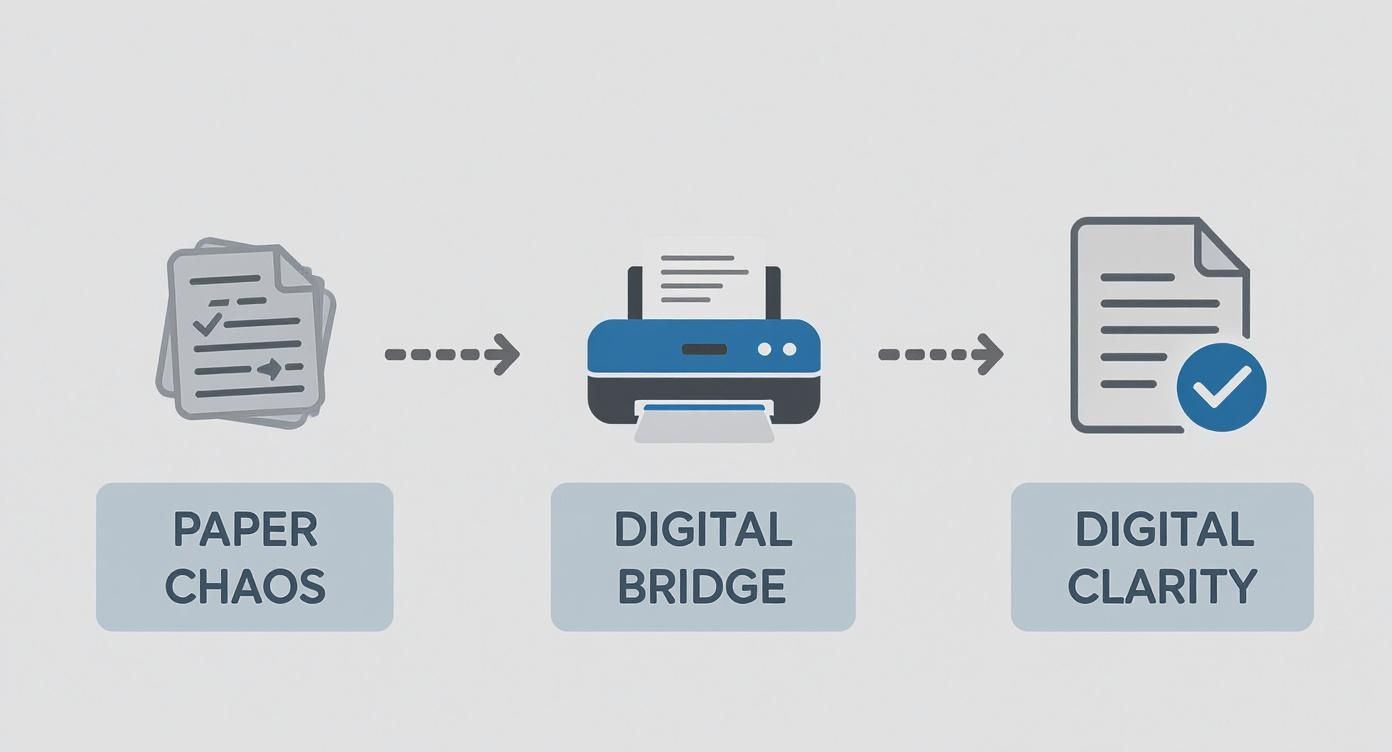
As you can see, the scanner is the bridge. It gets your messy paperwork into a digital format, ready for the real work to begin.
The Automated OCR Workflow
This is where the OCR engine kicks in. It runs through a series of steps that, not too long ago, someone had to do by hand. Modern platforms, like Mintline, have this entire workflow built right in, so for the user, it feels like a single, seamless action.
The process breaks down into three main phases:
- Image Pre-processing: First, the software tidies up the scanned image. It automatically straightens crooked pages (a step called "deskewing"), gets rid of any dark spots or blemishes, and boosts the contrast to make the text as crisp as possible for the next stage.
- Character Recognition: This is the heart of OCR. The technology scans the cleaned-up image, breaking it down into lines, then words, and finally individual characters. It matches the shape of each character against a huge library of known letters, numbers, and symbols to figure out what it's looking at.
- Data Structuring and Output: Once the text is recognised, the system converts it into a machine-readable format. But it goes a step further than just creating a block of text. Smart OCR can identify and label key pieces of information—like an invoice number, a supplier's name, or a total amount due—and organise it neatly for export into your accounting software.
The whole thing, from the physical scan to structured data ready for your systems, happens in just a few seconds. That speed is what crushes the bottleneck of manual data entry, letting financial information flow straight into your business without a person having to type it all in.
For any business that handles piles of receipts or supplier invoices, this kind of integrated workflow is a game-changer. With a tool like Mintline, you just scan your documents or upload your PDF bank statements. Our platform takes care of the entire OCR process in the background, pulling out the important details and prepping them for reconciliation. What used to be hours of mind-numbing work becomes a fast, accurate, and completely automated task.
Technical Keys to Unlocking Accurate OCR Results
Getting great results from OCR for scanners isn't just about the software you choose; it all starts with the quality of the scan itself. Think of it like trying to read a blurry, faded photograph versus a crisp, clear print. The easier it is for the software to “see” the characters, the more accurate your data will be. This is why paying attention to your scanner settings is the first, most important step.
The absolute cornerstone of a good scan is the resolution, which is measured in Dots Per Inch (DPI). For almost any business document you can think of—invoices, receipts, contracts—the gold standard is a minimum of 300 DPI. If you go any lower, you risk getting blocky, pixelated characters that OCR engines will struggle to decipher, forcing you to waste time on manual corrections.
Scanner Settings That Matter
Beyond just resolution, a few other settings can dramatically improve your OCR outcomes. A couple of simple tweaks can make a world of difference.
- Colour Depth: It's almost always better to scan in colour or greyscale rather than pure black and white. A strict black and white scan can easily miss subtle details, like light blue text on an invoice or a faint watermark, which greyscale and colour modes will capture perfectly.
- Image Pre-processing: Most modern scanners come equipped with built-in tools that automatically straighten skewed pages (deskew) or clean up background speckles and noise. Turning these features on gives your OCR software a much cleaner image to work with from the get-go.
Nailing these initial steps is fundamental to building a reliable digital archive or an automated data extraction workflow. Getting the OCR right is what makes everything else possible, like easily converting OCR'd PDFs to editable Word documents for editing or reuse.
Language and File Format Considerations
For any business operating in the Netherlands, dealing with multiple languages is just part of the daily routine. Invoices and receipts might arrive in Dutch, English, German, or French. This is where a powerful OCR solution really shows its value. A tool like Mintline is built to recognise the specific characters, accents, and layouts of various languages, ensuring you get accurate data no matter where the document came from.
The final piece of the puzzle is deciding on the right output format. This choice isn't trivial; it directly impacts what you can do with the information you've just digitised. For a deeper dive, check out our guide on how to turn scanned documents into searchable PDFs.
Your choice of output format should be driven by your end goal. Are you simply archiving, or are you automating a business process? The answer will determine the best format for your workflow.
For instance, a searchable PDF is fantastic for archiving. It preserves the original look of the document but embeds a hidden layer of text, making it completely searchable. But if your goal is to feed data directly into your accounting software, you'll need a structured format like JSON or XML. These formats don't just give you the text; they intelligently label it (e.g., "invoice_total": "€121.00"), allowing other systems to automatically grab and process the data without any human intervention.
Real-World Uses for Finance Teams
For any finance department, the theory behind OCR for scanners is interesting, but its real power is unlocked when you apply it to the grind of daily, repetitive tasks. This is where the technology stops being a neat concept and becomes an indispensable tool for efficiency, turning sluggish manual processes into swift, automated workflows. This is precisely the kind of problem platforms like Mintline are built to solve.
Think about the old way of handling a supplier invoice. It lands on someone's desk, gets scanned into a flat image file, and then joins a queue. Someone eventually has to sit there and manually type the supplier's name, invoice number, date, every single line item, and the final total into the accounting software. It's a slow, painstaking process that's just begging for typos and errors.
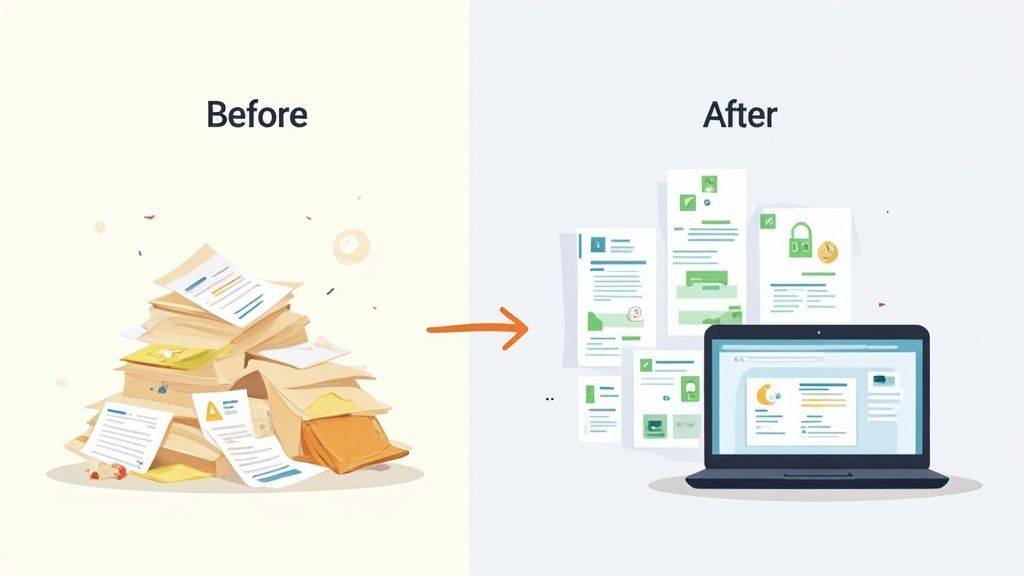
Making the switch from manual entry to automated data capture does more than just shave a few minutes off a task; it fundamentally changes how a finance team operates.
From Data Entry to Strategic Analysis
Instead of being bogged down with clerical work, your team is suddenly free to concentrate on activities that actually add value—things like budget analysis, cash flow forecasting, and managing vendor relationships. This shift elevates their role, contributes directly to the company's financial well-being, and, frankly, makes their jobs a lot more rewarding.
Let's look at a few concrete examples:
- Invoice Processing: An invoice is scanned, and Mintline's OCR gets to work. It automatically reads and extracts key details like vendor information, due dates, and amounts. The data is structured and ready for approval and payment with next to no human input.
- Receipt Management: An employee scans their expense receipts. The system instantly identifies the merchant, date, and total. It then proposes a match to the corresponding bank transaction, which means no more tedious manual reconciliation.
- Bank Statement Reconciliation: PDF bank statements, with their complex tables, are a classic headache. With specialised OCR, every single transaction line can be accurately pulled out and digitised. If you want to dive deeper into this, we have a guide that explains how to extract tables from a PDF.
This sort of automation isn't about replacing people; it's about empowering them. By removing the bottleneck of manual data entry, you allow your finance team to operate at a higher, more analytical level.
In the Netherlands, the finance sector has been particularly quick to adopt OCR technology, which fits into the country's wider trend of digital transformation. In 2023, the Banking, Financial Services, and Insurance (BFSI) sector was one of the biggest users of OCR scanners. This is a strong signal of how crucial this technology has become for handling high volumes of financial paperwork. This regional focus on automation really shows how Dutch organisations are at the forefront of building smarter, more efficient financial systems.
Weaving OCR Into Your Business Systems
Getting data out of a document is only half the battle. That information is only really useful once it’s flowing into the systems you use to run your business every day. A proper OCR for scanners workflow doesn't just stop once a document is digitised; it needs to connect directly to your Document Management Systems (DMS), accounting software, and other key tools. The real aim here is to build a completely automated, hands-off process where information travels without anyone needing to step in.
This connection is usually handled by something called an Application Programming Interface (API). The easiest way to think of an API is as a secure messenger that lets different software programs talk to each other. An OCR platform with a solid API, like Mintline, can be set up to automatically push extracted invoice details straight into your bookkeeping software, creating a new draft bill ready for payment.
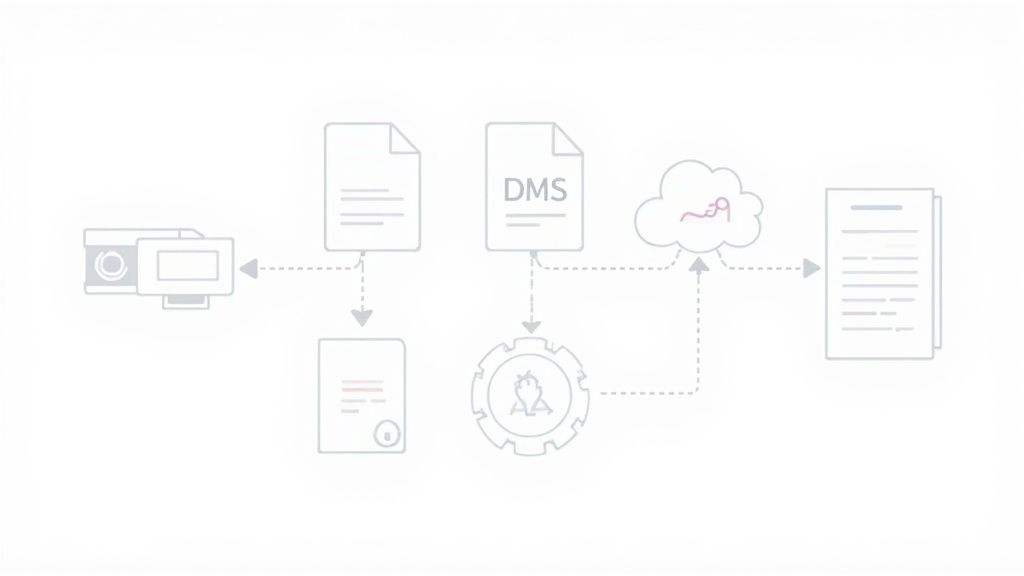
This kind of direct link means no more manually exporting and importing files. It saves a huge amount of time and, just as importantly, gets rid of the simple copy-paste mistakes that can cause chaos in your financial records.
Creating a Unified Digital Workflow
You start to see the true power of OCR when it becomes a key component in a larger, unified digital workflow. The scanner is just the front door, OCR is the translator, and your business systems are where the data gets put to work. For a closer look at how this whole process fits together, you can dive into our guide on https://mintline.ai/blog/intelligent-document-processing.
Once your documents are digitised with OCR, the natural next step is choosing a secure and efficient document management system to keep everything organised and safe. A good DMS works like a central, searchable library for all your scanned files, giving you version control, user permissions, and a clear audit trail.
When you link your scanner, OCR platform, and core business software, you create a seamless system where a physical document can be scanned, processed, approved, and archived in a matter of minutes.
This shift towards integrated technology is backed up by market trends. In the Netherlands, the market for printers and copiers—which often come with built-in OCR scanners—is projected to hit a revenue of US$47.43 million in 2025. It’s a clear sign of how much Dutch businesses are relying on modern devices to improve their document workflows. You can find more on Dutch hardware investments over at Statista.com.
Platforms like Mintline are built specifically for this kind of integration. We give you the tools to connect the dots between a paper receipt and a perfectly reconciled entry in your accounts, boosting efficiency across your entire finance department.
Common Mistakes to Avoid for Maximum Accuracy
Even the best OCR technology will struggle if you feed it a bad scan. It's a classic case of "garbage in, garbage out." If you want a reliable, automated workflow, you need to sidestep the common pitfalls that tank your accuracy right from the start.
The single biggest mistake we see is starting with a low-quality image. If the scan is blurry, crooked, or has poor contrast, the OCR software is already fighting an uphill battle. It’s like asking someone to transcribe a conversation from a muffled recording—they’re going to miss things.
That's why prepping your documents and dialling in your scanner settings aren't just minor tweaks; they're essential for getting the kind of accuracy you need for financial data. Skipping these steps almost always leads to hours of painful manual corrections down the line.
A Checklist for Optimal Scan Quality
To give your OCR software its best shot, it's a good idea to run through a quick checklist before you hit the scan button. Making this a standard part of your process will slash your error rates.
- Prep the Documents: Smooth out any major creases and folds. Get rid of staples, paper clips, or sticky notes that could cover up text or jam the scanner.
- Clean the Scanner Glass: A tiny smudge or speck of dust on the scanner bed can turn into a black blotch on every page you scan, which can easily confuse the OCR engine. A quick wipe with a microfibre cloth can prevent this simple but surprisingly common problem.
- Align Pages Carefully: If you're using an automatic document feeder (ADF), make sure the pages are squared up and aligned properly. This helps avoid skewed scans where text gets cut off at the margins.
Think of your scanner as the eyes of your OCR system. If its vision is clear and unobstructed, the brain—the OCR software—can process what it sees with far greater precision.
For platforms like Mintline that handle high-stakes financial data, accuracy is everything. Taking a few extra seconds to guarantee a clean scan is the best way to prevent costly mistakes and build trust in your automated systems. By steering clear of these basic errors, you set the stage for a smooth, efficient workflow that actually saves you time and headaches.
Your Questions About OCR Scanners, Answered
If you're thinking about using OCR with your scanner to get a handle on your document workflows, you probably have a few questions. Let's tackle some of the most common ones we hear from businesses just starting out.
How Accurate Is This Stuff, Really?
In a perfect world, with a brand-new scanner and a perfectly printed document, modern OCR can be incredibly accurate—often topping 99%. But we don't live in a perfect world, do we? Real-life accuracy depends a lot on the quality of your scan, the state of the original paper, and even the fussiness of the font.
This is especially true for financial documents. A generic OCR tool might get the words right, but it won't understand what they mean. That’s where a specialised service like Mintline comes in. Our platform is trained specifically on the layouts of invoices and receipts, so it knows exactly what data to look for and extracts it far more reliably. Still, it's always a good idea to have a human give the most critical numbers a quick once-over.
Can OCR Read Handwriting on Scanned Documents?
Yes, it can, but this is where things get a bit tricky. The technology for reading handwriting, often called Intelligent Character Recognition (ICR), has come a long way. However, its accuracy is almost always lower than it is for printed text and really hinges on how neat the handwriting is.
ICR works best when it knows what to expect, like filling in a form where a signature or a payment amount is supposed to be. It's much less reliable for random notes jotted in the margins.
For finance teams, our advice is to focus your OCR efforts on the printed text. While handwriting recognition is getting better every year, it’s not quite ready for fully automated accounting without a lot of double-checking.
What’s the Best File Format for Scanning?
To set your OCR software up for success, you need to give it a clean image to work with. The best way to do that is to scan your documents as a TIFF file at a resolution of 300 DPI (Dots Per Inch) or higher. TIFF files are "lossless," meaning they don't discard any data to save space, which is perfect for OCR. PNG is another solid choice.
You might be tempted to use JPEGs because the files are smaller, but their compression can create little smudges and fuzzy spots—digital "noise"—that can trip up the OCR engine and hurt your accuracy.
Once the OCR has done its job, the best format to save your work in is almost always a Searchable PDF. It's the best of both worlds: you get the original, crystal-clear image of your document, plus a hidden layer of text that you can search, copy, and paste from. It makes finding anything in your digital archive a breeze.
Ready to stop chasing paper and automate your financial records? Mintline uses powerful OCR to link every bank transaction to its matching receipt or invoice, turning hours of manual work into minutes. Discover how Mintline can bring digital clarity to your finances.