
The Top 12 Best PDF Scanner Gratis Apps for 2026
Discover the 12 best pdf scanner gratis apps for mobile and desktop. A guide to features, pros, cons, and workflows for business document management.
In the modern business environment, digitising physical documents is no longer a luxury but a fundamental necessity. From receipts and invoices to contracts and bank statements, having a reliable method to create high-quality, searchable digital copies is crucial for efficient record-keeping, streamlined workflows, and secure data management. The challenge, however, is finding a tool that delivers professional results without the associated cost. This is where a high-quality pdf scanner gratis becomes an indispensable asset for freelancers, small business owners, and finance professionals alike.
This comprehensive guide is organised to help you navigate the crowded market of free document scanning solutions. We will move beyond simple feature lists to provide an in-depth analysis of the best free PDF scanner apps and desktop software available today. For each tool, you will find a detailed breakdown of its core capabilities, including Optical Character Recognition (OCR) for text searching, cloud integration options, and security protocols. We will also offer an honest assessment of their limitations and provide practical setup tips to get you started quickly.
Our goal is to equip you with the information needed to select the right platform for your specific use case, whether you are scanning receipts on the go or archiving sensitive financial documents at your desk. Beyond just document scanning, getting started with any new mobile device involves configuring it with essential applications. For those setting up a new device, understanding the top apps to install on a refurbished phone can provide broader insights into optimising your mobile workflow. Each entry in our list includes screenshots and direct links, allowing you to evaluate and implement your chosen solution with minimal friction.
1. Adobe Scan (Adobe Acrobat mobile)
Adobe Scan stands out as a premier pdf scanner gratis solution, leveraging Adobe's extensive experience in document management. This free mobile app for iOS and Android excels at transforming physical documents, receipts, whiteboards, and business cards into high-quality, intelligent PDFs. Its AI-powered engine automatically detects document edges, straightens perspectives, and removes shadows and glare, resulting in exceptionally clean and professional-looking scans. The user interface is polished and intuitive, making the capture process quick and efficient for users of all technical levels.
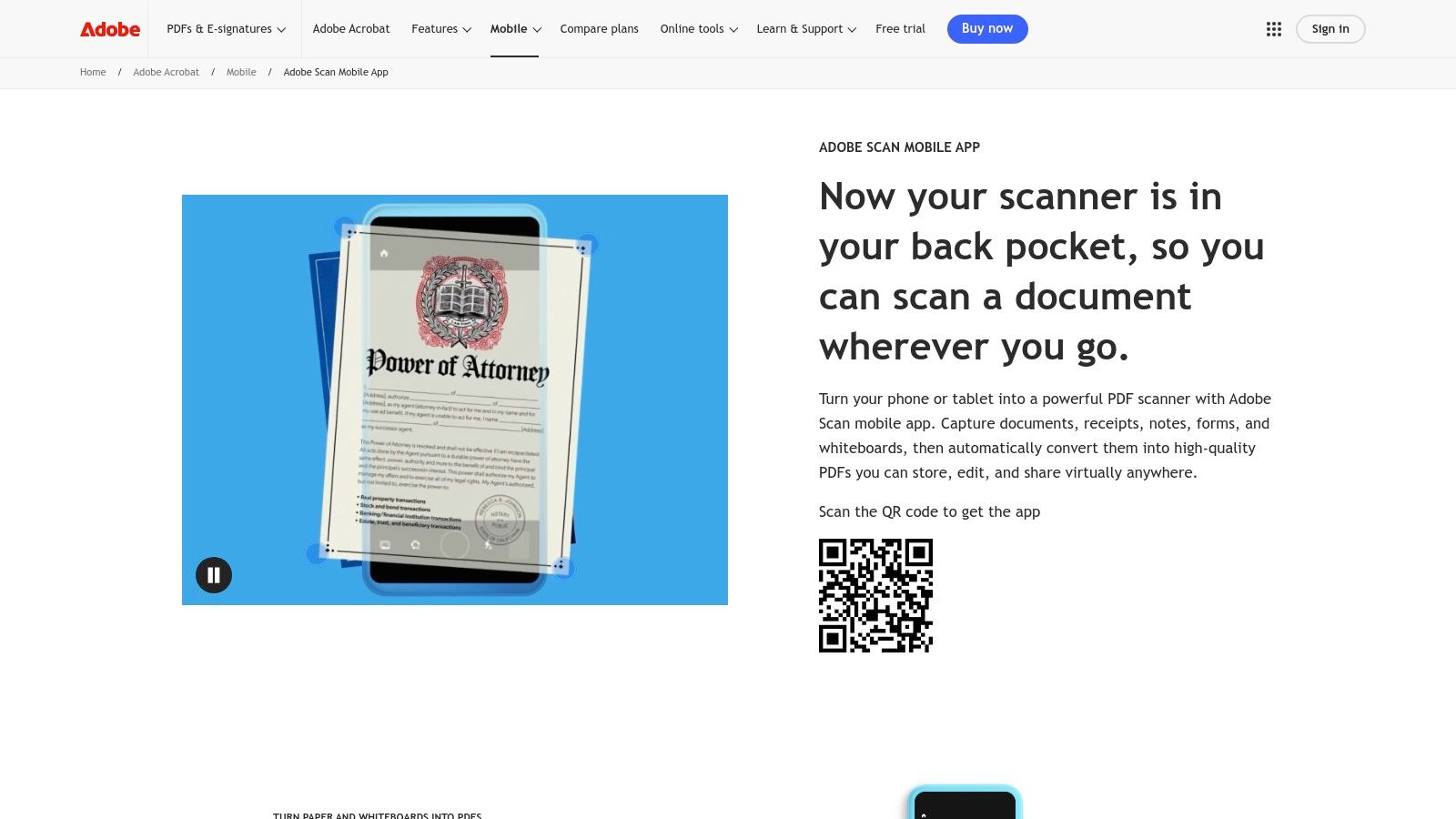
The app’s key differentiator is its powerful, built-in Optical Character Recognition (OCR), which is available for free. This technology automatically converts scanned text into searchable and selectable content, a feature often locked behind a paywall in competitor apps. This makes it invaluable for freelancers and finance teams needing to digitise and archive searchable invoices or bank statements. For businesses using tools like Mintline for financial analysis, the ability to create clear, text-searchable receipts streamlines data entry and improves record-keeping accuracy.
Key Features & Considerations
While the scanning and OCR are free, advanced functionalities such as combining files, editing PDF text, or applying password protection require an Acrobat Pro subscription. The true strength of Adobe Scan lies in its seamless integration with the broader Adobe ecosystem. Scans are automatically saved to Adobe Document Cloud, making them instantly accessible in Adobe Acrobat on your desktop or web browser for further organisation or annotation.
- Platform: iOS, Android
- Best For: High-quality, searchable scans and seamless integration with other Adobe products.
- Pros: Industry-leading OCR technology included for free, excellent image enhancement, and smooth cross-device synchronisation.
- Cons: Advanced editing and security features require a paid Acrobat Pro subscription.
Website: https://www.adobe.com/acrobat/mobile/scanner-app.html
2. Smallpdf
Smallpdf offers more than just a pdf scanner gratis; it provides a comprehensive, web-based ecosystem for complete document management. Its free mobile app for iOS and Android enables users to capture high-quality scans on the go, which then synchronise across devices to a central Smallpdf account. This cross-device workflow is its main strength, allowing a user to scan a receipt with their phone and then immediately access it on their desktop to compress, convert, or e-sign it using Smallpdf's extensive suite of online tools. The user interface is clean and workflow-oriented, guiding users from capture to final output.
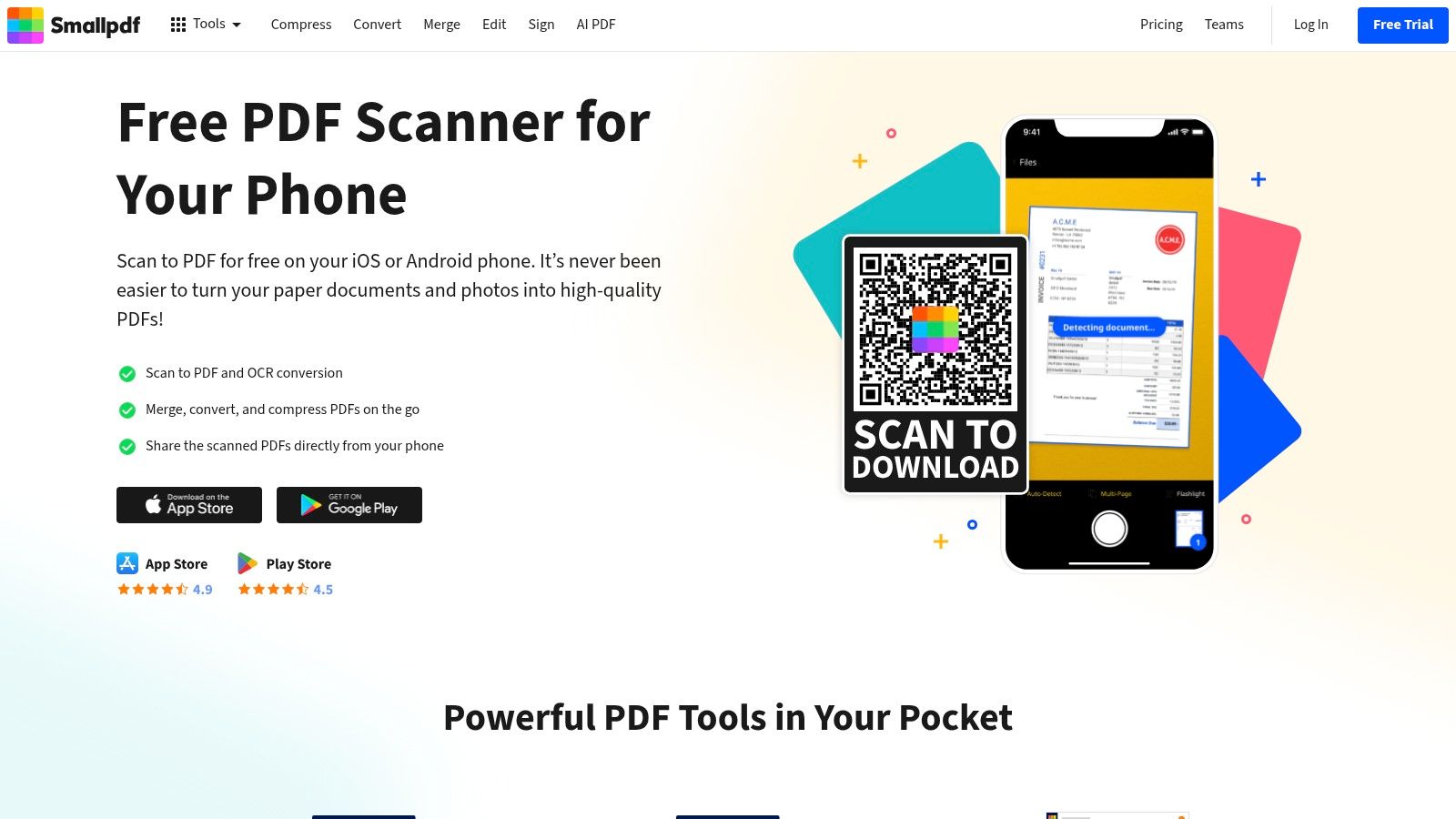
The platform is particularly useful for small teams and freelancers who need an all-in-one solution without juggling multiple applications. For instance, a contractor can scan an invoice, convert it to a different format, and then use the e-sign tool to get client approval, all within one platform. This unified approach simplifies document handling and is a key benefit when comparing various online document scanner solutions. Furthermore, its commitment to security, with GDPR compliance and 256-bit TLS encryption, provides peace of mind when handling sensitive financial documents like bank statements.
Key Features & Considerations
While the core scanning and many web tools are free, Smallpdf operates on a freemium model with daily task limits. For heavy users or businesses requiring unlimited access to features like its AI-powered PDF summariser or batch processing, a Pro subscription is necessary. The free version, however, is more than sufficient for moderate daily document management tasks, making it a powerful and versatile choice.
- Platform: iOS, Android, Web
- Best For: All-in-one document workflows, from scanning to editing, compressing, and signing.
- Pros: Integrated suite of over 20 PDF tools, seamless cross-device synchronisation, and strong security measures.
- Cons: The free version has daily limits on tool usage, and advanced features are behind a paywall.
Website: https://smallpdf.com/pdf-scanner
3. iLovePDF
iLovePDF extends beyond a simple scanning tool, offering a comprehensive pdf scanner gratis that is part of a much larger suite of document management utilities. The free mobile app for iOS and Android provides a straightforward scanning experience, allowing users to quickly capture multi-page documents, receipts, or notes and save them as a single PDF. Its clean user interface makes the mobile workflow efficient, prioritising speed and simplicity for users who need to digitise documents on the go without a steep learning curve.
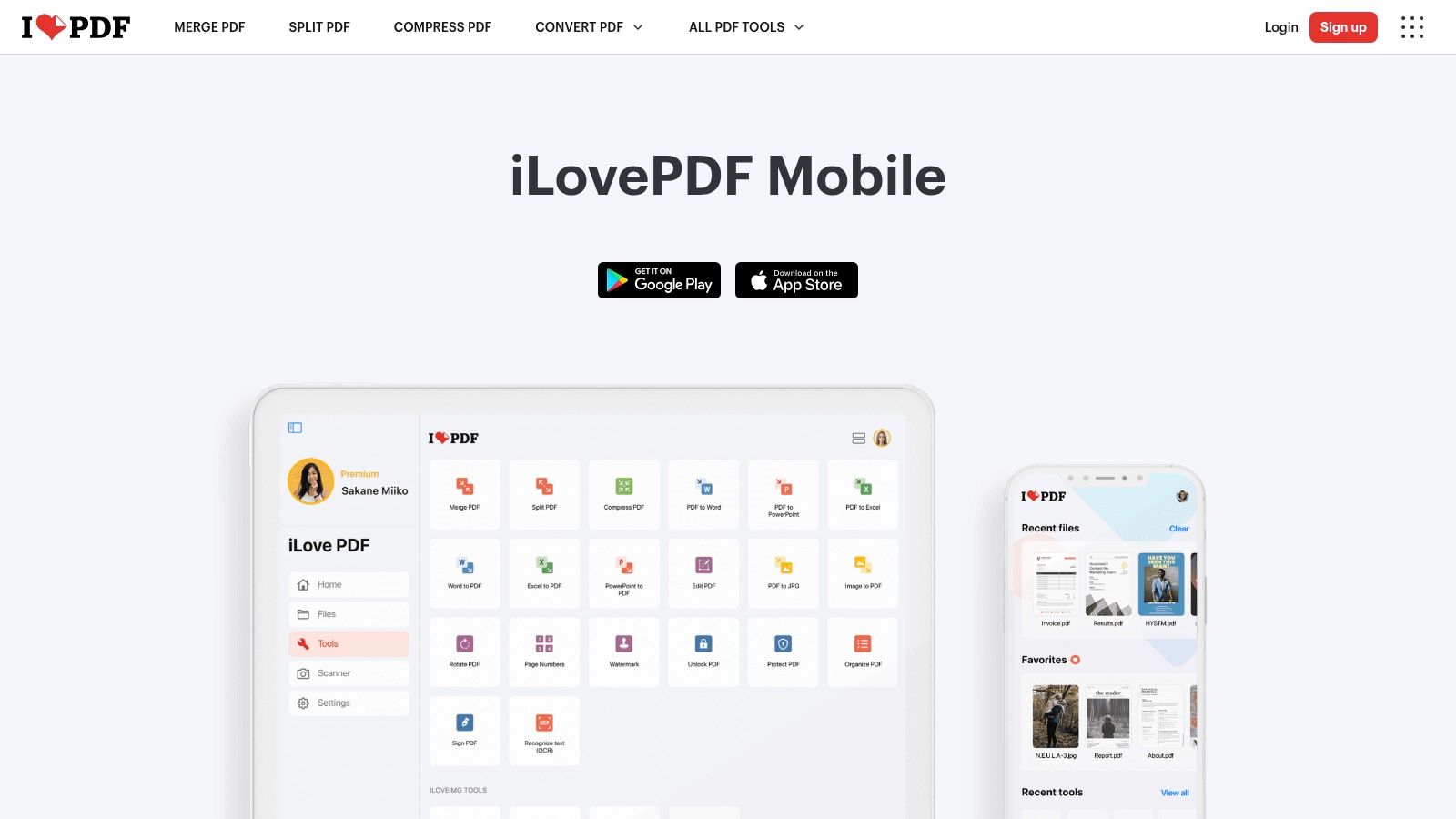
The platform’s major advantage is the connection between its mobile scanner and its powerful web-based toolkit. After scanning a document, you can seamlessly use iLovePDF’s web platform to compress, convert, merge, or even e-sign the file. The mobile app also includes a free OCR function to make text recognisable, a critical feature for finance professionals who need to process bank statements or invoices. For small teams using platforms like Mintline for financial oversight, this integrated ecosystem simplifies the entire workflow from physical receipt to organised digital record.
Key Features & Considerations
While the core scanning and many web tools are free, some limitations exist. Advanced features, such as batch processing or more accurate OCR for complex documents, are part of the paid Premium plan. The true value for many users lies in having a single, cohesive platform for nearly any PDF task imaginable, from initial scan to final edits. This makes it an excellent all-in-one solution for freelancers and small businesses looking to streamline their document handling without juggling multiple applications.
- Platform: iOS, Android, Web
- Best For: Users needing an all-in-one solution for scanning and extensive PDF editing or conversion.
- Pros: Solid free mobile scanner tied to a broad PDF toolbox, simple UI, and quick mobile workflows.
- Cons: Some advanced features require a paid plan, and mobile OCR accuracy can vary with capture quality.
Website: https://www.ilovepdf.com/mobile
4. Google Drive (mobile document scanner)
For users deeply embedded in the Google ecosystem, the built-in scanner within the Google Drive mobile app is a highly convenient and entirely free pdf scanner gratis. Integrated directly into the app for iOS and Android, this feature allows you to quickly digitise documents, receipts, and notes using your phone's camera. The scan is then saved instantly as a PDF file into your Google Drive, making it immediately accessible and organised across all your devices without needing a separate application.
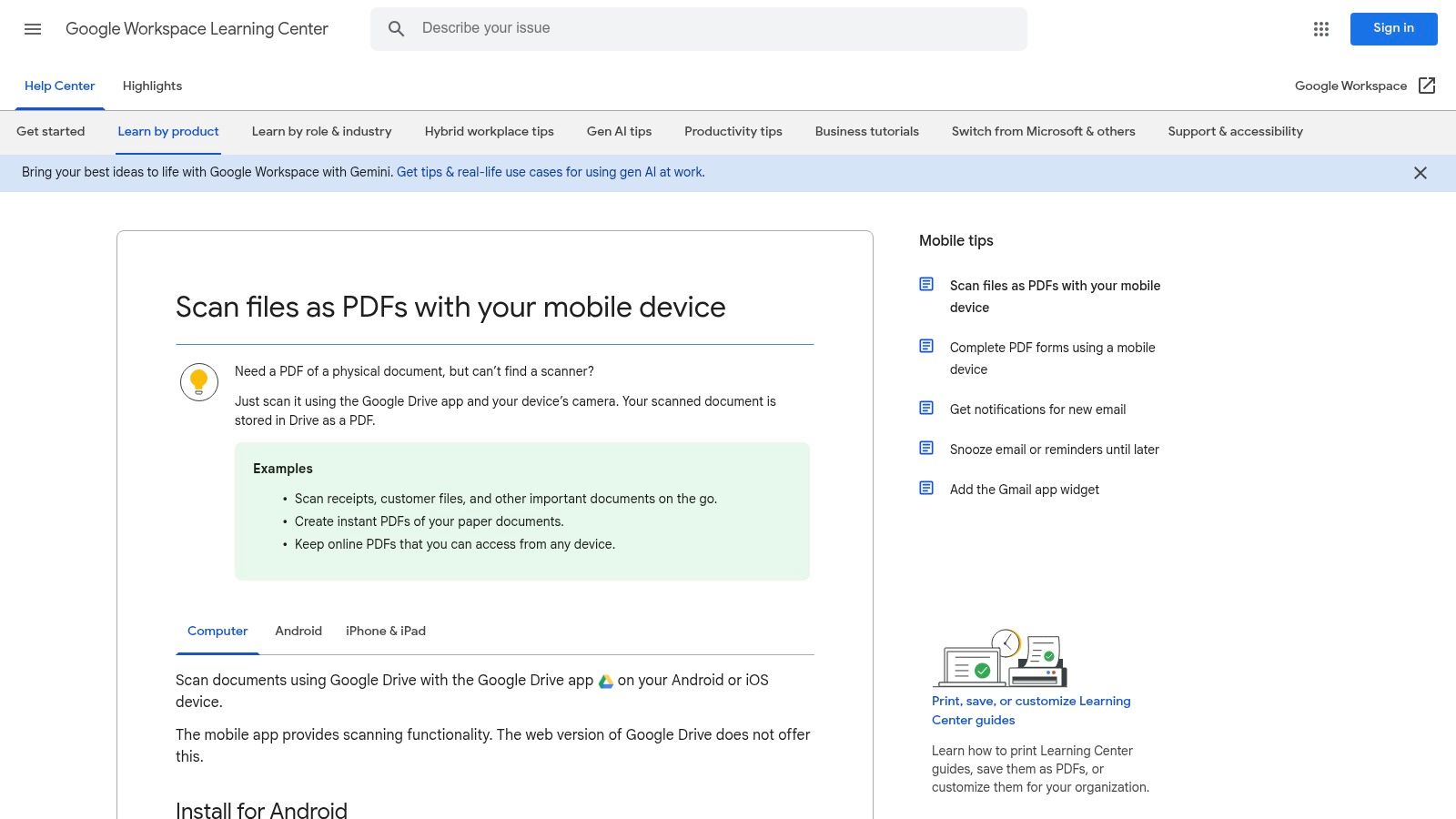
The primary advantage of this tool is its seamless integration with Google Workspace. Once a document is scanned and saved, Google's server-side OCR automatically processes the file, making the text within the PDF searchable. This is invaluable for finance professionals and freelancers who need to quickly locate specific invoices or bank statements stored in their cloud. While not as advanced as dedicated apps, this built-in OCR capability is a powerful feature for basic document management. For a deeper dive into its capabilities, you can learn more about using OCR within Google's tools.
Key Features & Considerations
The scanner provides essential editing tools like cropping and image rotation, with recent Android updates adding improved shadow removal and filters to enhance scan quality. However, its feature set is more basic compared to specialised scanning apps; it lacks advanced batch scanning modes or sophisticated image correction. The true strength of the Google Drive scanner is its simplicity and its native connection to your cloud storage, which streamlines workflows for users who rely on Google for their document organisation.
- Platform: iOS, Android
- Best For: Users who already rely on Google Drive for cloud storage and need a simple, integrated scanning solution.
- Pros: Completely free for Google account holders, excellent integration with Google Workspace, and automatic cloud synchronisation.
- Cons: The iOS version can sometimes lag behind Android in features, and OCR controls are less customisable than in dedicated scanner apps.
Website: https://support.google.com/a/users/answer/9308884
5. Apple Notes (built-in iOS/iPadOS scanner)
For Apple users, one of the most convenient pdf scanner gratis options is already built into their iPhone or iPad. The native document scanner, accessible directly within the Notes and Files apps, provides a surprisingly powerful and completely free way to digitise documents on the go. It eliminates the need to download a third-party application, offering a seamless and private scanning experience. The tool automatically detects document borders, corrects perspective, and applies filters to ensure scans are clear, crisp, and legible.
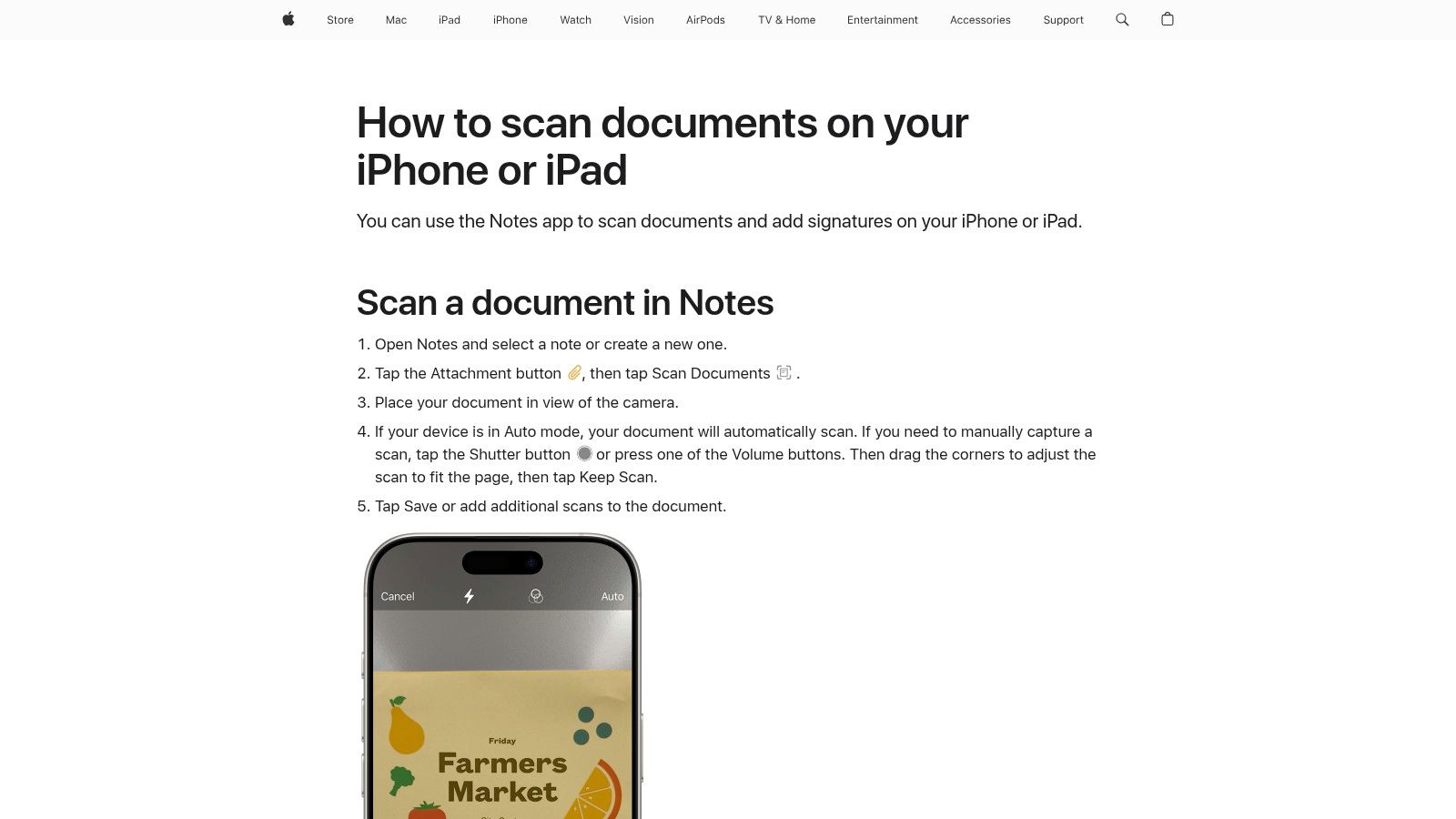
The scanner excels in simplicity and deep integration within the Apple ecosystem. Users can easily initiate a scan, capture multiple pages into a single PDF, and then use built-in markup tools to sign or annotate the document. While it lacks the advanced, automatic OCR of dedicated apps, its text recognition is sufficient for searching handwritten or typed notes within the Notes app itself. For freelancers or small businesses needing to quickly scan a signed contract or a multi-page invoice for their records with tools like Mintline, this built-in function is an efficient, no-cost solution that respects user privacy.
Key Features & Considerations
The primary strength of the iOS scanner is its frictionless accessibility, as it’s always just a few taps away. Scanned documents are saved directly into a note or the Files app, syncing across all iCloud-connected devices instantly. However, for businesses requiring automated workflows, batch processing, or sophisticated export options to specific cloud services beyond iCloud, a more specialised scanning application may be necessary. The focus here is on convenience and ease of use over advanced feature sets.
- Platform: iOS, iPadOS
- Best For: Apple users needing a quick, convenient, and private way to scan documents without extra apps.
- Pros: Completely free and pre-installed, excellent integration with the Apple ecosystem, and a simple, user-friendly interface.
- Cons: Lacks advanced OCR and automation features found in dedicated scanner apps; limited export customisation.
Website: https://support.apple.com/en-us/108963
6. Microsoft OneDrive (document scanning in OneDrive app)
For users deeply embedded in the Microsoft 365 ecosystem, OneDrive offers a seamless and powerful pdf scanner gratis integrated directly into its mobile app. Originally part of the standalone Microsoft Lens app, this functionality has been centralised within OneDrive, providing a convenient capture-to-cloud workflow. The app allows users to easily scan documents, whiteboards, business cards, and photos, converting them into multi-page PDFs with automatic edge detection and cleanup filters. Its primary advantage is the direct integration with Microsoft's cloud storage, making it an efficient choice for teams that already rely on Office and OneDrive for collaboration.
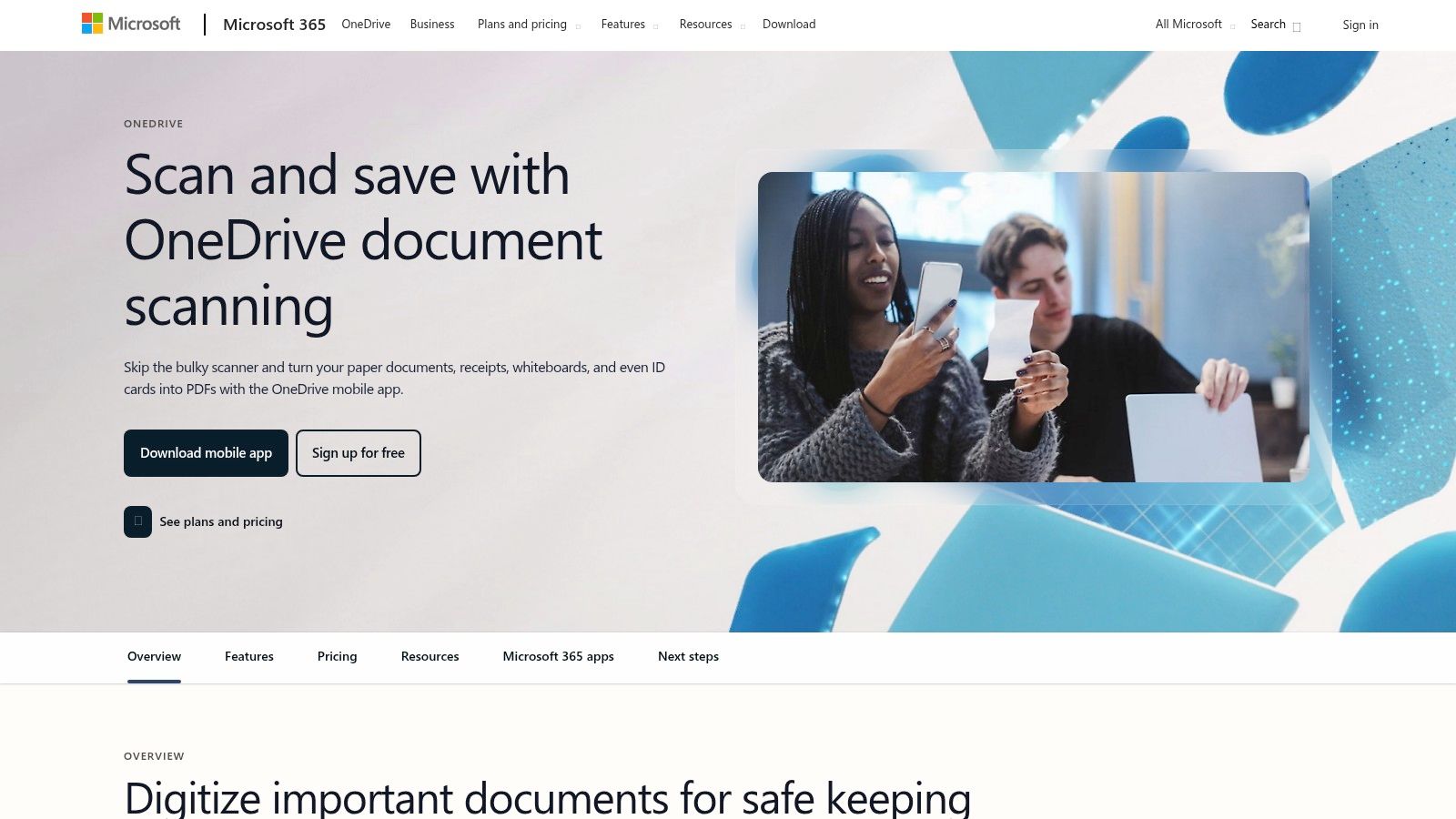
The scanner’s tight integration with OneDrive is its defining feature. Scanned PDFs are automatically saved to your chosen OneDrive folder, making them instantly accessible across all your devices. This is particularly useful for finance professionals and small businesses who need to archive receipts or bank statements securely. For sensitive documents like IDs, scans can be saved directly to OneDrive's Personal Vault, which provides an extra layer of identity verification for security. While it lacks the advanced, free OCR of some competitors, its simplicity and security within a familiar environment make it a highly practical tool for many.
Key Features & Considerations
The scanning capability is included with the free OneDrive plan, which offers a generous amount of storage. As Microsoft is retiring the dedicated Lens app, users are encouraged to transition their workflows to the main OneDrive app to maintain continuity. While excellent for cloud-first users, those who prefer saving scans locally to their device may find its workflow slightly more restrictive than some third-party applications.
- Platform: iOS, Android
- Best For: Users and teams heavily invested in the Microsoft 365 and OneDrive ecosystem.
- Pros: Excellent integration with Microsoft 365, secure storage with Personal Vault option, and a straightforward cross-platform workflow.
- Cons: The dedicated Microsoft Lens app is being retired, and workflows focused on local or offline storage are more limited.
Website: https://www.microsoft.com/en-us/microsoft-365/onedrive/document-scanning
7. Dropbox (mobile document scanner)
For teams already embedded in the Dropbox ecosystem, the platform's integrated mobile scanner offers a highly convenient pdf scanner gratis solution. Available within the main Dropbox iOS and Android apps, this feature allows users to quickly digitise documents, receipts, and whiteboards, saving them directly into their cloud storage. The workflow is streamlined for efficiency: scan a document, and it instantly becomes a PDF in a designated Dropbox folder, ready for sharing or organisation. This eliminates the extra steps of scanning with one app and uploading to another, making it ideal for on-the-go professionals.
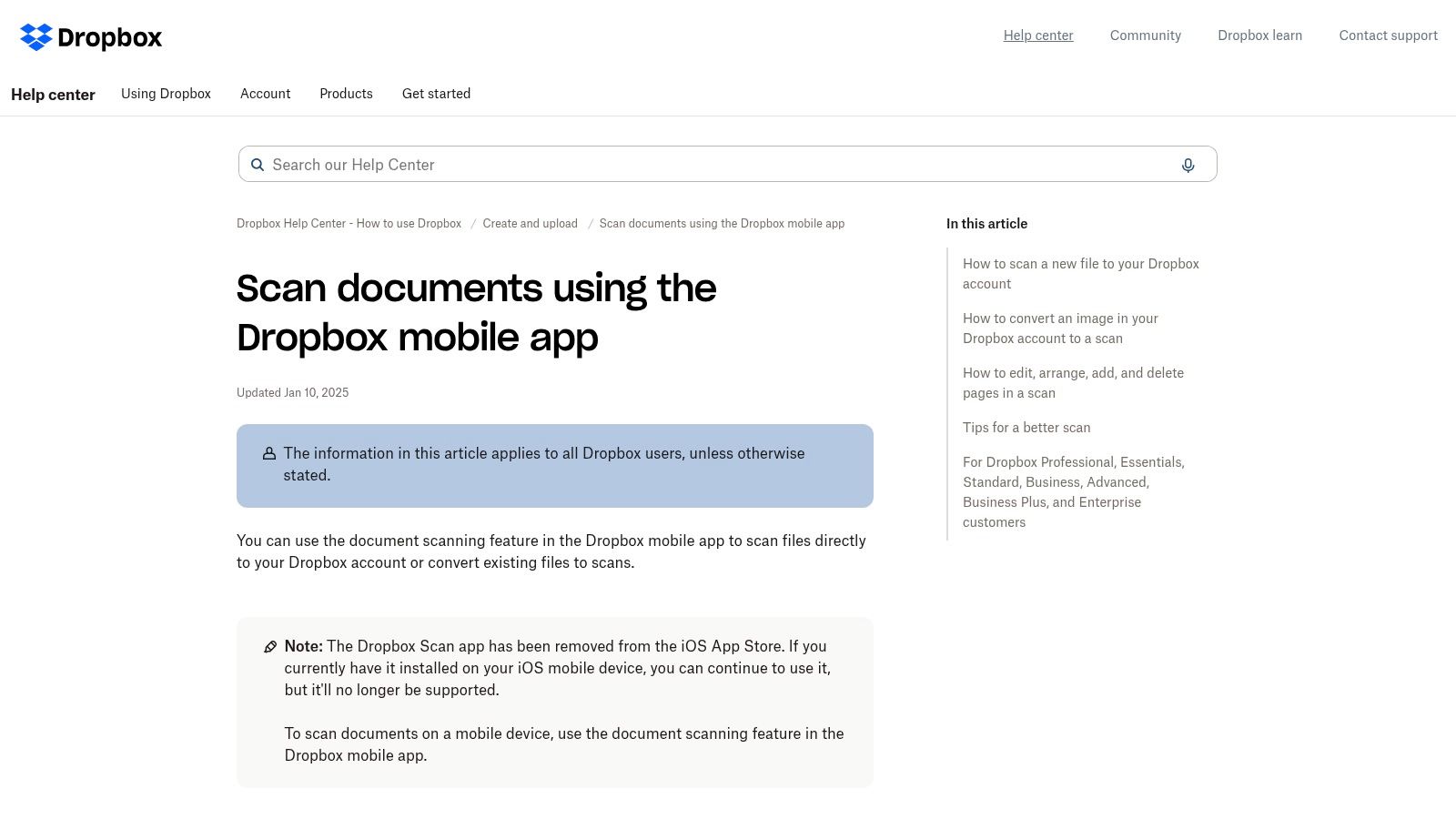
The primary advantage of the Dropbox scanner is its deep integration with the platform’s powerful sharing and collaboration tools. Once a receipt or bank statement is scanned, it can be immediately added to a shared team folder or sent via a secure link. While the basic scanning functionality is free, the powerful Optical Character Recognition (OCR) that makes text within your scans searchable is a premium feature, available on Dropbox Plus, Family, Professional, and Business plans. For businesses relying on tools like Mintline for financial oversight, upgrading to a paid plan to unlock OCR can significantly speed up the process of locating and verifying specific transaction documents.
Key Features & Considerations
The Dropbox scanner is designed for convenience and seamless integration rather than as a standalone, feature-rich scanning application. It excels at getting documents into the cloud quickly but lacks the advanced image editing or annotation tools found in dedicated scanner apps. The true value is realised when your entire document workflow, from capture to archival and collaboration, is centred around the Dropbox platform. This makes it an excellent choice for teams aiming to centralise their document management.
- Platform: iOS, Android (as part of the main Dropbox app)
- Best For: Teams and individuals already using Dropbox for cloud storage and collaboration.
- Pros: Seamlessly saves scans directly to Dropbox, straightforward mobile workflow, and excellent sharing capabilities.
- Cons: OCR text search is locked behind paid subscriptions, and the scanner is only available on mobile devices.
Website: https://help.dropbox.com/create-upload/document-scanning
8. Genius Scan (The Grizzly Labs)
Genius Scan positions itself as a robust pdf scanner gratis by prioritising speed, simplicity, and user privacy. Developed by The Grizzly Labs, this mobile app for iOS and Android is engineered for efficiency, allowing users to rapidly scan multi-page documents in batches. Its on-device image processing ensures that your data remains private, a significant advantage for users handling sensitive financial or client information. The free version offers excellent core functionality, including automatic edge detection, perspective correction, and image enhancement, delivering clean, legible scans without requiring an internet connection.
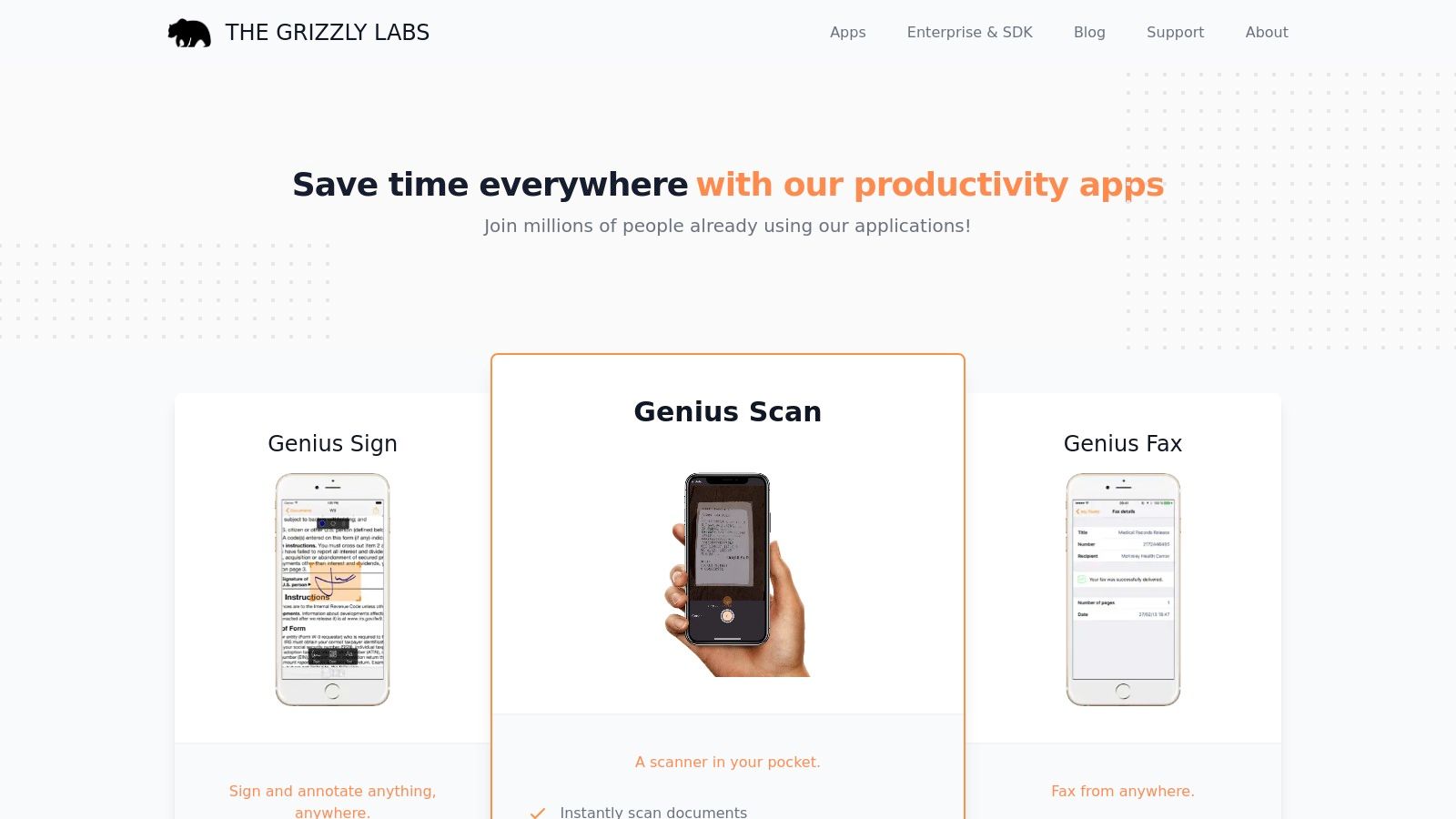
The app's main differentiator is its commitment to offline functionality and its ad-free user experience, even in the free tier. This makes it a reliable tool for quickly digitising receipts or invoices on the go. For finance teams using platforms like Mintline for expense management, Genius Scan provides a streamlined first step in the documentation process. While the free version is highly capable for basic scanning and manual exporting, upgrading to Genius Scan+ unlocks powerful automation features, including OCR for creating searchable PDFs and auto-exporting to various cloud services.
Key Features & Considerations
Genius Scan's strength lies in its performance and privacy-first approach. It's designed to be a "scanner in your pocket" that just works, without the bloat or data privacy concerns of other apps. The paid upgrade transforms it into a powerful workflow tool, but the free version remains one of the best for high-quality, straightforward document capture. Its lack of extensive desktop tooling means it's best suited for mobile-centric workflows where the primary goal is quick digitisation and export.
- Platform: iOS, Android
- Best For: Users prioritising privacy, fast batch scanning, and a clean, ad-free mobile experience.
- Pros: Strong privacy with on-device processing, excellent batch scanning capabilities, and a completely ad-free interface in the free version.
- Cons: Key features like OCR and automatic cloud synchronisation are locked behind a paid subscription.
Website: https://www.thegrizzlylabs.com/
9. CamScanner
CamScanner is one of the most established and widely-recognised mobile scanning applications, serving as a versatile pdf scanner gratis for millions. It offers a robust suite of tools for converting paper documents into digital formats, handling everything from receipts to multi-page contracts with ease. The app's core strength lies in its smart scanning technology, which automatically crops document edges and enhances the image for clean, readable results. This makes it a dependable tool for on-the-go scanning needs, particularly for freelancers needing to capture and organise business expenses quickly.
The free version provides substantial functionality, allowing users to create multi-page PDFs or JPEGs and share them through various platforms like email, cloud storage, or messaging apps. Its intuitive interface simplifies the process of scanning, organising, and sharing documents directly from a mobile device. For small businesses and finance teams using expense management tools like Mintline, CamScanner's straightforward capture and export process can significantly speed up the workflow for submitting receipts and invoices for reimbursement or bookkeeping.
Key Features & Considerations
A key consideration for professionals is that the free version of CamScanner adds a "Scanned by CamScanner" watermark to exported documents, which may not be suitable for all business contexts. More advanced features, such as Optical Character Recognition (OCR) for creating searchable text, high-resolution scans, and expanded cloud storage, are reserved for its premium subscription tiers. Despite this, its core scanning and enhancement features remain a powerful free offering for casual to moderate use.
- Platform: iOS, Android, Web
- Best For: Users needing a feature-rich scanner with flexible sharing options for everyday tasks.
- Pros: Mature and reliable feature set, excellent auto-cropping and enhancement, wide range of export capabilities.
- Cons: Free version includes a watermark on exports, and essential business features like OCR require a paid subscription.
Website: https://www.camscanner.com/
10. TapScanner
TapScanner positions itself as a versatile pdf scanner gratis and mobile document management toolkit, catering to individuals and growing teams. This cross-platform solution for iOS, Android, and web provides a streamlined experience for scanning documents and accessing a suite of basic PDF editing tools. Its interface is clean and straightforward, prioritising quick captures and organisation. The app handles standard document scanning well, with features for merging, splitting, and compressing PDFs directly from a mobile device, making it a handy tool for on-the-go productivity.
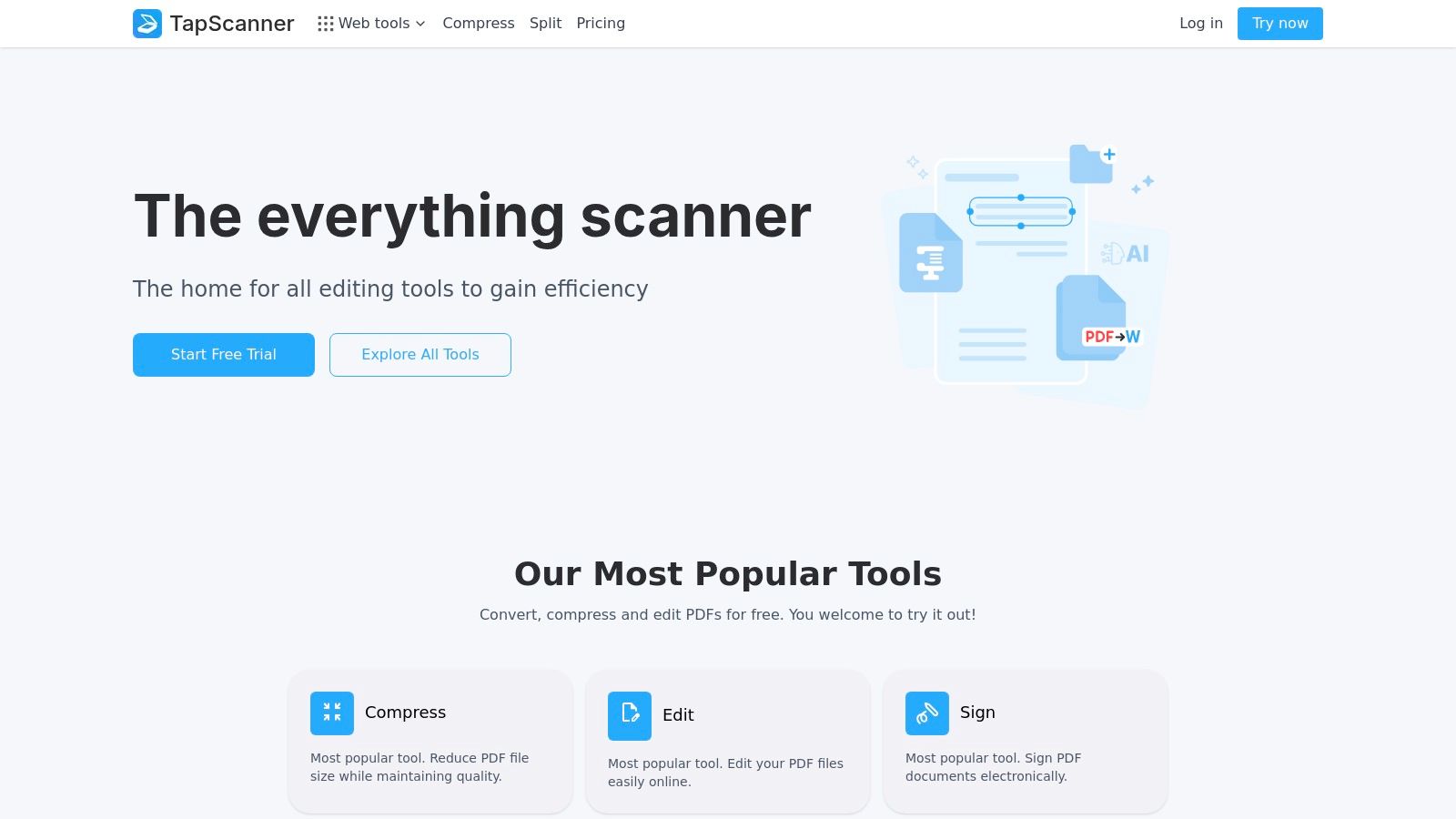
What sets TapScanner apart is its focus on team collaboration and security, particularly in its paid tiers. Features like shared workspaces and Single Sign-On (SSO) on its Business plan are designed for small companies that need centralised document control. For security-conscious businesses, such as accounting firms using Mintline to manage sensitive financial data, TapScanner's encrypted uploads and auto-deletion policies provide an added layer of confidence. The free version is functional but may include watermarks and task limits, encouraging users to upgrade for full access.
Key Features & Considerations
While the core scanning is free, the platform's full potential is unlocked with its Pro or Business subscriptions. These plans remove limitations and introduce advanced capabilities like e-signatures and expanded cloud storage. The ecosystem is smaller than that of major players like Adobe, resulting in fewer direct integrations with third-party software. However, for teams looking for a simple, unified mobile and web workspace for scanning and basic PDF tasks, TapScanner offers a compelling and easy-to-manage package with clear, simple pricing.
- Platform: iOS, Android, Web
- Best For: Small teams and businesses needing a simple, cross-platform scanning solution with collaborative features.
- Pros: Team-oriented features like shared workspaces and SSO, simple pricing tiers, and strong security measures.
- Cons: Free plan is limited and may add watermarks; fewer integrations compared to larger competitors.
Website: https://tap-scanner.com/
11. NAPS2 (Not Another PDF Scanner 2)
NAPS2, which stands for "Not Another PDF Scanner 2," is a powerful, completely free, and open-source desktop utility for Windows, macOS, and Linux. As a dedicated pdf scanner gratis, it excels at bridging the gap between physical hardware like flatbed or automatic document feeder (ADF) scanners and digital PDF creation. It is specifically designed for users who need to process multiple documents in batches, offering a straightforward, function-over-form interface that prioritises efficiency and control over the scanning workflow.
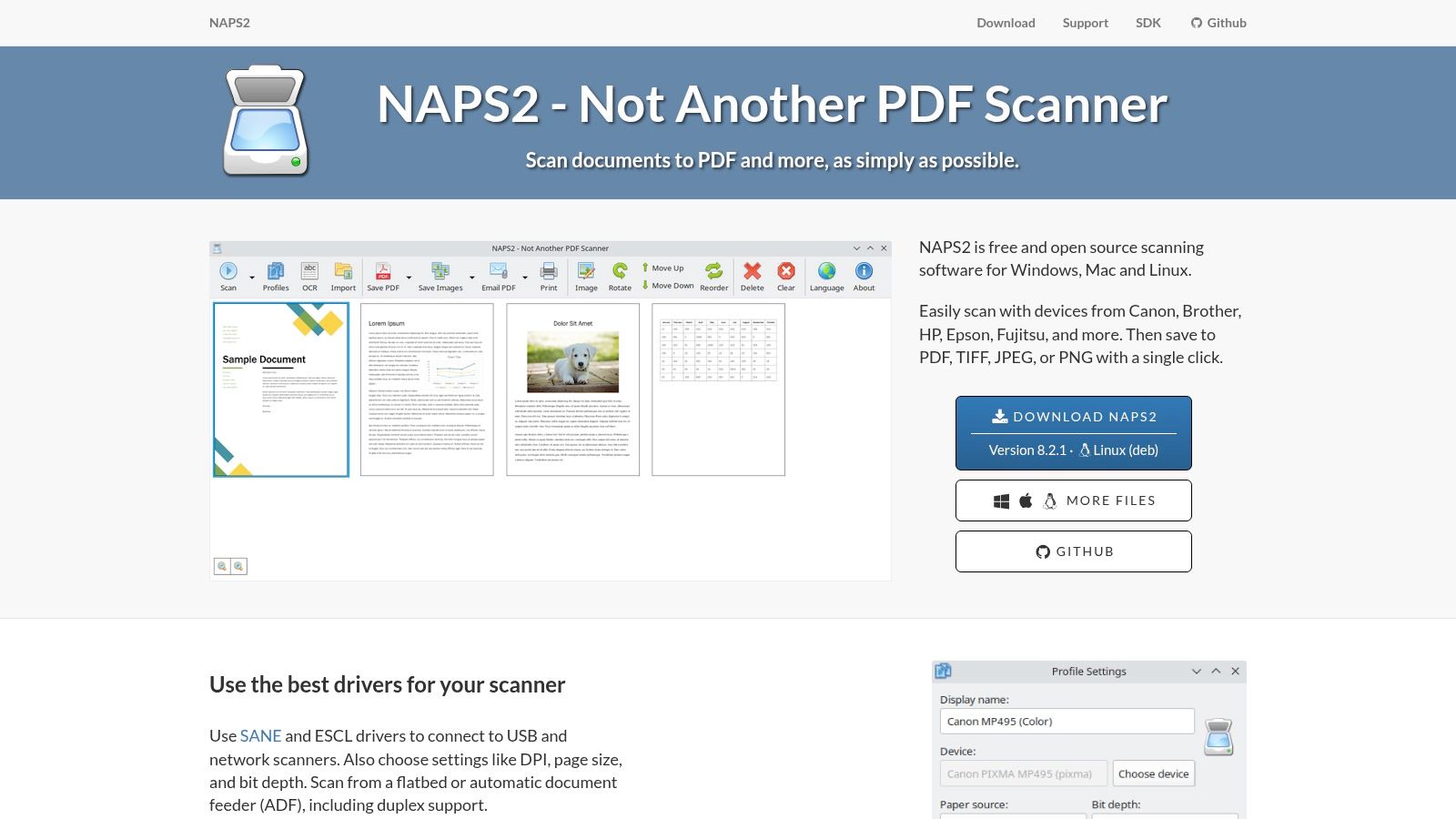
The standout feature of NAPS2 is its integration of the Tesseract OCR engine, allowing it to create fully searchable PDFs at no cost. This makes it an invaluable tool for finance teams or freelancers digitising large archives of invoices or bank statements for platforms like Mintline. Unlike mobile apps, NAPS2 is built for high-volume desktop work, enabling users to easily reorder, rotate, or delete pages before saving the final file. Its support for command-line automation also makes it a favourite among IT administrators for custom script-based document processing. As one of the top choices for desktop scanning, you can learn more about its capabilities in this comparison of OCR software freeware.
Key Features & Considerations
NAPS2 is entirely free, with no advertisements, premium tiers, or hidden costs, a rarity in the scanner software space. It supports scanning from TWAIN, WIA, SANE, and ESCL compatible devices, covering nearly all modern scanners. While it lacks the cloud integration and polished UI of mobile-first apps, its strength lies in its offline, bulk-processing capabilities, making it a reliable workhorse for digitising paper records.
- Platform: Windows, macOS, Linux
- Best For: Bulk document scanning with desktop hardware and creating searchable PDFs for free.
- Pros: Completely free and open-source with no ads, powerful batch processing tools, and built-in searchable PDF creation.
- Cons: No mobile application is available, and the user interface is more functional than aesthetically polished.
Website: https://www.naps2.com/
12. PDF24 (PDF24 Creator + online camera scanner)
PDF24 offers a unique dual-approach to the pdf scanner gratis market, providing both a comprehensive offline desktop suite for Windows and a flexible online camera-based scanner. The flagship PDF24 Creator is a powerful desktop application that allows users to import documents directly from a traditional scanner, arrange pages, and compile them into a PDF. It also installs a virtual PDF printer, enabling you to "print" any document from any application directly into a new PDF file, offering a robust offline workflow for document digitisation.
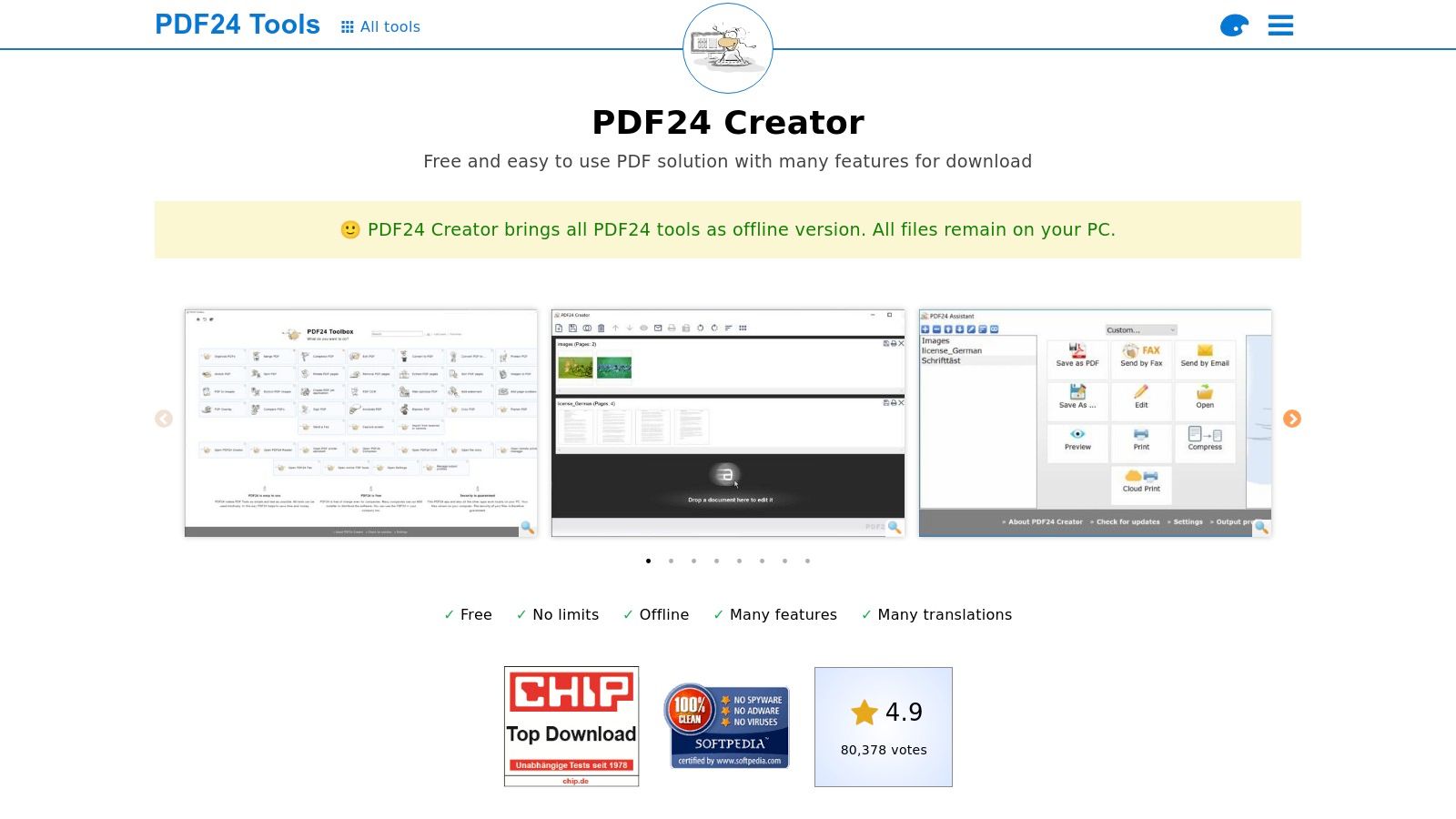
For users needing a quick solution without installing software, PDF24’s online "create PDFs with a camera" tool is a standout feature. It allows you to use your smartphone or webcam to capture images of documents page-by-page directly in your browser, which are then compiled into a single PDF. This browser-based functionality is incredibly useful for freelancers on the go who need to digitise a receipt for expense tracking with tools like Mintline but don't want to install another mobile app. The combination of powerful offline tools and accessible online utilities makes it a versatile choice.
Key Features & Considerations
The entire suite of PDF24 tools, both online and offline, is completely free for private and commercial use, which is a significant advantage. The desktop Creator includes a wide array of features beyond scanning, such as merging, splitting, compressing, and editing PDFs. The main limitation is that the powerful desktop software is exclusive to Windows, and the quality of the online camera scanner is entirely dependent on the user's device camera and lighting conditions.
- Platform: Windows (Creator), Web-based (Online Tools)
- Best For: Windows users needing a comprehensive offline PDF toolkit and anyone needing a quick, no-install browser scanner.
- Pros: 100% free for all uses, offers both powerful offline software and convenient online tools, includes a virtual PDF printer.
- Cons: The desktop suite is Windows-only, and the online camera scanner's quality varies with the hardware used.
Website: https://tools.pdf24.org/en/creator
12 Free PDF Scanners: Quick Feature Comparison
| Product | Core features ✨ | OCR & quality ★ | Integrations & workflow 🏆 | Target & price 👥💰 |
|---|---|---|---|---|
| Adobe Scan (Acrobat mobile) | Auto edge/perspective, glare cleanup, searchable PDFs ✨ | ★★★★☆ — strong mobile OCR | Tight handoff to Acrobat web/desktop for editing/export 🏆 | 👥 Creatives & power users; 💰 Free (Acrobat Pro for advanced tools) |
| Smallpdf | Mobile scan + full web PDF toolkit (compress, convert, e-sign) ✨ | ★★★★☆ — reliable OCR, AI features | Cross-device sync + extensive web tools for post-scan workflows 🏆 | 👥 Freelancers & SMBs; 💰 Free limited, Pro subscription for unlimited |
| iLovePDF | Multipage mobile scanner, OCR & annotation, web tools | ★★★☆ — good mobile OCR (capture-dependent) | Web/desktop tools and API/team options for conversions & signing | 👥 Casual users & small teams; 💰 Free limited, paid plans unlock features |
| Google Drive (mobile) | Camera-to-PDF, cropping/filters, Drive storage ✨ | ★★★☆ — basic OCR and searchable storage | Native Drive/Workspace sync — cloud-first access 🏆 | 👥 Google account users; 💰 Free tier (storage limits apply) |
| Apple Notes (iOS/iPadOS) | Native multipage scanner, markup & signature tools ✨ | ★★★☆ — decent OCR via Apple ecosystem | Seamless within Notes/Files; limited exports/automation | 👥 iPhone/iPad users; 💰 Free (built into iOS) |
| Microsoft OneDrive | Scan docs/whiteboards/business cards, auto-save to OneDrive | ★★★☆ — solid for basic OCR | Integrates with OneDrive/365 and Personal Vault for sensitive docs 🏆 | 👥 Microsoft 365 teams; 💰 Free tier, paid 365 for more storage/features |
| Dropbox (mobile) | Scan to PDF, direct save to Dropbox, OCR search on paid plans | ★★★☆ — OCR/search on higher tiers | Deep Dropbox backup & sharing, team workflows | 👥 Dropbox teams/users; 💰 Free limited, paid for OCR search |
| Genius Scan (The Grizzly Labs) | Fast batch scanning, on-device processing, automation ✨ | ★★★★☆ — strong on-device OCR & privacy 🏆 | Auto-export to cloud services (subscription) | 👥 Privacy-conscious pros; 💰 Free basic, subscription for OCR/exports |
| CamScanner | Auto-crop/enhance, multipage PDFs, wide export options | ★★★☆ — reliable capture OCR with paid upgrade | Flexible sharing/export to many services | 👥 General users needing flexible exports; 💰 Free (watermark), paid for OCR/cloud |
| TapScanner | Scan/merge/compress, e-sign, web+mobile workspace, SSO ✨ | ★★★☆ — solid OCR with Pro/Business | Team features: shared workspaces, SSO, encrypted uploads | 👥 Small teams/businesses; 💰 Free limited, Pro/Business tiers |
| NAPS2 (Not Another PDF Scanner 2) | Desktop TWAIN/WIA/SANE support, batch & CLI, Tesseract OCR ✨ | ★★★★☆ — strong searchable PDFs via Tesseract 🏆 | Desktop-first: CLI/MSI for IT deployments and automation | 👥 IT/admins & offices with scanners; 💰 Free & open-source |
| PDF24 (Creator + online camera) | Windows desktop suite + online camera scanner, merge/split | ★★★☆ — decent OCR (device-dependent) | Offline Windows Creator + online quick-capture workflows | 👥 Windows users & budget-conscious teams; 💰 100% free for personal/commercial use |
Final Thoughts
Navigating the landscape of pdf scanner gratis tools reveals a powerful truth: going paperless and organising your digital documents no longer requires a significant financial investment. As we have explored, a wealth of high-quality, free applications are available, each offering a unique combination of features tailored to different user needs, from the solo freelancer to a small business finance team. The days of being tethered to a bulky flatbed scanner are decisively over; the modern, efficient office is now conveniently located in your pocket or on your desktop.
Recapping Your Best Options
Throughout this guide, we have analysed a dozen powerful contenders. For users deeply embedded in a specific ecosystem, the integrated solutions like Google Drive, Apple Notes, Microsoft OneDrive, and Dropbox offer unparalleled convenience. Their scanning functions are seamlessly built into platforms you likely already use for cloud storage, making the process of capturing, storing, and sharing documents almost effortless. These are often the best starting points for casual users or those prioritising a streamlined workflow above all else.
For those requiring more specialised features, dedicated apps such as Adobe Scan and Genius Scan stand out. Adobe Scan’s superior OCR technology and integration with the wider Adobe ecosystem make it a top choice for professionals who need reliable text recognition and document management. Genius Scan, on the other hand, provides a robust, privacy-conscious alternative with excellent batch scanning and smart document naming capabilities, proving that you don't need to sacrifice power for simplicity.
Making the Right Choice for Your Workflow
The ideal pdf scanner gratis is not a one-size-fits-all solution; it is the one that best complements your specific operational needs. Your decision should be guided by a clear understanding of your priorities:
- For Simplicity and Integration: If you are a heavy user of Google Workspace, Microsoft 365, or Apple's ecosystem, start with the built-in scanner in the respective mobile apps. The learning curve is minimal, and the convenience is unmatched.
- For Advanced OCR and Features: When accurate text recognition for searchability or data extraction is paramount, Adobe Scan is often the most reliable free option. For desktop power-users needing advanced batch processing, NAPS2 is an excellent open-source choice.
- For Privacy and Control: If you are wary of your data being processed by large tech companies, Genius Scan offers a more private experience, with much of the processing handled on-device.
- For All-in-One PDF Management: Tools like Smallpdf, iLovePDF, and PDF24 extend beyond simple scanning, offering a full suite of tools for editing, merging, and converting PDFs. They are perfect for users who need a versatile document toolkit.
Remember, the scanning process is just the first step. Once you have a clean, digital copy of your document, you may need to go further. For instance, if you need to pull specific data from financial reports or client contracts, you will want to effectively extract information and text from your PDF files to make that content usable. This is where a high-quality scan with good OCR becomes critically important, as it provides the foundation for any subsequent data analysis.
Ultimately, the journey to a more organised, efficient, and paperless workflow is incredibly accessible. By leveraging the right free tools, you can transform piles of receipts, invoices, and contracts into a searchable, secure, and manageable digital archive. The key is to experiment with a few of the top contenders from our list and identify the one that makes your administrative tasks feel less like a chore and more like a seamless part of your success.
Once your critical financial documents are scanned and digitised, the next step is to unlock the insights they contain. Mintline specialises in automated financial analysis, turning your scanned bank statements, invoices, and receipts into actionable business intelligence. Ditch the manual data entry and let Mintline handle the complex work of financial interpretation for you.