
Master OCR Google Docs to Convert PDFs and Images to Text
Unlock the power of OCR Google Docs. This guide shows you how to convert PDFs and images into editable text and streamline your document workflow.
Yes, you absolutely can perform OCR with Google Docs—and it's a surprisingly powerful feature that’s been hiding in plain sight for years. You can take a PDF or an image file, like a photo of a receipt, upload it to Google Drive, and have Google Docs automatically turn it into editable text.
The Hidden OCR Power Within Google Docs
Most people don’t even realise they have a capable Optical Character Recognition (OCR) tool built right into their Google Workspace. There’s nothing extra to install or pay for. It’s a native function that can convert static documents into living, editable text in just a couple of clicks.
This is far from a gimmick. For small businesses, freelancers, or anyone drowning in paperwork, this tool is a game-changer. Remember the last time you had a scanned contract and needed to copy a single clause? Or when you had a photo of an invoice and had to manually punch every number into a spreadsheet? The Google Docs OCR feature makes that tedious re-typing a thing of the past.
Why This Matters for Your Business
Manually typing data from documents isn’t just slow; it’s a recipe for mistakes. Studies have shown that manual data entry can have error rates anywhere from 0.55% to 3.6%. While that might sound small, those errors can lead to costly mix-ups in your financial records or client communications. Using a simple OCR tool is a smart first step to slash those errors and win back your time.
This feature is particularly useful given how many of us already live in the cloud. In the Netherlands alone, Google Docs is a staple for an estimated 200,000 active monthly users. It’s part of a global trend toward simple, integrated tools that make our work lives easier. You can read more about the growing adoption of AI and cloud tools in the Netherlands to see just how common these solutions have become.
By turning images and PDFs into text, you unlock the ability to search, copy, and analyse information that was previously locked away in a static file format. This is the foundation of effective document management.
To give you a clearer picture, here's a quick rundown of what you can get done with this handy feature.
What You Can Do with Google Docs OCR
| Capability | Details | Ideal for |
|---|---|---|
| PDF to Text Conversion | Opens non-editable PDFs as editable Google Docs. Preserves basic text formatting. | Extracting text from contracts, reports, or scanned articles. |
| Image to Text Conversion | Converts JPG, PNG, and GIF files containing text into editable documents. | Digitising photos of receipts, whiteboard notes, or book pages. |
| Searchable Documents | The converted text becomes fully searchable within Google Drive and Docs. | Finding specific information quickly without reading entire documents. |
Ultimately, this tool provides a simple yet effective way to digitise physical paperwork without needing specialised equipment or expensive software.
Practical Scenarios for Google Docs OCR
This built-in tool is incredibly versatile for day-to-day business tasks. Here are a few common situations where it really shines:
- Digitising Invoices and Receipts: Quickly pull line items, totals, and vendor details from a PDF invoice to copy into your bookkeeping records.
- Converting Client Contracts: Turn a scanned, signed agreement into an editable document. This makes it a breeze to reference terms or create a new template.
- Capturing Meeting Notes: Snap a photo of a whiteboard covered in brainstorming notes and convert it into text for easy sharing and archiving.
Now, it's important to be realistic. While it’s a fantastic starting point, it has its limits. If you need to process and match hundreds of receipts to bank transactions automatically, a dedicated tool like Mintline is the logical next step. But for those quick, one-off conversions, Google Docs is an indispensable resource you probably already have.
Your Practical Guide to Using OCR in Google Docs
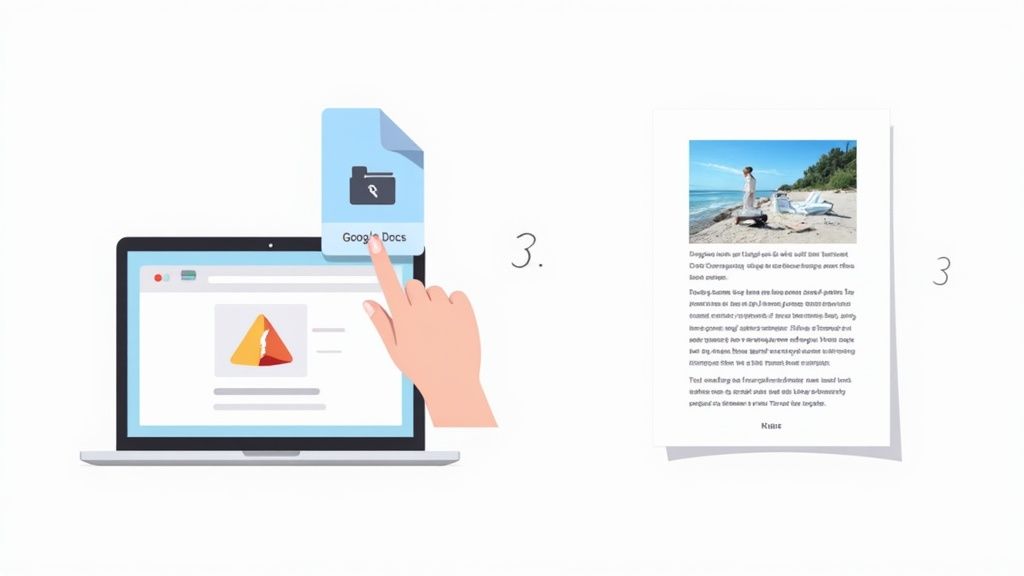
Alright, let's get hands-on. The great thing about using Google Docs for OCR is that there’s nothing to install or configure. The feature is already built right into Google Drive, ready to go when you are.
Here’s exactly how to turn a static image or PDF into text you can actually work with.
One small detail that catches a lot of people out: the magic happens in Google Drive, not in a blank Google Doc. So, the first step is always getting your file—whether it's a PDF, JPG, or PNG—into your Drive.
Uploading and Converting Your File
Head over to your Google Drive. The easiest way to upload is to simply drag and drop the file from your computer straight into the browser window. You can also click the "+ New" button and choose "File upload". This works just as well for a quick photo of a receipt as it does for a multi-page client contract.
Once your file is uploaded and you can see it in your Drive, resist the urge to double-click and open it. Instead, right-click on the file to bring up the options menu.
From here, hover your mouse over "Open with" and select Google Docs. That’s it. This one click tells Google to work its magic, analyse the file, and create a brand-new, editable document from it.
What the Converted Document Looks Like
Depending on the size of your file, this can take a few seconds or a bit longer. When it's done, a new browser tab will pop open with your Google Doc. You'll immediately notice two things:
- The Original Image: Right at the top, Google cleverly places an image of the file you just converted. This is a lifesaver for checking the extracted text against the original without having to switch between windows.
- The Extracted Text: Just below that image, you'll find all the text that the OCR tool managed to pull out.
This text is now completely yours to edit. You can copy-paste it, correct any little typos the OCR might have made, and reformat it to fit your needs. If you're interested in other approaches, our guide on how to convert a PDF document to text has some more great tips.
The real value here is the sheer speed and convenience. You can go from a locked PDF or a photo of a document to usable text in less than a minute, all without needing any special software.
This process handles both single-page snaps and chunky, multi-page reports with ease. For a PDF with many pages, Google Docs will simply work through them in order, putting all the extracted text into one long, continuous document.
While this is incredibly handy for one-off tasks, it is a fundamentally manual process. If you're trying to process dozens of invoices every week, doing them one by one like this quickly becomes a major time sink. That’s exactly when you'd look to an automated tool like Mintline, which is designed to handle that repetitive data extraction and matching for you.
How to Get Clean and Accurate OCR Results
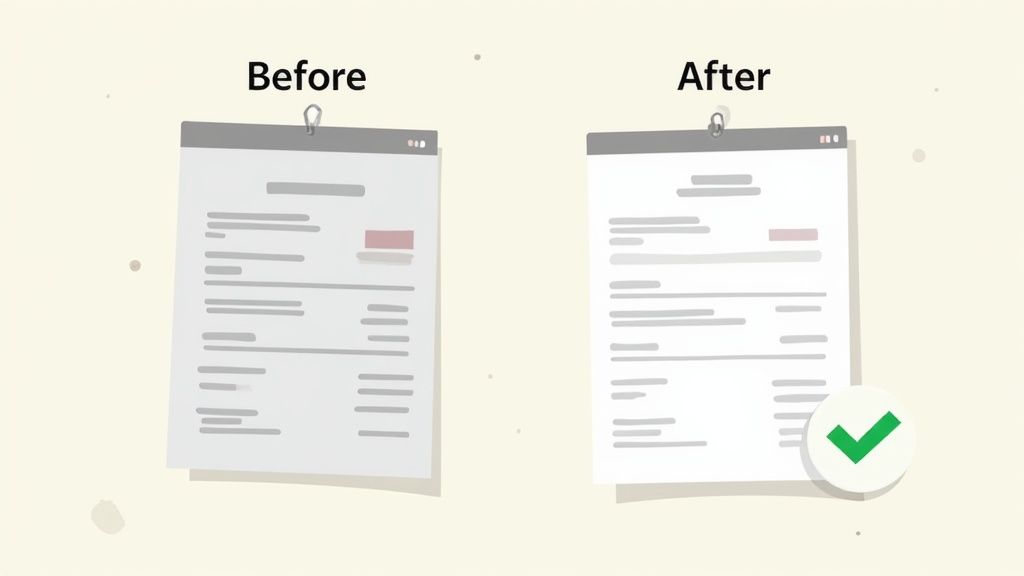
While the OCR Google Docs feature is a fantastic tool, its output is only ever as good as the file you feed it. Think of it like a conversation: if you mumble, you're going to get a confused response. To avoid that garbled text and the frustrating errors that follow, preparing your document before you upload it is the single most important thing you can do.
A high-quality scan or a crystal-clear photo is your best friend here. The entire goal is to make the text as legible as possible for the software to "read."
Optimise Your Source Image or PDF
The cleaner your original file, the better your results. Simple as that. And you don't need a fancy office scanner to get it right—your smartphone camera is more than capable if you just pay attention to a few key details.
Good lighting is completely non-negotiable. I find that natural, even light from a window works best. Harsh overhead lights often cast shadows across the page, which can easily obscure letters and throw the OCR engine off course. Whatever you do, make sure your own shadow isn't falling across the document.
Also, get the document straight and in focus. A blurry or skewed image forces the software to guess, and that's where most mistakes creep in. I always use my phone's gridlines to get everything aligned, then tap the screen to lock the focus on the text before snapping the picture. For a deeper dive, we have a whole guide on how to scan text from an image that covers even more tricks.
Pay Attention to Document Characteristics
It’s worth remembering that not all documents are created equal in the eyes of an OCR tool. The layout, fonts, and even the paper colour can have a huge impact on accuracy.
For a smoother conversion, keep these factors in mind:
- Font Simplicity: Standard, clean fonts like Arial or Times New Roman are recognised far more reliably than fussy, handwritten, or highly stylistic scripts.
- Sufficient Contrast: Black text on a crisp white background is the gold standard. Low-contrast combinations, like grey text on a light grey background, are a recipe for errors.
- Clear Layout: Documents with a simple, single-column layout tend to convert almost perfectly. On the other hand, invoices or reports with multiple columns, complex tables, and scattered text boxes can result in jumbled, out-of-order text.
Getting a clean digital copy is the foundation of successful OCR. A few extra seconds spent preparing the source file can save you ten minutes of tedious cleanup and correction on the other side.
For business documents like invoices, this level of accuracy is absolutely critical. A single misplaced decimal point or a misread character in a supplier's name can create genuine headaches in your accounting workflow.
While these tips will definitely improve your results with the OCR Google Docs tool, it’s important to be realistic about its limitations. For high-stakes financial documents where 100% accuracy is essential, or when you’re processing a large volume of them, a specialised solution like Mintline is built for the job. It's designed to handle those complex layouts and automatically verify the extracted data, giving you a level of reliability a general-purpose tool just can't offer.
Fixing Common Google Docs OCR Problems
Even when you’ve done everything right, the text Google Docs spits out can sometimes look a bit… weird. You might see jumbled words, strange line breaks, or entire sentences that have vanished. Don't panic. This is a normal part of the process and doesn’t mean the tool is broken—it just means it had a tough time with your document.
Most of these hiccups happen when the original document has a tricky layout. Picture an invoice with multiple columns for item descriptions, quantities, and prices. Google's OCR engine is pretty straightforward; it reads from top to bottom, left to right. Anything that isn't a simple block of text can throw it for a loop, often mashing text from different columns into one nonsensical paragraph.
Identifying and Resolving Common Errors
So, what’s the fix when your output is a mess? The first thing I always do is a quick side-by-side check. Google Docs cleverly places the original image right at the top of the new document, making this comparison easy.
Keep an eye out for these common culprits:
- Jumbled Text: This is the classic sign of a document with tables or columns. The words are usually correct, but they're all out of order. You’ll probably have to do some manual cutting and pasting to rearrange them logically.
- Character Mistakes: The OCR can get confused by characters that look alike, like swapping the number '1' for the letter 'l', or '0' for 'O'. These tiny mistakes can cause huge headaches, especially when you're dealing with financial data.
- Formatting Mayhem: While Google Docs tries to keep basic formatting like bold and italics, it often gives up on anything more complex. Expect to lose most of your original indents, special spacing, and font styles, which means you'll need to reapply them manually.
Before you dive into a heavy editing session, try one simple trick: rescan the document. A quick re-scan in better lighting or from a straighter angle can often clear up the majority of OCR errors on the second go.
Post-Conversion Cleanup Strategies
For those stubborn errors that a rescan won't fix, a little hands-on cleanup is required. Your best friend here is the "Find and Replace" function (Ctrl + H on a PC, or Cmd + Shift + H on a Mac). If you spot a recurring mistake—say, the OCR keeps reading "Mintline" as "MintIine"—you can fix every single instance in one fell swoop.
But there comes a point where you have to ask yourself if it's worth the effort. If you’re spending more than a couple of minutes fixing a single page, it might be time to admit you're using the wrong tool for the job. Google Docs is fantastic for grabbing simple text, but it quickly becomes a bottleneck when you need to pull structured data from dozens of invoices where every number has to be perfect.
This is exactly the kind of problem a dedicated tool like Mintline is built to solve. It’s not just pulling text; it’s designed to understand the structure of a financial document, correctly identifying things like line items, totals, and supplier details without all the manual fuss. When your cleanup time starts to feel like a full-time job, that’s your cue that you’ve outgrown a basic OCR tool.
When to Move Beyond Google Docs for OCR
The OCR feature in Google Docs is undeniably brilliant for a quick, one-off job. Need to grab the text from a single scanned contract or a photo of a business card? It's fast, free, and baked into a tool you probably use every day. But what happens when that one-off invoice turns into a weekly stack?
This is the exact moment a handy tool starts becoming a serious bottleneck. The manual slog of uploading, opening, correcting, and copying data for every single document just doesn’t scale. If your business is growing, you'll slam into the limits of what a general-purpose tool can do, and fast.
Recognising the Limitations for Business Workflows
The cracks in using OCR Google Docs for anything more than occasional tasks start to show when you look at what’s missing for a proper financial workflow. The goal isn't just turning a picture into words; it's about getting structured, reliable data into your systems with as little fuss as possible.
A few key limitations really stand out:
- No Batch Processing: Every file has to be uploaded and converted one by one. Got ten invoices? That means repeating the same tedious steps ten times, which is a massive productivity killer.
- Lack of Structured Data Extraction: Google Docs gives you a wall of text. It has no idea that one number is the invoice total, another is a VAT amount, and a third is a line item. You’re still stuck manually hunting for and copying this specific information.
- Zero Integration: There’s no direct pipeline to send that extracted text to your accounting software or ERP. The process dead-ends with a manual copy-and-paste, opening the door for human error.
These issues highlight a fundamental difference. Google Docs is built for creating documents, not for automating data entry. For better accuracy or specific formatting, you might want to look into more advanced methods to convert a PDF to text.
The Leap to True Automation with a Specialised Tool
When you find yourself spending more time fixing OCR mistakes than you saved by not typing in the first place, it’s a clear sign you’ve outgrown the manual way. This is where a dedicated financial automation platform like Mintline becomes the logical next step.
A specialised tool isn't just a more powerful OCR engine; it's an entirely different approach. It’s designed to understand the context of financial documents, not just the characters on the page.
Instead of just spitting out text, a tool like Mintline is purpose-built to:
- Automate Data Entry: It intelligently finds and extracts key fields like supplier names, dates, totals, and line items from your receipts and invoices.
- Match with Financial Records: It automatically links this extracted data to the right bank transactions, taking the soul-crushing reconciliation process off your plate.
- Integrate Seamlessly: It connects directly with your accounting software, making sure clean, verified data flows straight into your financial records without you lifting a finger.
The demand for this kind of automation is surging. The OCR market in the Netherlands is a significant slice of a European sector that accounts for 26% of the global market. With projected growth of 13.5% annually from 2025 to 2030, Dutch businesses are increasingly adopting OCR to automate workflows in finance and other departments.
Ultimately, while the OCR Google Docs feature is a fantastic entry point, it’s just that—a starting point. For any business that’s serious about efficiency and accuracy, the real goal is to move from simple text extraction to intelligent document processing. Our guide on how to extract text from a PDF dives deeper into what modern tools can really do.
A Few Common Questions About Google Docs OCR
As you start using the OCR feature in Google Docs, you’ll likely run into a few questions. Knowing the answers will help you figure out when it's the right tool for a quick job and when you might need something a bit more powerful.
Is the OCR in Google Docs Really Free?
Yes, it's genuinely free. The character recognition tool is just a standard part of Google Docs and Google Drive. There are no hidden costs or subscriptions needed—if you have a Google account, you have access to it.
What’s the Ideal File Size for OCR?
For the best performance, try to keep your PDF or image files to 2 MB or smaller. Google Docs might try to process bigger files, but you'll notice it gets sluggish and the results can be unpredictable. Sticking to that 2 MB limit makes for a much smoother experience.
This decision tree gives you a good idea of when to use the basic Google Docs OCR versus when it makes sense to step up to a dedicated tool like Mintline, especially as your workload grows.
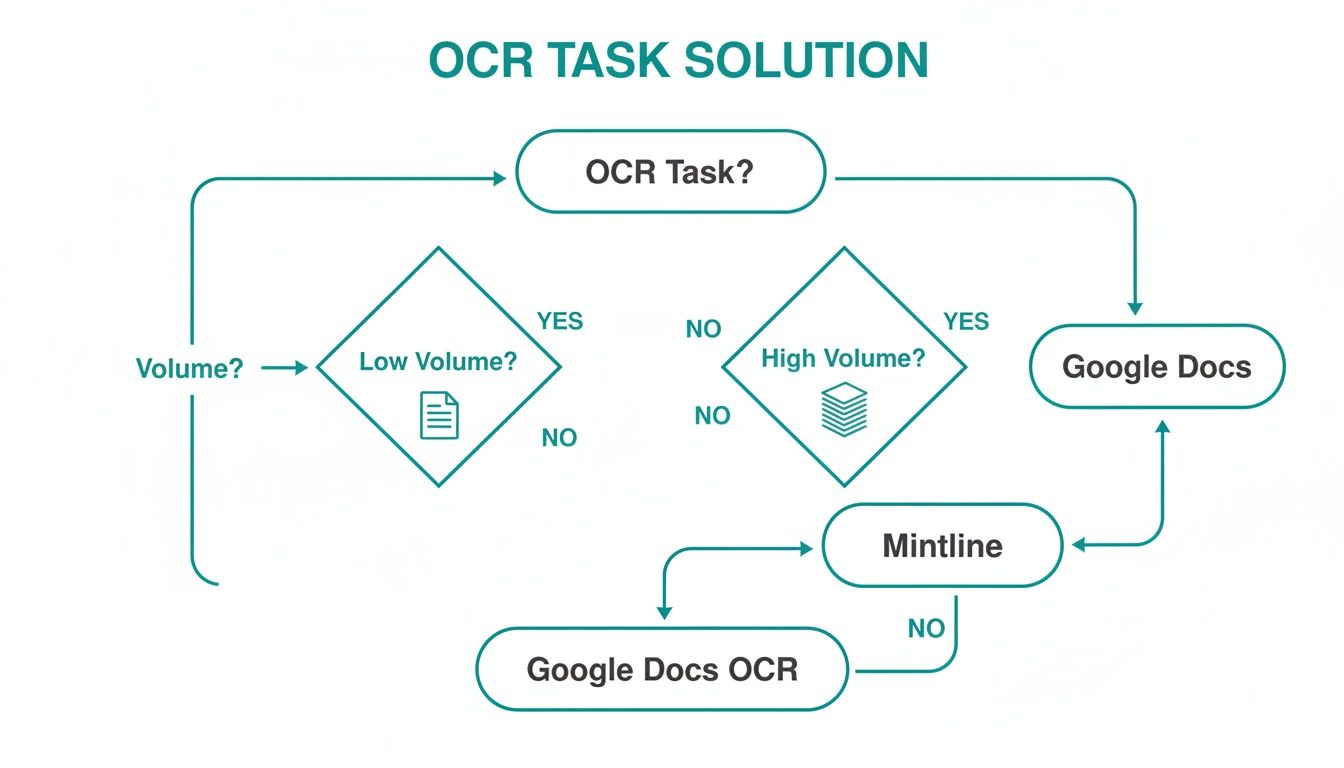
The takeaway is pretty clear: if you’re doing this often as part of a financial workflow, a purpose-built tool is going to save you a massive amount of time.
Can Google Docs Handle Handwritten Text?
Honestly, not really. The tool is designed for printed, machine-typed text. It might be able to pick up some incredibly neat, block-style handwriting, but the accuracy will be low. For reliable results, stick to documents that use clear, standard fonts like Arial or Times New Roman.
Will My Original Formatting Stay Intact?
It will try its best to keep basic formatting like bolding, italics, and font sizes. But that’s about where its capabilities end. Don’t expect it to handle complex layouts.
Any document with tables, columns, or specific spacing is going to lose its original structure during the OCR process. You should always plan on doing some manual cleanup after the text is pulled out.
This is a huge difference compared to advanced tools like Mintline, which are specifically built to recognise and correctly interpret the structured layout of things like invoices and receipts.
When you're tired of manual data entry and want to put your financial document workflow on autopilot, Mintline can help. Our platform uses AI to automatically match every bank transaction to its corresponding receipt, cutting hours of work down to minutes. Discover how Mintline can give you back your time.