
Rotate PDF Document Online: A Guide for Mintline Users
Learn how to rotate PDF document online safely. Our guide covers choosing secure tools and fixing common issues for perfect, audit-ready financial records.
Got a PDF that's been scanned sideways or saved upside-down? It’s a common frustration, especially when you're trying to upload it into an automated system like Mintline. Thankfully, you can easily rotate a PDF document online with a variety of free tools. The process is usually simple: upload your file, choose the correct orientation (90°, 180°, or 270°), and download the fixed version. It's a lifesaver for wonky scans.
Why Properly Rotated PDFs Are Critical for Mintline
A sideways bank statement or an upside-down invoice isn't just an annoyance; it can completely derail your financial workflow in Mintline. A document's orientation is everything for our platform because of the technology at its core: Optical Character Recognition (OCR).
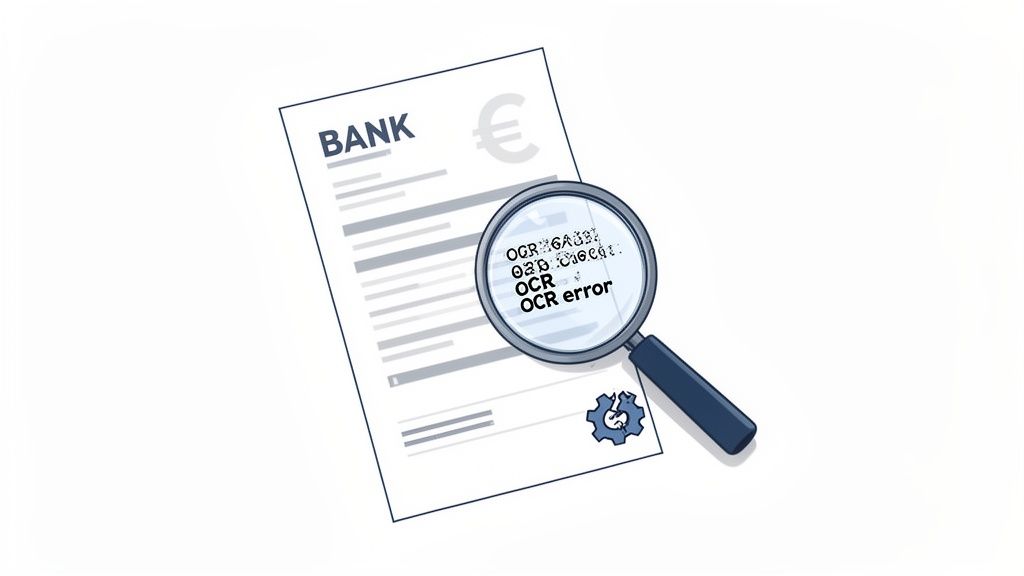
The OCR Breakdown
Think of OCR as Mintline's digital assistant that reads your documents. It’s trained to read text horizontally, just like we do. When a page is turned on its side, the software simply can't make sense of the text. This is where things start to go wrong.
- Failed Data Extraction: The software gets confused and can't pull out crucial details like dates, vendor names, or transaction amounts.
- Inaccurate Figures: Jumbled characters might be misinterpreted as incorrect numbers, throwing your financial data way off.
- Missed Transactions: In a worst-case scenario, the OCR might fail to read the document at all, meaning entire transactions get ignored by Mintline.
For freelancers and businesses in the Netherlands, clean digital records are crucial for efficiency. A poorly oriented document can quickly turn into hours of needless manual data entry. You can get ahead of these issues by using a quality document scanner online to ensure your files are perfect from the get-go.
Spending a few seconds to orient your PDF correctly before uploading it to Mintline is one of the easiest ways to prevent headaches. It guarantees a smooth reconciliation process and keeps your books accurate and audit-ready, saving you from fixing avoidable mistakes down the line.
How To Choose a Secure Online PDF Rotator
When you need to rotate a PDF document online, it’s tempting to pick the first tool that pops up. But if you’re handling financial documents for Mintline, security is paramount. The right tool protects your information and ensures the document's quality isn't compromised, which is essential for getting accurate results from our OCR.
First Things First: Security and Privacy
Before you upload a file, vet the service. Your first checkpoint is connection security. Look at the website’s address bar—does it start with "https://"? That "s" means it uses TLS (Transport Layer Security) encryption, which scrambles the data as it travels between your computer and their server. It's a non-negotiable first step.
Next, check the privacy policy. You're looking for a clear statement that your files are deleted from their servers automatically after a short window, usually about an hour. If a service is vague about this, walk away. There's no reason to risk your invoices or bank statements sitting on an unknown server. Given the robust economic activity in the Netherlands, protecting business data is critical. You can get a sense of the economic landscape by reviewing the latest forecasts for the Netherlands and other insights on the European Commission's finance page.
When choosing an online PDF rotator, certain features are essential for maintaining security and data integrity for Mintline.
Here's a quick comparison of what you should be looking for.
Comparing Online PDF Rotator Features
| Feature | Why It Matters for Financial Docs | What to Look For |
|---|---|---|
| TLS/SSL Encryption | Protects your sensitive data (invoices, bank details) from being intercepted during upload and download. | The website URL must start with "https://". |
| Clear Deletion Policy | Prevents your private financial information from being stored indefinitely on a third-party server. | A privacy policy that explicitly states files are deleted automatically, typically within 1-2 hours. |
| Lossless Rotation | Preserves the original quality of the text and images, which is vital for accurate OCR scanning in Mintline. | The tool should advertise "lossless" processing or state that it only changes metadata, not the content. |
| No Registration Required | Reduces your digital footprint and avoids handing over personal information like your email address. | A tool that lets you upload, rotate, and download without creating an account or signing in. |
Ultimately, a tool that offers all these features provides the peace of mind you need when handling documents central to your business operations.
Lossless Rotation vs. Re-Saving: Why It Matters for OCR
Beyond security, the how of the rotation process is incredibly important for Mintline's accuracy. This is where you run into the difference between "lossless" rotation and simple re-saving.
Lossless rotation is the gold standard. It’s a clever, lightweight process that just edits a tiny piece of the file's metadata to tell any PDF viewer which way to display the page. The actual content—the text, the numbers, the images—is left completely untouched.
Some simpler online tools take a "screenshot" of your rotated page and save it as a new PDF. This re-saving can introduce tiny compression flaws. While you might not notice the difference, OCR software is far more sensitive. A slightly blurred number can easily be misread, leading to the exact data entry errors you're trying to prevent in Mintline.
Always opt for a tool that explicitly mentions lossless processing. It’s the best way to keep your documents in perfect shape for Mintline.
A Hands-On Guide to Rotating Your PDFs
Let's walk through how you can rotate a PDF document online so it's ready for accurate processing in Mintline.
Imagine you have a multi-page bank statement, but the first page was scanned sideways. You need to fix that one page without messing up the rest of the document. The first thing you'll do is get your document into an online rotator tool. Most have a simple drag-and-drop box or an upload button.
Choosing Pages and Making the Turn
Once your PDF is uploaded, you should see thumbnails of every page. This visual interface is what makes the process simple. Instead of rotating the whole file, you can hover over and click the single page that's giving you trouble—in this case, page one.
After selecting the page, you'll see your rotation options: rotate 90 degrees clockwise, 90 degrees anti-clockwise, or flip it a full 180 degrees. Just click the one you need. The best tools will show you a live preview of the change. If you ever need to do more than just rotate, our guide on how to extract a single page from a PDF can walk you through that.
When picking a tool, keep this secure and effective process in mind.
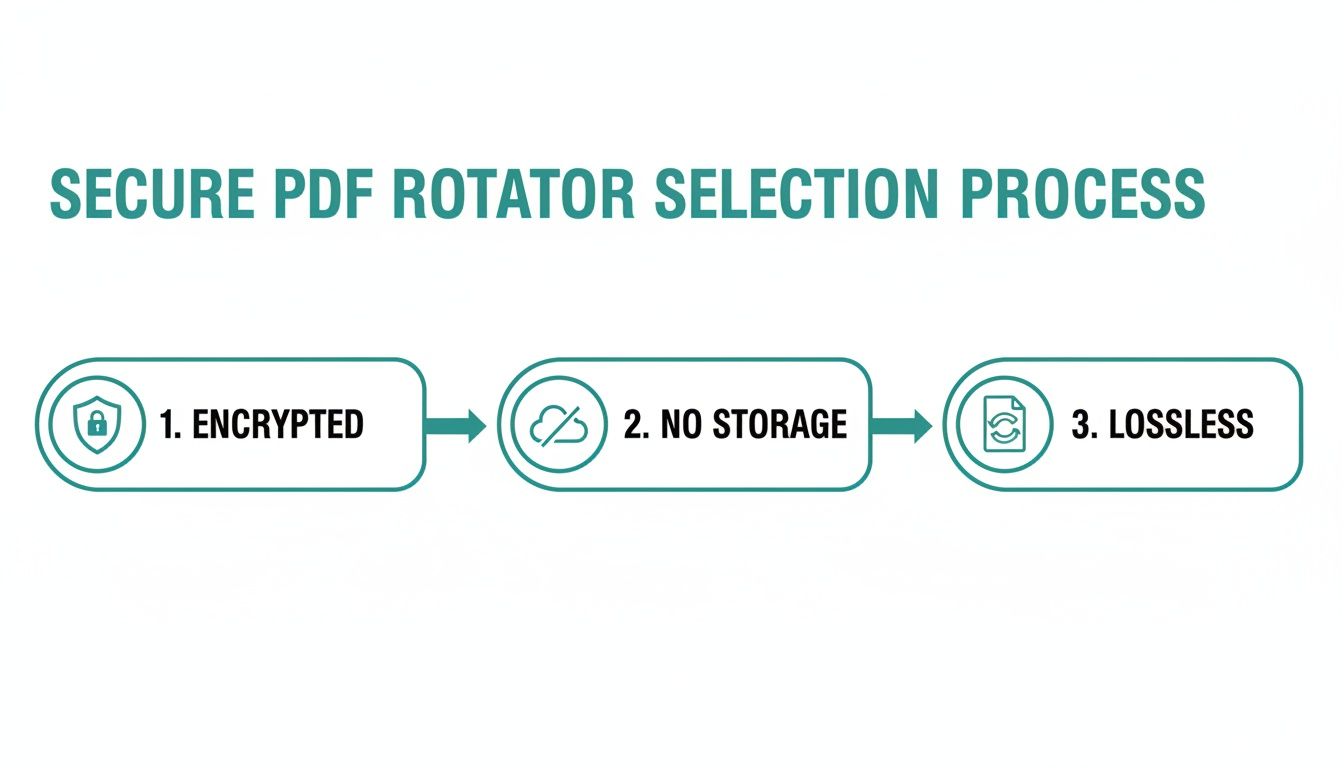
As you can see, a solid workflow should always put encryption first, avoid storing your files, and keep the original document quality intact.
Finishing Up and Getting Your File
With your adjustments made, all that's left is to finalise the changes. Look for a button like "Apply Changes" or "Rotate PDF." The tool will create a new, corrected version of your document. Download it, and it's all set for a smooth upload to Mintline for data extraction.
It's interesting to note that while we all manage digital documents daily, specific data on how often online PDF tools are used in the Netherlands isn't something you'll find in standard economic reports like the Central Economic Plan 2025.
Key Takeaway: The mark of a great online rotator is page-specific control. This precision saves time and ensures you're only changing what you need to, preparing a perfect document for Mintline.
Now that your PDF is properly oriented, the next step in your digital workflow might be figuring out how to sign a document online securely and efficiently.
Security Concerns When Using Online Tools
Uploading sensitive financial documents to a random website just to rotate a page can feel risky. The ease of a free online tool should never come at the expense of your data’s security. Every time you rotate a PDF document online, you're sending that information to a third-party server.
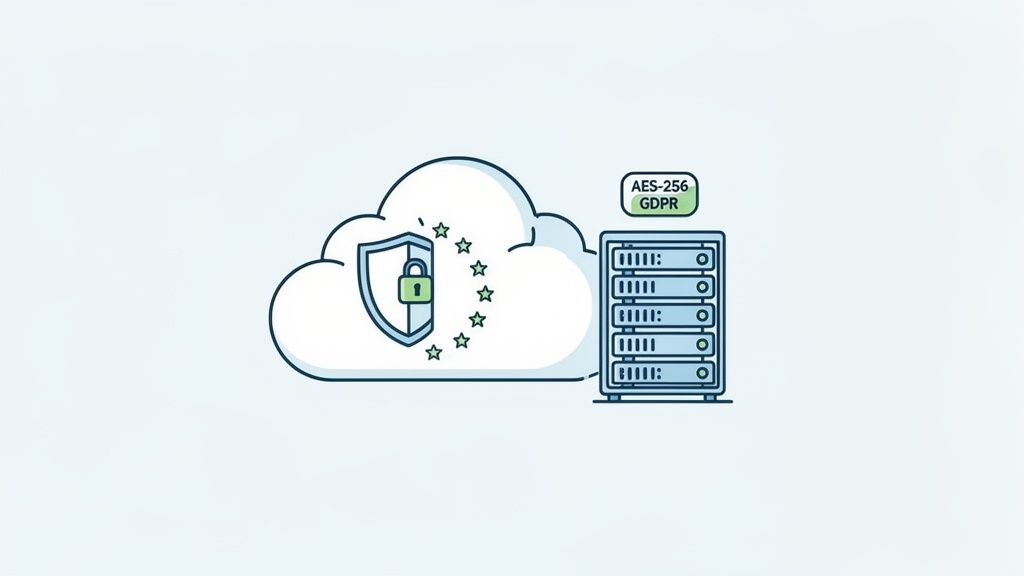
Many free tools are light on security. They might do the job, but they can also leave your data exposed. Before you upload anything, you must confirm the service uses end-to-end encryption. This scrambles your file, making it unreadable to anyone who might try to intercept it.
Reading Between the Lines of a Privacy Policy
A company's privacy policy tells you everything you need to know about how they'll handle your files. You're looking for one key detail: a clear data retention schedule.
A trustworthy service will state that your files are deleted from their servers automatically, usually within an hour or two. If the policy is hard to find, vague, or non-existent, that’s a massive red flag.
Choosing the right tool means checking its commitment to data protection rules. For a deeper dive into what that entails, this GDPR compliance guide is a fantastic resource for understanding what good practice looks like.
This is exactly why we built Mintline the way we did. It's not a generic file converter; it’s a secure ecosystem designed specifically for financial data. We protect your documents with AES-256 encryption, the same gold standard used by major banks, and process everything on secure servers located in the EU. We believe in complete transparency. You can see our full commitment to protecting your information laid out in our privacy policy. From the moment you upload a document, we ensure it stays confidential.
Tackling Common PDF Rotation Headaches
So you've found an online tool to rotate your PDF, but things still go wrong. You might hit an upload limit or the final version comes out blurry. These hiccups can derail your workflow, so let's walk through how to fix the most common ones.
First, the "file too large" error. The simplest fix is to compress the PDF before you try to rotate it. Plenty of free online services can shrink a file's size with little drop in quality. Just stick to the secure tools we discussed—the ones that automatically delete your files.
Why Didn't My Rotation Stick?
This one is incredibly frustrating. You rotate the file, download it, and it’s still on its side. Usually, this is a simple caching issue or conflicting metadata within the file.
Your first move should be the easiest: clear your browser's cache. If that doesn't work, try opening the PDF in a different program. For instance, if you're viewing it in your web browser, open it with a desktop reader like Adobe Acrobat. This often forces the application to read the file’s new orientation properly.
Another complaint is a sudden loss of quality—the text looks fuzzy. This is a dead giveaway that the tool you used re-compressed the file instead of performing a true lossless rotation. For a platform like Mintline that relies on OCR, you need that text to be perfectly crisp, so always look for a service that explicitly mentions "lossless" processing.
Got Questions About Rotating PDFs?
When preparing a PDF for your records, a few questions tend to come up again and again. Let's tackle them head-on so you can handle your documents the right way for Mintline.
What if Only One Page is Sideways in My PDF Statement?
Yes, you can absolutely fix just a single page. This is a super common problem, like a multi-page bank statement where one page was scanned incorrectly.
A good online PDF editor will show you a thumbnail view of all the pages after you upload the document. From there, you just click on the one that’s causing trouble and rotate it, leaving the rest of the pages untouched.
Will Rotating a PDF Mess Up the Text Quality for OCR?
It depends on the tool you use. The key here is to look for a feature called lossless rotation.
A lossless rotation doesn't re-render the image or text. It just edits a tiny piece of metadata that tells the viewer which way to display the page. The quality remains identical, which is perfect for Mintline's OCR scanning.
Other tools might re-save or re-compress the page, which can create tiny visual artifacts that can trip up OCR software and lead to errors. For a platform like Mintline that relies on perfect text extraction, this is a big deal.
Our advice: Always stick with tools that specifically mention "lossless rotation". It's the only way to guarantee the document you upload for data extraction is a perfect match to the original, which helps avoid frustrating OCR mistakes in Mintline.
How Safe Is It to Upload My Confidential Receipts to a Free Online Tool?
You're right to be cautious. When you're dealing with financial documents, privacy is everything.
While many free online tools are fine for non-sensitive files, you must do your homework before uploading a receipt or invoice. Dig into their privacy policy. Look for two specific things: a clear statement about how quickly they delete your files (it should be within an hour or two) and whether they use secure encryption.
For maximum security, here's the workflow we recommend: use a trusted online tool for the quick rotation, download the corrected file immediately, and then upload it directly to a secure, dedicated platform like Mintline. Mintline is built specifically to handle sensitive financial data with the highest security standards, so you know it's protected.
Ready to stop wrestling with documents and automate your bookkeeping? Discover how Mintline can transform your financial workflow by automatically matching every transaction to its receipt. Get started with Mintline today!