
How to Copy Text From PDF: Quick Tips to Save Time
Master copy text from pdf with this simple guide—discover tools and steps for text extraction, including from scanned images.
Ever tried to copy text from a PDF and ended up with a jumbled mess? It’s a common frustration, especially when that PDF contains critical business data. The fix usually starts with a simple test: try to click and drag your cursor over the words. What happens next tells you everything you need to know about your file.
Why Is Copying Text From a PDF So Frustrating?
We’ve all been there. You need to pull key figures from an invoice or a bank statement, but when you paste the text, you get a block with bizarre line breaks and chaotic spacing. It's not you; it's the PDF. The way a PDF is built determines whether you can copy its contents cleanly or not at all.
For businesses that rely on accurate data extraction for bookkeeping and financial analysis, figuring out which type of PDF you're dealing with is the first critical step. It saves your team from wasting time on methods that were never going to work.
The Two Types of PDFs
At the heart of the issue, there are really only two kinds of PDFs you'll run into:
- Text-Based PDFs: Think of these as the originals. They’re created digitally, usually by exporting from a program like Microsoft Word or Google Docs. The text in these files is "live" — it has character encoding behind it, which means you can select it, search for it, and copy it without any trouble.
- Image-Based PDFs: These are basically just photographs of a document. They're what you get from a scanner or a photocopier. To your computer, the entire page is a single flat image, not a collection of individual letters and words. You can't select what isn't there.
This quick check is often the only thing you need to do to figure out what you're working with.
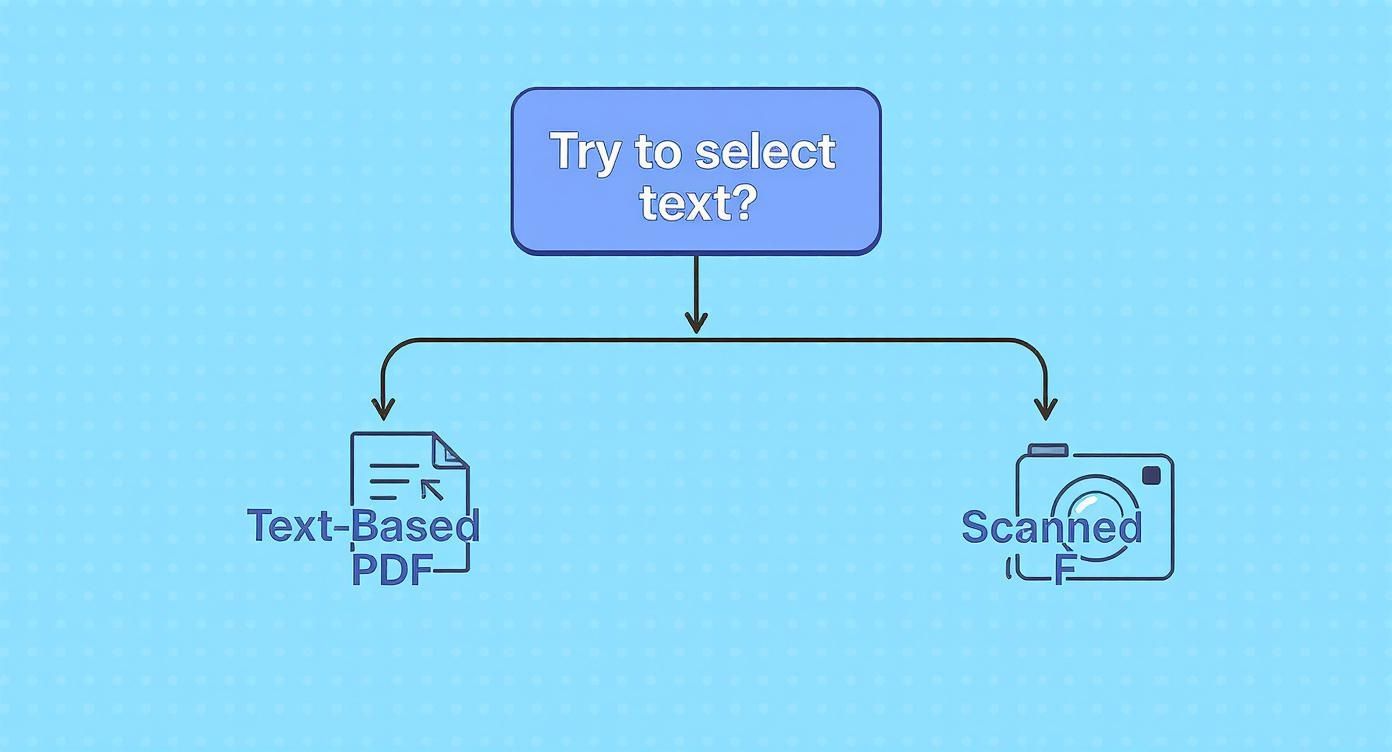
If you can highlight the text with your cursor, congratulations – you’ve got a standard, text-based PDF.
Text-Based PDF vs Scanned PDF At a Glance
Use this quick comparison to instantly identify your PDF type and find the right tool for the job.
| Characteristic | Text-Based (True) PDF | Scanned (Image) PDF |
|---|---|---|
| Origin | Exported from software (Word, InDesign) | Created by a scanner or camera |
| Text Selectable? | Yes, you can highlight words | No, the entire page is one image |
| Searchable? | Yes (Ctrl+F or Cmd+F works) | No, text is not recognised |
| Copy & Paste | Clean and accurate | Not possible without OCR |
| File Size | Generally smaller | Often larger due to image data |
Knowing this distinction is key. For a text-based file, you can proceed with direct copying. For a scanned one, you'll need a different approach, which we'll cover later.
Copy Restrictions and Security
Now, what if you have a text-based PDF but still can't copy anything? This is usually intentional. The person who created the PDF can enable security settings that block actions like copying, printing, or even editing the document. It's a common way to protect copyrighted or sensitive information.
The need to efficiently extract data from digital documents is growing. For businesses that handle numerous invoices or bank statements, like those using Mintline for automated receipt matching, overcoming these PDF hurdles is crucial for maintaining streamlined financial workflows.
This isn't just a minor inconvenience; it's a significant business challenge. In the Netherlands, for instance, the push towards digital document management has been massive. With broadband penetration reaching 98.1% in 2025, Dutch organisations now lean heavily on automated systems to process and pull data from PDFs. This trend underscores the growing demand for tools that can move past manual copying and all the frustrations that come with it. You can explore more about regional digitalisation trends in the full report.
Quick Ways to Copy Text From Standard PDFs
When you're dealing with a standard, text-based PDF, you're in luck. You don't need any fancy software to pull text out. The tools you need are already built into the free applications you use every day. Think of it like copying text from a website—the process is practically identical and just as fast.
Most modern PDF viewers, from the big names to the ones built into your browser, have a simple selection tool. It's usually your default cursor, letting you click and drag over any words you need. Let’s break down how this works in a few common programmes.
Using Your Everyday PDF Viewer
Chances are, the tools already on your computer are more than capable. Whether you're on a Mac or a Windows PC, the default programmes are designed for exactly this.
-
Adobe Acrobat Reader: As the most common free PDF viewer out there, it makes this process a breeze. Just open your document, and your cursor should be ready to go. Click where you want to start, hold the mouse button down, and drag over the text. Then, a quick right-click and "Copy" or the classic Ctrl+C (Windows) or Cmd+C (Mac) will do the trick.
-
Apple Preview: For anyone on a Mac, Preview is the built-in powerhouse for PDFs. The steps are the same as with Adobe Reader. Simply click and drag to highlight the text, then use the keyboard shortcut or right-click to copy it.
These methods are your first port of call and work perfectly for the vast majority of text-based documents. For more complex situations, you can dive deeper into our full guide on how to extract text from a PDF.
Copying Text Straight From Your Web Browser
You don't always need a separate application. Browsers like Google Chrome, Firefox, and Microsoft Edge can open and display PDFs on their own. If you get a PDF in an email or click a link to one online, it will probably just open in a new browser tab.
From there, the same click-and-drag technique works. Highlight what you need, right-click, and copy. It's incredibly useful for grabbing a quick sentence or two without the hassle of downloading the file and opening it in another programme.
Dealing With Pesky Multi-Column Layouts
Copying from a PDF with columns—like a newsletter or a scientific paper—can be a real headache. A normal copy-paste often scrambles the text from all columns into one jumbled, unreadable paragraph.
Pro Tip: To copy cleanly from just one column, hold down the Alt key (on Windows) or the Option key (on Mac) while you drag your cursor. This triggers a "block select" mode, letting you draw a rectangle around only the text in the column you actually want, ignoring everything beside it.
This little trick is a genuine game-changer when you're working with complex layouts. Once you’ve copied the text, I'd recommend pasting it into a plain text editor first. This strips away any weird formatting, giving you clean text that you can easily drop into Word or Google Docs without fighting with invisible styling and awkward line breaks.
Unlocking Text From Scanned PDFs Using OCR
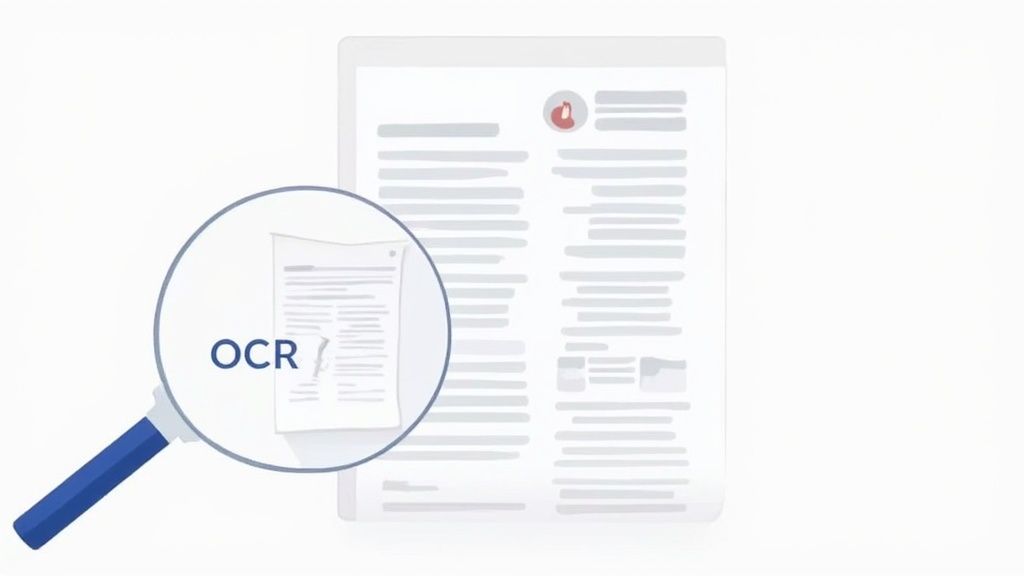
So, you’ve tried to highlight text in a PDF, but your cursor just slides right over it without selecting anything. It’s a common frustration that means you’re dealing with a scanned or image-based PDF. In these cases, your computer doesn’t see words; it sees one big picture, making standard copy-paste impossible.
This is where Optical Character Recognition (OCR) comes to the rescue. Think of OCR as a digital translator for images. The technology scans the document, intelligently identifies the shapes of letters and numbers, and converts them into actual, selectable text you can finally copy and paste. It’s the essential bridge between a static image and useful, workable data.
Free OCR Tools You Already Have
You don’t always need to shell out for fancy software, especially for a one-off job. Chances are you already have access to powerful, free tools with OCR capabilities built right in, perfect for pulling text from a scanned document.
Google Drive is probably the most accessible example. All you have to do is upload your PDF, right-click, and open it with Google Docs. Behind the scenes, Google’s OCR engine gets to work, scanning the document and generating a new Google Doc. You'll see the extracted text at the top, with the original image below it for easy comparison. The formatting might need a little tidying up, but it's a fantastic, no-cost solution.
Microsoft OneNote works in a similar way. After you insert a PDF into a note (usually as a "printout" or image), just right-click it and choose "Copy Text from Picture." The recognised text is immediately sent to your clipboard, ready for you to paste wherever you need it.
These free tools are perfect for quick, occasional tasks. Just be aware that their accuracy can be a bit hit-or-miss. Low-quality scans, funky fonts, or handwritten notes can trip them up, leaving you with garbled text that needs manual clean-up.
This technology isn't just a simple convenience; it’s a powerhouse in professional settings. Consider the Dutch healthcare sector, where researchers analysed over 1.2 million unstructured clinical notes from patient PDF records. By using text extraction, they achieved an impressive 85.3% accuracy rate for identifying clinical concepts, showing just how critical this can be for large-scale data analysis.
When to Bring in a Specialised OCR Tool
While the free options are great for a pinch, they have their limitations. They aren’t built for handling a high volume of documents or complex jobs, like processing hundreds of bank statements where every digit counts. For those tougher jobs, dedicated OCR PDF tools are the way to go, as they’re designed to accurately turn even challenging images into searchable text.
These specialised solutions are engineered for precision and efficiency, offering features the free tools just can't match:
- Superior Accuracy: They employ more advanced algorithms that can decipher complex layouts and poor-quality scans with much greater success.
- Batch Processing: You can run an entire folder of documents through at once, rather than processing them one by one.
- Better Layout Preservation: They do a much better job of keeping the original document’s columns, tables, and overall structure intact.
For any business that regularly deals with scanned documents—think invoices, receipts, or financial reports—understanding what professional-grade OCR can do is key. You can dive deeper into how this technology works in our guide to transforming PDFs with OCR. It’s the foundation for automated platforms like Mintline, which not only extract the text but understand its context, helping businesses eliminate manual data entry for good.
Automating PDF Data Extraction for Your Business
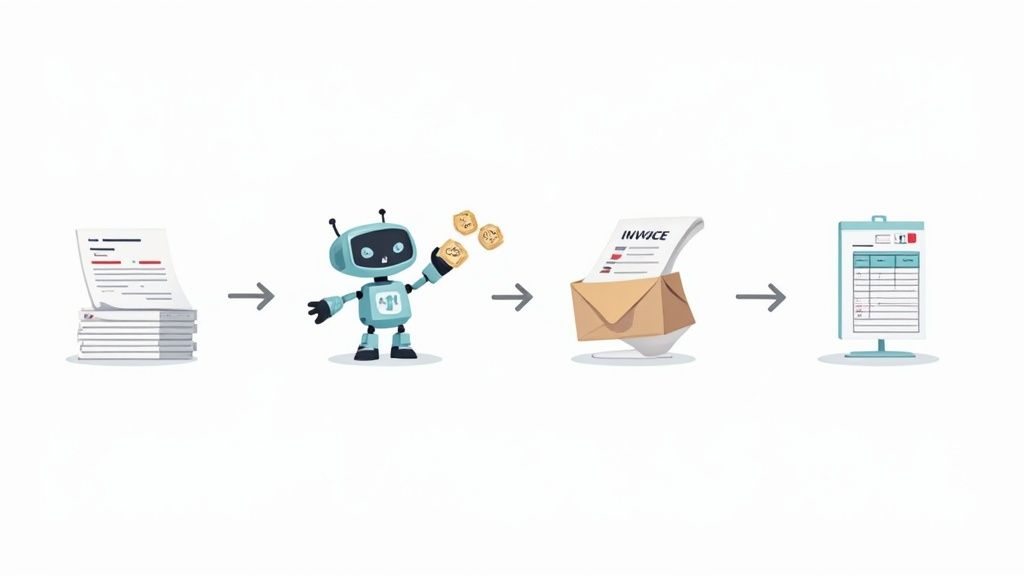
Copying text from a single PDF is one thing. But what happens when your business is drowning in hundreds of invoices, bank statements, or contracts every single month? That's when a simple copy-paste task explodes into a major operational bottleneck.
At this scale, manual methods and even basic OCR tools just don't cut it. The real problem isn't just the hours lost to monotonous work; it's the ripple effect of human error, delayed financial closing, and skilled employees being bogged down by tasks that a machine could handle.
Moving Beyond Simple Text Copying
For any growing business, the goal is never just to copy text from a PDF. The real need is to pull out specific, actionable data and get it into your systems. This is a crucial distinction. This is where automated platforms like Mintline come in, using sophisticated AI to go far beyond just grabbing characters off a page.
These intelligent systems are built to understand the context of the information, not just the text itself. Here’s what that means in practice:
- Pinpoint Key Data: They can automatically find and label vital details like 'Invoice Number,' 'Due Date,' 'Vendor Name,' and 'Line Item Total.'
- Structure the Information: The extracted data is then organised into a clean, structured format, like a spreadsheet row or a database entry, ready to be used immediately.
- Validate and Verify: By cross-referencing information, these platforms can flag inconsistencies and drastically reduce the kinds of errors that plague manual data entry.
This completely changes the game. It’s no longer about copying text; it’s about automating entire data workflows. For companies looking to integrate this power into their existing software stack, it's worth exploring how to start automating data extraction from documents using AI integrations.
The Real-World Impact of Automation
Bringing in an automated solution delivers tangible results that directly impact your bottom line. It fundamentally reshapes how your finance and admin teams spend their time, freeing them from the daily grind of document processing.
Think about your team's workflow without these manual roadblocks. Instead of an accountant opening every PDF bank statement and receipt one by one, a platform like Mintline can process the entire batch at once. It automatically pulls every transaction and intelligently matches it to the right receipt based on the vendor, amount, and date. The reduction in manual effort is immediate and significant.
By automating data extraction, businesses can slash invoice processing times by as much as 70%. This doesn't just speed up financial reporting; it frees up your team to focus on high-value strategic analysis instead of mind-numbing data entry.
This shift creates a positive cascade across the organisation. Finance teams can close the books faster and with more confidence. Operations get a much clearer, more accurate picture of spending. And leadership gets a real-time view of the company's financial health. It turns a messy, error-prone process into a smooth and efficient system.
For documents with dense information, learning how to properly extract a table from a PDF is often the first step in this journey. In the end, it’s all about giving your business the clean, structured data it needs to make better decisions and grow.
Solving Common PDF Copying Problems
So, you've figured out whether your PDF is text-based or scanned, but you’re still running into trouble. You try to copy a line of text, and what you paste is either complete gibberish or you find you can’t select the text at all. It’s a frustratingly common scenario, but the fix is usually simpler than you’d think.
Most of the time, these headaches come down to one of two things: a hiccup with font encoding or security restrictions put in place by whoever created the document. Let's break down how to spot and solve these roadblocks.
What to Do When Pasted Text Is Garbled
This one’s a classic. You copy a sentence that looks perfectly fine in the PDF, but when you paste it into another application, it turns into a jumble of random symbols, empty squares, or just the wrong characters.
This is almost always a font encoding problem. It means the PDF uses a font that isn't installed on your system, or the character data gets garbled in transit during the copy-paste action.
The quickest way around this is to use a plain text editor as a go-between.
- On Windows: Copy the text from the PDF, then paste it into Notepad.
- On a Mac: Do the same, but paste it into TextEdit. Just make sure it’s in plain text mode first by going to
Format > Make Plain Text.
This simple detour strips out all the invisible, problematic formatting code, leaving you with just the raw text. From there, you can copy the clean text from Notepad or TextEdit and paste it wherever you need it—a Word doc, an email, you name it—and it should appear correctly.
When You Can’t Select or Copy Text
Ever open a PDF that looks like a normal document, but your cursor just won’t let you highlight any words? It feels like the text is locked behind a sheet of glass. This is a tell-tale sign that the creator has enabled security settings to prevent copying.
It's easy to check. In Adobe Acrobat Reader, just go to File > Properties and click on the Security tab. You’ll probably see "Content Copying" marked as "Not Allowed."
Here’s a great workaround: the 'Print to PDF' trick. Go to the print dialogue box, but instead of choosing your office printer, select "Microsoft Print to PDF" on Windows or "Save as PDF" from the dropdown menu on a Mac. This doesn't actually print anything; it creates a brand new, unlocked PDF of the document. The new version usually lets you copy text without any issues.
This method essentially bypasses the original security layer, giving you a fresh, usable file. For businesses relying on automated tools like Mintline to process locked bank statements or secured invoices, knowing how to get past these restrictions is crucial for keeping financial workflows moving.
To help you quickly diagnose what's going wrong, I've put together a little cheat sheet. Most issues fall into one of these categories.
Common PDF Copying Issues and Their Fixes
| Problem | Likely Cause | Quick Solution |
|---|---|---|
| Pasted text is garbled or shows wrong characters | Font encoding issue or a missing font on your system. | Paste the text into a plain text editor (like Notepad or TextEdit) first to strip formatting, then copy it again. |
| Cannot select or highlight any text | The PDF is a scanned image, not a text-based file. | Use an Optical Character Recognition (OCR) tool to convert the image into selectable text. |
| Text is selectable, but copying is disabled | The document has security restrictions applied by the creator. | Use the "Print to PDF" function to create a new, unrestricted version of the file. |
| Formatting (bold, italics, layout) is lost | The copy-paste action only grabs the raw text, not the styling. | Use the "Paste with Source Formatting" option in your destination app (e.g., Word) or be prepared to reformat manually. |
| Only a single line or word can be copied at a time | The PDF has a complex column layout or text boxes that confuse the selection tool. | Try using the "Select All" feature (Ctrl+A or Cmd+A) and then edit down, or use your PDF reader's "column select" tool if available. |
Think of this table as your first stop for troubleshooting. Nine times out of ten, one of these solutions will get you back on track in under a minute.
Got Questions About Copying From PDFs? We’ve Got Answers.
Even when you know the steps, wrestling with PDFs can still throw a few curveballs your way. Let's tackle some of the most common questions that pop up, so you can solve problems quickly and get on with your day.
Is It Actually Legal to Copy Text From Any PDF?
This is a big one, and it’s important to get it right. Just because you can copy something doesn't always mean you should. It all boils down to copyright and how you plan to use the text.
If you’re grabbing snippets for personal study, a private research project, or an internal company report, you’re generally in the clear. But copying and republishing someone else's copyrighted work without their direct permission is a serious no-go. Always be mindful of intellectual property.
Why Does My Copied Text Look Like a Mess?
Ever paste text from a PDF and find it's lost all its bolding, italics, and structure? It's a common frustration. This happens because when you copy, you're usually just lifting the raw text characters, leaving the complex formatting instructions behind. Think of it as taking the words but not the design.
Pro Tip: Most programmes, like Microsoft Word or Google Docs, offer a "Paste with Source Formatting" or "Keep Source Formatting" option. Right-click where you want to paste and look for this setting. It’s not always perfect, but it can save you a lot of time reformatting everything from scratch.
How Can I Copy Text From a Password-Protected PDF?
This depends entirely on why it's password-protected. If the PDF needs a password just to open it (often called an "open password"), you’ll have to enter it before you can do anything else. Simple as that.
The trickier situation is when a PDF has a "permissions password." You can open and read the document just fine, but the owner has specifically blocked actions like copying or printing. If you run into this, the "Print to PDF" workaround we discussed earlier is often your best and only option.
Can OCR Really Read Handwritten Notes?
OCR has come a long way, but handwriting is still its final frontier. The accuracy is a bit of a gamble and depends heavily on how neat and consistent the writing is.
Some of the more advanced OCR tools can do a surprisingly good job with clear, printed handwriting. Messy, loopy cursive, however, is a different story and will almost always result in a jumble of errors.
For any business that handles a mix of documents like bank statements and receipts, trying to manually correct OCR mistakes simply isn't sustainable. An automated system is crucial for managing this kind of work at scale while keeping the data reliable.
Stop wasting hours on manual data entry. Mintline uses advanced AI to automatically extract data from your PDF bank statements and receipts, matching every transaction perfectly. Try Mintline for free and automate your bookkeeping today.