
How to Extract Font From PDF The Definitive Guide
Learn how to extract font from PDF files with our definitive guide. Discover the best tools, legal considerations, and troubleshooting tips for designers.
Have you ever been looking at a PDF and thought, "I love that font"? We've all been there. You see the perfect typeface for your own design project, but you can't just copy and paste it. The good news is, you can often extract a font from a PDF. It’s a technique that can be a real lifesaver for maintaining brand consistency or even recovering lost font files for a critical project. For businesses managing countless documents, like financial reports or invoices, this process is key to ensuring everything stays on-brand and professional.
Why Bother Extracting Fonts From a PDF?
Pulling fonts from a PDF is about more than just appreciating nice typography. For designers, developers, and even finance teams preparing reports, it’s a practical skill that solves common headaches. The ability to grab font data directly from a document is fundamental to preserving its visual and structural integrity, especially when that document needs to be edited or repurposed. At Mintline, we know the value of data integrity; just as we automate receipt matching to ensure financial accuracy, extracting the correct font ensures document consistency.
Think about it. You get a company’s annual report as a PDF and need to create a matching presentation. To keep the branding consistent, you need the exact fonts. Or, maybe you're dealing with an old project where the original font files are long gone. Extracting the font from an old PDF might be your only shot at recovering that vital asset.
Keeping Document Integrity Intact
The font in a document isn't just for decoration; it's embedded data that defines the file’s structure. This data is critical for any kind of automated processing, like when you need to convert PDF documents to text for data entry. When the font metadata is correct, you can be sure every character is interpreted properly, which is crucial for accurate financial data extraction.
Academic benchmarks have shown that having access to font metadata—like its type, size, and style—massively improves the accuracy of information extraction from PDFs. Parsers that can read this data make far fewer mistakes when turning visual information into structured text.
Knowing how to properly extract a font is a lifesaver for preserving a document's typographic integrity. It ensures that when you edit or repurpose content, the look and feel remain exactly as intended, preventing costly design inconsistencies.
Getting Around the Technical Hurdles
Now, the process isn't always a walk in the park. You'll frequently run into what are called "subsetted" fonts. This is a space-saving trick where the PDF only includes the specific characters used in the document, not the entire font family. If you try to extract a subsetted font, you'll end up with an incomplete and often useless file. Don't worry, though. This guide will walk you through these obstacles and give you practical solutions.
Understanding Font Licensing and Embedding Rules
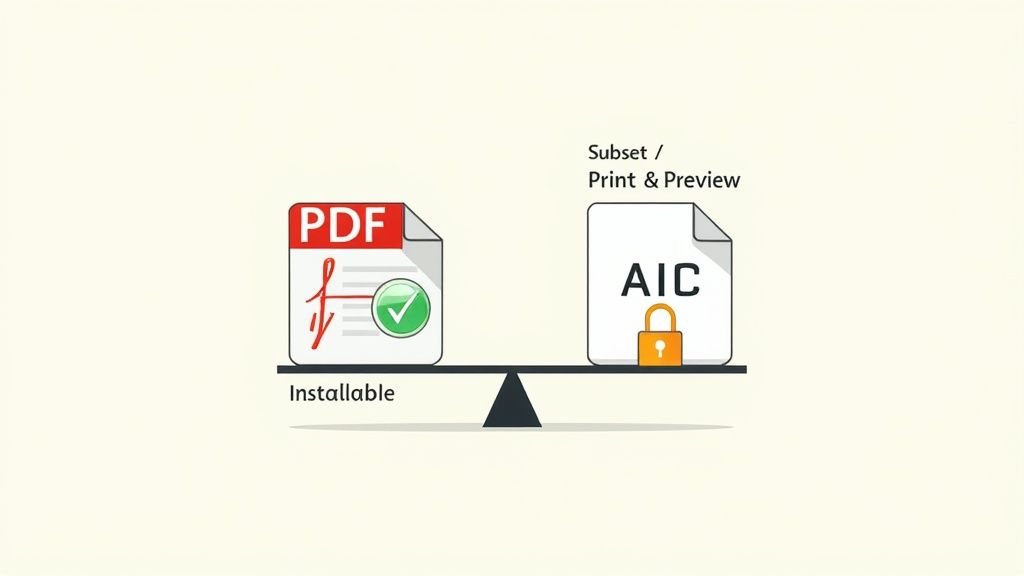
Before you even think about trying to extract a font from a PDF, you need to hit the pause button. It's easy to forget that fonts are essentially software—creative works protected by licences that spell out exactly what you can and can't do with them. Jumping in without checking can land you in some serious legal hot water.
The first thing you'll run into is a technical one: how the font was actually placed in the PDF. Fonts are either fully embedded or subsetted. A fully embedded font includes the entire character set, meaning if you can get it out, you've got the whole thing. On the other hand, a subsetted font only includes the specific characters (or glyphs) used in that document, which is a common trick to keep file sizes down.
Fully Embedded vs. Subsetting Explained
Think of it like this: a fully embedded font is like getting a complete set of Allen keys. You have every size, ready for any job. A subsetted font is like being handed only the two specific keys needed to assemble one piece of IKEA furniture.
If you manage to extract that subset, you can't use it to build anything else because you're missing all the other keys. This is precisely why trying to pull a subsetted font from a PDF usually leaves you with an incomplete file that’s no good for new design work. You can usually check the font's status in your PDF reader's properties panel—it’ll tell you if the font is embedded as a subset, which helps set realistic expectations.
Navigating Font Licences
Beyond the technical side, the legal aspect is what really matters. Every single font you encounter is governed by an End User Licence Agreement (EULA), which is a legally binding contract. For any kind of professional work, understanding font licensing isn't just a good idea; it's a fundamental requirement.
These licences almost always have specific rules about embedding. Here’s what you’ll typically come across:
- Installable Embedding: This is the green light. It means the font can be embedded, extracted from the document, and installed on another computer.
- Print & Preview: This is much more restrictive. The licence allows the font to be included for viewing and printing the document, but that’s it. Editing is forbidden, and extracting it for installation elsewhere is a clear violation of the EULA.
- No Embedding: The most restrictive of all. The licence holder has prohibited the font from being embedded in a file in the first place.
Always check the EULA before you extract. A quick web search for the font's name plus the word "licence" will almost always point you to the foundry that created it. Respecting the work of type designers isn't just about good ethics—it's a legal necessity.
Getting Serious with Professional Font Extraction Tools
When you absolutely need to pull a font out of a PDF, sometimes the free utilities just don't cut it. That's when you turn to professional-grade software. These tools are built for precision and come packed with features that make them the go-to choice for commercial projects where you can't afford mistakes. Just as Mintline uses sophisticated AI for financial accuracy, these tools offer precision for document management.
The undisputed heavyweight in this arena is Adobe Acrobat Pro. It’s far more than a simple PDF reader; it’s a powerful editing and diagnostic suite that gives you deep control over every component inside a document, including the fonts.
For anyone serious about design, branding, or document management, this level of control isn't just a nice-to-have—it's essential. You can move beyond just identifying a font and get into actual extraction and analysis, which is crucial for getting a usable file (assuming the licence allows it).
How to Use Adobe Acrobat Pro
The real magic in Acrobat Pro happens in the Preflight feature. This tool was originally created to check digital files for printing problems, but it’s also the perfect instrument for digging into a PDF’s guts and getting a detailed inventory of its embedded fonts.
With your PDF open, head over to the Preflight panel. You’ll see a whole library of profiles and checks. The key is to find a profile that lists all the document’s text and font information. Once you’re in, you’ll get a clear, detailed look at everything you need to know:
- Font Name: The exact name of the typeface.
- Type: Is it TrueType, OpenType, or something else like Type 1?
- Encoding: The character mapping being used.
- Embedding Status: This is the big one. It tells you if the font is fully embedded or just a subset.
From here, you can pinpoint the font you need and use specific Preflight profiles to save it as a separate file on your computer.
Tapping into Open-Source Power
What if a premium subscription is out of the question? Don't worry, the open-source community has your back. FontForge is a brilliant and highly respected font editor that’s completely free. It can also be used to inspect and extract font data from PDFs. Its interface is more technical than Acrobat's, but it offers professional-level power without costing a penny.
Getting font metadata right isn't just a niche concern. It's a huge deal in high-stakes fields like legal-tech and finance. In some Dutch legal projects, analysing font data is a key step in automating document processing. It turns out that using advanced parsers to expose font metadata can slash text-extraction errors by up to ~66%. You can read the full research about these findings to see just how deep it goes.
This shows that accurate font data is critical for more than just aesthetics; it's a cornerstone of efficient data management. This same principle is what makes modern OCR solutions so powerful. To learn more, have a look at our guide on how PDF OCR can transform your documents. For developers working at scale, a dedicated font API can be an incredibly powerful tool for automating font data management.
Comparison of Font Extraction Tools
Choosing the right tool often comes down to your budget, technical skill, and specific needs. Here’s a quick breakdown of some top options.
| Tool | Ease of Use | Cost | Key Feature |
|---|---|---|---|
| Adobe Acrobat Pro | User-Friendly | Subscription | Integrated Preflight tool for detailed analysis and reliable extraction. |
| FontForge | Steep Learning Curve | Free | A full-featured, open-source font editor with powerful inspection tools. |
| pdffonts (CLI) | Technical | Free | Command-line utility for quickly listing all fonts in a PDF. |
| Online Extractors | Very Easy | Free/Freemium | Simple web-based tools for one-off extractions, but with mixed results. |
Ultimately, whether you opt for a polished, all-in-one suite like Acrobat or a powerful free tool like FontForge, you have excellent options available. The best choice is the one that fits your workflow.
Getting Your Hands Dirty with Command-Line Tools
If you’re comfortable working in a terminal, there’s a world of powerful, free utilities that can make font extraction a breeze. This is the way to go for batch processing files or building an automated workflow. For speed and control, nothing beats the command line.
Your first stop will almost always be pdffonts. It’s a brilliant little tool from the Poppler PDF library. Just run a simple command, and it lists every font in a PDF, telling you its name, type, and whether it's fully embedded or a subset. This is your reconnaissance step—it gives you the lay of the land before you dive in to extract the font from a PDF.
Scripting Your Way to Success with Python
When you're ready to move from just looking at fonts to actually pulling them out, Python is your best friend. Libraries like PyMuPDF (imported as fitz) let you get right into the guts of a PDF file, giving you direct access to the raw font data.
This gives you serious control. You can write a script to hunt down and extract specific font files, perhaps telling it to only grab fully embedded OpenType fonts and skip the subsetted ones. It’s perfect for tasks like tidying up a messy document archive.
Here's a quick peek at how simple it is to get started with PyMuPDF for inspection:
import fitz # This is the PyMuPDF library

# Pop open your PDF
doc = fitz.open("your_document.pdf")

# Loop through the fonts on each page
for page_num in range(len(doc)):
    font_list = doc.get_page_fonts(page_num)
    for font in font_list:
        # The font name is at index 3
        # The font type (like 'TrueType') is at index 4
        print(f"Found Font: {font[3]} ({font[4]})")

doc.close()
This little snippet shows just how easy it is to start digging into a PDF’s structure. Building out more complex extraction logic is just a few more steps away.
With a combination of command-line tools and a bit of scripting, you can create a custom, automated workflow to rip fonts from hundreds or even thousands of PDFs. For anyone managing massive document repositories, this is a total game-changer.
Why Automation Is a Must for Large-Scale Work
The real magic of the command-line approach is how well it scales. Picture this: you need to check the font licenses used across an entire archive of financial reports. Opening each one by hand is a nightmare. With a script, you can have a complete report generated in minutes.
This isn’t just about saving time; it's about accuracy at scale. The ability to parse font metadata directly is a cornerstone of modern document processing. A fascinating 2024 study on a massive collection of Dutch public documents found that 8–12% of PDF files were machine-readable, which allowed researchers to parse font data directly without needing OCR. This capability is key for accurate structural analysis. You can find more details in the research on parsing government documents.
It’s the same principle behind a lot of modern automation. At Mintline, we automate the tedious job of matching receipts to financial transactions. The idea is the same: let the machine handle the repetitive work so you can focus on what matters. For tasks beyond just fonts, our guide on how to extract text from a PDF dives into other powerful automation techniques.
Troubleshooting Common Font Extraction Problems
Even when you’ve got the right tools and a clear plan, trying to extract a font from a PDF can hit some frustrating snags. Most of these issues are well-known, and once you know what to look for, the solutions are usually straightforward.
One of the most common headaches is running into a subsetted font. We've touched on this before, but it’s worth repeating: a subset is an incomplete font by design. When you extract it, you get a font file that’s missing most of its character set, making it useless for typing anything new. Your best move here is to use the fragment to figure out the font’s name and then find the complete, official version from a legitimate source.
Security settings are another major hurdle. Many PDFs are protected to prevent content copying, including fonts. If a document is password-protected, you’re stuck unless you have the password. Other times, a PDF might not need a password to open, but the creator has set permissions to block extraction. In these cases, you simply have to respect the creator's restrictions.
Handling Outdated Font Formats
Now and then, you’ll successfully pull a font out, only to discover it’s in an old format like Compact Font Format (CFF) or PostScript Type 1. These formats are relics from a different era and most modern systems and design programs won't recognise them.
The fix? Convert them. A free tool like FontForge handles this perfectly. You just open the old font file and re-export it into something modern like OpenType (OTF) or TrueType (TTF).
Here’s what that process generally looks like in FontForge:
- Open the old font file (e.g., a
.cffor.pfa/.pfbfile). - Take a quick look at the glyphs to make sure everything looks right.
- Find the 'Generate Fonts' option in the menu.
- Choose a modern format, either OpenType (OTF) or TrueType (TTF).
- Save your newly converted font.
This decision tree gives you a visual guide for picking the right command-line tool for the job.
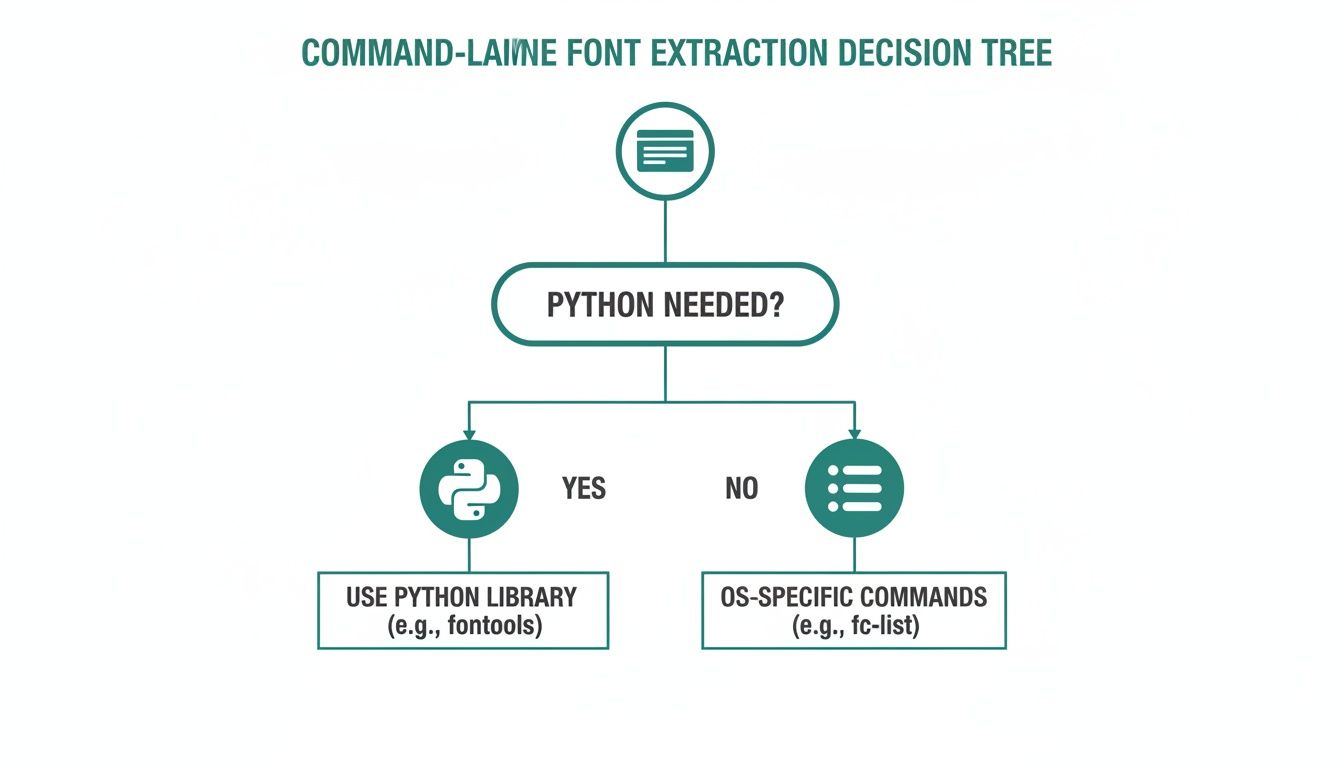
As the chart shows, your path really depends on whether you need the power and flexibility of Python for more complex tasks.
When Extraction Yields a Broken File
So what do you do if you manage to extract a font, but the file seems corrupt or just won't install? This almost always points back to an incomplete extraction. The culprit is usually either that pesky font subsetting we talked about, or a particularly tricky PDF structure that confused the extraction tool. The font data inside the PDF was likely fragmented or formatted in a non-standard way.
When an extracted font file is unusable, it's almost always because the font was subsetted or the PDF's internal structure is non-standard. The file isn't 'broken'—it was never a complete font to begin with.
When you hit this wall, it’s time to change your strategy. Instead of trying to extract, focus on identifying. Use the font’s appearance to find its name with an online font identifier, then go and get the full version legally. Solving these problems often comes down to knowing when to stop trying to force an extraction and start investigating instead.
Got Questions About Font Extraction? We've Got Answers
When you start digging into font extraction, a few common questions always pop up. It's a tricky area, mixing technical hurdles with legal grey zones. Getting a handle on these issues from the start will save you a ton of headaches.
Let's clear up some of the most frequent queries people have when trying to get a font out of a PDF.
Is It Actually Legal to Extract a Font From a PDF?
This is the big one, and the short answer is: it all comes down to the font's licence. Fonts aren't just files; they're pieces of software, and like any software, they come with an End User Licence Agreement (EULA). Pulling a commercial font from a PDF for your own use often breaks that agreement.
Before you even think about extracting, your first job is to find the font's name and look up its EULA.
- Permissive Licences: Look for terms like "Installable Embedding." This is your green light. It generally means the creator allows you to extract and use the font.
- Restrictive Licences: If you see "Print & Preview" restrictions, that's a hard stop. It means you can view the document as intended, but you absolutely cannot pull the font out to use in other projects.
The golden rule here is to respect the type designer's work. If you're even slightly unsure about the permissions, the only truly safe and ethical path is to find the font's creator and buy a proper licence.
What’s a Subsetted Font, and Why Does It Cause Problems?
When you see a "subsetted" font, it means the PDF creator used a clever trick to keep the file size down. Instead of embedding the entire font file, the PDF only includes the specific characters—or glyphs—that are actually used in the document. So, if a document only uses the letters A, B, and C, the embedded font file will contain only the data for A, B, and C.
This is a major snag for extraction. When you pull out a subsetted font, you get an incomplete, broken file. You can't use it to type anything new because the characters you need simply don't exist in the file. While some sophisticated tools claim they can piece together a full font from different subsets, it's a difficult process that rarely works for a typical user.
Can I Get a Font From a Scanned PDF?
Unfortunately, no. It’s technically impossible to extract a font from a scanned PDF.
A scanned document is really just a photograph of a page saved inside a PDF wrapper. The text you see isn't made of digital characters linked to a font file; it's just a picture made of pixels. There's simply no font data there to extract in the first place.
If you need to identify the font in a scanned document, you'll have to play detective. The best approach is to take a high-quality screenshot of the text and upload it to a font identification service like Adobe Fonts or WhatTheFont. Once you've got a name, you'll need to get the font files the proper way—by buying it from the designer or an authorised seller.
At Mintline, we're all about turning messy document admin into a simple, automated process. Instead of manually chasing receipts, let our AI-powered platform automatically link every bank transaction to its proof of purchase. We help you close your books faster, reduce errors, and keep every financial document perfectly organised. Discover how Mintline can transform your financial workflow.