
Extract font pdf: Practical Guide to Font Export from PDFs (extract font pdf)
Learn how to extract font pdf from PDFs using GUI or command-line tools, with practical tips and legal considerations.
Ever stumbled upon a fantastic font locked away inside a PDF and thought, "I wish I could use that"? It’s a common scenario for designers, but it’s also a critical first step for automated financial tools like Mintline. Thankfully, whether you're building a brand or processing invoices, getting a font out of a PDF is straightforward once you know which tools to use. It’s all about turning a locked-in asset into something you can work with.
Why Bother Extracting a Font from a PDF?
The reasons for pulling a font out of a PDF are surprisingly varied, touching everything from graphic design to financial automation. For creatives, it's about brand consistency. For finance professionals using tools like Mintline, it's about data accuracy. In both cases, the goal is efficiency and precision.
For the Creatives and Designers
Picture this: a designer gets a client's brand guide, but it's just a PDF. To whip up new social media graphics or a website update, they need the exact brand fonts to keep everything looking cohesive.
Pulling the font files directly from the PDF is a massive time-saver. It beats hunting for them online and completely avoids the risk of grabbing a version that's just slightly off. This simple step ensures every new design element perfectly matches the established brand identity.
For Finance and Automation Teams
In the world of finance, this isn't about looks—it's all about data accuracy. For professionals using platforms like Mintline, identifying the fonts embedded in a document is a critical first step for automating data entry. Think about processing PDF bank statements or invoices; the system's ability to correctly read characters hinges on understanding the specific fonts being used.
By identifying and working with the embedded fonts, an automated system like Mintline can more reliably pull key information like transaction dates, vendor names, and amounts. This turns a tedious manual chore into a highly accurate, automated process.
This font recognition is a foundational piece of the puzzle, turning unstructured documents into structured, usable data. It’s a similar logic to understanding a document's layout before you can properly figure out how to extract text from a PDF, as we cover in another guide.
Ultimately, whether you're a designer or a data analyst, the goal is the same: to get at the components inside a PDF so you can work more effectively. It’s all about bridging the gap between a static document and a dynamic, actionable asset.
First Steps: Identifying Fonts in Your PDF
Before you can even think about pulling a font out of a PDF, you need to do a bit of detective work. The very first step is figuring out exactly what fonts are inside the document. This is your foundation, whether you're trying to match a typeface for a creative project or handling automated document processing for a platform like Mintline.
The most straightforward way to get this information is with Adobe Acrobat Reader. It’s free, and it gives you a quick, accurate list of every font embedded in the file.
Just open your PDF, head up to File > Properties, and then click on the Fonts tab. You'll see a complete list of every typeface used in the document.
Decoding the Font Properties
When you look at that font list, you'll see a few important details next to each name. Pay close attention to these, as they'll tell you whether the font you want is actually extractable.
- Font Type: This tells you the format, like TrueType (TTF) or OpenType (OTF). It’s good to know what kind of file you’re aiming to get.
- Embedding Status: Here, you’ll see terms like "Embedded" or "Embedded Subset." This is the most critical piece of information on the entire panel.
An "Embedded Subset" is a major roadblock. It means the PDF only contains the specific characters used in the text—not the complete font. If you try to extract a subsetted font, you'll end up with an incomplete file that’s pretty much useless. A fully "Embedded" font, on the other hand, contains the entire character set, making it a perfect candidate for extraction.
This distinction is everything. For instance, if your PDF only uses the letters 'A', 'B', and 'C' from a particular font, a subset will contain only those three characters. You wouldn't be able to type a 'D' with the extracted file. It’s a common trick to keep PDF file sizes down, but it’s a deal-breaker if you're hoping to reuse the font.
This flowchart can help you think about how your specific needs—whether for a creative brief or a financial report—influence your approach to fonts in a PDF.
As the graphic shows, for creative work, brand consistency is paramount. For financial documents processed by systems like Mintline, the focus shifts to data integrity and process automation.
Beyond Adobe Acrobat
Don't have Acrobat installed? No problem. There are plenty of other ways to get the same information. Many free online PDF inspectors let you upload a document and will spit back a list of its fonts in seconds.
If you're comfortable working in the command line, you have even more powerful options. A brilliant little utility called pdffonts—part of the Poppler PDF library—can list every font in a PDF with one simple command. It's incredibly fast and scriptable, which makes it perfect if you need to check a whole batch of documents at once.
No matter which tool you choose, checking these properties is the absolute, non-negotiable first step. Don't even think about extraction until you know exactly what you're working with.
Using Visual Tools to Extract Fonts
If you'd rather not tangle with the command line, plenty of graphical (GUI) applications offer a more visual, point-and-click way to extract a font from a PDF. These tools are a godsend for designers, marketers, and anyone in finance who needs to work with fonts but doesn't want to get bogged down in code. Unsurprisingly, the industry heavyweight Adobe Acrobat Pro is often the first port of call.
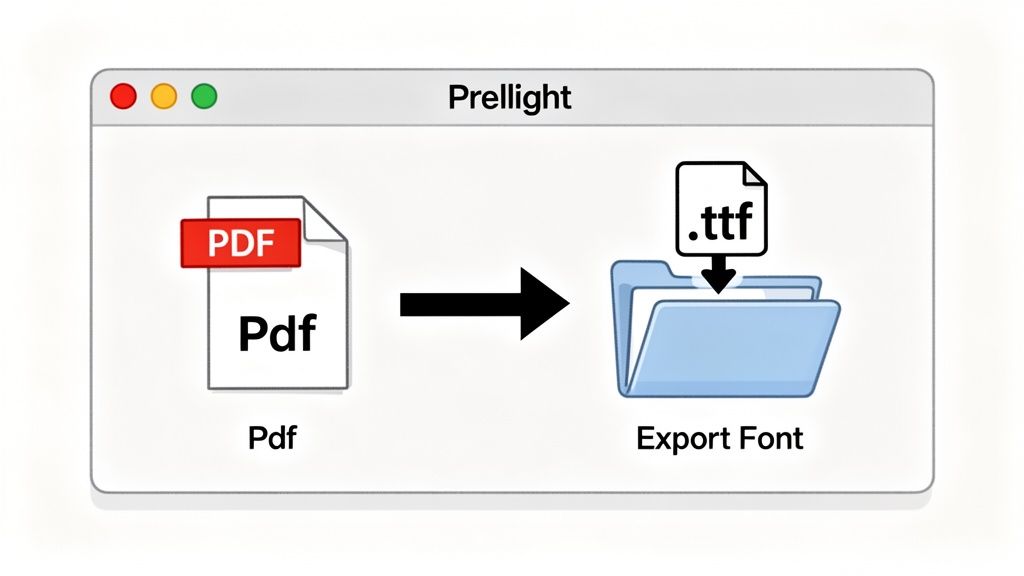
Acrobat Pro has a powerful, if somewhat hidden, feature called 'Preflight'. It was originally built to scan PDFs for printing errors, but it’s also fantastic for managing a document’s assets, including fonts. If you dig into the Preflight profiles, you can find options that list every embedded font. While it can be a bit finicky for actual extraction, it’s a direct way to see what’s inside. Imagine a design agency getting a brand guide from a new client as a PDF – this is the perfect way to pull the exact typeface and keep all future creative work consistent.
Key Limitations of GUI Tools
But here’s the catch: these visual tools have their limits. Their biggest weakness is a hard stop against protected or subsetted fonts. If a font’s creator set the embedding permissions to “no extraction,” these apps will honour that and refuse to save the file. It’s a common roadblock designed to protect the font designer’s intellectual property.
And as we talked about earlier, subsetted fonts create a technical barrier. Even if you could pull the file, it would be incomplete and useless for typing anything new. So, before you commit to a specific tool, it’s always a good idea to see what it can handle. Checking out Copycat247's features for PDF font extraction is a good example of seeing what a dedicated tool promises.
Font Management and Design Software
Beyond the big PDF editors, many font managers and design apps can also peek inside PDFs. Tools like FontBase or Suitcase Fusion are great at identifying the fonts used in a document. This lets you quickly check if you already own the font or need to find it online.
While these platforms don't usually extract font files directly from a PDF, they are essential for organising and activating the right ones after you’ve found them. This is a lifesaver when you're juggling multiple documents that all seem to use slightly different versions of the same font. If you’re dealing with complex PDFs, you might also find our guide on how to extract a single page from a PDF document useful.
For a clearer picture, here’s a quick rundown of some common GUI tools.
Comparison of GUI Font Extraction Tools
This table offers a quick comparison of graphical tools you might encounter, highlighting what they're good at and where they fall short.
| Tool | Primary Use Case | Can Extract Files? | Best For |
|---|---|---|---|
| Adobe Acrobat Pro | Professional PDF editing and preflight checks. | Sometimes | Identifying embedded fonts and verifying their properties. |
| FontForge | Open-source font editor. | Yes | Power users who need to edit or convert an extracted font. |
| Copycat247 | Dedicated font extraction service. | Yes | Users who need a simple, focused tool specifically for extraction. |
| FontBase/Suitcase Fusion | Font management and organisation. | No | Identifying fonts in a PDF to activate them from your library. |
Each tool fits a different part of the workflow. For simple identification, Acrobat is king. For the actual extraction and editing, something more specialised like FontForge or a dedicated service is often the better bet.
This push for better digital tools is picking up serious steam. In the Netherlands, for instance, the digital transformation market—which covers everything from PDF font extraction to OCR in finance—is expected to explode from USD 31.86 billion in 2025 to USD 77.68 billion by 2030.
For Mintline's audience, like freelancers in Utrecht or tech startups in Eindhoven, this translates to massive time savings when processing PDF statements from banks like ABN AMRO. Being able to extract fonts is key to deciphering the various Dutch typefaces in invoices, which helps automated systems achieve a 95% match rate for transactions by vendor, amount, and date.
Key Takeaway: GUI tools are a fantastic, user-friendly starting point for identifying and sometimes extracting fonts from PDFs. However, you'll often run into walls with licensing restrictions and subsetting. Always check that a font is fully embedded and has permissive rights before you try to pull it.
Diving into Command-Line Font Extraction
For developers, data analysts, or anyone who lives in the terminal, the command line is by far the fastest and most powerful way to pull fonts from a PDF. While a GUI is fine for one-off jobs, command-line tools are king for batch processing and automation. This is the exact approach that powers platforms like Mintline, which process thousands of financial documents without manual intervention.
This kind of automation sits at the heart of intelligent document processing (IDP). It’s a rapidly growing field, especially here in the Netherlands, where the IDP market is forecast to jump from USD 55.8 million in 2023 to a massive USD 334.7 million by 2030. You can see the full breakdown on Grand View Research. This growth is driven by a huge push for efficiency, especially for freelancers and small businesses drowning in PDF invoices and receipts. For a start-up owner in Utrecht dealing with scanned documents, IDP can pull out fonts, layouts, and even text using OCR, making manual data entry a thing of the past.
First, See What You’re Working With Using pdffonts
Before you even think about extracting, you need to know what fonts are actually inside the PDF. The best tool for this initial reconnaissance is pdffonts, a brilliant little utility that comes with the Poppler open-source library.
Once you have it installed, just open your terminal and run a simple command:
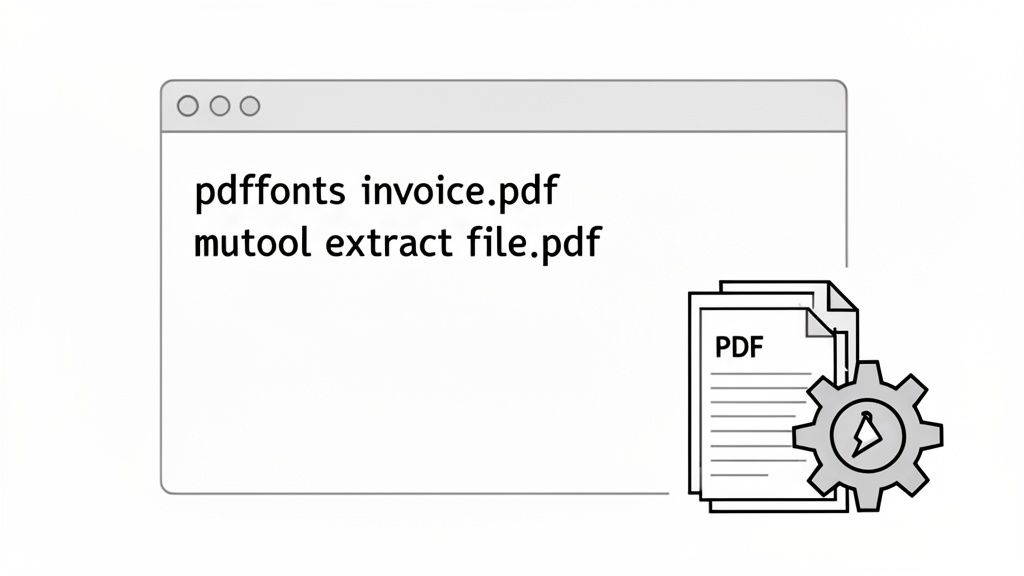
pdffonts your-document.pdf
What you get back is a neatly organised table. It lists every font by name, shows its type (like TrueType or Type 1), and, most importantly, tells you if it’s embedded and whether it’s subsetted. This is your go/no-go check. If a font isn't fully embedded, you can't extract it whole.
Then, Pull the Files Out with mutool
Spotted a fully embedded font you need? Great. Now it's time to extract it. For this part of the job, I always turn to mutool, a versatile tool from the MuPDF library. It’s built to get its hands dirty with the internal objects of a PDF, including font files.
The command is beautifully simple. It just dumps everything it can find:
mutool extract your-document.pdf
Run that, and mutool will pull all the embeddable assets—images, fonts, you name it—out of the PDF and drop them into your current folder. The font files usually have generic names like F1.ttf or F2.cff, so you’ll want to use the info from pdffonts to rename them to something more meaningful.
A Pro Tip from Experience: Don't skip the
pdffontsstep. I've seen people waste ages trying to extract fonts, only to find they were dealing with a subset all along. A subsetted font file is missing the characters that weren't used in the document, so even if you pull it out, it's incomplete and essentially useless.
This command-line approach gives you raw, direct access to the font files. It’s perfect for developers who need to build an automated pipeline to process thousands of documents without a single click. This is a fundamental step in many systems that handle diverse document types, a process we dive into deeper in our guide to PDF OCR for documents. Getting the fonts right is crucial for making sure all the text-based data is read correctly later on.
Navigating Font Licensing and Legal Use
So, you’ve successfully pulled a font from a PDF. That's the technical part sorted, but the real challenge is figuring out if you can actually use it legally. Just because the file is on your computer doesn't mean you have the rights to drop it into a new design project.
This is where the often-ignored world of font licensing takes centre stage. Fonts are software, created by talented designers and foundries, and they come with specific rules. Ignoring these rules can land you in hot water for intellectual property violation, which is a headache no one needs.
Understanding Common Font Licence Types
Font licences aren't one-size-fits-all; they range from completely free to incredibly specific commercial contracts. Getting a handle on the main types is your first step towards staying on the right side of the law.
- Commercial Licence: This is the standard for most professional fonts you see. You pay for the right to use it, and the agreement spells out exactly how. It might limit the number of computers you can install it on or restrict its use to print but not web. Always read the EULA (End-User Licence Agreement).
- Freeware: As the name suggests, these are often free for personal use. But that's the catch—"personal use." If you're planning to use it for a business logo, a client's website, or anything that makes money, you'll need to double-check if a commercial licence is required.
- Open-Source Licence: Fonts under licences like the SIL Open Font License (OFL) are the most flexible. They're typically free to use, modify, and even bundle with other products, as long as you follow the terms, which usually just means keeping the licence file with the font.
The Role of Embedding Bits
Tucked away inside every font file are tiny digital flags known as "embedding bits." The font’s creator sets these to control how their font behaves inside a document like a PDF. It’s their way of enforcing the licence terms directly within the software.
These settings dictate whether a font can be embedded for viewing only, for viewing and printing, or for full editing and installation. It’s the font designer’s built-in enforcement mechanism.
Most professional software, like Adobe Acrobat, is designed to respect these flags. If a font's licence says "no embedding" or "preview only," Acrobat will honour that and likely block you from extracting it. While some command-line tools might let you bypass this, doing so is almost certainly a violation of the font’s licence agreement.
How to Stay Compliant
Before you even think about using an extracted font in a new project, do your homework. A quick online search for the font name will almost always lead you to the foundry or designer who made it. Their website is the best place to find the official licensing details.
If it turns out the font you pulled has a restrictive commercial licence, the only right move is to purchase a proper copy for your intended use. It's not just about dodging legal trouble; it’s about respecting the craft and effort that goes into creating beautiful, functional typefaces. When in doubt, find an alternative you know you can use legally from a reputable font marketplace.
Frequently Asked Questions About Font Extraction
Even with the right tools in hand, pulling a font from a PDF can sometimes feel like a bit of a puzzle. Let's tackle some of the most common questions that pop up, clearing up the confusion and helping you get it right.
Is It Always Possible to Extract a Font from a PDF?
Unfortunately, the answer is no. Success really boils down to two things: how the font was embedded and what its licence allows.
Many PDFs, especially those optimised for the web, contain 'subsetted' fonts. This means the file only includes the specific letters and symbols used in the document, not the full character set. Trying to extract a subset will leave you with an incomplete, unusable font file.
On top of that, the font's licence might legally forbid extraction. Most professional tools, like Adobe Acrobat, will honour these digital rights and block the process. It's always a good idea to check the font properties first to see what you're working with.
What’s the Difference Between a Full Font and a Subset?
Think of it this way: a fully embedded font is like having the entire toolbox. You get every single character the designer created—all the letters, numbers, symbols, and special glyphs. If the licence is open, you can extract this file and use it to type whatever you like.
A subset, however, is like being given just the few specific tools needed for one small job. It only contains the characters that actually appear in that particular PDF. If you manage to extract it, you’ll end up with a font file missing most of its alphabet, making it useless for any new work.
A font subset is a common trick to keep PDF file sizes down, but it's the biggest technical roadblock to reusing a font. Always check if a font is fully embedded before you even think about extracting it.
Can I Extract Fonts from a Scanned PDF Document?
In short, no. A scanned PDF isn't a text document; it's just an image of text. The computer sees a collection of pixels, not characters linked to a specific font file. There are simply no digital font files embedded in there to pull out.
Your best bet here is to use a font identification tool. Services like WhatTheFont can analyse the letter shapes in the image and suggest fonts that are a close match. From there, you can track down a legitimate copy from a font foundry or online marketplace.
Navigating the fiddly details of PDF data extraction is exactly what we specialise in at Mintline. While you focus on the creative or analytical parts of your job, our platform handles the tedious task of pulling and matching financial data from your PDF bank statements and receipts. We turn hours of manual work into minutes of simple review. Find out how Mintline can automate your bookkeeping.