
Extract Image from PDF: The Ultimate Guide for Your Business
Tired of tedious work? Learn how to extract image PDF files using simple tools, advanced scripts, and AI-powered solutions to streamline your workflow.
It's a familiar scenario: you're staring at a PDF packed with images you need, but they feel locked away. Whether you're trying to grab a logo for a presentation, save a chart from a report, or pull receipt images from a stack of invoices, knowing how to extract an image from a PDF turns a frustrating bottleneck into a simple, efficient task.
Why Extracting Images from PDFs is a Business Superpower
For anyone managing a business or handling accounts, this is more than just a handy trick—it’s a vital part of a modern workflow. It's the bridge between a static document and usable, dynamic data. Mastering this skill saves a mountain of time and prevents countless headaches.
This isn't just about saving a picture. It's about liberating the valuable financial information trapped inside it. This is the first step towards automating your bookkeeping and fundamentally changing how you deal with financial documents.
Turning Pictures into Progress
Imagine the monthly bookkeeping grind. You have a folder full of PDF invoices, bank statements, and expense reports. Taking a screenshot of every single receipt is not just slow and clumsy; it's a surefire way to make mistakes and create a major bottleneck when it's time to close the books.
Cleanly extracting those images is the first, crucial step toward financial automation. For a platform like Mintline, this process is foundational. Once a receipt image is neatly extracted, it's handed over to our Optical Character Recognition (OCR) engine. That system then reads the critical details—vendor, date, total amount—and automatically matches it to a bank transaction. What was once a manual reconciliation nightmare becomes a smooth, automated flow.
The real magic isn't just pulling an image out of a PDF. It's what you do with it next. You’re turning a static picture of a receipt into structured data that powers automated financial workflows and keeps your business audit-ready.
This skill is less about convenience and more about gaining a real operational advantage. With Mintline, the benefits are clear:
- Sharpened Accuracy: Letting our AI extract and read the data drastically reduces the human error that creeps in with manual entry.
- Serious Time Savings: Tasks that used to take hours of tedious copying and pasting can be wrapped up in minutes.
- Airtight Record-Keeping: We create a clean digital paper trail, ensuring every transaction is linked to its source document, making your financial history searchable and completely audit-proof.
Ultimately, learning to extract an image from a PDF is a core skill for running a modern business. It’s the starting point for automating your books with Mintline, eliminating soul-crushing data entry, and freeing you up to focus on growth.
Choosing the Right PDF Image Extraction Method
Pulling an image out of a PDF isn't a one-size-fits-all task. The best tool for the job depends on your goal. Are you grabbing a single chart for a quick presentation, or are you automating the processing of hundreds of receipts every month for your bookkeeping in Mintline? Picking the right approach from the start saves a ton of time.
Your options range from simple screenshot tools to powerful, automated scripts. To choose the right one, consider speed, image quality, data security, and volume. A free online converter might seem handy for a one-off job, but it's a huge security risk when you're dealing with sensitive financial documents like invoices or receipts.
This decision tree illustrates how different business needs, like grabbing marketing assets versus extracting data for bookkeeping, lead to different tools.
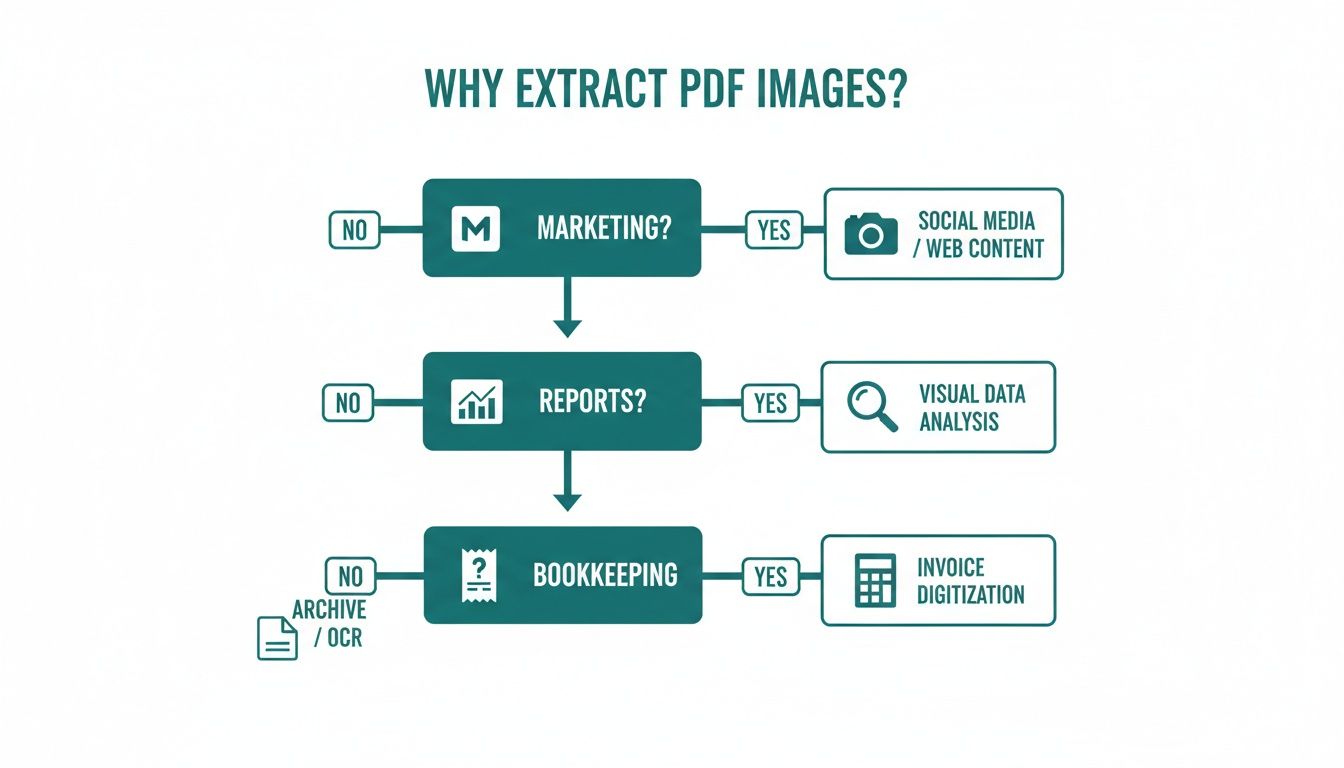
As you can see, the why behind your task truly determines the best how. If your goal is creative reuse, your priorities differ from when your focus is data-driven automation for your finances.
PDF Image Extraction Methods at a Glance
To make the choice clearer, here’s a comparison of common methods. I've broken down different ways to extract images from PDFs to help you find the best fit for your security, quality, and volume needs. Each has its own strengths and weaknesses, especially when dealing with a high number of sensitive documents.
| Method | Best For | Pros | Cons |
|---|---|---|---|
| Screenshot Tool | Quick, one-off image grabs for non-critical use. | Instantly available on any device; no extra software needed. | Always results in lower image quality; not suitable for text recognition. |
| Desktop Software | High-quality, secure extraction of images from sensitive documents. | Preserves original image quality; works offline for maximum security. | Often requires a paid subscription; can be slow for batch processing. |
| Online Converters | Infrequent, non-sensitive file conversions. | Free and accessible from any web browser. | Major security risk; uploads your private data to third-party servers. |
| Automated Scripts | Batch processing hundreds or thousands of PDFs efficiently. | Extremely fast, scalable, and maintains original image quality. | Requires some technical comfort with command-line or simple coding. |
This table shows a clear trade-off between convenience, quality, and security. A quick method for a freelancer won't scale for a finance team that needs to process documents in bulk.
Making the Call for Financial Documents
If you're using a tool like Mintline, your goal is processing a high volume of receipts or bank statements. In that scenario, security and quality are non-negotiable. An extracted receipt image must be crystal clear for an OCR engine to read it accurately—any blurriness or compression can lead to errors. To dive deeper, learn more about how OCR recognition software works in our detailed guide.
Choosing a method isn't just a technical decision; it's a business one. For financial documents, the security and data integrity offered by offline or automated solutions far outweigh the convenience of a free online tool.
So, what's the bottom line? For a single, non-confidential PDF, a quick screenshot might suffice. But for any recurring task involving financial or sensitive information, your best bet is a secure desktop application or an automated script. It’s the only way to ensure your data stays private and the image quality is high enough for what comes next: efficient financial automation.
Simple Tools for Everyday Image Extraction
You don’t always need a heavyweight application to pull an image from a PDF. Often, the tools you already have are perfectly capable for simple, one-off tasks like grabbing a chart for a report or a logo for a presentation.
It's about using the right tool for the job. For a quick image grab, a screenshot tool or your PDF reader is usually the most sensible option.
Using Adobe Acrobat and Similar Readers
Most of us have Adobe Acrobat Reader installed, which offers an easy way to lift an image. As long as the PDF isn't copy-protected, you can often just right-click the image and select "Copy Image."
This simple action places the image on your clipboard, ready to be pasted elsewhere. The best part? It usually keeps the original resolution, a massive improvement over a screenshot.
If you work with PDFs frequently, the paid version, Adobe Acrobat Pro, takes things a step further. It has a dedicated feature to export all images from a document at once. This is a real time-saver, saving every image as a separate file while keeping its original format and quality—perfect for extracting a whole batch of visuals from a lengthy report.
Here’s a look at the Acrobat interface, where you can convert an entire PDF page or the whole document into an image format like JPEG.
This shows how proper PDF software gives you fine-grained control over format and quality—something you don't get with more basic methods.
The Universal Screenshot Method
When a PDF is locked down or you're in a hurry, the humble screenshot is a reliable backup. Both Windows (Snipping Tool or Snip & Sketch) and macOS (Shift + Command + 4) have excellent built-in tools for capturing a specific part of your screen.
It’s an instant, no-fuss process that works on anything visible on your monitor. But that convenience comes with a major catch.
A screenshot is just a picture of your screen; it doesn't grab the original image file. This means the quality depends on your monitor's resolution and zoom level. For high-quality print work or images you intend to run through OCR software like Mintline's, this method often won't cut it.
Keep these limitations in mind:
- Lower Quality: The final image will almost always be a lower resolution than the original file embedded in the PDF.
- No Transparency: If the original was a PNG with a transparent background, your screenshot will flatten it against whatever was behind it.
- Purely Manual: It’s a click-and-drag operation every time, making it a non-starter for batch processing. For more efficient digitisation, our guide on using a document scanner online offers great alternatives.
The demand for more sophisticated solutions is clear. The global Intelligent Document Processing market is projected to skyrocket, with platforms like Mintline leading the charge in automatically linking receipts to statements. You can dig into the numbers in this full industry analysis.
Taking Extraction to the Next Level with Automation
Pulling an image from one or two PDFs is simple. But what about a folder bursting with monthly invoices, supplier receipts, or client reports? Manually clicking through that mountain of documents is a genuine bottleneck.
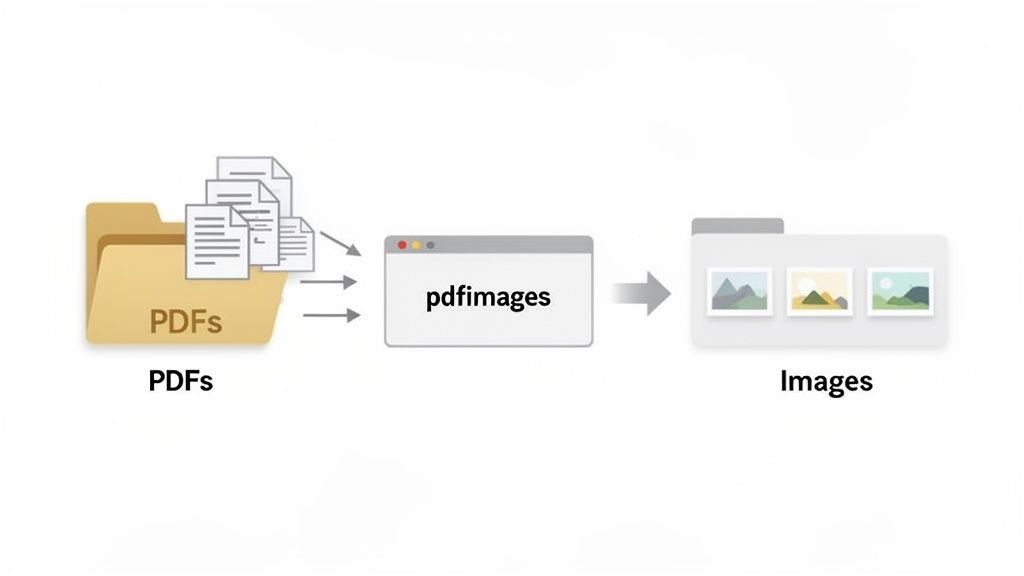
This is where automation becomes a lifesaver. Moving beyond manual tools to command-line utilities and simple scripts gives you speed, consistency, and control. You can turn a mind-numbing manual job into a background process.
This shift is crucial for businesses drowning in PDF bank statements and receipts. AI-driven extraction tech like Mintline's is helping businesses close their books up to five times faster, turning messy PDF data into useful insights with up to 95% accuracy.
Command-Line Power: Meet pdfimages
If you're comfortable with the terminal, the pdfimages utility is a fantastic tool. It’s a free, open-source workhorse that comes with the Poppler PDF rendering library. Unlike screenshotting, it pulls the original, untouched image files directly from the PDF with no quality loss.
Its real strength is in batch processing. A single line of code can extract every JPEG from dozens of documents and drop them neatly into a new folder, all while keeping their original format intact.
Expert Tip: Using a command-line tool like
pdfimagesensures you get the highest possible image quality. For any workflow that feeds into an OCR engine like Mintline's, this is non-negotiable—image clarity is everything for data accuracy.
Ultimate Control with Python Scripting
For even more fine-grained control, Python is the way to go. Libraries like PyMuPDF (often imported as fitz) give you the power to build completely custom workflows. With a few lines of code, you can do more than just extract an image from a PDF; you can automatically rename files, filter images by page, or convert them on the fly.
Imagine a script that:
- Checks a folder for new PDF invoices.
- Pulls only the images from the first page of each document.
- Renames the extracted images using the invoice number.
This is the kind of automation that modernizes finance operations. To push boundaries further, exploring Intelligent Document Processing solutions can unlock even more powerful capabilities. These advanced methods are key to scaling your document workflows without scaling your workload.
Beyond Extraction: AI for Smarter Document Processing
Pulling an image out of a PDF is a great first step, but it’s only half the battle. The real magic happens when you can instantly understand and act on the information inside that image. This is where we graduate from simple extraction to Intelligent Document Processing (IDP).
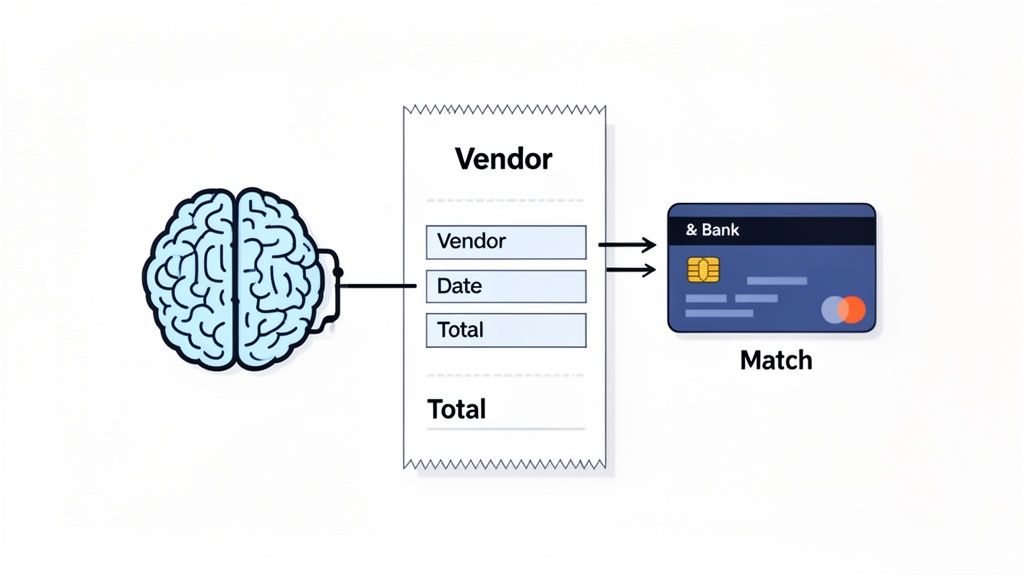
The engine driving this leap is AI-powered Optical Character Recognition (OCR), the core technology of platforms like Mintline. Instead of just seeing a static picture of a receipt, our system reads it—understanding the vendor name, date, and total amount. Think of it as the difference between having a photograph of a book and having the book itself, ready to read.
From Image to Automated Data
Picture a workflow where a receipt image is not only extracted but is then immediately and automatically matched to the correct transaction on your bank statement. This isn't a future concept; it’s what modern businesses are doing right now to slash hours of manual data entry, sidestep costly human errors, and build perfectly organised, audit-proof books.
The demand for this automation is skyrocketing. Businesses are desperate for a better way to handle the storm of unstructured PDFs and invoices. For Mintline users, our technology turns hours of mind-numbing work into a task that takes just a few minutes.
The ultimate goal isn't just to pull out images; it's to create a frictionless flow of information, from document to data, with zero manual intervention. This is how you build a truly automated back office.
How Mintline Puts This into Practice
This is exactly where Mintline shines. We take that extracted image and transform it into structured, useful financial data. The process is built to be both powerful and incredibly simple.
- Automatic Data Capture: First, Mintline’s AI reads all the crucial details from the receipt image.
- Intelligent Matching: It then scans your linked bank transactions to find the corresponding payment based on the vendor, amount, and date.
- Effortless Review: You're presented with a clean interface to quickly confirm the matches, making bank reconciliation fast and almost foolproof.
For those who need to dig deeper, modern AI-powered PDF chat tools can offer an interactive way to analyse data directly from your documents.
By bringing these technologies together, something that starts with the simple need to extract an image from a PDF evolves into a fully automated financial workflow. If you want to see how this all comes together, take a look at our guide on automated document processing. This fundamental shift frees up your time so you can focus on growing your business instead of getting bogged down in paperwork.
Your Questions, Answered
Have a nagging question about pulling images from a PDF? You're not alone. Here are answers to the most common questions.
Can I Extract Images From a Password-Protected PDF?
It depends on the type of password.
If you need a password to open the file (a "user" password), you're stuck. You must enter that password before any tool can access the content.
However, if the password only restricts copying or printing ("permissions" password), more robust tools like the pdfimages command-line utility or a custom Python script can often bypass these restrictions. They go straight for the embedded image data. Just ensure you have the legal right to do so.
Will I Lose Image Quality When I Extract an Image?
Not if you use the right method. A proper extraction tool pulls out the original file that was embedded in the PDF.
Tools like Adobe Acrobat's export feature, pdfimages, or Python libraries grab the image data directly, so there's no re-compression and no quality loss. You get the image exactly as it was intended.
The real quality killer is the screenshot method. It just captures pixels on your screen, and the final quality is tied to your monitor's resolution, which is a far cry from the crisp, original file.
When you're feeding receipts into an OCR system like Mintline's, quality is everything. For accurate bookkeeping, you need the cleanest image possible. High-quality inputs mean high-accuracy data, saving you from headaches later on.
What's the Safest Way to Handle Confidential PDFs?
When working with sensitive documents—like contracts, bank statements, or invoices—security is your top priority. Your safest bet is to use offline software that runs entirely on your own computer.
This could be a desktop application or a local script. The key is that your data never leaves your machine.
Whatever you do, stay away from free online PDF converters for confidential files. The moment you upload your document, you lose control over it. For sensitive financial workflows, a platform like Mintline is built from the ground up with end-to-end encryption to handle this data securely.
Can I Just Extract Images From a Few Specific Pages?
Absolutely. Most sophisticated tools let you zero in on exactly the pages you need.
In Adobe Acrobat, you can navigate to the page you want before starting the export. With command-line tools or Python, you can specify a page range directly in your command or code. This is a lifesaver when you're dealing with a 200-page report and only need the charts from chapter three.
Ready to stop chasing receipts and automate your bookkeeping? Mintline uses AI to automatically link every bank transaction to its corresponding receipt, turning hours of manual work into minutes. Get started for free with Mintline.