
The 12 Best Freeware OCR Software Options for 2025
Discover the top 12 freeware OCR software tools for 2025. A detailed guide to free OCR for PDFs, receipts, and documents on any platform.
Vital information is often trapped inside images, scanned receipts, and non-searchable PDFs. Optical Character Recognition (OCR) is the key to unlocking this data, transforming static pixels into editable, searchable, and actionable text. While powerful, you don't need a significant budget to access this technology. A robust ecosystem of freeware OCR software provides impressive capabilities, from digitising archives to quickly extracting text from a screenshot.
However, the landscape of free tools is diverse and not all options are created equal. Some solutions are powerful command-line engines designed for developers, while others are user-friendly desktop applications built for simple, one-click conversions. This guide is organised to help you navigate the best freeware OCR software available today. We cut through the noise to provide a detailed analysis of each tool, complete with screenshots and direct links to get you started immediately.
We will explore the strengths, weaknesses, and ideal use cases for each option, covering everything from developer-focused engines like Tesseract to convenient online services like OCR.space. Our goal is to help you find the perfect tool for your specific needs, whether you're a freelancer managing invoices or a small business digitising records. We will also examine the limitations of these tools, helping you recognise when the manual effort involved signals that it’s time to consider a more automated, integrated solution like Mintline for streamlined financial workflows. This comprehensive resource will empower you to select the right software for the job and make your documents work for you.
1. Tesseract OCR (official repository)
Tesseract is arguably the most influential open-source OCR engine and serves as the backbone for countless commercial and free applications. Rather than a user-friendly application, its official repository on GitHub provides direct access to the core command-line tool. This makes it an unparalleled piece of freeware OCR software for developers, data scientists, and technical users who need to build custom text extraction workflows. Its power lies in its accuracy, extensive language support, and scriptability, allowing for batch processing of thousands of documents without manual intervention.
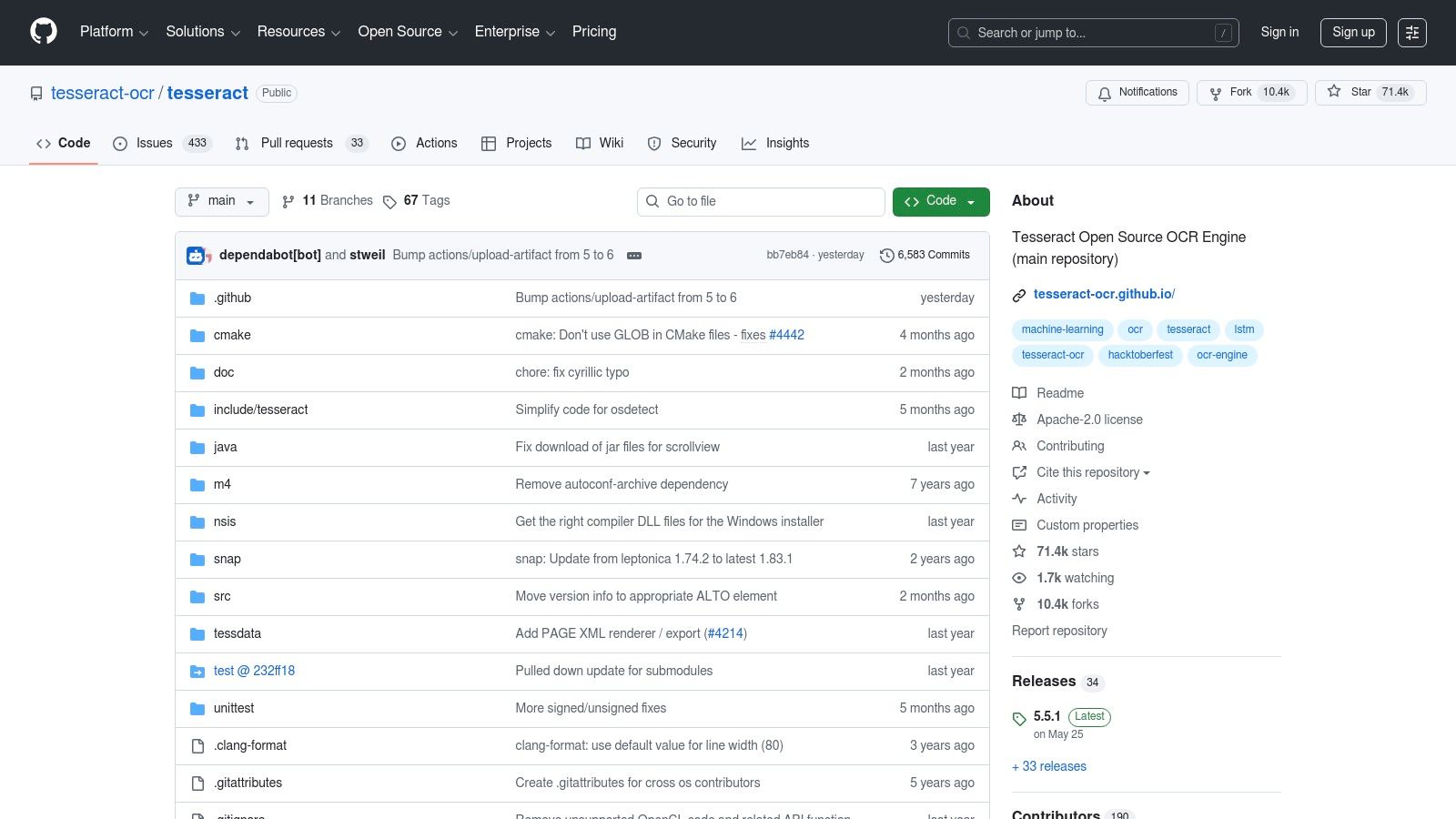
The primary reason Tesseract stands out is its customisation. While it lacks a graphical user interface (GUI) out of the box, it offers deep control over the OCR process. Users can train the engine with their own datasets to recognise specific fonts or formats, a crucial feature for specialised document types like historical texts or unique invoices. For businesses needing to integrate OCR directly into their own software or a server-side process, Tesseract is the industry-standard starting point. More details on how this powerful engine functions as a text from image reader can help clarify its technical implementation.
| Feature | Details |
|---|---|
| Platform | Windows, macOS, Linux (via command line) |
| Best For | Developers building custom applications, batch processing, academic research |
| Language Support | Excellent, over 100 languages including Dutch |
| Privacy & Security | Excellent; runs locally on your machine, no data is sent to external servers |
Pros:
- Completely free and open-source (Apache 2.0 License)
- High accuracy, especially with its LSTM-based engine
- Extensive customisation and training capabilities
Cons:
- Requires command-line knowledge; not suitable for non-technical users
- Setup and configuration can be complex
Website: https://github.com/tesseract-ocr/tesseract
2. gImageReader (GUI for Tesseract)
For users who want the power and accuracy of the Tesseract engine without needing to touch a command line, gImageReader is the perfect solution. It acts as a user-friendly graphical front-end for Tesseract, transforming the developer-focused tool into an accessible desktop application. This piece of freeware OCR software allows you to import images and multi-page PDFs, draw a box around the exact text you need to extract, and get the results in seconds. Its intuitive interface makes it ideal for one-off tasks like grabbing text from a screenshot or digitising a single printed page.
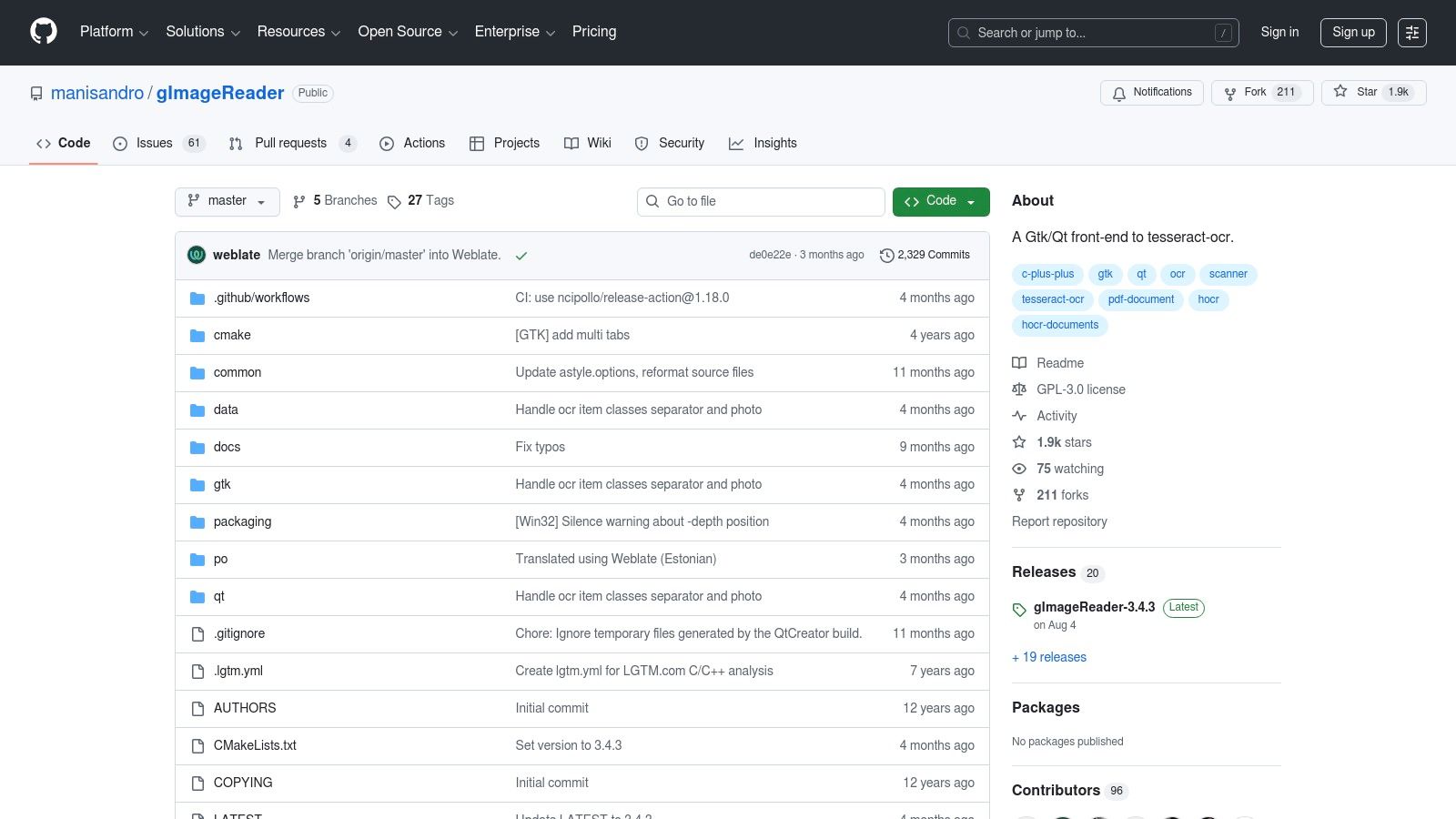
The key advantage of gImageReader is its simplicity and directness. It effectively bridges the gap between Tesseract's raw power and the needs of a typical desktop user, including freelancers or small teams needing to process individual documents. The application supports batch processing, allowing you to queue up multiple files for recognition. It also handles post-processing tasks like spellchecking and can export the recognised text into various formats. While it inherits Tesseract's capabilities and limitations, it provides a much smoother on-ramp for those intimidated by terminal commands.
| Feature | Details |
|---|---|
| Platform | Windows, macOS, Linux (desktop application) |
| Best For | Non-technical users, one-off document scans, quick text extraction |
| Language Support | Excellent; utilises Tesseract's language packs, including Dutch |
| Privacy & Security | Excellent; all processing is done locally, ensuring data never leaves your computer |
Pros:
- Completely free and open-source (GPLv3 License)
- Makes the powerful Tesseract engine accessible to everyone
- Supports batch processing and region-specific OCR
Cons:
- Accuracy is entirely dependent on the underlying Tesseract installation
- Lacks advanced features for automated workflows found in paid tools
Website: https://github.com/manisandro/gImageReader
3. NAPS2 (Not Another PDF Scanner 2)
NAPS2 streamlines the often-clunky process of scanning physical documents and turning them into searchable PDFs. While many scanner utilities exist, NAPS2 stands out by integrating a powerful OCR engine (Tesseract) directly into a clean, user-friendly interface. This makes it an ideal piece of freeware OCR software for home offices, small businesses, and anyone needing to digitise paper archives without a steep learning curve. The application is built around a simple workflow: scan, arrange, and save with OCR in just a few clicks.
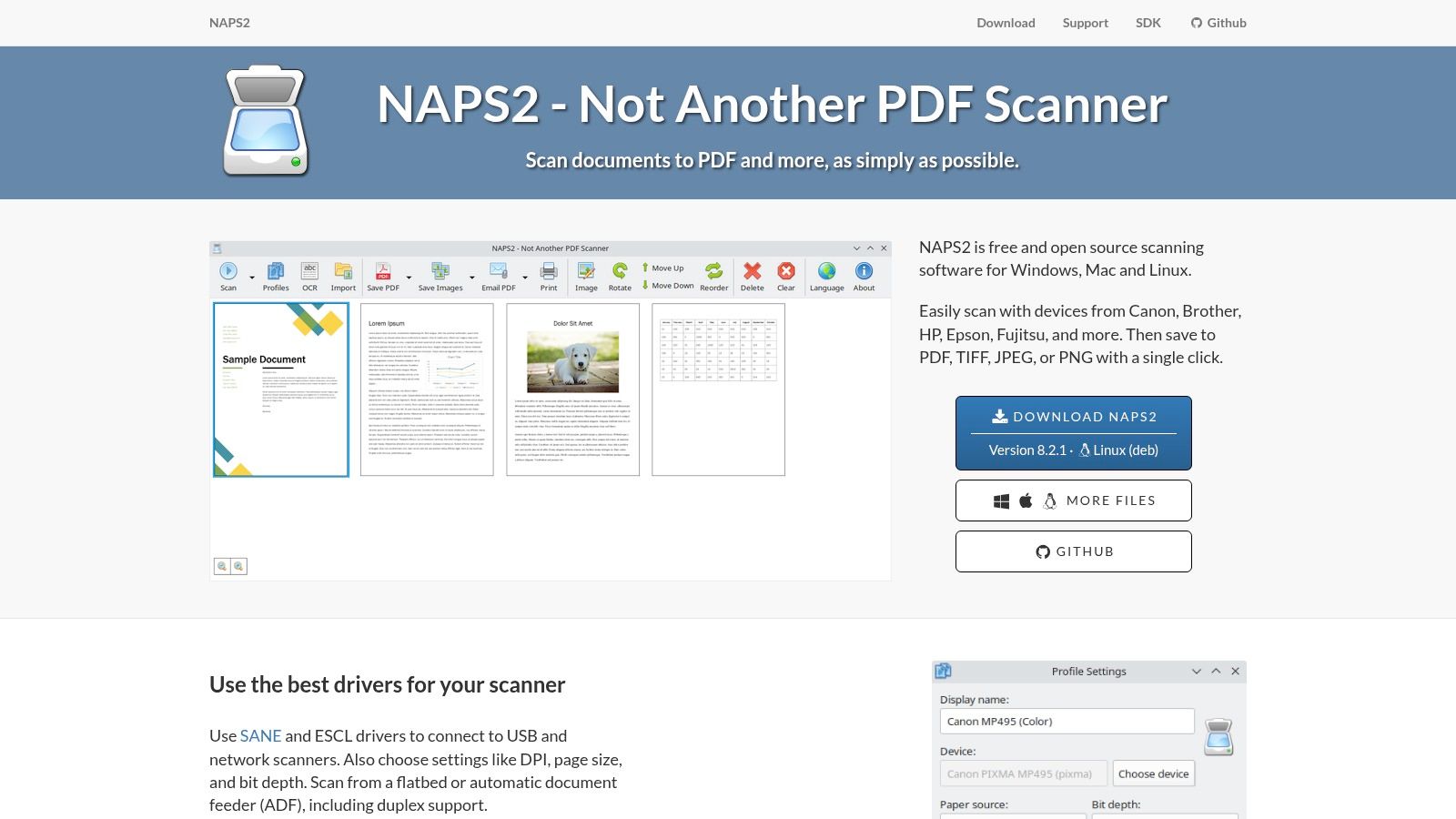
The primary appeal of NAPS2 is its practicality. It removes the technical barrier of using a command-line tool like Tesseract directly, while still leveraging its accuracy. Users can easily scan multiple pages, reorder or rotate them, and combine them into a single, fully searchable PDF file ready for archiving or sharing. For freelancers or small teams digitising invoices, contracts, or receipts, this one-stop-shop approach saves significant time. It is a purpose-built tool focused on doing one thing exceptionally well: creating searchable PDFs from a scanner.
| Feature | Details |
|---|---|
| Platform | Windows, macOS, Linux |
| Best For | Creating searchable PDFs from a physical scanner, simple document archiving |
| Language Support | Good; supports over 100 languages via downloadable Tesseract language packs, including Dutch |
| Privacy & Security | Excellent; an open-source, offline application that processes all data locally |
Pros:
- Completely free, open-source, and ad-free
- Extremely easy-to-use interface for scanning and OCR
- Batch scanning and document manipulation tools are built-in
Cons:
- OCR customisation is limited; it relies on Tesseract's default settings
- Primarily designed for scanners; less intuitive for existing image files
Website: https://www.naps2.com
4. PDF24 Tools (online and desktop)
PDF24 Tools provides a remarkably accessible and versatile approach to OCR, offering both a web-based service and a free desktop application for Windows. This dual offering makes it a strong contender in the freeware OCR software landscape, catering to users who need a quick, one-off conversion online as well as those who prefer the security and speed of local processing. The platform is not just an OCR tool; it is a comprehensive suite of PDF utilities, allowing users to deskew, denoise, and organise documents before or after text recognition, all within a single, streamlined workflow.
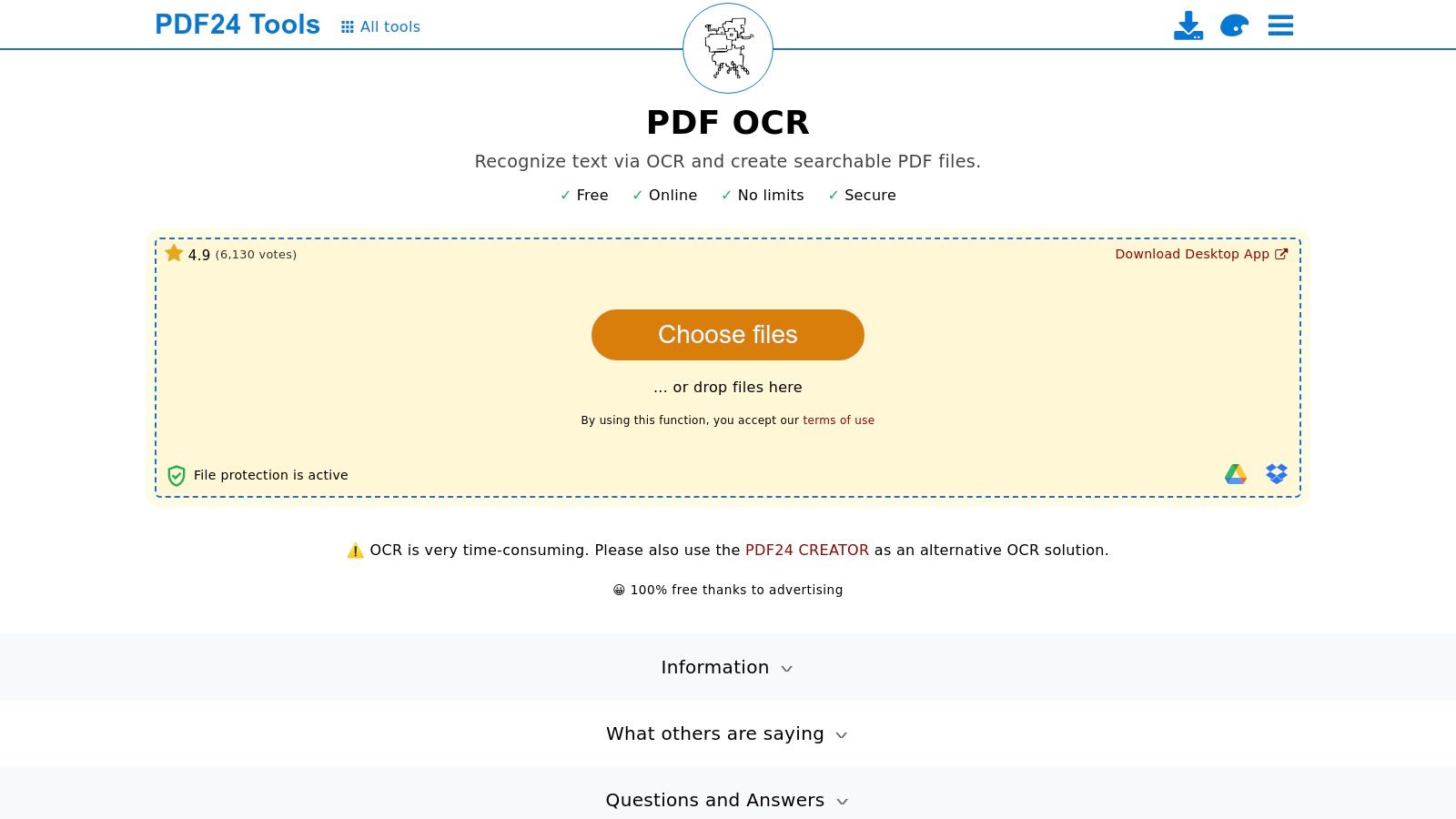
The primary appeal of PDF24 is its simplicity and zero-cost barrier to entry. The online tool requires no registration, allowing users to upload a scanned PDF or image, apply OCR, and download a searchable PDF in minutes. For businesses concerned about privacy or handling larger volumes of documents, the free PDF24 Creator desktop app is an excellent alternative. It brings the same functionality to your local machine, ensuring sensitive data never leaves your control and processing is not dependent on internet speed. This makes it a practical choice for small teams and freelancers needing to make occasional invoices or contracts searchable without committing to a paid plan.
| Feature | Details |
|---|---|
| Platform | Web (all browsers), Windows (desktop app) |
| Best For | Quick online conversions, making scanned PDFs searchable, users needing offline processing |
| Language Support | Good, supports major world languages including Dutch |
| Privacy & Security | Good; online files are auto-deleted, and the desktop app processes 100% locally |
Pros:
- Completely free with both online and offline options
- Very simple drag-and-drop interface
- Includes useful pre-processing tools like deskew and denoise
Cons:
- Online version is ad-supported and can be slow for large files
- Desktop application is only available for Windows
Website: https://tools.pdf24.org/en/ocr-pdf
5. OCR.space
OCR.space offers a highly accessible entry point into optical character recognition, functioning both as a simple web-based tool and a powerful API for developers. It strikes a balance between user-friendliness and technical utility, making it a versatile piece of freeware OCR software. Users can quickly upload a file or paste a URL on the website to get instant results, while developers can leverage the free API to integrate OCR capabilities into their own applications, making it ideal for prototyping or low-volume tasks. The service is particularly noted for its structured JSON output, which includes word coordinates, and its ability to create searchable PDFs.
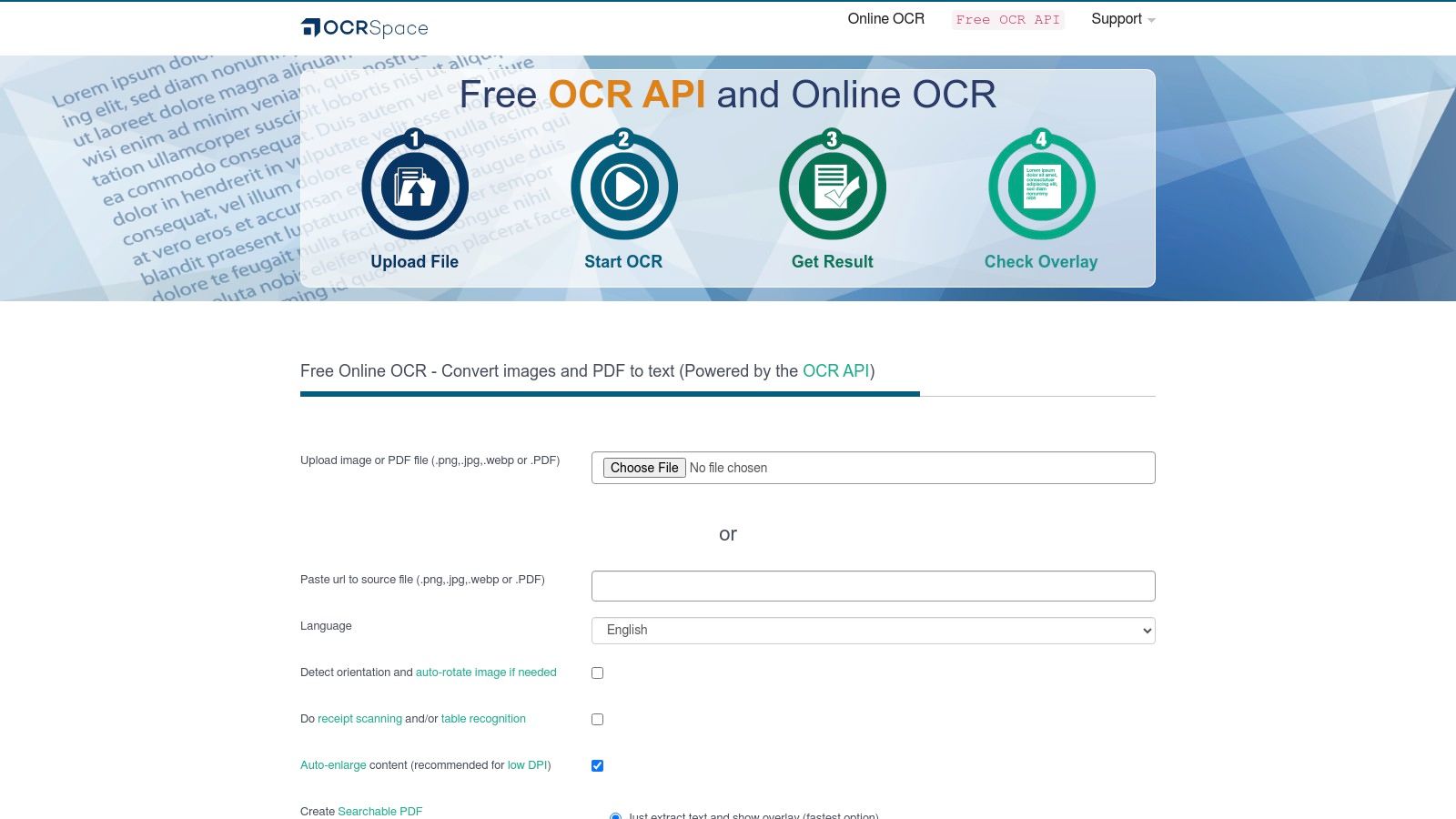
What sets OCR.space apart is its "freemium" model that provides significant value without an initial investment. The free tier is generous enough for testing and small-scale projects, and the API is straightforward to implement. For businesses that require more robust processing or enhanced privacy, OCR.space provides PRO tiers with higher rate limits and on-premise deployment options. This scalability allows a startup or freelancer to begin with the free service and upgrade as their needs grow, avoiding the complexity of setting up and maintaining a local OCR engine from scratch.
| Feature | Details |
|---|---|
| Platform | Web-based, API access for any platform |
| Best For | Quick online conversions, developers needing an easy-to-integrate API |
| Language Support | Good, over 25 languages including Dutch, with auto-detection available |
| Privacy & Security | Good; online processing, but data is not stored long-term on free servers. PRO and on-premise options offer higher security. |
Pros:
- Extremely easy to use via the web interface
- Generous free API tier for developers
- Provides structured data output (JSON) with text coordinates
Cons:
- Free tier has daily request limits and can be slower
- Watermarks may be added to searchable PDFs on the free plan
Website: https://ocr.space
6. OnlineOCR.net
OnlineOCR.net is one of the longest-standing web-based tools for quick, no-installation text extraction. It provides a simple, three-step process: upload a file, select the language and output format, and convert. This straightforward approach makes it an excellent piece of freeware OCR software for users who need a one-off conversion without the hassle of downloading and installing an application. It is particularly useful for quickly turning a scanned image or a single-page PDF into an editable Word document or plain text file.
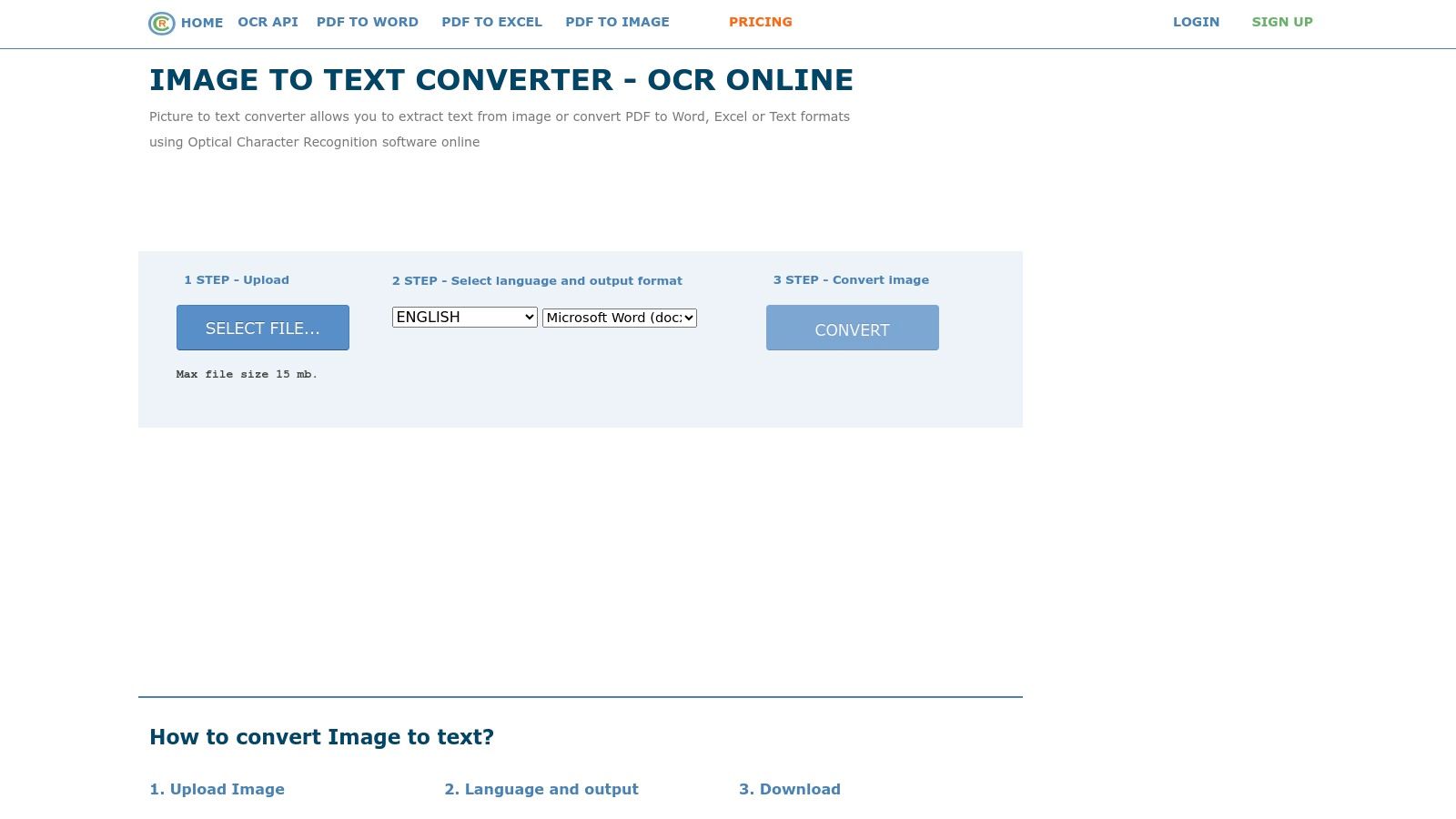
The platform's main advantage is its accessibility and ease of use. It supports a respectable number of languages and output formats, including DOCX, XLSX, and TXT, covering most common use cases. For users needing to process multi-page documents, registration unlocks more features and higher limits compared to the guest mode. While perfect for occasional tasks, businesses requiring automated, high-volume document processing for workflows like invoice management may find the manual process and usage caps restrictive, indicating a need for a more integrated solution.
| Feature | Details |
|---|---|
| Platform | Web-based (accessible from any browser) |
| Best For | Quick, one-off conversions; users without admin rights to install software |
| Language Support | Good; supports approximately 46 languages, including Dutch |
| Privacy & Security | Fair; files are uploaded to their servers for processing, policies state files are deleted after conversion |
Pros:
- Completely free with no software installation required
- Extremely simple and intuitive user interface
- Guest mode allows for quick conversions without registration
Cons:
- File size and page limits apply, especially for guest users
- Not suitable for batch processing or sensitive documents due to its online nature
Website: https://www.onlineocr.net
7. i2OCR
i2OCR is a completely free, web-based OCR service designed for simplicity and accessibility. It stands out by offering unlimited conversions without requiring any registration or sign-up, making it an excellent choice for users needing quick, one-off text extractions. The platform supports a wide array of image formats and can even process multi-column layouts, preserving the original structure of documents like newspapers or magazine articles. This focus on ease of use makes it a go-to piece of freeware OCR software for those who need immediate results without any setup.
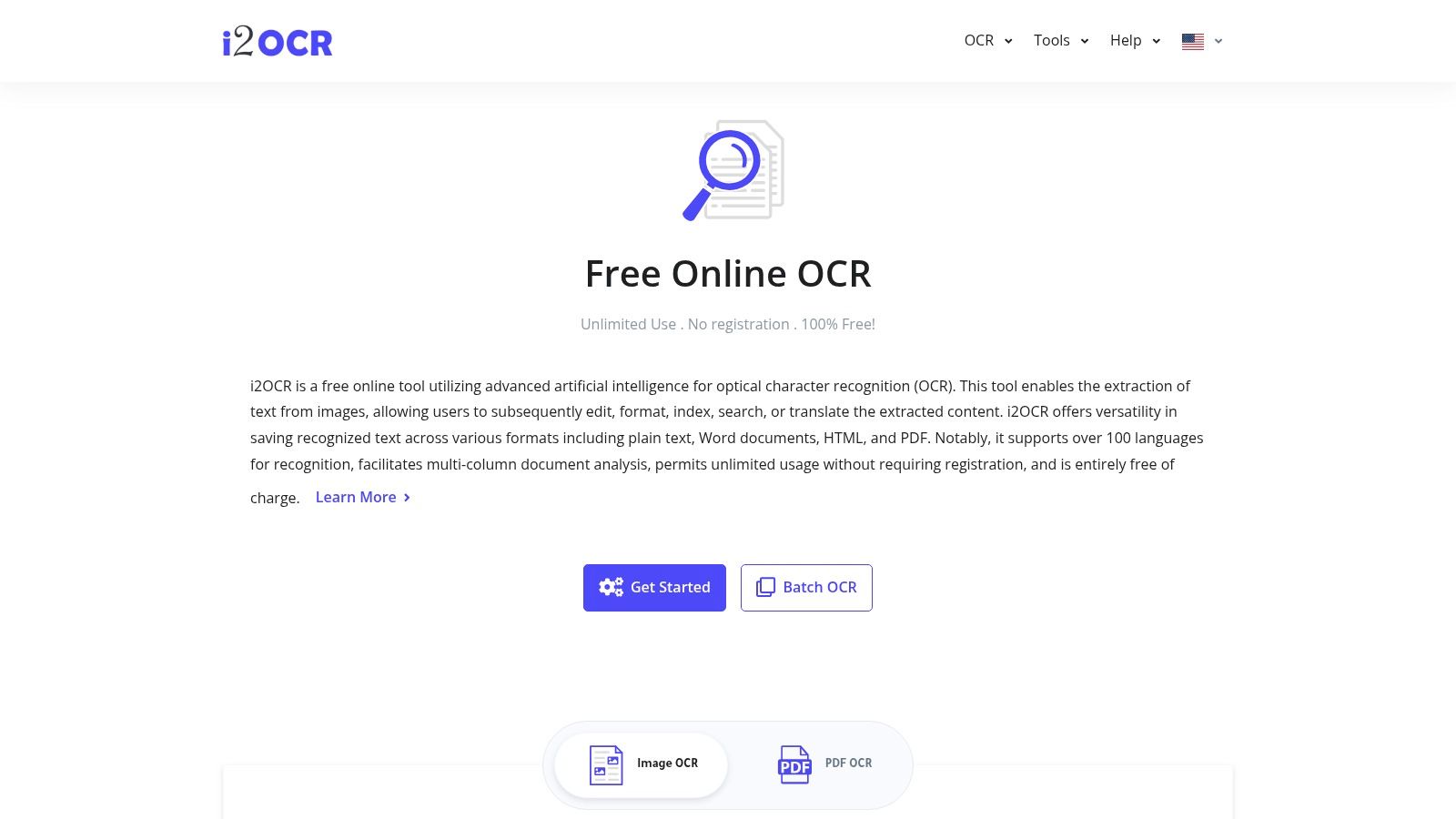
The primary appeal of i2OCR lies in its straightforward, no-fuss workflow: upload a file, select a language, and extract the text. It provides several output options, including plain text, Microsoft Word, and even searchable PDFs, offering flexibility for different use cases. While it may lack the advanced customisation of downloadable software, its performance on clear, standard documents is reliable. For freelancers or small teams who occasionally need to digitise a document or receipt without committing to a software installation, i2OCR delivers a practical and immediate solution.
| Feature | Details |
|---|---|
| Platform | Web-based (accessible from any browser) |
| Best For | Quick, anonymous conversions, multi-column documents, users without admin rights |
| Language Support | Good, over 100 languages supported including Dutch |
| Privacy & Security | Fair; files are deleted from their servers shortly after processing |
Pros:
- Completely free with unlimited use and no registration required
- Supports multi-column document analysis
- Multiple output formats (Text, Word, PDF)
Cons:
- Web-based, so not suitable for sensitive or confidential documents
- Processing can be slower for large or complex files
- Basic user interface with ads
Website: https://www.i2ocr.com
8. PDF-XChange Editor
PDF-XChange Editor is primarily a powerful PDF viewing and editing suite for Windows, but it includes a surprisingly capable OCR engine in its free version. This makes it a fantastic piece of freeware OCR software for users who need to make scanned documents searchable without leaving their primary PDF tool. Instead of being a dedicated OCR application, it integrates the functionality directly into the workflow of managing PDFs, allowing users to add a text layer to image-based files with just a few clicks. This is ideal for organising archives or preparing documents for content analysis.
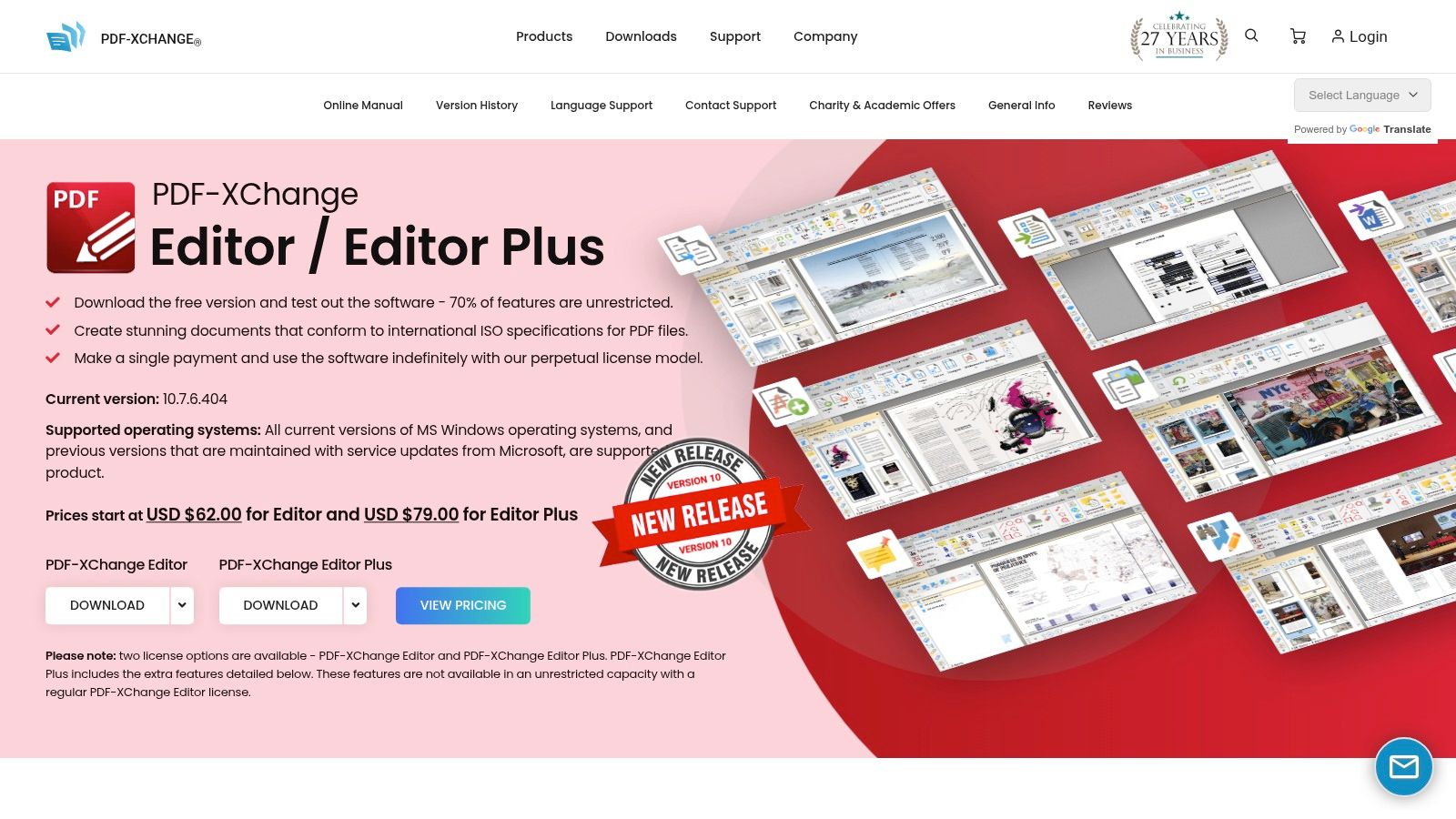
The key advantage of PDF-XChange Editor is convenience. For individuals and small businesses already using it to view, annotate, or edit PDFs, the built-in OCR is a seamless addition. The standard engine is effective for clear, modern documents and even provides controls for optimising table detection. While its most accurate "Enhanced OCR" engine, powered by ABBYY, is reserved for the paid 'Editor Plus' version, the free offering is more than sufficient for converting invoices, reports, and scanned contracts into searchable, indexable files directly on your desktop. This makes it a great local alternative to online converters for day-to-day PDF tasks.
| Feature | Details |
|---|---|
| Platform | Windows |
| Best For | Making existing image-only PDFs searchable, users needing an all-in-one PDF editor |
| Language Support | Good, multiple language packs available for the standard OCR engine |
| Privacy & Security | Excellent; all processing is done locally on your machine, ensuring data privacy |
Pros:
- Integrated directly into a full-featured and free PDF editor
- Performs all OCR processing offline for enhanced security
- Includes useful post-OCR editing and clean-up tools
Cons:
- The highest-accuracy 'Enhanced OCR' is locked behind a paid licence
- Standard OCR can struggle with complex layouts or poor-quality scans
- Only available for the Windows operating system
Website: https://www.pdf-xchange.com/product/pdf-xchange-editor
9. Capture2Text
Capture2Text is a niche yet incredibly powerful utility designed for one specific task: instantly grabbing text from any area of your screen. This portable Windows application operates via keyboard shortcuts, allowing you to select a region and have the recognised text immediately copied to your clipboard. It is the perfect freeware OCR software for extracting text from user interface elements, error messages, images, or any on-screen content that cannot be copied conventionally. Its speed and unobtrusive nature make it a go-to tool for quick, situational text captures without the overhead of a full application.
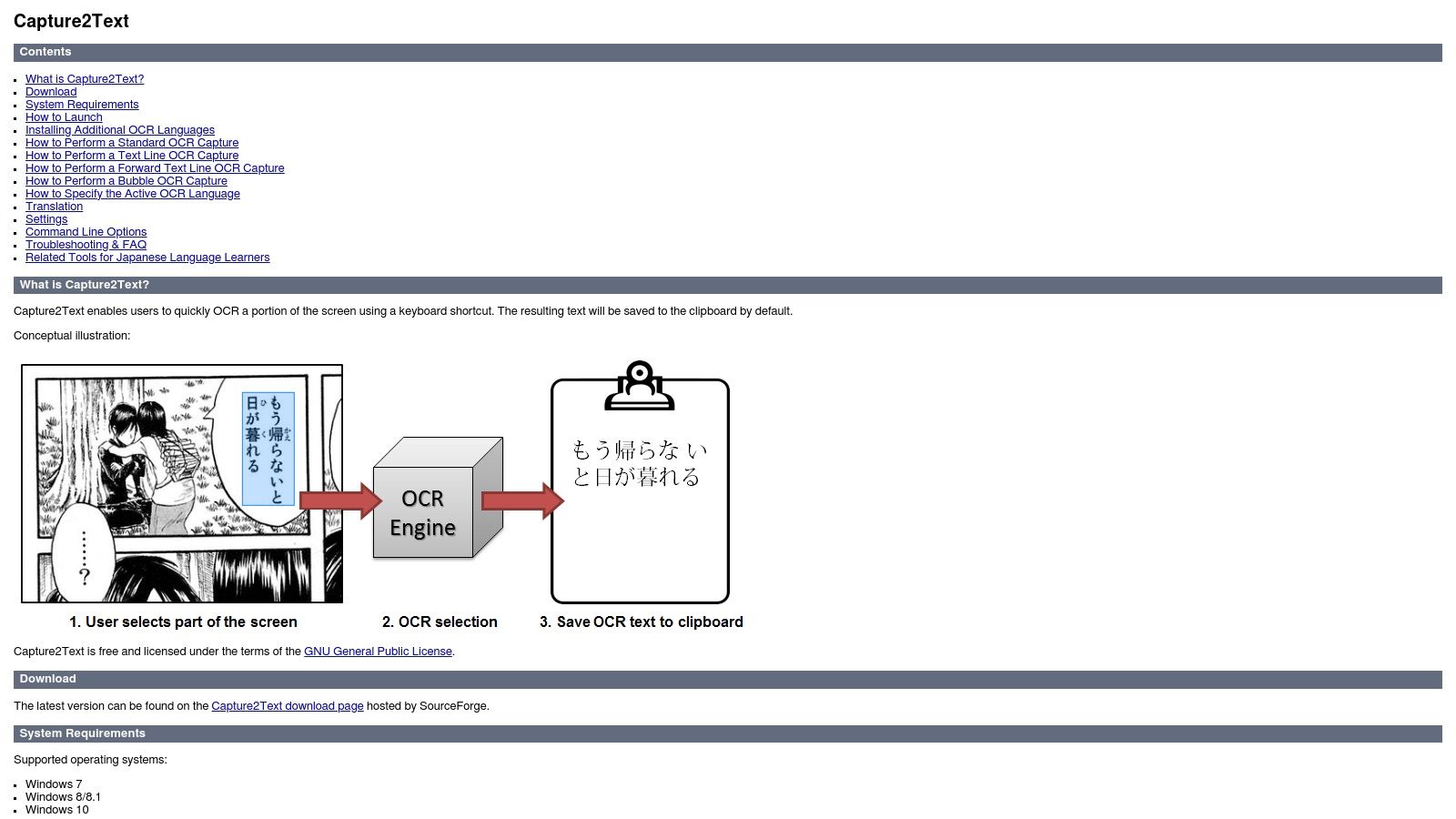
What makes Capture2Text stand out is its pure focus on workflow efficiency. There is no need to take a screenshot, save a file, and then upload it to an OCR tool. You simply press a hotkey, draw a box, and the text is ready to paste. This makes it an invaluable asset for developers, support technicians, and researchers who frequently need to document or transfer small snippets of on-screen information. While it is not designed for processing entire documents or complex layouts, its specialisation in rapid, ad-hoc screen capture is unparalleled in the freeware space.
| Feature | Details |
|---|---|
| Platform | Windows (Portable) |
| Best For | Quickly grabbing text from UI elements, images, or non-selectable on-screen text |
| Language Support | Good; supports over 90 languages via Tesseract dictionaries |
| Privacy & Security | Excellent; runs entirely locally and requires no installation |
Pros:
- Extremely fast and efficient for on-screen text capture
- Portable and open-source, requiring no installation
- Highly customisable hotkeys for a seamless workflow
Cons:
- Not designed for full-page documents or batch processing
- Limited to screen capture; cannot process files directly
Website: https://capture2text.sourceforge.net
10. OCRmyPDF
OCRmyPDF is a specialised command-line tool designed for one crucial task: adding an accurate, searchable text layer to existing PDF files. It acts as a powerful scriptable wrapper for the Tesseract engine, focusing on creating high-quality, archival-grade PDFs. This makes it an essential piece of freeware OCR software for anyone needing to convert large archives of scanned documents, such as invoices, reports, or historical records, into fully searchable and standards-compliant files. Its strength lies in its automation and preprocessing capabilities, handling tasks like deskewing and image optimisation before the OCR process even begins.
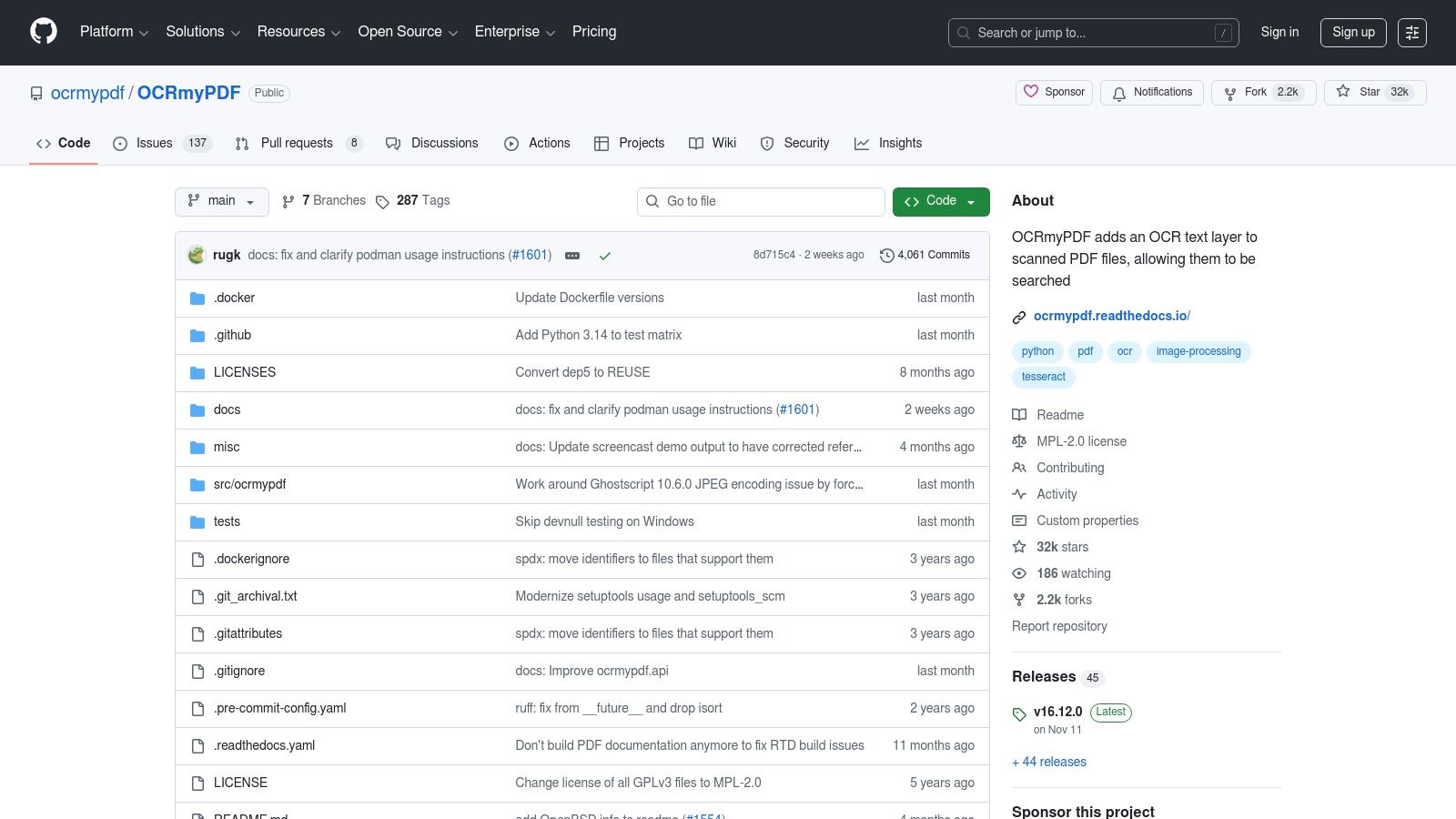
The primary reason OCRmyPDF stands out is its commitment to producing valid PDF/A files, the ISO standard for long-term digital preservation. This ensures that documents processed with it remain accessible and readable for years to come, a critical feature for legal, academic, and business archives. For developers and system administrators, it offers multi-core processing to handle massive batches of files efficiently. Learning the different methods to extract text from a PDF helps contextualise the specific, high-quality output that OCRmyPDF is engineered to produce.
| Feature | Details |
|---|---|
| Platform | Windows, macOS, Linux (via command line, Docker, PyPI) |
| Best For | Archiving, batch processing scanned PDFs, creating searchable PDF/A-compliant documents |
| Language Support | Excellent; uses Tesseract language packs, including Dutch |
| Privacy & Security | Excellent; a local command-line tool that processes files entirely on your machine |
Pros:
- Produces high-quality, standards-compliant, searchable PDFs (PDF/A)
- Excellent for automated, server-side, or bulk processing workflows
- Completely free and open-source (MPL-2.0 License)
Cons:
- Requires command-line proficiency, making it unsuitable for casual users
- Dependent on a separate Tesseract installation and configuration for OCR
Website: https://github.com/ocrmypdf/OCRmyPDF
11. Microsoft OneNote (OCR feature)
For those already embedded in the Microsoft ecosystem, OneNote offers a surprisingly capable OCR function at no extra cost. Rather than a standalone tool, this feature is integrated directly into the desktop versions of the popular note-taking application. This makes it an incredibly convenient piece of freeware OCR software for users who need to quickly grab text from an image or a PDF printout and incorporate it directly into their notes, research, or meeting minutes without switching applications. Its strength lies in its seamless integration and accessibility for existing OneNote users.
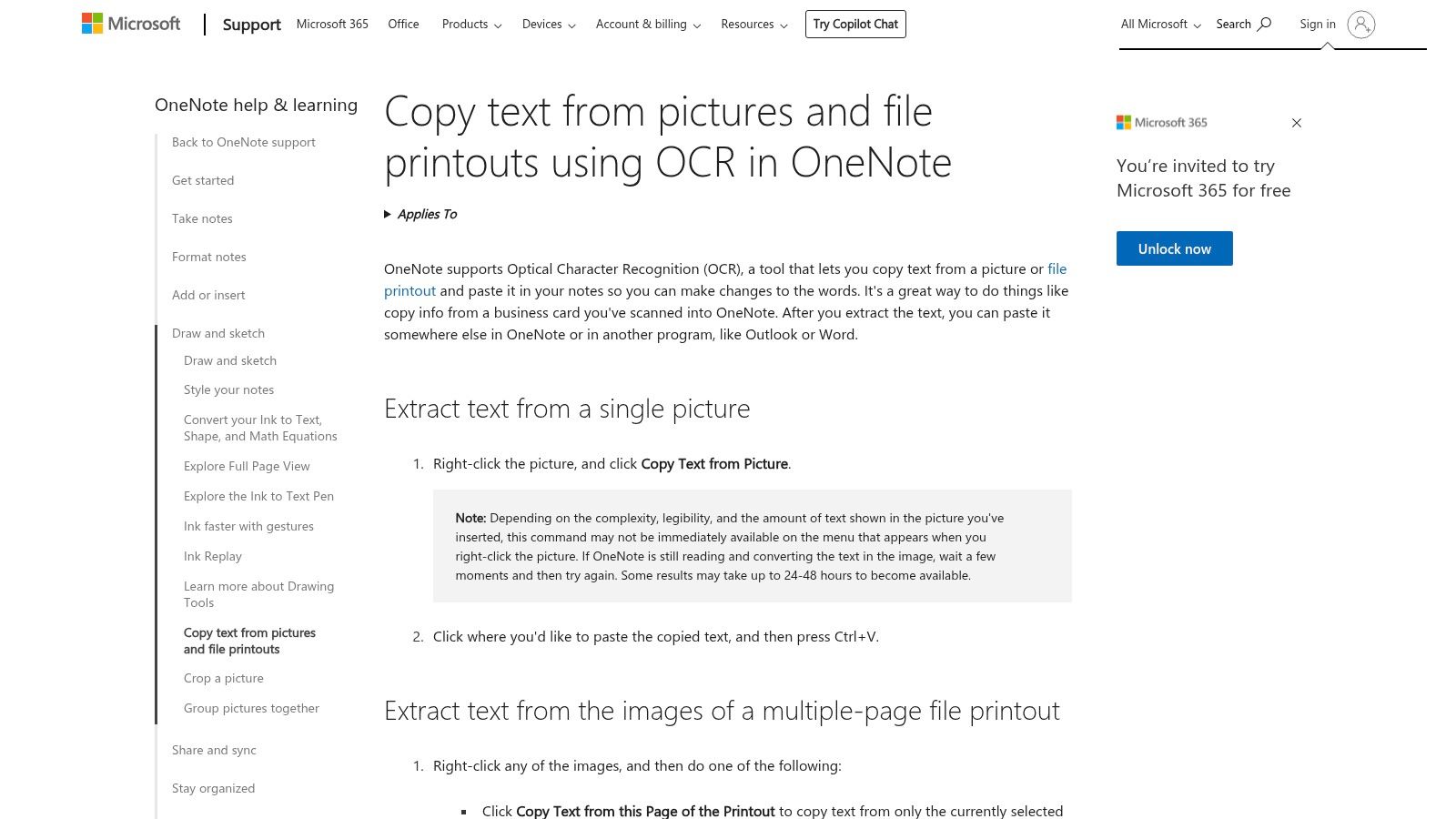
The primary reason OneNote stands out is its convenience. Simply paste an image or a PDF printout onto a page, right-click, and select "Copy Text from Picture". The text is then copied to your clipboard, ready to be pasted anywhere. This workflow is perfect for students, researchers, and professionals who frequently capture information from visual sources like presentation slides or book pages. While it lacks the advanced customisation of dedicated tools, its zero-cost inclusion and straightforward operation make it an excellent choice for casual, on-the-fly text extraction.
| Feature | Details |
|---|---|
| Platform | Windows, macOS (desktop apps only) |
| Best For | Students, researchers, and existing OneNote users for quick text grabs |
| Language Support | Good, supports multiple languages recognised by Microsoft's OCR services |
| Privacy & Security | Moderate; OCR processing may occur via Microsoft's online services, not locally |
Pros:
- Completely free for anyone with a Microsoft account and OneNote
- Extremely convenient for extracting text directly within your note-taking workflow
- No need to install separate software if you already use OneNote
Cons:
- Not available in the web version of OneNote
- OCR on macOS can sometimes be delayed as it relies on server-side processing
- Lacks batch processing and advanced features
12. Google Workspace add-ons / Drive (example: Img to Docs)
For users deeply embedded in the Google ecosystem, dedicated freeware OCR software isn't always necessary. Google Drive has a built-in OCR function that automatically makes text within uploaded PDFs and images searchable, and this can be extended with powerful add-ons. Tools like 'Img to Docs' allow you to extract text directly from an image and place it into a new Google Doc, streamlining cloud-based workflows without ever leaving your browser. This makes it a fantastic solution for Chromebook users or anyone who prefers a completely cloud-native approach to document management.
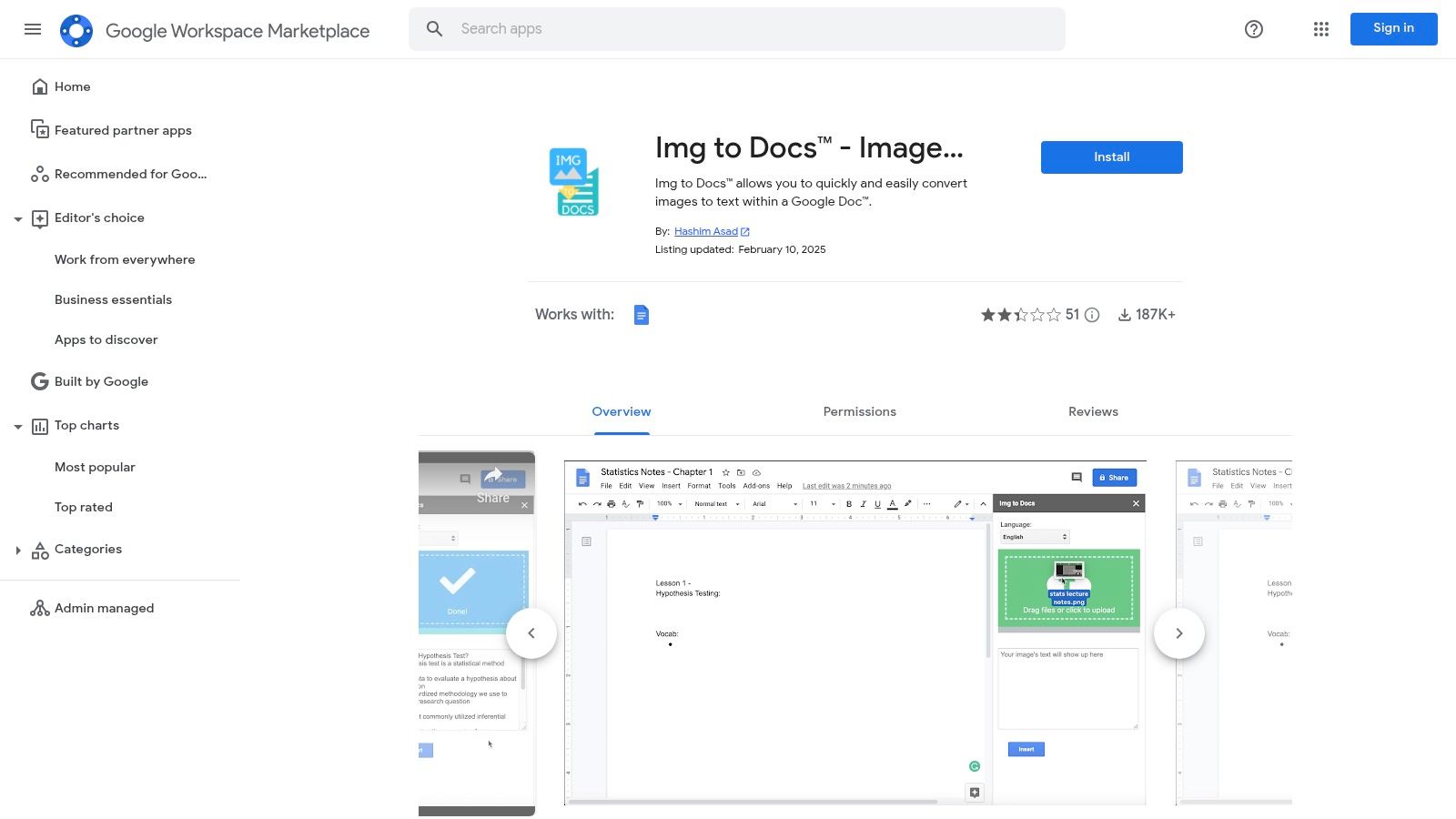
The primary advantage of this method is seamless integration. There is no software to install, and the process feels like a natural extension of your existing Drive and Docs usage. While the native OCR in Drive is more for background indexing, add-ons provide the direct text extraction functionality many users seek. This setup is ideal for quick, occasional tasks like grabbing text from a screenshot or a simple scanned page. For a deeper look, a guide on how OCR with Google Docs works can provide more detail on leveraging these integrated tools effectively.
| Feature | Details |
|---|---|
| Platform | Web-based (works in any browser with Google Workspace access) |
| Best For | Quick text extraction within Google Docs, Chromebook users, cloud-based document workflows |
| Language Support | Good; Google's engine supports over 100 languages, with add-ons leveraging this |
| Privacy & Security | Tied to your Google account's security; data is processed on Google's servers |
Pros:
- No local installation required; works entirely in the browser
- Completely free for basic use and deeply integrated with Drive/Docs
- A wide variety of add-ons are available in the Workspace Marketplace
Cons:
- Reliant on a stable internet connection
- Add-ons can have usage limits or inconsistent performance
- Less powerful than dedicated desktop software for complex or batch jobs
Website: https://workspace.google.com/marketplace/app/img_to_docs_image_ocr/1024533292248
Top 12 Freeware OCR Tools: Feature Comparison
| Tool | Core features / Capabilities | UX / Accuracy | Price & Value | Target audience | Unique selling points |
|---|---|---|---|---|---|
| Tesseract OCR (official repo) | LSTM OCR core; >100 langs; CLI & lib | High accuracy; ★★★★☆ | Free, OSS (Apache) 💰 | 👥 Developers, integrators, archivists | ✨ Trainable models; embeddable; widely vetted |
| gImageReader (GUI for Tesseract) | GTK/Qt GUI wrapper; region selection; batch | User-friendly GUI; ★★★★☆ (Tesseract‑dependent) | Free, OSS (GPLv3) 💰 | 👥 Non‑technical users wanting Tesseract | ✨ Easy region selection + preview |
| NAPS2 (Not Another PDF Scanner 2) | Scanner integration + one‑click Tesseract OCR; PDF workflows | Very easy scan→searchable‑PDF; ★★★★☆ | Free, OSS 💰 | 👥 Home/office scanning, admins | ✨ Integrated scan→searchable‑PDF workflow |
| PDF24 Tools (online & desktop) | Web OCR + Windows desktop app; deskew/denoise/merge | Simple web flow; ★★★☆☆ (online ads/slower large jobs) | Free (ad‑supported online) 💰 | 👥 Occasional users, quick conversions | ✨ Fast online tools + local desktop option |
| OCR.space | Web OCR + developer API; JSON/PDF; regional endpoints | Quick API testing; ★★★★☆ (rate limits on free) | Free tier + PRO & on‑prem options 💰 | 👥 Developers, SMBs needing API | ✨ Overlay coords, EU/US endpoints, on‑prem |
| OnlineOCR.net | Web converter to DOCX/XLSX/TXT/PDF; multi‑page | Very simple for one‑offs; ★★★☆☆ | Free guest limits; registration ups limits 💰 | 👥 Users needing Word/Excel outputs | ✨ Direct export to DOCX/XLSX |
| i2OCR | Unlimited free web OCR; 100+ languages; layout analysis | Unlimited conversions; basic UI; ★★★☆☆ | Free, no signup 💰 | 👥 Frequent quick conversions, multilingual needs | ✨ Unlimited use + wide language support |
| PDF‑XChange Editor | Windows PDF editor with built‑in OCR; table detection | Strong editor tools; ★★★★☆ (Enhanced OCR paid) | Free core; Editor Plus paid for ABBYY OCR 💰 | 👥 Windows users needing editing + OCR | ✨ PDF editing + optional ABBYY Enhanced OCR |
| Capture2Text | Hotkey on‑screen region OCR; clipboard output; portable | Instant capture for UI text; ★★★☆☆ | Free, OSS 💰 | 👥 Users grabbing UI/dialog text quickly | ✨ Fast, portable screen OCR with translation popup |
| OCRmyPDF | CLI adds OCR layer to PDFs; PDF/A; preprocessing & scaling | Produces high‑quality searchable PDFs; ★★★★★ 🏆 | Free, OSS (MPL‑2.0) 💰 | 👥 Archival, automation, finance teams | ✨ PDF/A compliance, multi‑core preprocessing |
| Microsoft OneNote (OCR) | Extract text from images/printouts into notes | Convenient in‑note OCR; ★★★☆☆ (Windows best) | Included with MS account/OneNote 💰 | 👥 Note‑takers, Microsoft ecosystem users | ✨ Built into notes workflow; no extra install |
| Google Workspace add‑ons / Drive (Img to Docs) | Drive/Docs OCR + add‑ons; cloud‑native extraction | Browser‑based; ★★★☆☆; integrates with Drive | Free basic via Drive; add‑ons vary 💰 | 👥 Google Workspace/Chromebook users | ✨ Cloud‑first OCR integrated with Docs/Drive |
Beyond Manual OCR: When to Automate Your Financial Workflow
Navigating the landscape of freeware OCR software reveals a powerful and accessible toolkit for digitising text. We have explored a dozen diverse options, from the raw, developer-centric power of Tesseract and OCRmyPDF to the user-friendly convenience of desktop utilities like NAPS2 and online platforms such as PDF24 Tools. Each tool offers a distinct set of advantages, catering to specific needs and demonstrating that high-quality text extraction is no longer exclusively the domain of expensive, enterprise-level software.
Whether you are a developer integrating text recognition into an application, a student digitising lecture notes from OneNote, or a freelancer capturing text from a single PDF with PDF-XChange Editor, a free solution exists. The key takeaway is that for individual, sporadic, or non-critical tasks, these tools are more than sufficient. They empower you to transform static images and documents into searchable, editable data without any financial investment.
Key Insights and Actionable Next Steps
The primary challenge is not a lack of options, but rather selecting the right tool for the job. Your choice should be guided by a clear understanding of your specific requirements.
- For one-off, quick extractions: Online tools like OCR.space or i2OCR are ideal. They require no installation and provide immediate results, but always be mindful of the privacy implications of uploading sensitive documents to third-party servers.
- For developers and technical users: The Tesseract engine, perhaps accessed via a GUI like gImageReader or the command-line tool OCRmyPDF, offers unparalleled control and customisation for building robust, automated scripts for bulk processing.
- For regular office tasks and multi-page documents: Desktop applications such as NAPS2 and PDF24's desktop suite provide a reliable, offline-first approach, combining scanning, OCR, and PDF management into a single, cohesive workflow.
- For capturing text "in the wild": Utilities like Capture2Text are perfect for grabbing text from screen regions, videos, or presentations where traditional copy-and-paste is not an option.
Before committing to any tool, consider these critical factors: the volume of documents you process, the sensitivity of the data contained within them, the required accuracy level, and, most importantly, the value of your time.
The True Cost of "Free": Manual Labour vs. Intelligent Automation
The real turning point comes when OCR is not an occasional task but a core part of a recurring business process, particularly in finance and bookkeeping. While it is technically possible to use freeware OCR software to process a pile of receipts and invoices, the workflow is fundamentally manual and inefficient. You extract the text, then you must manually copy the vendor name, date, and total amount, and finally, you must painstakingly match that extracted information to a specific transaction in your accounting software.
This manual process is where the hidden cost of "free" software accumulates. It is not just about the time spent on data entry; it is about the cognitive load, the risk of human error, and the opportunity cost of what your team could be doing instead. When your workflow involves dozens or hundreds of financial documents each month, this manual bottleneck becomes a significant operational drag. As businesses grow, expanding beyond basic OCR and exploring comprehensive AI-powered document management solutions can unlock further efficiencies and reduce errors in more complex workflows.
This is precisely where purpose-built, automated solutions provide a transformative return on investment. A platform like Mintline doesn't just perform OCR; it automates the entire financial reconciliation workflow. It intelligently extracts the critical data, understands its context, and automatically links the corresponding receipt or invoice to the correct bank transaction. What was once hours of tedious, error-prone administration is condensed into a simple, seconds-long review. If you find yourself consistently turning to free OCR tools for financial documents, it is a clear signal that your business has outgrown manual processes and is ready to embrace true workflow automation.
Ready to eliminate manual receipt matching and reclaim hours of your time? See how Mintline uses intelligent OCR to fully automate your financial bookkeeping, turning tedious tasks into a seamless, audit-ready workflow. Visit Mintline to discover a smarter way to manage your business finances.