
A Guide to Flawless Image to Table Conversion
Tired of manual data entry? Learn how to master image to table conversion and turn photos of documents into clean Excel or CSV files with this practical guide.
At its core, converting an image to table means using a smart technology called Optical Character Recognition (OCR) to pull data from a picture—like a photo or a scan—and neatly arrange it into an editable spreadsheet. With a tool like Mintline, you can turn static information locked in an image into useful, clean data in just a few clicks, completely eliminating manual data entry.
Why Manual Data Entry Is Costing You More Than Time
If you're a freelancer, run a small business, or manage a finance team, you know the drill. That endless pile of paperwork that shows up every financial cycle—invoices, bank statements, receipts—all containing crucial numbers locked inside images or non-editable PDFs. For years, the only way forward was to sit down and type it all out by hand. It's tedious, mind-numbing work.

But this manual grind is so much more than just a nuisance; it’s a real drain on your resources. Every single hour spent keying in figures from a scanned invoice is an hour you could have spent finding new clients, brainstorming growth strategies, or doing actual financial analysis. The cost of lost productivity adds up fast.
The Hidden Financial Risks
And what about the mistakes? Let’s be honest, they happen. When you’re staring at rows of numbers for hours, it’s easy for a decimal point to slip or a couple of digits to get swapped. A tiny error can snowball into incorrect financial reports, completely skewed budget forecasts, or serious compliance headaches come audit time. These aren't just little slip-ups; they carry real financial consequences.
All this creates a massive bottleneck that slows down your entire financial workflow. This is exactly the problem automated image-to-table conversion was designed to solve. With AI-driven tools like Mintline, you can take a quick photo of a receipt or upload a PDF bank statement and get a perfectly structured table ready for your accounting software in seconds.
Embracing Smarter Workflows
This move towards automation isn't just a trend; it's becoming a key part of staying competitive. For example, recent polls show that 50% of Dutch businesses view digital technology as increasingly vital, which ties into a larger EU goal for tech adoption by 2030. With a digitally skilled population ready to go, the groundwork is already laid for tools that handle processes like this. You can find more details on this shift over at DataReportal.
By automating how you pull data from documents, you’re not just getting back countless hours. You’re also building a more accurate, reliable, and audit-proof financial record. It's about working smarter, not just harder.
To truly get past the high cost of manual data entry, it's worth exploring the different AI workflow automation tools available that can bring new efficiencies across your entire business. But adopting a great tool for the image-to-table process is an excellent first step towards a much more efficient future.
How to Prepare Your Images for a Flawless Conversion
Before you even think about uploading a document, the groundwork you do here will make or break your results. It’s a simple truth: the quality of your output is a direct reflection of your input. A blurry, poorly lit photo of a receipt will always give you messy data, and you'll be the one stuck doing frustrating manual corrections.
Think of it as giving the AI a puzzle to solve. The clearer the pieces, the faster and more accurately it can put them all together. Taking an extra 30 seconds to get the image right can honestly save you ten minutes of cleanup work later. This first step is the single most important thing you can do to get great results from a tool like Mintline, right from the very start.
Optimise Your Capture Environment
You don't need a professional photo studio, just a bit of care. The goal is to create a clean, high-contrast image where the text is the undisputed star of the show.
Here are a few practical tips to ensure a clean capture:
- Find good, even lighting. Natural daylight is your best friend. Place your document near a window to get rid of the harsh shadows that overhead lights can create. If you have to use artificial light, try to have it come from a couple of different angles to soften any shadows.
- Keep it flat and straight. Wrinkles, folds, and creases on a receipt or invoice can completely distort the text, making it unreadable for the software. Smooth the document out on a flat, dark surface—this helps create a really strong contrast with the white paper. When taking the photo, hold your phone or camera directly above it, making sure the frame is parallel to the page to avoid getting a skewed, trapezoidal image.
A common mistake is snapping the picture at an angle. This creates a perspective distortion that seriously confuses the OCR software, often leading to jumbled columns and misinterpreted characters. Always shoot straight down.
Choose the Right Image Format and Resolution
The file format and resolution you use play a huge part in the conversion process. While Mintline is flexible, some choices just work better.
For single-page documents like receipts or invoices, a PNG (Portable Network Graphics) file is almost always better than a JPEG. PNGs use what's called lossless compression, which means they keep the edges of text and numbers perfectly sharp. JPEGs, on the other hand, use lossy compression, which can create subtle blurring or "artefacts" around characters that mess with accuracy. If you're working with a multi-page bank statement, a PDF is the way to go.
No matter which format you choose, always aim for a resolution of at least 300 DPI (dots per inch). This is the industry standard for scanning and pretty much guarantees the text is crisp enough for any OCR system to read with high precision. If you want to dive deeper, you can learn more about how a high-quality text reader from image really depends on these principles.
By getting these simple prep steps right, you're setting yourself up for a fast, flawless, and efficient data extraction workflow.
Taking a Look at the Image-to-Table Conversion Process
Turning a picture into a usable table sounds complex, but with a modern tool like Mintline, it’s surprisingly simple. The real heavy lifting happens behind the scenes, where powerful AI takes your uploaded image and transforms it into a clean dataset, ready for your bookkeeping software.
The whole journey, from a photo of an invoice to an editable spreadsheet, starts with a single click: upload. It doesn't matter if it's a perfect PDF bank statement or a quick photo of a crumpled receipt. The first step is always the same. As soon as your file hits the server, the AI gets to work, scanning the document to figure out where the tables are.
How the AI Actually Reads Your Document
This is where Optical Character Recognition (OCR) technology shines. The software isn't just looking at your file as a picture; it's actively reading it, character by character.
Think of it as a three-stage process:
- First, the AI scans the page to pick out individual characters—letters, numbers, and symbols—and separates them from any background smudges or shadows.
- Next, it looks for the layout. It’s trained to spot the grid-like structure of rows and columns, understanding how all those separate bits of data relate to each other.
- Finally, it converts that visual information into real, usable text and slots it into the right cells in a digital table.
Mintline features automatic table detection, which is a lifesaver. You rarely have to drag a box around the data you want to pull. The system is smart enough to find the table on its own, making the whole image to table workflow incredibly fast.
Getting the best results starts with a good source image. This diagram breaks down the key things to get right.
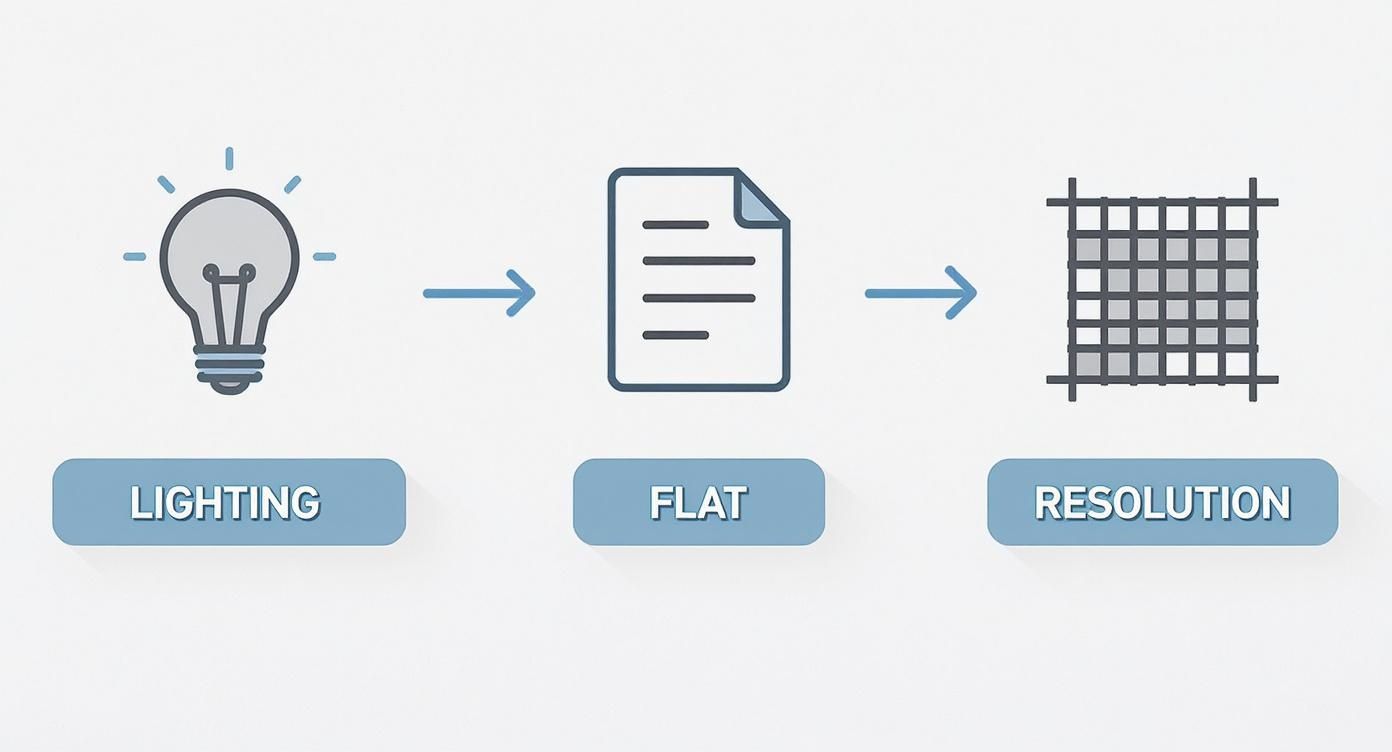
As you can see, simple things like good lighting, a flat document, and decent resolution make a huge difference in how accurately the AI can read your file.
It’s All About a Smooth User Experience
This kind of powerful processing is becoming standard. In the Netherlands, AI adoption is on the rise. In 2024, 22.7% of Dutch companies with 10 or more employees reported using some form of AI, a noticeable increase from the year before. The trend is even more pronounced in larger companies, where 59.2% have integrated AI, showing just how critical these automated tools are becoming for staying competitive.
The real goal of a tool like Mintline isn't just to extract data—it's to make it feel like you're barely doing any work. Features like smart column recognition, which automatically labels headers like "Date," "Description," and "Amount," cut out most of the manual cleanup that older software used to force on you.
A good interface is designed to be intuitive. Mintline shows you a preview of the extracted table right next to your original image. This side-by-side view is crucial for quickly spotting any errors and making small tweaks before you export the final file.
If you're curious about the code that makes all this possible, this practical guide to extracting tables from PDF files with Python provides a fascinating look under the bonnet. But for most of us, the end result is what matters: a well-designed tool guides you so seamlessly that a once-complex task becomes just another quick, repeatable part of your day.
Fine-Tuning Your Extracted Data: A Quick Guide to Verification
Even the most sophisticated AI isn't infallible. That’s why a quick verification pass is an absolute must before you trust the numbers. Think of it less as a chore and more as a final quality check—a smart, efficient review to catch those tiny gremlins that can cause big headaches down the road.
This final polish is what bridges the gap between automated extraction and genuinely reliable financial data. It's the step that ensures your image to table conversion is 100% accurate and ready to plug into your workflow.
Spotting Common OCR Hiccups
Optical Character Recognition (OCR) is remarkably good, but it can occasionally get tripped up by characters that look suspiciously similar. This tends to happen most with lower-quality scans or photos where the text isn't perfectly crisp.
You’ll want to keep an eye out for these classic mix-ups:
- The letter 'O' gets mistaken for the number '0'.
- The number '1' is confused with a lowercase 'l' or an uppercase 'I'.
- An 'S' is read as a '5', and sometimes the other way around.
Fortunately, tools like Mintline are built for this. The side-by-side view, which puts your original document right next to the extracted table, makes spotting these little issues a breeze. You can just click into a cell and type the correction without ever needing to switch screens.
Pro Tip: Your goal isn't to scrutinise every single character. Just scan columns that should be numbers and make sure there are no letters lurking in there. A quick glance at text columns for any rogue digits is also a good idea. This targeted approach is much, much faster.
Before we jump into the checklist, here's a quick reference table for the most frequent OCR errors I see and how to deal with them.
Common OCR Errors And How To Fix Them
| Error Type | Example | Quick Fix Solution |
|---|---|---|
| Character Confusion | A price reads as €1O.5O instead of €10.50. |
Manually edit the cell, replacing the letters 'O' with the number '0'. |
| Punctuation Errors | A total is shown as 1,500.00 but extracted as 1 500 00. |
Correct the cell to use the proper decimal point and comma separator. |
| Spacing Issues | "Unit Price" becomes "UnitPrice" or "UnitP rice". | Click into the cell and add or remove the space as needed for consistency. |
| Incorrect Symbols | A currency symbol like £ is read as a hashtag #. |
Replace the incorrect symbol with the correct one (e.g., £, $, €). |
This table covers the usual suspects, but a systematic check will ensure nothing slips through the cracks.
A Practical Checklist for Data Integrity
Beyond simple character swaps, a few other areas deserve a quick once-over to make sure your data is clean and consistently formatted. Running through this mental checklist only takes a minute but builds a routine that guarantees trustworthy results.
Here’s a simple verification workflow I use with Mintline:
-
Check the Totals First. This is the fastest way to get a confidence check. Sum up the key columns like 'Amount' or 'Subtotal' in your extracted table. Does your number match the total on the original invoice or statement? If it does, you can be pretty sure the individual line items are correct.
-
Scan for Consistent Formatting. Take a look at your date and currency columns. Are the dates all in the same format (e.g., DD-MM-YYYY)? Have all the currency symbols been handled correctly? Nailing the formatting now is vital for sorting the data later or importing it smoothly into your accounting software.
-
Look for Merged Cell Mishaps. Sometimes a single cell on a document might span multiple rows (like a "Total Due" line). The AI might split this data awkwardly. Just check for any data that looks out of place or has landed in the wrong column. Modern tools are pretty good at this, but it’s always worth a quick look.
By mastering these simple checks, you can confidently turn any image into a table, knowing the output is pristine. For a deeper look into the principles of accurate data capture, our guide on how to scan text from image offers some more helpful insights.
Making Your Extracted Data Work for You
Getting clean data out of an image is a great first step, but it’s what you do next that really matters. The true power of this process is unleashed when you plug that perfectly organised table into your day-to-day business operations, turning a formerly painful task into a smooth, automated workflow. This is where the effort you put into mastering the image to table process really starts to pay dividends.

So, you’ve double-checked the data, hit the export button, and now you have a pristine CSV or Excel file sitting on your desktop. What now? This is where you bridge the gap between static paper documents and your dynamic business software.
A Better Workflow for Freelancers
If you’re a freelancer or run a small business, you know the drill. That shoebox full of receipts is a disaster waiting to happen. Most of the time, they sit there until the end of the month, forcing you into a mad dash of data entry just to get your invoices out or your books closed.
Let’s re-imagine that entire process with Mintline.
- As you get receipts for business expenses, you snap a quick photo and upload it to Mintline. No more crumpled paper piling up.
- Once a week, you export a single CSV file containing all the crucial info—vendor, date, amount, and maybe even a category you added.
- You then simply upload that CSV directly into your accounting software, like Xero or QuickBooks. In a few seconds, your entire expense ledger is populated and up to date.
What was once a two-hour administrative headache becomes a five-minute job. This isn't just a time-saver; it’s about having a real-time, accurate picture of your finances without all the stress.
The real aim here is to build a seamless flow of information. When you turn a physical receipt into structured data and import it directly, you bypass the biggest source of bookkeeping mistakes: manual human entry.
Boosting Efficiency for Finance Teams
In a larger finance team, the challenges are different. It's less about a shoebox of receipts and more about managing huge volumes of complex documents. A classic example is trying to analyse company spending or compare supplier costs by pulling data from hundreds of scanned invoices or price lists.
Picture this: your team needs to compare detailed pricing from three different suppliers. Each has provided a multi-page PDF price list. The old way would involve someone manually typing everything into a master spreadsheet—a mind-numbing task that could take a full day and would almost certainly contain errors.
Here’s the modern, much smarter workflow:
- Extract: Each PDF price list is processed through an image to table tool like Mintline. This is the perfect use case for data that's otherwise locked inside a non-editable document. If you're dealing with a lot of PDFs, our guide on how to extract a table from a PDF has some extra tips.
- Consolidate: With three clean Excel files, merging them into one master comparison sheet is a quick copy-and-paste job.
- Analyse: Now that all the data is in one place, the team can immediately sort, filter, and run calculations to pinpoint the best supplier pricing.
This simple shift in process moves your team from glorified data entry clerks to actual analysts. By building automated data extraction into your daily routine, you turn a major bottleneck into a source of genuine business intelligence.
Got Questions About Turning Images Into Tables?
If you're just dipping your toes into automated data extraction, you've probably got a few questions. That's completely normal. Getting some straight answers can make all the difference, helping you get past those initial bumps and start using these tools with confidence. Let's tackle some of the most common queries we hear.
It’s no surprise this topic is coming up more often. The whole world is getting more comfortable with this kind of tech. Recent research from GfK's 2025 study shows that half of all Dutch adults are now using AI tools. This growing trust is exactly why people are looking to AI for tricky tasks like pulling clean data from an image.
What’s The Best Image Format For Accurate OCR?
Most tools will take JPEGs, PNGs, and PDFs, but if you want the cleanest results, a high-resolution PNG or a text-based PDF is almost always your best bet.
Why? PNG files use what's called lossless compression, meaning they keep the text characters sharp and clear—which is exactly what an OCR engine needs to do its job well. JPEGs, on the other hand, can create fuzzy little blurs or "artefacts" around the letters, which can easily confuse the software.
If you're dealing with multi-page documents like bank statements, a PDF is perfect. The main takeaway here is to focus on clarity and resolution. As a rule of thumb, always aim for at least 300 DPI (dots per inch).
Can I Really Convert Handwritten Tables To Excel?
Yes, you can, but it comes with a few big 'ifs'. Modern OCR, powered by AI, has gotten surprisingly good at reading handwriting—a capability sometimes called Intelligent Character Recognition (ICR). The catch? The accuracy lives and dies by how clear and consistent the handwriting is.
If you’re working with neat, printed handwriting laid out in a clean grid, you have a very good chance of a successful conversion. But if you're up against messy cursive, cramped numbers, or text that overlaps the lines, expect a struggle. The software will likely get confused and you'll be left with a lot of manual clean-up.
My advice? Always test a small sample first to see how the tool handles your specific style of document.
Here's a simple test I use: if a human has to squint and struggle to read it, the AI is going to have an even harder time. Stick to clean, block-style writing for the best shot at an accurate result.
How Secure Is My Data When I Upload An Image?
This is a crucial question, and one you should always ask. Any reputable service, like Mintline, makes data security a top priority. When you upload a document for an image to table conversion, the first thing to check is that it’s being sent over an encrypted connection (look for HTTPS in the URL).
Beyond that, always read the service's privacy policy. It should clearly explain how your data is handled, where it's stored, and for how long. For anything containing sensitive financial or personal details, you need a provider that is upfront about its security protocols, like using AES-256 encryption, and its data retention rules.
As a final tip, I’d strongly recommend avoiding the free, ad-riddled online converters for any documents you wouldn't want to become public.
Ready to stop chasing down receipts and finally automate your financial workflow? With Mintline, you can turn stacks of invoices and bank statements into clean, usable data in just a few minutes. Discover how Mintline can transform your business today.