
A Guide to PDF Rotate Page and Fix Your Documents Fast
Tired of sideways documents? Our guide on how to PDF rotate page on any device shows you how to fix orientation issues and streamline your bookkeeping for good.
A bank statement scanned sideways or a batch of receipts loaded upside down isn't just a minor annoyance—it's a genuine roadblock for your entire bookkeeping process. You can always go looking for software to pdf rotate page, but the real problem is the hidden manual work and the data errors that follow, creating chaos in your financial workflow. With an intelligent platform like Mintline, these problems disappear entirely.
How a Simple Sideways Page Can Derail Your Bookkeeping
One single, incorrectly rotated page in a financial document can set off a chain reaction of problems, especially if you rely on automated bookkeeping software. The Optical Character Recognition (OCR) technology that pulls data from your bank statements and receipts needs the text to be oriented correctly to do its job. If a page is on its side or upside down, the OCR process usually fails.
This isn't just a small technical hiccup. It creates several headaches for freelancers and finance teams alike:
- Data Extraction Fails: The software can't "see" the transaction dates, vendor names, or amounts properly. The result? Incomplete or totally missing financial records.
- Your Numbers are Wrong: If the OCR tries to make sense of the jumbled text and gets it wrong, you end up with incorrect data logged in your system. This can lead to completely skewed financial reports and even compliance issues down the line.
- A Huge Manual Time Sink: Someone on your team has to stop what they're doing, track down the original document, manually rotate every single page that's off, and then re-upload it. It's a tedious, frustrating task that pulls people away from more important work.
The Real Cost of Fixing Things by Hand
The ripple effects of these seemingly small errors are bigger than you'd think. Take the Netherlands, for example, where a staggering 34% of key trade and energy documents are PDFs. Simple page rotation mistakes are a major contributor to a 12% mismatch rate when trying to link transactions to their corresponding receipts. This administrative drag doesn't just slow things down; it introduces unnecessary risk, which is a real problem with new EU data accessibility rules on the horizon. You can dive deeper into these challenges in the Focus on Digital Economy 2025 report.
The smartest way to handle a rotated PDF is to have a system in place that stops it from ever being an issue. Automation should be fixing these things for you, not creating more manual work.
This is exactly where intelligent platforms like Mintline come in. Mintline automatically spots and corrects the page orientation the moment you drag and drop a file. This means the data extraction is clean right from the get-go. This one simple, automated step gets rid of all that manual busywork, pushing transaction-matching accuracy to over 95% and turning what used to be hours of administrative pain into a process that takes just minutes.
How to Rotate PDF Pages for Free on Your Computer
There’s nothing more frustrating than opening a crucial document only to find it's sideways. Luckily, you don’t need to hunt for fancy software to fix it; the tools you need are probably already built into your computer. Let’s walk through the quickest, no-cost ways to get your PDFs facing the right way on both macOS and Windows.
Getting this right from the start is more important than you might think. A single sideways page can completely derail an automated workflow, triggering OCR errors that force you back to tedious, manual data entry.
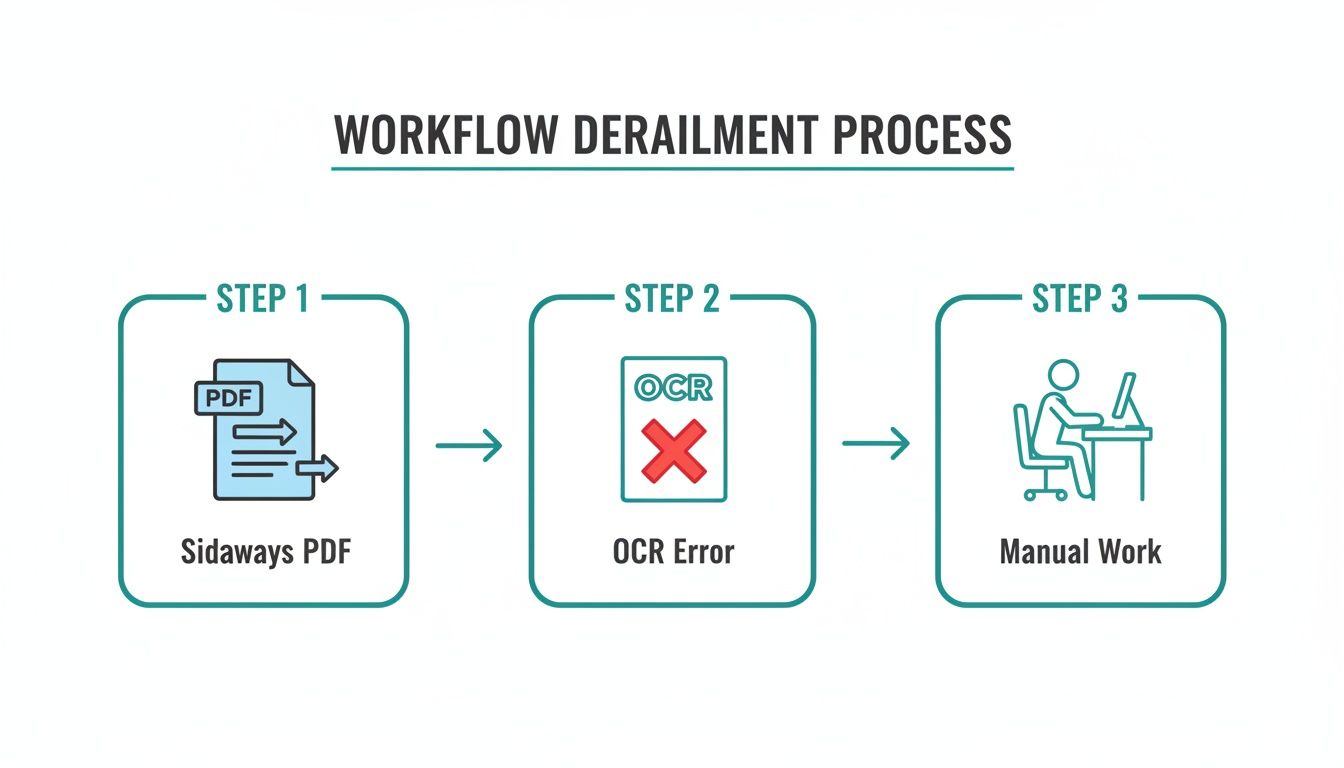
As you can see, what starts as a simple orientation mistake can easily snowball into failed data extraction and wasted time. It’s a classic example of a small problem causing a big headache.
Correcting Pages on macOS with Preview
If you’re on a Mac, your best friend for this task is the Preview app that comes pre-installed. It’s surprisingly powerful and makes rotating pages a breeze.
- To fix a single page: Just click on the page that’s askew and find the rotate button in the toolbar (it looks like a little square with a curved arrow). One click turns it 90 degrees.
- To rotate several pages at once: Head up to
View > Thumbnails. This shows you all the pages on the side. Now, hold down theCommandkey and click on every page that needs to be turned. Once you’ve selected them all, a single click on the rotate button will fix them in one go.
When everything looks good, simply save your changes (File > Save), and the new orientation is locked in. It's a lifesaver when you're trying to get documents ready for your bookkeeping software.
A Quick Fix for Windows Users
Windows users also have a simple, built-in solution: your web browser. Modern browsers like Microsoft Edge or Google Chrome are perfectly capable of handling basic PDF edits.
All you have to do is drag and drop the PDF file right into an open browser window. A toolbar will appear at the top. Look for the rotate icon and click it until the document is upright. Then, just hit the download or save button to save a corrected copy to your computer.
While these manual fixes work in a pinch, they come with a hidden cost. For small businesses in the Netherlands, these seemingly minor PDF tweaks add up. We estimate this can cost SMBs €500–€1,000 annually in lost productivity. That time drain becomes even more significant when you consider the Dutch economy's projected growth, with GDP volume forecast to increase by 1.9% in 2025. You can read more about these projections in the CPB Central Economic Plan 2025.
When the free tools built into your computer just aren't cutting it, it’s time to look at professional software and dedicated online platforms. The built-in options are fine for a one-off fix, but if you're wrangling lots of documents regularly, you'll quickly hit their limits. This is where more powerful tools come in, though it's important to know what you're getting into, especially with sensitive financial data.
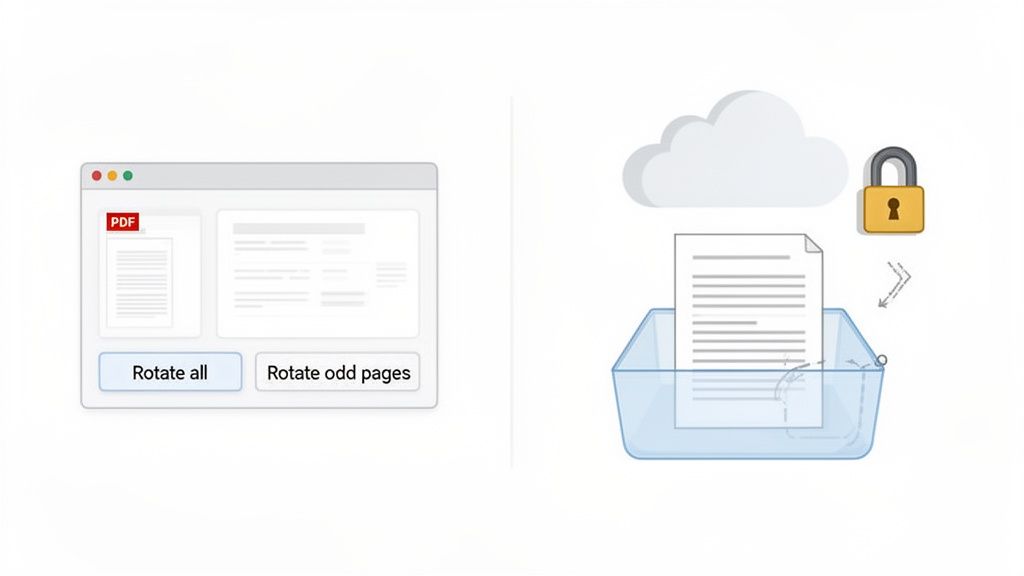
Online PDF editors have become incredibly popular because they’re just so easy. Most have a simple drag-and-drop interface that lets you make pdf rotate page adjustments in a few clicks, with no software to install. We dive deeper into the convenience factor in our guide to rotating PDFs online. But this convenience comes with a major catch: security. Uploading a bank statement or client invoice to a random, free website could expose that financial data.
As a rule of thumb, never upload sensitive financial documents to a public, third-party website unless you are absolutely certain of its security measures. For anything confidential, a secure, professional platform like Mintline is always the better bet.
Getting More Control with Professional Software
This is where desktop applications like Adobe Acrobat really shine. They offer a whole different level of control and a suite of features that most online tools can't match, which is critical when you're working with complex or multi-page documents.
You get access to some seriously useful capabilities:
- Batch Processing: Need to rotate pages in a dozen different files? You can do it all at once instead of opening each one individually.
- Specific Page Ranges: This is a lifesaver. You can choose to rotate only the odd-numbered pages, or a specific range like pages 5-10, which is perfect for those reports where every other page was scanned upside down.
- Permanent Saving: Unlike some tools that only change the viewing orientation, professional software saves the rotation directly into the file's properties, so it stays fixed for good.
This kind of detailed control is a huge deal for Dutch accounting firms. Economic reports have shown that a surprising 22% of pages in PDF bank statements arrive incorrectly rotated, usually from mobile phone scans. Without the right tools, bookkeepers can spend up to 15% of their time just fixing orientation issues, which can seriously delay month-end closing. For a closer look at the data behind this, check out the 2025 In-Depth Review from the European Commission.
Of course, rotating pages is often just one piece of the puzzle. You might also find yourself needing to split a large file into smaller ones. Knowing how to separate PDF pages is another key skill for keeping your digital documents organised.
Comparison of PDF Rotation Methods
To help you decide which tool is right for you, here’s a quick overview of the different methods. This table breaks down the best use cases, costs, and security considerations for each option, from quick fixes to professional-grade editing.
| Method | Best For | Cost | Security Note |
|---|---|---|---|
| Built-in OS Tools | Quick, single-page rotations on your own computer. | Free | Very high; the file never leaves your device. |
| Online PDF Editors | Convenient, one-off edits when you don't have software installed. | Free (with limits) | Low; avoid uploading sensitive or confidential documents to public sites. |
| Professional Software | Batch processing, complex page ranges, and high-volume tasks. | Subscription-based | High; the software is installed locally, keeping your documents secure. |
| Secure Platforms | Handling sensitive financial documents like bank statements. | Varies (often SaaS) | Highest; platforms like Mintline use encryption and robust security protocols. |
Ultimately, the right tool comes down to what you’re working on. For a quick tweak, the free options are great. But for anything involving high volume or sensitive information, investing in a professional and secure solution like Mintline is the only way to go.
A Quick Pre-Upload Check for Flawless Bank Statements
Now that you've got your PDF pages rotated and everything looks right, you're just about ready to upload. It's tempting to just fire it off, but taking 30 seconds for a final check before you upload your documents to a smart platform like Mintline can save you a ton of hassle down the line.
Think of it this way: while Mintline's AI is incredibly good at correcting things on the fly, giving it a clean, well-organised document from the start guarantees you're getting the absolute best results from the automation. A few seconds of review ensures the highest possible accuracy, which means faster processing and data you can trust.
Your Three-Point Sanity Check
Before you drag and drop that bank statement, just run through this quick list. It's a small habit that makes a big difference, preventing annoying errors and ensuring the data extraction is perfect every time.
- Are all pages there and in order? Give the PDF a quick scroll. Is page 3 actually page 3, or did the scanner mix things up? Fixing the page order now is much easier than untangling the mess later.
- Is every page facing the right way up? Do a final flip-through to make sure every page is upright. Even though our system can automatically fix orientation, a quick human check ensures a perfect handoff to the OCR engine.
- Is the scan quality clear? Is the text sharp and easy to read, or is it a bit blurry? OCR technology needs clear text to work its magic. If the quality is poor, it's definitely worth rescanning. For tips on getting a crystal-clear image, check out our guide on how to scan a document online.
A clean document is the bedrock of reliable automation. When your bank statements are complete, correctly oriented, and clear before you upload, you’re directly contributing to better accuracy and a faster month-end close.
Ultimately, spending a moment on this checklist is the final step in moving from manual document fixing to genuine, hands-off automation. It lets platforms like Mintline do what they do best: turning your raw data into perfectly organised, audit-ready records with zero friction.
Let AI Handle the Hassle of Document Prep
After going through all those manual methods, it’s clear that the best way to deal with a rotated page is to use a system that stops it from being a problem in the first place. Instead of fixing errors after they happen, you can let intelligent technology prepare your documents for you. This is where a platform built for efficiency, like Mintline, really changes the game.
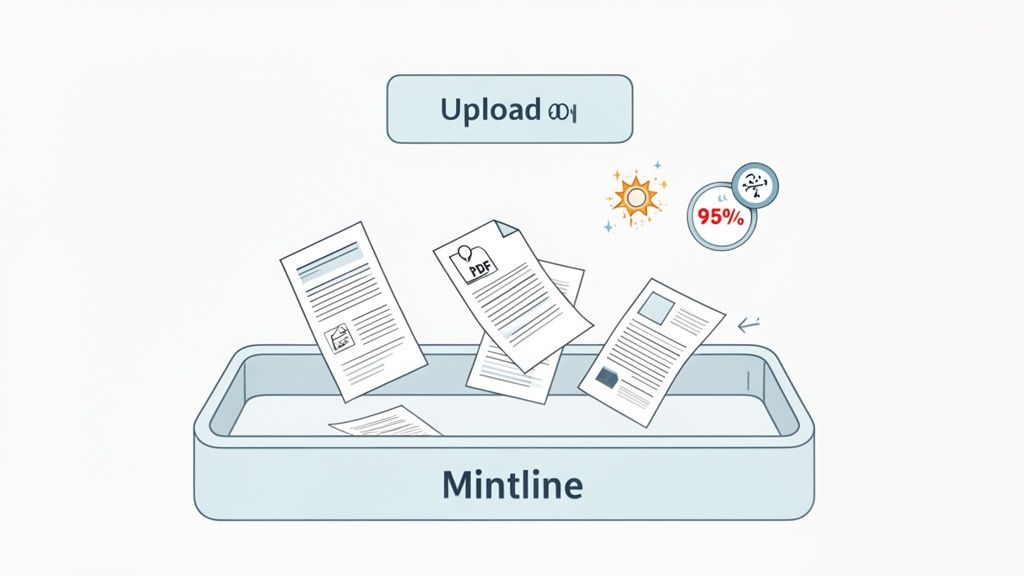
Just picture it: you drag and drop your PDF bank statements into the app, and that's it. You don't have to open the file, double-check every page, or worry about whether something is upside down. Mintline’s AI-powered system is designed to do exactly that.
Automated Orientation Correction
The second you upload a document, Mintline's technology gets to work, automatically analysing every single page. It spots and fixes any orientation problems before the crucial data extraction process even starts. It’s this proactive approach that helps us achieve a transaction matching accuracy rate of over 95%.
The whole process is completely seamless:
- Upload: Just drag your PDF bank statement into the secure platform.
- Analyse: The system instantly scans for any sideways or upside-down pages.
- Correct: The AI automatically performs the pdf rotate page function on any pages that need it.
- Extract: With the document perfectly oriented, the OCR engine can then read it cleanly and accurately.
When you need to handle a wide range of document preparation tasks, checking out the best AI document processing software solutions can be a massive time-saver. Once your pages are correctly aligned, the next logical step is to understand how to extract text from a PDF.
The most effective solution isn’t just about fixing a rotated PDF; it’s about adopting a workflow where page rotation issues no longer exist. This shift from manual correction to automated preparation saves time, reduces errors, and lets you focus on your business.
Common Questions About Rotating PDF Pages
Even with the right tools, fiddling with PDF orientation can throw up a few curveballs. Here are answers to some of the most common issues people run into when trying to get their documents straightened out.
How Do I Rotate Just One Page in a PDF?
It's a classic scenario: you have a 50-page document, but page 17 is sideways. You don't want to mess with the rest of the file.
If you're on a Mac, Preview makes this simple. Just open the thumbnail sidebar, click on the single page you need to fix, and hit the rotate button. For those using more advanced software like Adobe Acrobat, you can usually just type in the exact page number for a surgical fix. This lets you precisely rotate a single PDF page without touching anything else.
Why Won’t My PDF Rotation Save Permanently?
This is probably the most common frustration. You rotate the page, it looks perfect, but then you close the file and reopen it only to find it's back to its old, crooked self.
What’s happening is that many basic PDF viewers only change the temporary view. To lock in the change, you have to explicitly create a new version of the file. After rotating, look for an option like "Save As" or "Export to PDF". This action doesn't just save your view; it creates a brand-new file with the correct orientation baked in for good.
Security should always be your top priority with financial data. The convenience of a free online tool is never worth the risk of exposing sensitive information like bank account numbers or client details.
Is It Safe to Use Online PDF Rotators for Financial Documents?
In a word: no. While those free online tools are handy for a school assignment or a recipe, you should never upload bank statements, client invoices, or any other confidential financial records to them.
When you use a free web-based service, you’re essentially sending your data to an unknown server. You have no real idea where it's being stored, who can see it, or if it's truly deleted afterwards. The risk just isn't worth it. For sensitive information, always stick to secure, offline software or a dedicated, encrypted platform like Mintline.
For a truly secure and automated solution that handles document preparation for you, discover how Mintline can transform your bookkeeping workflow. Visit us at https://mintline.ai to get started.