
How to scan document online the right way
Discover how to scan document online with your phone or computer and produce high-quality digital files for your business.
Getting rid of that clunky old office scanner and learning how to scan a document online is one of the best admin skills you can master. It's a simple change, but it makes a huge difference—it saves time, cuts down on physical clutter, and seriously tightens up the security of your important records. For freelancers and business owners handling receipts, invoices, or contracts, this is the first step towards a smarter, automated workflow powered by tools like Mintline.
Why Scanning Documents Online Isn't Just a "Nice-to-Have" Anymore
Let's be honest, the days of overflowing filing cabinets and desperately searching for one specific piece of paper are long gone. The way we manage documents has completely shifted from physical stacks to digital archives, and for good reason. It's all about speed, security, and having what you need, when you need it. This isn't just about convenience; it's a strategic upgrade to how we handle information.
For freelancers and business owners, the impact is instant. Instead of spending hours manually keying in data from stacks of invoices or receipts, you can digitise them in seconds. This digital-first approach is the engine behind tools like Mintline, where scanned documents feed directly into an automated financial workflow. Every transaction is automatically linked to its source document, no manual work required.
Making the Switch to a Paperless Workflow
The move towards a paperless office is more than just a passing trend. It's a direct response to the reality of remote work and the need to be more agile. A digital filing system gives you an edge that paper just can't compete with.
- Find Anything, Instantly: Need a specific invoice from six months ago? You can find it in seconds from your phone or laptop, wherever you are. No more digging through folders.
- Seriously Better Security: Digital files can be encrypted, password-protected, and backed up safely in the cloud. That’s a whole lot more protection than a locked filing cabinet.
- Collaboration Made Easy: Sharing a contract with a client or sending an invoice to your accountant is as simple as sending a link. Say goodbye to the delays of post or clunky email attachments.
This isn't a niche idea—it's happening everywhere. In the Netherlands, for example, a major push for public digitalisation has made online document scanning a part of daily life. A staggering 84% of Dutch citizens in 2024 said that digital services make their lives easier, a feeling that’s only grown stronger as government services for taxes and permits rely on scanned uploads. This nationwide adoption is backed by a EUR 5.25 billion budget, which is pouring fuel on the fire of online document workflows. You can dive deeper into these trends in the EU's Digital Decade report.
When you embrace scanning documents online, you’re not just ditching paper. You're building a more resilient, organised, and efficient system for managing your most critical information. It’s the bedrock of any modern admin setup.
Choosing Your Go-To Scanning Method
Before you can really reap the rewards of going paperless, you need to pick the right tool for the job. The best way to scan a document online really boils down to your specific situation. Are you snapping a picture of a coffee receipt on the go, or are you processing a stack of invoices back at the office? Each method strikes a different balance between convenience, speed, and quality.
Your Smartphone: The Scanner in Your Pocket
Let's be honest, the most accessible scanner you have is probably the one you're holding right now. Modern smartphone cameras, when coupled with a good scanning app, are surprisingly powerful. These apps do more than just take a photo; they intelligently find the document's edges, correct any weird angles, and punch up the contrast to give you a clean, professional-looking scan.
This makes them an absolute lifesaver for grabbing single documents like receipts, signed contracts, or business cards when you're out and about. To take it a step further, you can pair this method with a solid text from image reader to pull the actual data from the scan and put it to work.
Web Browser Uploads for Quick Digitisation
Sometimes, the document you need to "scan" is already a digital file sitting on your computer—think of a PDF invoice someone just emailed you. In these cases, a direct web upload is your best friend.
Many online platforms, including financial tools like Mintline, let you simply drag and drop these files right into your browser. It’s incredibly efficient because there's no extra software or hardware involved. This is the go-to approach for handling digital invoices, e-receipts, and bank statements you’ve downloaded from a supplier’s website.
Dedicated or All-in-One Scanners for Heavy Lifting
When you're dealing with a high volume of paper, nothing beats a dedicated piece of hardware. Whether it’s a classic flatbed scanner or the scanner function on your office's all-in-one printer, these machines are built for quality and efficiency.
You get much more control over settings like resolution (DPI) and file type, which is crucial for archival purposes or when clarity is paramount. This is, without a doubt, the superior option for batch-scanning multi-page reports or ensuring the highest fidelity for critical documents. If you're in the market for new hardware, this guide on Choosing The Right Scanner is a great resource.
The core reasons for making this switch—cutting down on clutter, beefing up security, and simply working faster—are what drive the move to online scanning for so many businesses.
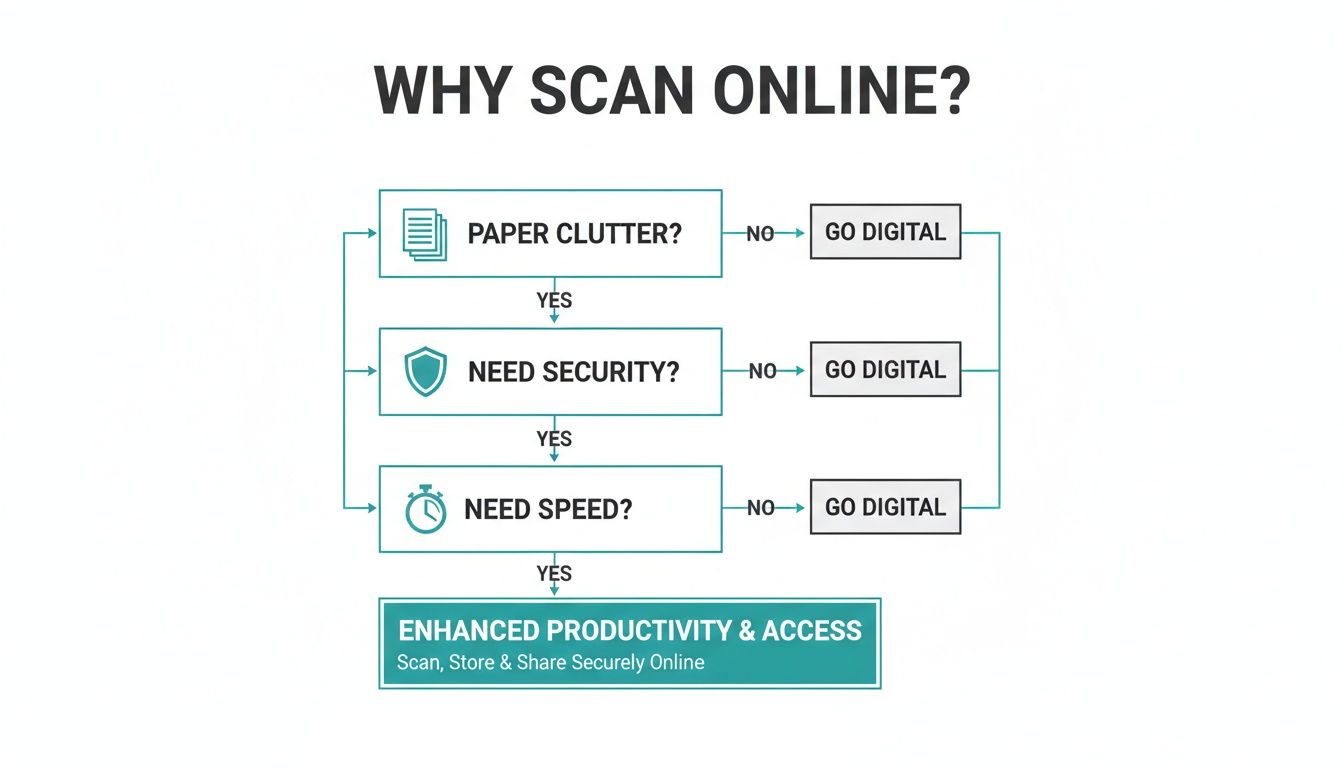
As the flowchart shows, no matter where you start, the destination is a much more organised and secure way of managing your documents.
Comparing Online Document Scanning Methods
To help you decide which tool is the right fit for any given task, I've put together a quick comparison. This table breaks down the main methods, highlighting where each one truly shines.
| Scanning Method | Best For | Pros | Cons |
|---|---|---|---|
| Mobile App | On-the-go scans like receipts, business cards, and single-page contracts. | Super convenient and fast for one-off documents; it’s always with you. | Quality can be inconsistent depending on your phone's camera and the lighting. |
| Web Upload | Documents that are already digital (PDF invoices, e-statements). | The fastest method, with no extra hardware or software needed. | You can't use it for physical paper documents. |
| Desktop Scanner | High-volume jobs, multi-page documents, and archival scanning. | Delivers the best quality and consistency; perfect for batch processing. | Requires dedicated hardware and isn't portable. |
Ultimately, you'll probably find yourself using a mix of all three. The key is knowing which one to reach for to get the job done quickly and effectively.
How to Get a Perfect Scan Every Time
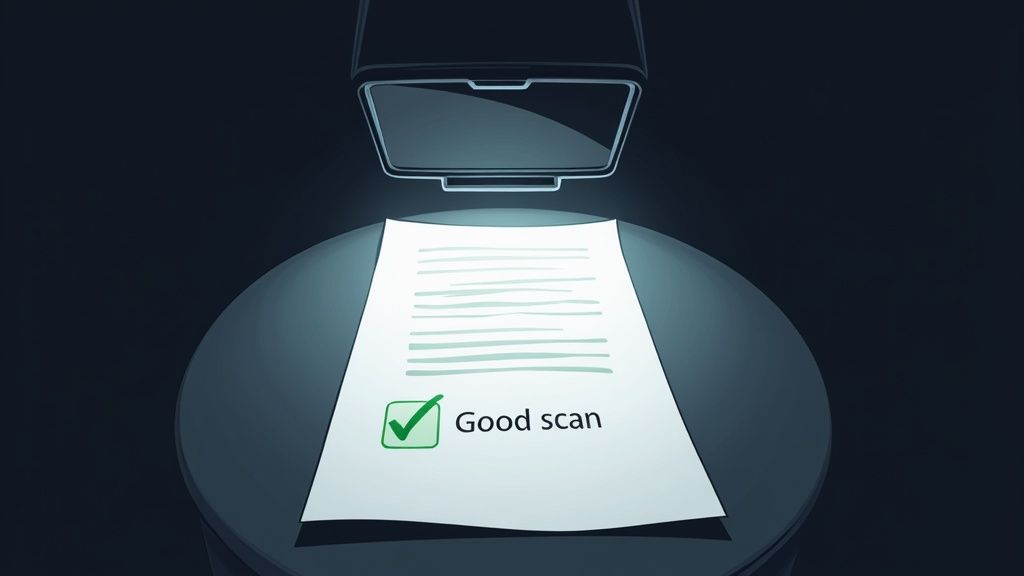
It’s one thing to snap a quick picture of a document, but creating a genuinely useful digital copy is another skill entirely. A blurry, skewed, or badly lit scan can be just as frustrating as losing the paper itself, especially if you need Optical Character Recognition (OCR) to pull the data accurately.
The good news? A few simple tweaks to your setup make all the difference.
Think of it like this: the quality of your scan is the foundation for everything else. For a system like Mintline, which automatically reads receipts and invoices, a clear scan isn't just nice to have—it's essential. The old saying holds true: garbage in, garbage out.
Master Your Environment for a Flawless Scan
You don’t need a professional photo studio to get this right. The most important factor, by far, is good, even lighting.
If you can, use natural daylight from a nearby window. It’s fantastic for reducing the harsh shadows that can swallow up important text. Scanning at night? Ditch your phone’s flash. That little light often creates a bright, washed-out hotspot right in the centre of your document. Instead, rely on an overhead room light for more balanced illumination.
Here's another trick I always use: find a contrasting background. Placing a white receipt on a dark desk or table makes it incredibly easy for your scanning app to find the document’s edges. This automatic detection is what gives you that perfectly rectangular, professional-looking scan instead of a wonky, skewed image.
The goal is to create a digital file that is just as clear and readable as the original paper. A few extra seconds of prep before you scan will save you minutes of headaches later on.
Pay Attention to Angles and Resolution
How you hold your camera matters. A lot. Always try to position your phone directly above the document, so it’s parallel to the surface. Capturing it from an angle distorts the text and makes it much harder for OCR software to do its job. While most modern scanning apps have perspective correction built-in, starting with a good angle gives the software the best possible chance to succeed.
If you want to dive deeper into how this works, our guide on how to scan text from an image breaks it down even further.
Finally, let’s talk resolution, which is measured in Dots Per Inch (DPI). This isn't something to just ignore.
- For standard documents: Think receipts, invoices, or basic letters. 300 DPI is the gold standard. It delivers fantastic clarity for OCR without creating a massive, clunky file.
- For detailed documents: If you're scanning a legal contract with tiny fine print or a page with lots of graphics, bumping the resolution up to 400 or even 600 DPI will ensure every detail is captured crisply.
This obsession with quality is fuelling massive growth. In the Netherlands, the market for Intelligent Document Processing (IDP) was worth USD 55.8 million in 2023 and is expected to rocket to USD 334.7 million by 2030. This boom shows just how much businesses are relying on high-quality scans to power their AI workflows. You can discover more insights about this rapidly growing market here. By taking the time to get a perfect scan, you're making sure your documents are ready for this new wave of automation.
Selecting the Right File Format
You've just scanned your document. Now what? The next choice you make—how to save it—might seem trivial, but it has a massive impact on how useful that digital file will be down the road. It’s the difference between a static picture and a smart, searchable piece of data.
Think of it this way: scanning a receipt as a JPEG is like taking a photo of a book page. You can see the words, sure, but you can't search for a specific phrase or copy a sentence. For those quick expense claims where you just need visual proof, a JPEG or PNG works just fine. They're universal and easy to share.
But when we're talking about important business documents—like contracts, invoices, or financial statements—the Portable Document Format (PDF) is the undisputed champion. A PDF locks in the original layout, so what you see on your screen is exactly what your accountant or client will see, no matter what device they're using.
Why a Searchable PDF Is the Gold Standard
Here's a pro tip: not all PDFs are built the same. For any serious business workflow, the one you want is a searchable PDF. This is where Optical Character Recognition (OCR) comes into play, creating an invisible text layer on top of the scanned image. Suddenly, your scan isn't just a picture anymore; it's an intelligent file you can search.
This is the magic that makes platforms like Mintline work so well. With a searchable PDF, the system can automatically read and pull out critical information—vendor names, invoice dates, total amounts—without you having to lift a finger for manual data entry.
Choosing a searchable PDF format is the single most important step in turning a scanned document from a simple digital archive into an actionable piece of data for your business. It’s the foundation of an automated financial workflow.
Balancing Quality and File Size
There's always a trade-off when you save a scanned file: image quality versus file size. Higher quality means a bigger file, which can be a pain to upload or email. This is where compression becomes your best friend.
But you have to use it correctly.
- Lossless Compression: This shrinks the file without throwing away any data. It's the perfect choice for text-heavy documents where you can't afford to lose a single detail.
- Lossy Compression: This makes files much smaller but does it by permanently deleting some information. It’s generally fine for photos, but if you get too aggressive with it on a text document, the words can become blurry and unreadable for OCR.
For instance, you'd never want to compress a multi-page legal contract; you need that high-resolution, uncompressed PDF for total clarity. A simple lunch receipt for an expense report, on the other hand? A compressed JPEG is more than enough. Getting a feel for these differences is a big part of building an efficient paperless system. To really get into the weeds, have a look at our guide on how to get the most from a PDF with OCR.
Organizing Your Scanned Documents for Easy Access
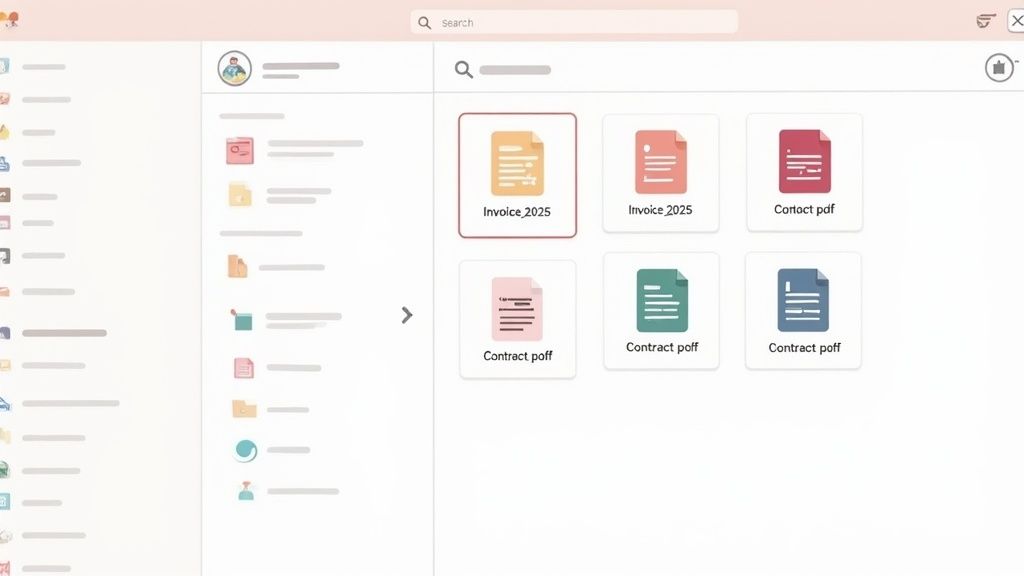
Alright, so you've scanned your documents. That’s a fantastic start, but the real magic happens in what you do next. A messy digital folder is just a high-tech version of a cluttered filing cabinet, and it's not going to save you any time.
Building a smart, consistent organisation system is what turns that digital pile of files into a powerful, searchable archive. This isn't just about tidying up; it's about creating a framework that lets you find exactly what you need in seconds, whether it's an invoice from last quarter or a contract from three years ago. Let's make your documents secure, accessible, and ready to work with the tools you already use.
Create a Consistent File Naming Convention
This is the absolute bedrock of good digital organisation. If you don't get this right, you’ll end up scrolling through a confusing list of files like scan_2024_08_25.pdf, which tells you absolutely nothing. The goal is to create a format that's both predictable and instantly descriptive.
A simple but incredibly effective convention for business documents usually includes these key pieces of information:
- Date: Always lead with the date in
YYYY-MM-DDformat. This is non-negotiable, as it forces your computer to sort files chronologically by default. - Vendor or Client Name: Who is this document from or for?
- Document Type: Is it an Invoice, Receipt, Contract, or something else? Be specific.
- Unique Identifier: If there's an invoice number or a short description, add it to the end.
For instance, a bill from a supplier could be named 2024-09-15_CreativeDesigns_Invoice_INV-7821.pdf. One glance and you know everything you need to without even opening the file. This single habit will make finding things so much easier.
Build a Logical Folder Structure
While a smart naming system is your first line of defence, a clean folder structure provides that next crucial layer of organisation. Fight the urge to just dump everything into a massive "Scans" folder. A tiered approach is far more manageable in the long run.
Think about how you'd organise physical files and replicate that logic. A common structure might look something like this:
/Finances//2024//Invoices_Received//Receipts_Expenses//Bank_Statements/
/Clients//Client_A//Contracts//Project_Files/
The aim here is to make navigation completely intuitive, so you or anyone on your team can find what they need without having to guess. This whole shift to digital workflows is only getting bigger. One forecast predicts the Netherlands' business document scanners market will grow at a 6.8% CAGR between 2025 and 2032, which just highlights the broader trend across Europe.
The combination of a clear naming system and a logical folder structure creates a powerful framework. It transforms your digital archive from a simple storage space into a strategic business asset.
As you organise these files, remember they often contain sensitive details. It's vital to think about How To Protect Personal Information Online to keep that data safe.
Connect Your Scans to Your Workflow
Now for the best part. Real efficiency comes when your scanned documents plug directly into your business tools. Storing files is one thing, but making them actionable is where you save serious time. This is where platforms like Mintline can bridge the gap between scanning and accounting.
Instead of staring at a scanned invoice and manually typing the details into a spreadsheet, you can just upload it straight to Mintline. The platform's AI gets to work, automatically pulling out key info—vendor, date, amount—and then it matches everything to the corresponding bank transaction.
This simple step gets rid of mind-numbing data entry, slashes the risk of errors, and maintains a perfect audit trail. What used to be hours of admin each month becomes just a few minutes of quick review.
Your Top Questions About Scanning Documents Online
Moving from paper to pixels always sparks a few questions. As you start to scan documents online, you'll naturally have concerns about security, the tech involved, and how to actually manage everything once it's digital. Let's walk through the most common queries I hear, with practical answers to help you get comfortable with your new paperless system.
Getting these basics sorted from the start means you're not just scanning paper; you're building a smarter, more efficient way to work.
Is It Really Safe to Scan Sensitive Documents Online?
This is the big one, and for good reason. The short answer is yes, it's absolutely safe—if you use a secure, reputable service. The non-negotiable feature you should look for is end-to-end encryption. Think of it as a digital armoured van for your data; it scrambles your documents so that only you and authorised viewers can make sense of them.
A simple rule of thumb: never scan sensitive information like contracts or financial records on a public Wi-Fi network, like the one at your local coffee shop. These are notoriously insecure. Stick to a trusted network. For business purposes, platforms like Mintline are designed from the ground up with robust security, ensuring your financial and personal data is properly locked down.
It sounds counter-intuitive, but your documents are often far safer in a professionally managed, encrypted cloud environment than they are sitting in a physical filing cabinet.
What Is OCR and Why Should I Care?
You’ll see the acronym "OCR" pop up everywhere, and it’s a game-changer. It stands for Optical Character Recognition, and it's the magic that turns a flat picture of a document into a fully searchable, interactive file. Without OCR, your scan is just a static image—no more useful than a photo.
With OCR, however, your digital archive comes to life. You can instantly find a specific clause in a 20-page agreement by searching for a keyword, copy text directly from a scanned invoice, or—and this is huge—have data automatically extracted and fed into your accounting software. It's the core technology that saves you from endless hours of mind-numbing manual data entry.
Can I Edit a Document After I've Scanned It?
Whether you can edit a scanned document all comes down to the file format. If you save your scan as a simple image like a JPEG, trying to edit the text is like trying to change the words on a printed photograph. It’s just not going to happen easily.
The trick is to save your scan as a searchable PDF using OCR. This gives you incredible flexibility. You can select text within the PDF to copy and paste into another program, like a word processor, for editing. Even better, most modern scanning apps and dedicated PDF software let you edit text directly, add notes, or fill in forms right on the scanned document itself. It completely closes the gap between a static picture and a living document.
What's the Best Resolution for Scanning Documents?
Choosing the right resolution is a bit of a balancing act between image quality and file size. We measure resolution in DPI (dots per inch)—the higher the DPI, the sharper the scan, but the bigger the file will be.
For almost all standard business documents like receipts, invoices, and letters, 300 DPI is the sweet spot. It’s the industry standard for a reason. It delivers a crisp, clear image that’s perfect for OCR technology, all while keeping the file size manageable enough to easily email or store in the cloud. You might bump it up to 400 or 600 DPI for something with tiny print or detailed graphics, but for your day-to-day needs, 300 DPI is the setting you'll use 99% of the time.
Ready to stop chasing receipts and automate your financial admin? Mintline uses powerful OCR and AI to link every bank transaction directly to its corresponding document, eliminating manual work for good. Start organising your finances the smart way with Mintline.