
Mastering the Perfect Pic of a Scanner Receipt for Mintline
Tired of receipt errors in Mintline? Learn how to take the perfect pic of a scanner receipt for flawless OCR and unlock true financial automation.
Getting a great picture of a receipt is the first, and most crucial, step towards the automated bookkeeping you signed up for with Mintline. For our Optical Character Recognition (OCR) technology to work its magic, the image has to be clear, well-lit, and framed just right.
Why a Great Pic of a Scanner Receipt Transforms Your Workflow
Let's be real—chasing down receipt details is a soul-crushing time sink. You chose Mintline to get away from manual data entry, but our AI is only as smart as the information you give it. A blurry, shadowy, or half-cut-off receipt photo is the single biggest reason OCR fails and expenses don't match up. This isn't about becoming a photographer; it's about making your financial admin genuinely hands-off.
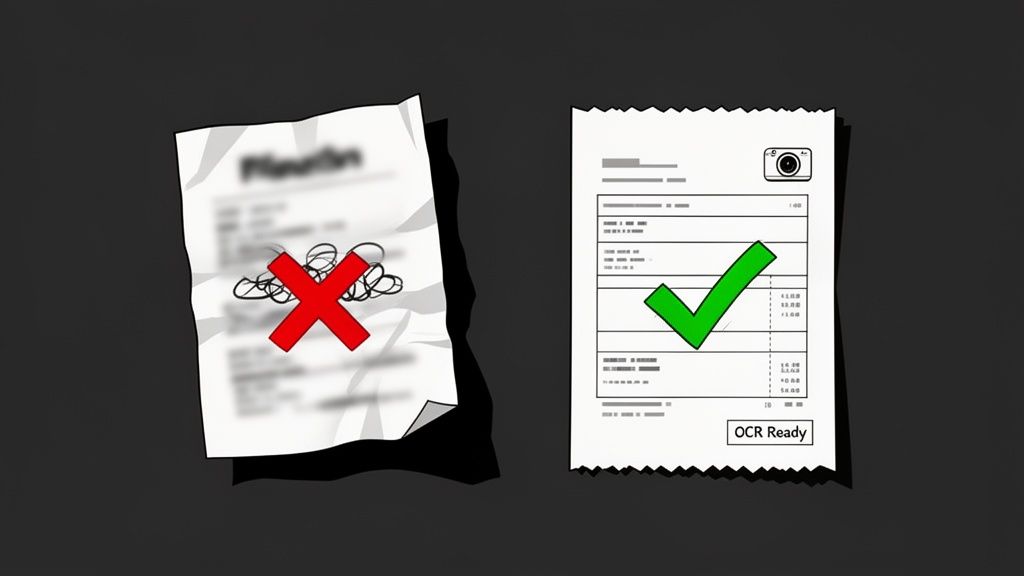
The Cost of Poor Quality Images
When a photo is subpar, the headache ripples through your entire process. Mintline’s AI might stumble on the vendor's name or misread the total, leading to failed matches or just plain wrong data. Suddenly, you're pulled back into the manual review cycle you were trying to escape, completely defeating the point of automation. Those "quick fixes" for small errors build up fast, creating friction you just don't need.
A high-quality image ensures that key data points—vendor name, date, and total amount—are captured flawlessly on the first try. This directly translates to higher automatic matching rates in Mintline and less time spent on manual verification.
Benefits of Getting It Right
On the flip side, learning a few simple tricks helps Mintline’s AI read every detail instantly and accurately. This small effort transforms a tedious chore into a smooth, reliable system. If you want to get into the weeds on different tools, check out our guide on using a document scanner online.
When the system just works, you get:
- Increased Accuracy: Fewer mistakes mean financial records you can actually trust.
- Time Savings: You'll be amazed at how many hours you get back each month.
- Effortless Audits: Clean, matched records make tax time a non-event.
Ultimately, that perfect picture is the bedrock of a financial workflow that finally lets you focus on your business.
Get Your Setup Right for a Perfect Scan
Before you even reach for your phone, spending a moment to set the scene can make all the difference. The whole idea is to give Mintline's AI a clear, unobstructed view of your receipt. Getting this right is the secret to a clean, pic of a scanner quality image, every single time.
Start by finding a good surface. You're looking for something flat with high contrast—a dark wooden table, a kitchen counter, or even just a plain, dark-coloured placemat will do the trick. This contrast helps the edges of the light-coloured receipt stand out, making it dead simple for our software to find them and crop the image perfectly.
Tweak Your Lighting and Background
Now, let's talk about light. You want to avoid harsh, direct light at all costs. A desk lamp shining right down or a bright overhead fixture will create nasty glares and dark shadows, which are the number one culprits for messing up the text recognition.
Soft, indirect light is your best friend here. If you can, set up near a window with plenty of natural daylight. This simple change gets rid of most of the common issues that cause scans to fail, ensuring every letter and number is crystal clear for the AI.
This shift towards digitising everything is happening all over Europe. In fact, the document scanner market in the region was valued at a huge USD 1,875.36 million back in 2024, and it's only expected to grow as more people embrace paperless tools like Mintline. If you're interested, you can learn about the expanding European scanner market and see just how big this trend is.
Pro Tip: Your ideal scanning spot has a dark, flat, non-reflective background paired with bright, even, indirect light. This simple setup prevents glare and helps the AI snap to the document's edges instantly.
Once you have a great digital copy, you might need to send it to someone who still relies on older tech. Knowing how to fax from scanner can be surprisingly handy, keeping your workflow entirely digital from start to finish.
Getting the Right Angle for Flawless Scans
Great lighting is half the battle, but how you hold your phone is just as important for getting a clean scan. For the best results, you need to think like a photocopier. Position your camera directly over the receipt, making sure it’s perfectly parallel to the surface it’s lying on.
Taking that extra second to line things up prevents a common issue called keystoning. This is when the receipt looks more like a trapezoid than a rectangle in your photo because you’ve taken it at an angle. Keystoning stretches and distorts the text, especially at the far edges, making it nearly impossible for Mintline’s AI to read accurately. A straight-on, flat view is the secret to avoiding this.
This simple diagram breaks down the ideal setup for a perfect photo every single time.
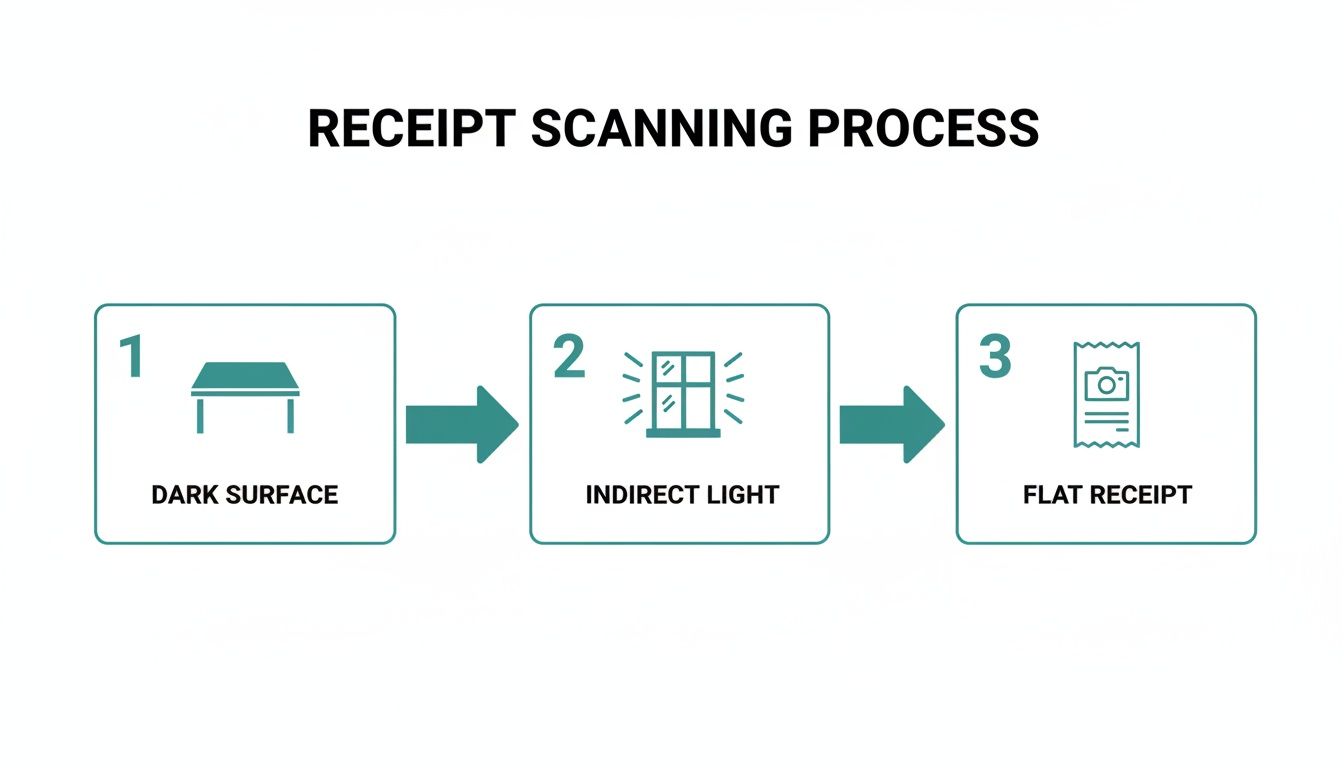
As you can see, getting the environment right—a dark, non-reflective surface and good, indirect light—sets the stage for success before you even snap the picture.
Frame the Shot Perfectly
When you're taking the photo, don’t zoom in so much that the receipt fills the entire screen. Instead, leave a small, even border of the background visible on all four sides. This simple trick gives Mintline’s software clear reference points to find the document’s edges, which makes our automatic cropping feature work beautifully.
It’s a classic mistake to get too close and accidentally chop off a corner or an edge of the receipt. That almost always results in a failed scan.
Here's a quick tip to remember: if you can see a little bit of the table all the way around the receipt, the software can too. This tiny buffer is your best friend for reliable edge detection.
We see firsthand how much people value efficiency, and the technology is constantly evolving to meet that demand. Just look at Europe’s industrial fixed scanner market, which was valued at USD 487.3 million in 2025—with the Netherlands playing a major role. It’s all part of a larger move toward automation, which is exactly where tools like Mintline fit in. If you're curious, you can find more details about the growth of industrial scanner technology.
For a deeper dive into turning images into usable data, check out our guide on how to scan text from an image.
Common Receipt Photo Mistakes and How to Fix Them
Even with the best intentions, it's easy to make small mistakes that can throw off the OCR process. Here’s a quick-glance table of the most common pitfalls we see and how to easily correct them.
| Common Mistake | Why It Fails OCR | Quick Fix |
|---|---|---|
| Shadows on the Receipt | Dark patches obscure text and numbers, making them unreadable to the AI. | Move away from direct overhead lights. Use natural, indirect light from a window. |
| Angled Photo (Keystoning) | Text becomes warped and distorted, especially at the edges of the document. | Hold your phone flat and directly above the receipt, parallel to the surface. |
| Blurry Image | The camera couldn't focus, so characters are not sharp enough to be recognised. | Tap your screen to focus on the text. Hold your phone steady with both hands. |
| Cropped Edges | Important information like the total amount or date gets cut off. | Frame the shot so a small margin of background is visible on all four sides. |
| Creased or Wrinkled Receipt | Folds create shadows and distort the text, leading to scanning errors. | Smooth the receipt out on a flat surface before taking the photo. |
Nailing these small details from the start will save you a lot of time and ensure your receipts are processed accurately on the first try.
Optimizing Your Image Before You Upload
Taking a great photo of your receipt is the first win, but spending just a minute or two on a few tweaks before uploading to Mintline can make all the difference. These quick pre-upload checks are what separate a frustrating workflow from a fantastic one, saving you from manual data entry down the line.
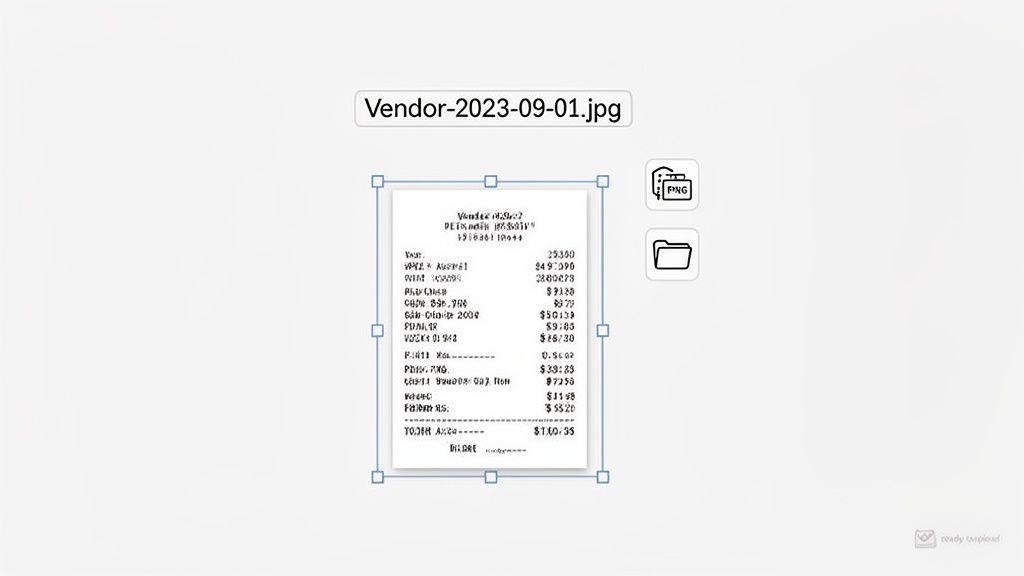
First thing’s first: crop the image tightly. Your final picture should show only the receipt. Any background clutter—your desk, a keyboard, that half-empty coffee mug—needs to go. This simple step helps Mintline's AI focus squarely on the important text, ignoring any visual noise that could confuse it.
Next up, give the file a sensible name. A generic filename like IMG_4321.jpg straight from your phone isn’t just messy; it’s a missed opportunity. A little discipline here pays off big time when you're trying to find something later.
Best Practices for File Naming and Formats
A logical file name makes managing your documents outside of Mintline a breeze. A structured name gives you key information at a glance. We've found a couple of simple conventions work best:
- Vendor-YYYY-MM-DD.jpg (e.g.,
CoffeeShop-2023-10-26.jpg) - YYYY-MM-DD-Vendor.png (e.g.,
2023-10-26-OfficeSupplies.png)
This small organisational habit helps you maintain clean records everywhere, not just within our system.
When it comes to file type, there’s no need to get fancy. For photos of receipts, JPEG and PNG are your best friends. They strike the perfect balance between clear image quality and a manageable file size, which means faster uploads and quicker processing in Mintline.
Remember, the goal is to feed the system the cleanest possible data. A tight crop, a logical file name, and the right format are the building blocks for flawless, automatic matching every time.
Tackling Common Scanning Hiccups
Even when you follow all the right steps, some documents can be stubborn. If you're getting blurry photos, it's usually an easy fix that people often overlook. Before you take the picture, just tap your finger on the part of the receipt with the most text. This manually sets the focus right where you need it, telling your phone's camera what to prioritise for a sharp image.
Those long, flimsy thermal receipts that fade over time are another common headache. Your phone's normal camera app often struggles to make sense of the faint print. This is where a dedicated scanning app becomes your secret weapon. We recommend trying out free options like Microsoft Lens or Adobe Scan. They are built to automatically pump up the contrast, making faint text pop and turning a barely legible slip into a clean document that Mintline can read perfectly.
Why Did My Upload Fail?
If you try to upload a document to Mintline and it gets rejected, don't panic. It's almost always one of two simple issues. Before you try uploading it again, just give these a quick check:
- File Format: Is it a standard image file? Mintline works best with common types like JPEG or PNG.
- File Size: How big is the file? If it's a massive, high-resolution scan, it might be too large for the system.
Running through that quick two-point checklist solves most upload problems right away. And if you've uploaded a crystal-clear image that's just sideways or upside down, that's no problem at all. You can easily fix a rotated PDF document directly within our platform.
The technology behind all this is constantly improving. In the Netherlands, for instance, the diagnostic imaging market—which includes all sorts of advanced scanners—was valued at USD 622.24 million back in 2025. This incredible growth is a great indicator of how imaging tech is becoming more powerful and accessible, and that includes the very tools in our pockets that help us get a perfect shot of a receipt. You can dive deeper into the Dutch diagnostic imaging market trends to see where things are headed.
Our number one tip? Don't let a tricky receipt beat you. Using a dedicated scanning app for faded or crumpled documents is the single best way to make sure every single expense gets captured correctly the first time.
Common Questions About Scanning Receipts
Getting a clear, readable image of a receipt isn't always straightforward, especially when you're dealing with crumpled or faded paper. Here are some quick answers to the questions we hear most often, designed to help you get perfect scans for Mintline every time.
Is My Phone Camera Good Enough, or Should I Use a Scanning App?
While your phone’s camera can certainly get the job done in a pinch, a dedicated scanning app like Microsoft Lens or Adobe Scan is almost always the superior choice.
These apps are built for this exact task. They automatically find the document’s edges, straighten out any weird angles from how you held the phone, and boost the contrast to make the text pop. For any receipt that's a bit challenging—think crumpled, faded, or super long—a scanning app can be the difference between a successful scan and a failed one.
What’s the Best Way to Scan Really Long Receipts?
It’s tempting to try and capture a long receipt all in one go by holding your phone far away, but that's a surefire way to get blurry, unreadable text. The resolution just won't be good enough for our software to read.
Instead, look for a "multi-page" or "stitching" feature within your scanning app. This lets you take several overlapping photos as you move down the receipt. The app then cleverly pieces them together into a single, sharp PDF. This technique keeps every single line item crystal clear for Mintline's AI.
Can I Just Take a Picture of a Digital Receipt on My Screen?
We really recommend against taking a photo of a receipt on a computer or phone screen. This creates all sorts of problems, from screen glare to strange pixel patterns (called moiré patterns) that completely throw off the character recognition software.
If you have a digital receipt from an email or a website, the best thing to do is save it directly as a PDF.
The easiest and most reliable way to do this is to use the "Print to PDF" option in your browser or email app. This creates a perfect digital copy that our system can read with the highest accuracy, guaranteeing a match.
For businesses that handle a lot of paperwork, it might be worth looking into dedicated scanning hardware. If you're thinking about upgrading your setup, this guide on choosing the right scanner has some great advice tailored to business needs and can be a real time-saver for larger teams.
Ready to stop chasing receipts and automate your bookkeeping for good? Mintline automatically links every bank transaction to its corresponding receipt, turning hours of monthly admin into just a few minutes of review. Get started for free at Mintline.