
Screenshot Naar PDF: The Essential Guide for Flawless Bookkeeping with Mintline
Learn how to turn any screenshot naar PDF for your business. Our guide covers all platforms and helps you prepare documents perfectly for automated bookkeeping.
Grabbing a quick screenshot is second nature, but the real magic happens when you convert that screenshot naar pdf. This simple action turns a fleeting image into a professional, archivable document, essential for modern bookkeeping. It’s the key step to getting your digital receipts and invoices ready for intelligent accounting software, ensuring they’re readable, secure, and perfectly prepped for a platform like Mintline.
Why Converting Screenshots to PDF Is a Business Essential
We’ve all been there: a folder overflowing with random receipt screenshots. While JPEGs and PNGs are great for a quick share, they’re a recipe for chaos when it comes to business finances. The act of converting a screenshot to PDF isn't just a neat trick; it's a fundamental part of a smart, automated financial workflow.
This small habit is your first move toward transforming a mess of digital files into a clean, audit-ready bookkeeping system. For businesses here in the Netherlands, this process is even more critical for both compliance and efficiency.
Complying with Dutch Tax Authority Requirements
The Dutch Tax Authority (Belastingdienst) is clear about its rules for digital record-keeping. Your records need to be complete, accurate, and unalterable for the entire retention period. A simple image file can be easily edited, which might not hold up to scrutiny. A PDF, on the other hand, creates a far more stable and professional record that keeps you on the right side of compliance.
This screenshot shows just how clean and organised a tool like Mintline can be when it's fed the right documents.
A system like this thrives on clear, stable documents—like PDFs—not a jumble of miscellaneous image files.
Eliminating Administrative Chaos
For freelancers and small business owners, administrative overload is a serious drag on growth. Here in the Netherlands, where the self-employed sector is booming, efficiency is everything. According to Statistics Netherlands (CBS), a whopping 68% of Dutch SMBs and independent contractors regularly convert screenshots to PDF for their bookkeeping, a habit that has grown significantly with the shift to paperless accounting.
It’s a huge time-saver. Tools that streamline admin tasks can give freelancers back an average of 12 hours every month. You can find more deep-dives into the Dutch economy over at the CPB Netherlands Bureau for Economic Policy Analysis.
By standardising your documents into PDFs, you create a single, predictable format for all your financial records. This consistency is exactly what automated platforms like Mintline need to accurately pull data and match receipts to bank transactions, turning hours of manual work into a job that takes just minutes.
Mastering Screenshot to PDF Conversion on Any Device
Turning a quick screen grab into a professional document shouldn't be a hassle, no matter what device you're on. The great news is you don’t need to hunt down expensive software to create a clean PDF from a screenshot. Your computer and phone are already equipped with everything you need to get the job done right.
Think of this as the crucial step that bridges the gap between simply capturing information and actually organising it for your accounting. This simple workflow is what takes you from digital clutter to a tidy, manageable system that's ready for an automated platform like Mintline.

As you can see, that conversion is what brings order to the chaos. It creates a standard format that tools like Mintline can read and process in a snap.
Your Go-To Methods on Windows and macOS
When you're at your desk, speed is everything. Thankfully, both Windows and macOS have built-in solutions that make the screenshot to PDF process incredibly fast.
On a Windows machine, the Snipping Tool (or its modern cousin, Snip & Sketch) is your best friend. Once you've captured your screen, don't just hit 'Save'. Instead, find the 'Print' option in the menu. From the list of available printers, simply choose "Microsoft Print to PDF". This doesn't send anything to a physical printer; it instantly saves your screenshot as a high-quality PDF.
For those on macOS, the process is just as elegant. After you take a screenshot (CMD+Shift+4 is a personal favourite), the image file appears on your desktop. Open it with the Preview app, which is the default viewer. From there, it's a simple trip to the menu bar: File > Export as PDF. That's it. Two clicks, and you have a professional-grade document.
Here's a pro-tip I can't stress enough: make sure your original screenshot is as clear as possible. The OCR technology in Mintline depends on crisp, readable text. A blurry or low-resolution capture will almost certainly cause data extraction errors, which completely undermines the point of automating your bookkeeping.
For capturing web content like long invoices, a handy skill to develop is learning to take full page screenshots in Chrome. It’s a game-changer for grabbing an entire transaction history in a single, neat file.
Built-in Screenshot to PDF Methods by Platform
Every operating system has a slightly different way of handling this, but the end result is the same. I've put together this quick table to show you the most direct, built-in method for each platform, so you don't have to guess.
| Operating System | Recommended Native Tool | Key Steps |
|---|---|---|
| Windows | Snipping Tool / Snip & Sketch | Capture your screen, then select Print > Microsoft Print to PDF. |
| macOS | Preview App | Take a screenshot, open it in Preview, then go to File > Export as PDF. |
| iOS / iPadOS | Screenshot Editor | Take a screenshot, tap the thumbnail, and select Save to Files as a PDF. |
| Android | Photos / Gallery App | Open the screenshot, tap Share or the menu, then select Print > Save as PDF. |
These native tools are my go-to recommendations because they're fast, reliable, and already installed on your device. No downloads needed.
Creating PDFs on Your Mobile Device
Let's be honest, you're probably snapping pictures of receipts and invoices with your phone while on the go. Both iOS and Android have surprisingly powerful, built-in features for exactly this purpose.
If you're using an iPhone or iPad:
- Snap a screenshot like you always do.
- Immediately tap the little thumbnail that pops up in the bottom-left corner.
- If you're capturing a webpage, you might see a "Full Page" option—grab that. Otherwise, just tap "Done."
- Choose "Save to Files," which will automatically save the screenshot as a PDF.
This direct-to-PDF workflow is incredibly efficient, especially for saving online receipts or invoices from an app.
On an Android device, the process is just as straightforward. After taking a screenshot, open it from your gallery or photo app. Find the 'Print' option, which is usually tucked inside the 'Share' menu or the settings (three dots). Just like on Windows, you'll see an option to "Save as PDF". Pick that, choose where you want to save it, and you're all set. This trick keeps your camera roll from getting clogged with financial docs.
The real power of these mobile methods is their seamless integration with cloud storage like iCloud Drive or Google Drive. This makes it incredibly easy to keep your newly created PDFs organised and ready for upload into platforms like Mintline. And if your screenshot is of a full physical document, our guide on how to scan a document online can give you some great tips for getting the best possible quality.
How to Combine Multiple Screenshots into One PDF
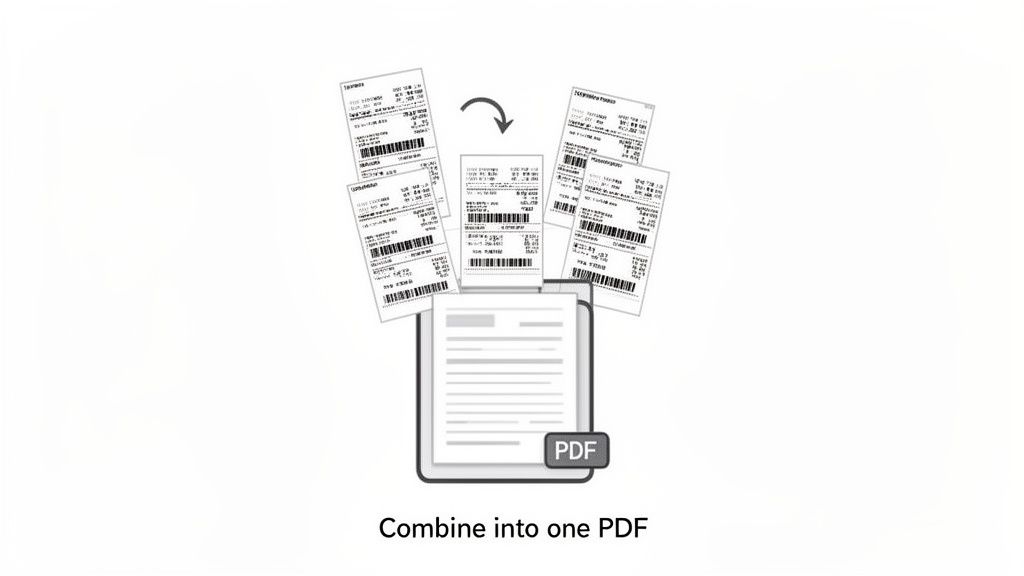
Grabbing a screenshot of a single receipt is easy enough. But what happens when you’re dealing with a long online invoice or a multi-page bank statement that won't fit in one shot? Firing off a dozen separate image files to your bookkeeper is a recipe for confusion and creates a lot of unnecessary work.
This is where combining all those screenshots into a single PDF can make a huge difference in your admin workflow. The goal isn’t just to merge files; it’s to create one coherent, multi-page document that tells the whole story. For a system like Mintline, a single, complete PDF is processed far more accurately than a jumble of individual images. A little organisation now saves you a lot of manual correction later.
Combining Screenshots on macOS Using Preview
If you’re on a Mac, you already have a powerful tool for this built right into the operating system: the Preview app. No need to download anything extra.
Here's a quick way to get it done:
- First, get all your screenshots saved in one place, like a new folder on your desktop. This makes them easy to find and select.
- Next, highlight all the image files, right-click, and choose Open With > Preview. This trick opens every screenshot in the same Preview window. You’ll see a sidebar with thumbnails of each image.
- From there, you can just drag and drop the thumbnails in the sidebar to get them in the right order. Once everything looks correct, go to File > Print. In the print pop-up, look for the little “PDF” dropdown in the bottom-left corner and select Save as PDF.
Just like that, you have a clean, multi-page PDF ready to upload.
Using Online Tools for Any Platform
Don't worry if you're a Windows user or just prefer working in a browser. There are plenty of free online tools that can merge your screenshots into a PDF just as easily. These web-based solutions are typically very intuitive and work on any device.
When you're picking one, just make sure it's from a reputable source that respects your privacy and doesn't slap a big watermark over your final document. The process is almost always the same: upload your files, drag them into the correct order, and hit the button to download your combined PDF.
The most important tip here is to always double-check the page order before you finalise the PDF. A bank statement with page two appearing before page one can cause real headaches and lead to incorrect data entry.
Why a Single PDF is Better for Mintline
Handing over one consolidated PDF instead of a folder full of images has a direct impact on how well automated accounting tools work. Platforms like Mintline are built to analyse documents as a complete whole.
- Improved Accuracy: A single, multi-page document provides the full context, which seriously reduces the chance of the AI misreading a standalone image.
- Faster Processing: One file is ingested and processed much more quickly than ten separate ones. This speeds up your entire reconciliation workflow in Mintline.
- Simplified Organisation: It's far easier for you and your accountant to manage one file per transaction instead of a collection of disconnected images.
Taking this approach ensures every detail is captured in the correct sequence, making the automatic matching of receipts to bank transactions in Mintline practically seamless. If you want to take your digital document game even further, our guide on using a gratis PDF scanner is a great next step.
Optimising PDFs for Spot-On Automated Bookkeeping
So, you've turned your screenshot into a PDF. That's a solid first step. But to unlock the real time-saving power of automated bookkeeping platforms like Mintline, a little prep work goes a long way.
Think of it this way: you’re preparing your document so that software can read it perfectly. The whole point is to make life easier for the Optical Character Recognition (OCR) technology that tools like Mintline rely on. A skewed, dark, or blurry screenshot is a surefire way to get errors, but a clean one sails right through.
Getting High OCR Accuracy
The quality of your original screenshot has a direct, massive impact on your bookkeeping accuracy. If the image is poor, Mintline's software will struggle to pull the right data, leaving you to manually fix amounts, dates, or supplier names. That defeats the purpose of automating things in the first place.
To get your screenshot PDFs ready for automated systems, it helps to have a basic understanding Optical Character Recognition (OCR). Once you know how it works, you’ll see why these small details are so important.
Here are a few simple habits that make a world of difference:
- Go Straight On: Always capture screenshots from a direct, head-on angle. Capturing your screen at a slant warps the text and can easily confuse the OCR engine.
- Light It Right: If you’re snapping a photo of a paper receipt, make sure the lighting is even. Avoid any dark shadows that might cover up key details.
- Keep the Resolution High: Don't shrink or over-compress the screenshot before you convert it. The sharper the text, the better the chance of a 100% accurate data extraction in Mintline.
A common pitfall is thinking, "If I can read it, the software can too." But OCR is much more sensitive to blur, odd angles, and shadows. Your aim should be to create a PDF that’s as close to a clean, digital document as possible.
Smart Compression and Naming Files
With a high-quality PDF in hand, the last steps are all about smart organisation. While huge files can slow down uploads, compressing them too aggressively will tank the image quality. You need to find that sweet spot. Most built-in "Save as PDF" tools have a "reduce file size" option that does the job without making the text unreadable.
For Dutch accounting firms, the 'screenshot naar PDF' workflow is a daily reality. And for startups, where a reported 35% of founders say admin is their biggest headache, getting this right can prevent 25% of common matching errors. This is a huge deal for maintaining accuracy in platforms like Mintline. You can find more data about the Dutch business landscape on cbs.nl.
Finally, get into the habit of a good file-naming system. A generic name like Screenshot_2024-10-26.pdf tells you nothing. A much better approach is something like 2024-10-26_VendorName_Invoice123.pdf. This makes your files searchable and easy to identify, even outside your accounting software, ensuring your records are always organised and ready for an audit. To see what happens next with this data, take a look at our guide on the best PDF to text converter tools.
From PDF to Perfectly Matched Transaction in Mintline
So, you’ve mastered turning your screenshots into neat, optimised PDFs. Now for the magic. This is where all that prep work pays off, connecting those documents directly to your bookkeeping software and turning a simple file into a perfectly matched transaction. It’s the moment tedious manual entry becomes a thing of the past.
The old way meant opening each file and manually typing everything into a spreadsheet. The Mintline way? You just drag and drop your whole batch of PDFs into Mintline, and the system takes over.
How Mintline’s AI Connects the Dots
Once your PDFs are uploaded, Mintline’s intelligent system fires up. Its advanced OCR technology doesn't just see an image; it reads and understands the data within each document.
It’s incredibly quick at pulling out the essential information:
- The vendor or supplier's name
- The exact date of the transaction
- The total amount paid, including VAT
- The invoice or receipt number
This data extraction is both fast and precise, especially since you’ve fed it clean, high-quality PDFs. The system then gets clever, cross-referencing this information with your linked bank transactions to find the perfect match. A receipt from "Coolblue" for €49.95 on October 26th? Mintline automatically pairs it with the corresponding debit from your bank account.
This is exactly what you see in Mintline’s reconciliation view—a clear dashboard showing which documents have been automatically linked to their bank transactions.
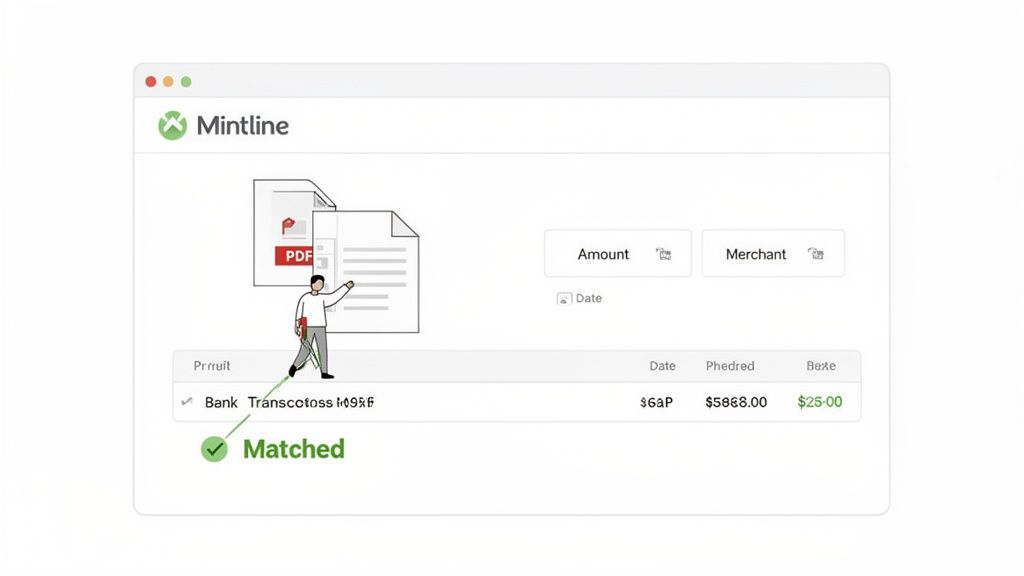
The interface gives you an immediate, at-a-glance overview of what’s matched and what might need a quick look, making the whole review process incredibly efficient.
From Manual Chore to Minutes of Review
The impact of this automation is huge. A task that used to eat up hours with painstaking, error-prone data entry is now boiled down to just a few minutes of review. Mintline simply presents the proposed matches, and you give them a quick confirmation.
This is more than just a time-saver; it’s a fundamental shift in how you handle your finances. You stop being a data entry clerk and become a financial supervisor, focused on accuracy instead of getting bogged down in the grunt work.
Ultimately, knowing how to convert a screenshot to PDF is the crucial first step in this entire workflow. By providing the system with organised, legible documents, you’re giving Mintline's AI everything it needs to work flawlessly. A chaotic pile of digital receipts becomes a fully reconciled, audit-ready financial record, freeing you up to focus on what actually matters: growing your business.
Frequently Asked Questions About Converting Screenshots to PDF
Even with a smooth workflow, you're bound to run into a few questions. When you regularly convert a screenshot to a PDF for your bookkeeping, a handful of common hurdles can pop up. Knowing what they are ahead of time will help you fine-tune your process and keep your records immaculate.
"My PDF is huge! How do I shrink it without making it blurry?"
This is probably the number one issue people face. A high-resolution screenshot can balloon into a surprisingly large PDF, which can be a pain to upload.
The temptation is to crank up the compression, but that often leaves you with a pixelated mess that OCR software can't read. The trick is to look for a "reduce file size" or "optimise" option in your PDF tool. This finds a happy medium between clarity and a manageable file size. For most receipts and invoices, a file under 1MB is the sweet spot.
"Is a screenshot PDF a 'real' document for the tax authorities?"
Absolutely, as long as you save it correctly. A standard PDF (or even better, a PDF/A, which is designed for archiving) freezes the document exactly as you captured it.
Think of it as a digital photocopy. A simple JPEG is easy to edit, but a PDF acts as a reliable, unchangeable snapshot in time. This is why grabbing screenshots of payment confirmations or important online records is a smart move—it protects you if that data ever disappears from the original website. This method creates a stable record that meets the requirements of the Dutch Tax Authority.
"The text in my final PDF is unreadable. What went wrong?"
Unfortunately, you can't really fix a blurry screenshot after you've taken it. This is all about prevention.
Before you hit that capture button, make sure your screen brightness is turned all the way up and you've zoomed in on the text so it's sharp and clear. Taking that extra second to get a crisp source image will save you from countless OCR errors and headaches later on.
"Do I need to buy special software for this?"
Not usually. For turning a single screenshot into a PDF, the tools already built into Windows, macOS, and your smartphone are perfectly capable. You only really need to start looking at dedicated software or online converters when you get into more complex tasks, like merging several images into one file or making other advanced edits.
Ready to stop chasing receipts and automate your bookkeeping? Let Mintline turn your optimised PDFs into perfectly matched transactions in minutes. Try it for free and see how much time you can save. Get started with Mintline.