
Export Data
Export matched receipts and transactions for your accountant, tax filing, or records.
Export a Statement
- 1Go to Statements and open a statement
- 2Click Export in the top right
- 3Choose options: include unmatched transactions (yes/no), format (PDF)
- 4Click Export
The export includes statement summary, all transactions, and matched receipt images.
Export Receipts
- 1Go to Receipts
- 2Filter by date, vendor, or status
- 3Click Export
- 4Choose format: PDF (visual) or CSV (spreadsheet)
Format Options
Visual document with receipt images. Best for documentation and audits.
CSV
Spreadsheet with all data fields. Best for analysis and accounting software.
CSV Fields
Exports include:
View Export History
Go to Exports in the sidebar to see all export jobs:
- •Export ID and type
- •Format and status
- •Created date and file size
- •Download and delete actions
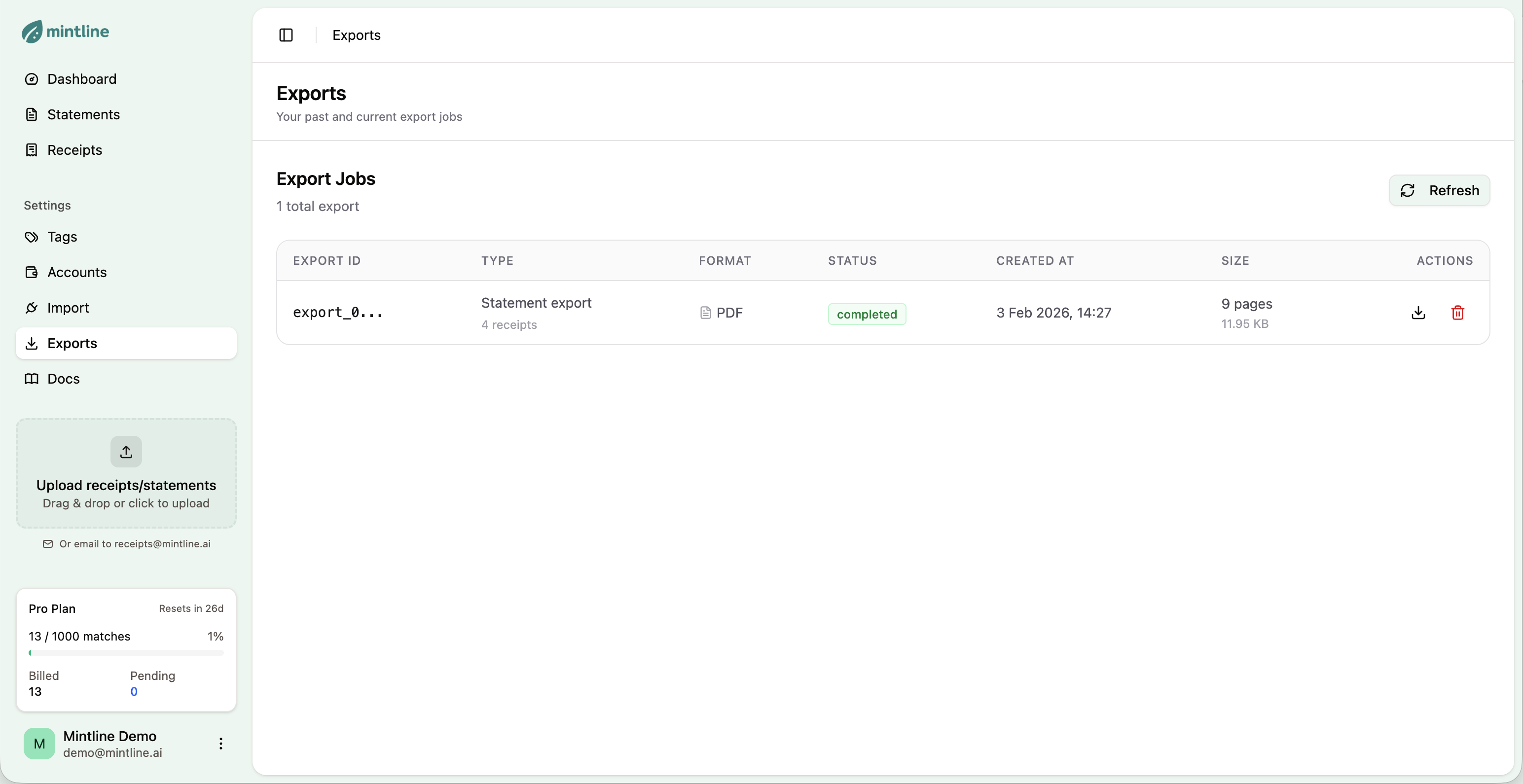
Export history with download and delete actions
Tips
For accountants
Export statements at month-end with PDF format for complete documentation.
For taxes
Filter receipts by year, export as PDF for supporting documentation.
For audits
Include unmatched transactions so any gaps are visible and documented.
API Exports
Create exports programmatically:
// Create export
await fetch('https://api.mintline.ai/api/exports', {
  method: 'POST',
  headers: { 'Authorization': 'Bearer ml_live_...' },
  body: JSON.stringify({
    statementId: 'bstmt_01abc',
    includeUnmatched: true
  })
});Automate with AI
Use natural language to generate exports with Claude or other AI assistants.
Set up MCP integration →