
How Matching Works
Mintline uses AI to automatically match receipts to bank transactions. Here's how it works.
The Matching Process
When you have both receipts and bank statements, Mintline compares them using:
- •Amount - Does the receipt total match a transaction?
- •Date - Is the receipt date close to the transaction date?
- •Vendor - Does the vendor name appear in the transaction description?
Each potential match gets a confidence score from 0-100%.
Confidence Scores
90-100%
High confidence - Amount, date, and vendor all align.
70-89%
Medium confidence - Most signals match.
<70%
Lower confidence - May need manual review.
Match Statuses
Proposed
AI found a match, awaiting your review.
Confirmed
You confirmed the match.
Rejected
You rejected the match.
Unmatched
No matching receipt found.
Reviewing Matches
In any statement, transactions are grouped by status. Click the Matched section to expand and see:
- •Confidence score (e.g., "96%")
- •Linked receipt details
- •View Receipt button
- •Unmatch button (to undo)
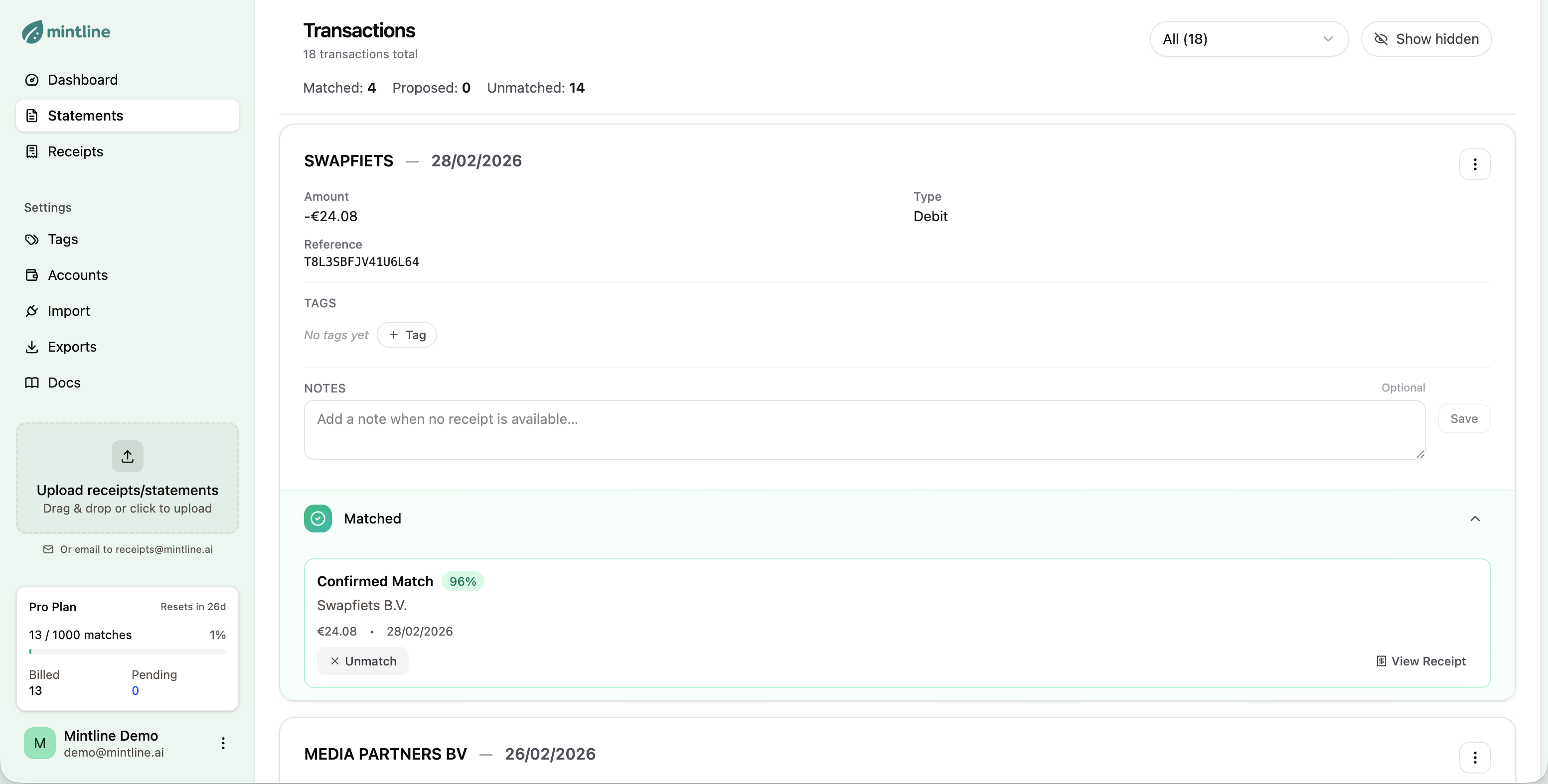
Matched transaction with confidence score and receipt details
Confirming and Rejecting
For proposed matches:
- 1Review the confidence score and details
- 2Click Confirm if correct
- 3Click Reject if wrong (they won't be suggested again)
Manual Matching
If AI doesn't find a match:
- 1. Open the receipt
- 2. Click "Match manually"
- 3. Search for and select the correct transaction
Unmatched Transactions
Some transactions won't have receipts (ATM withdrawals, bank fees). For these:
- •Add a Note explaining why
- •Optionally Hide from matching
Next Steps
Automate receipt collection by connecting your Gmail.
Connect Gmail to auto-import receipts →